
![[Grasshopper] How to Use Line to Set and Create a Line from Two Points](https://iarchway.com/wp-content/uploads/2026/01/Line2.png)
This article explains how to use Line to set and create a line defined by two points.
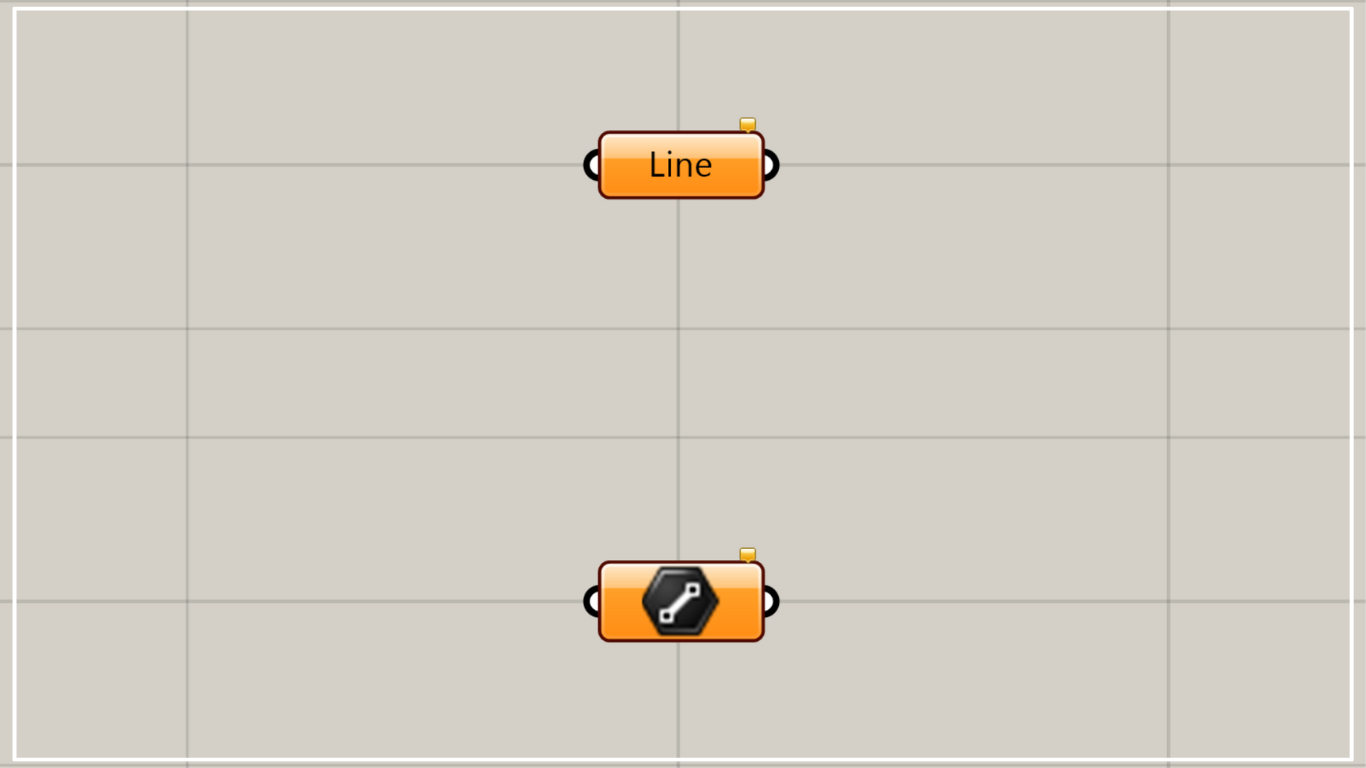
On the Grasshopper, it is represented by either of the two above.
Set the line segment formed by two points
Using Line, you can set a straight line that can be created from two points.
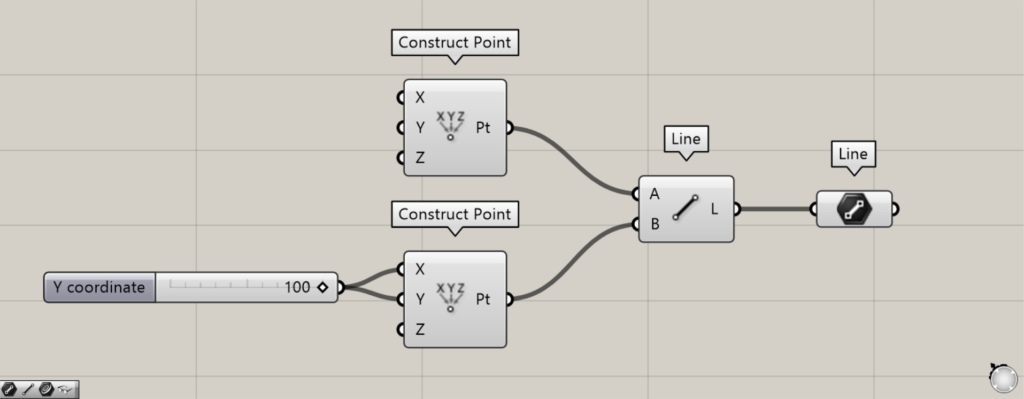
Components used: ①Construct Point ②Line ③Line
Please note that in addition to this Line, there is also a Line component with the same name.
The other Line component creates a straight line from two points.
With that in mind, let’s look at an example of setting a line segment defined by two points.
This time, we create two points and set the line formed by these two points in the Line.
First, prepare two Construct Points.
If no numerical values are entered, the point will be created at the origin position 0,0,0.
This time, by entering 100 into the Construct Point(X and Y) of one of the two Construct Points, we created a point at the position 100,100,0.
Then, connect the two Construct Points to the other Line(A and B).
Then, a straight line connecting the two points was created.
Finally, connect the other Line to this Line.
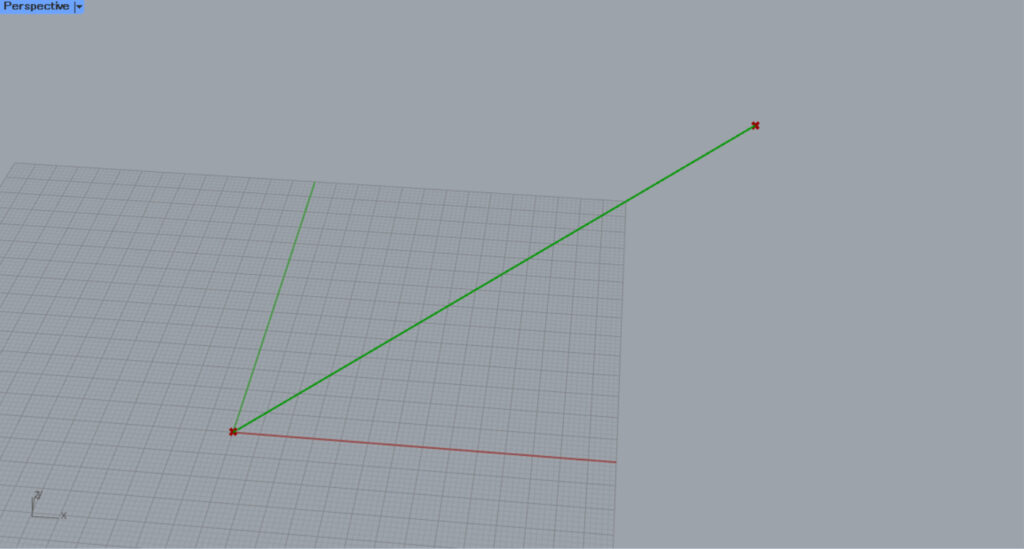
Then, a straight line was set in the Line like this.
In this way, you can set a line in Line.
Continuous straight lines or curves cannot be set
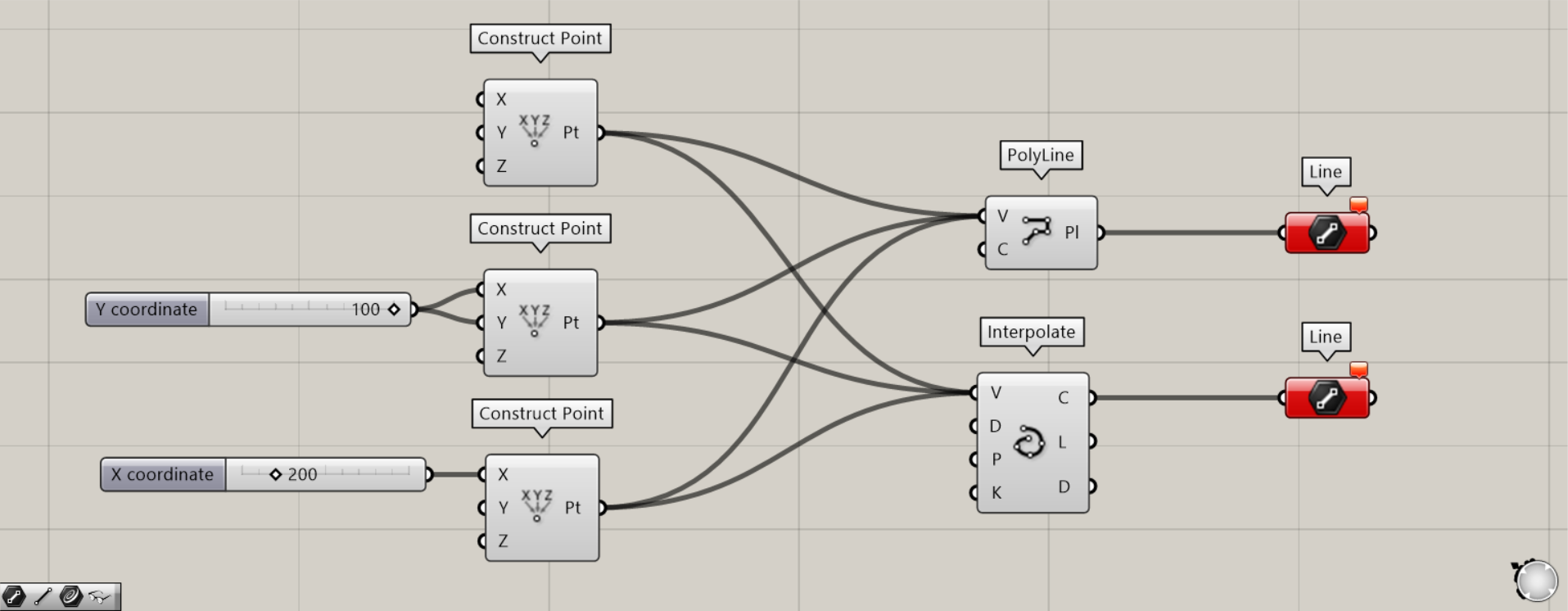
Components used: ① Construct Point ② PolyLine ③ Interpolate ④ Line
Line cannot set continuous straight lines or curves.
For example, let’s create three points and connect them with continuous straight lines and curves.
First, prepare three Construct Points.
We entered 100 for the second Construct Point(X and Y) values, and 200 for the third Construct Point(X).
Then, points will be created at the positions 0,0,0, 100,100,0, and 200,0,0.
Next, connect the three Construct Points to the PolyLine(V) and Interpolate(V) respectively.
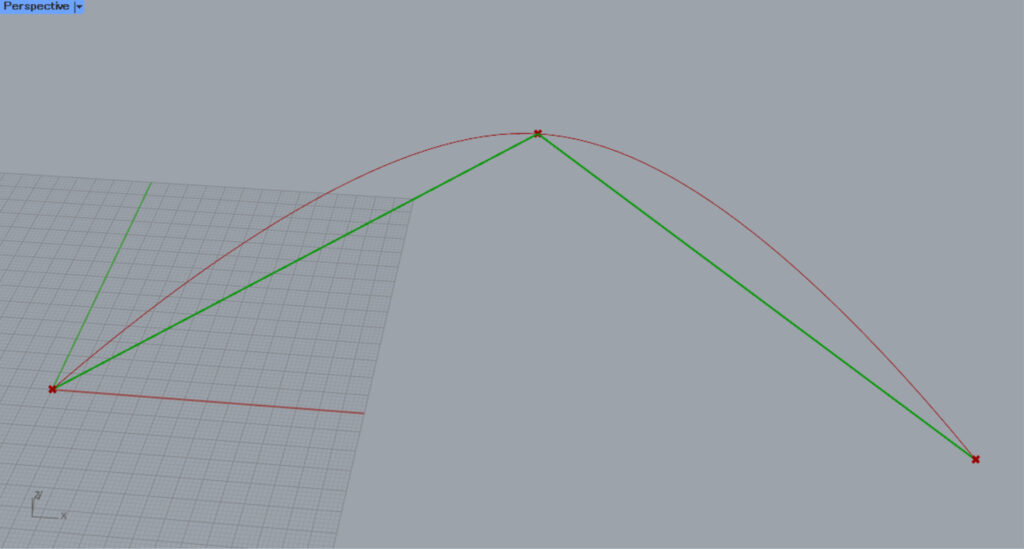
Then, the consecutive straight line and curve were created.
Then, connect PolyLine and Interpolate to Line respectively.
Then, an error will appear on Line.
This is because Line only set straight lines formed by two points.
By utilizing this property, you can distinguish between a straight line that can be drawn through two points and a continuous straight line or curve.
Set and create straight lines directly
You can also directly set or create straight lines in Line.
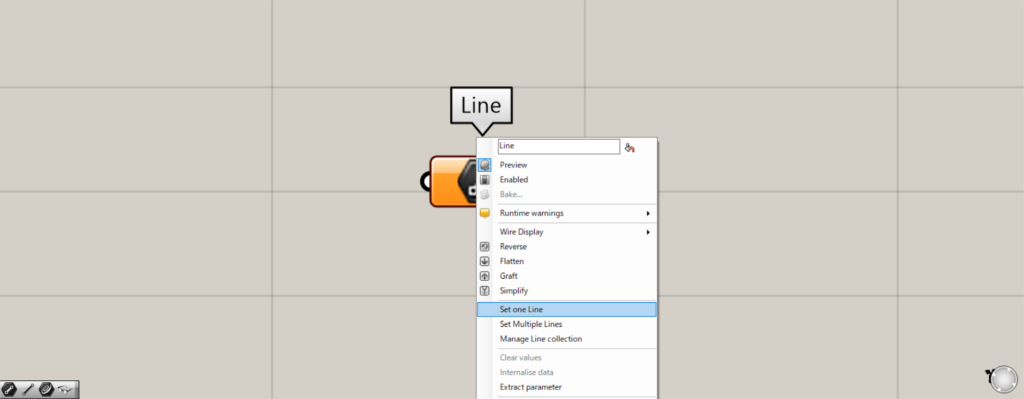
For a single line, right-click Line and select “Set one Line”.
Then, the screen will switch to Rhinoceros.
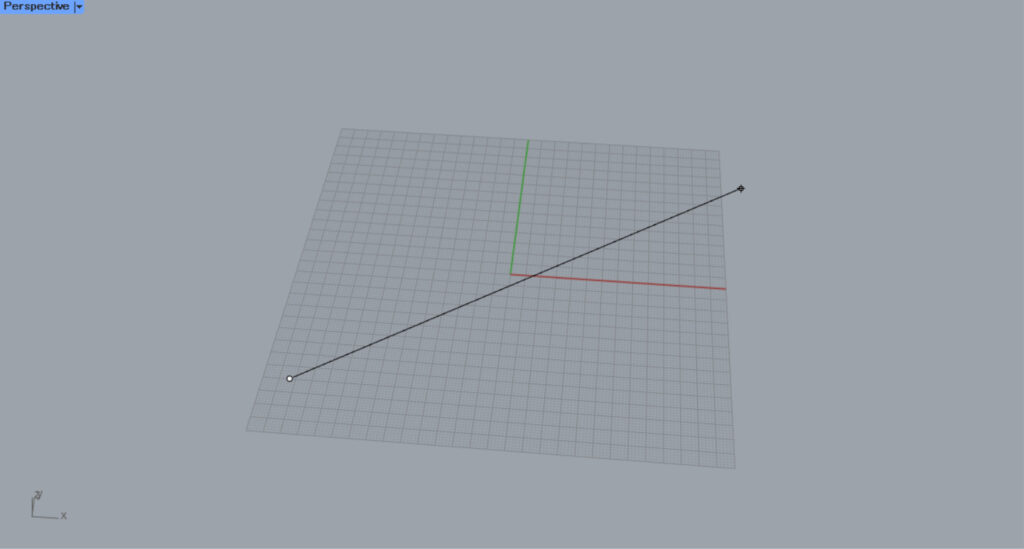
Then, specify two points on Rhino.
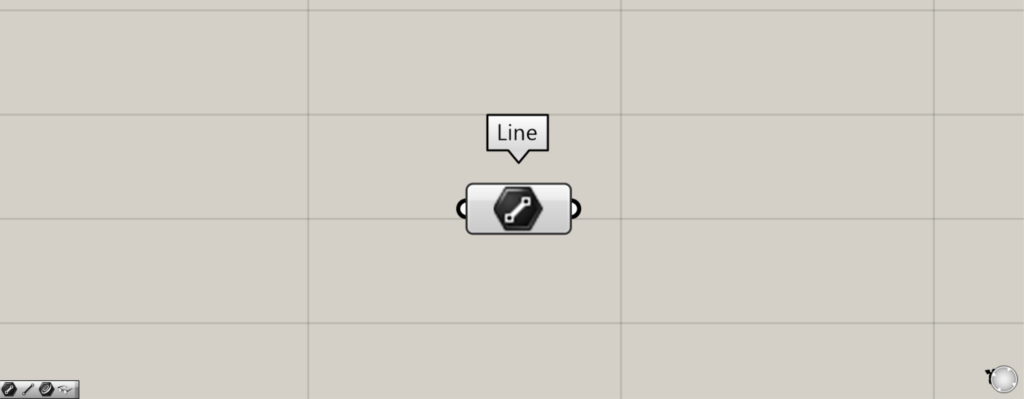
Then, a line was created and set in Line.
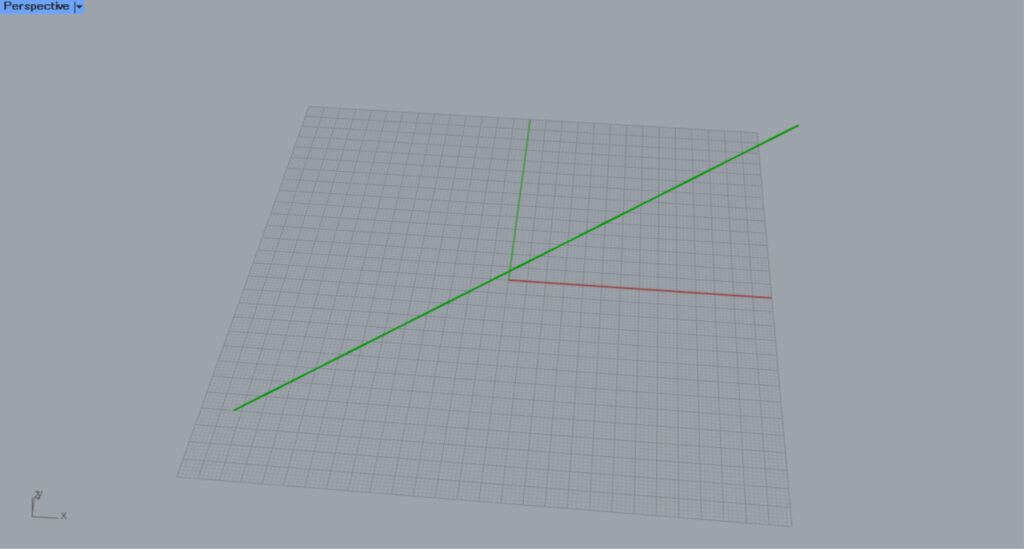
This is the situation on Rhino.
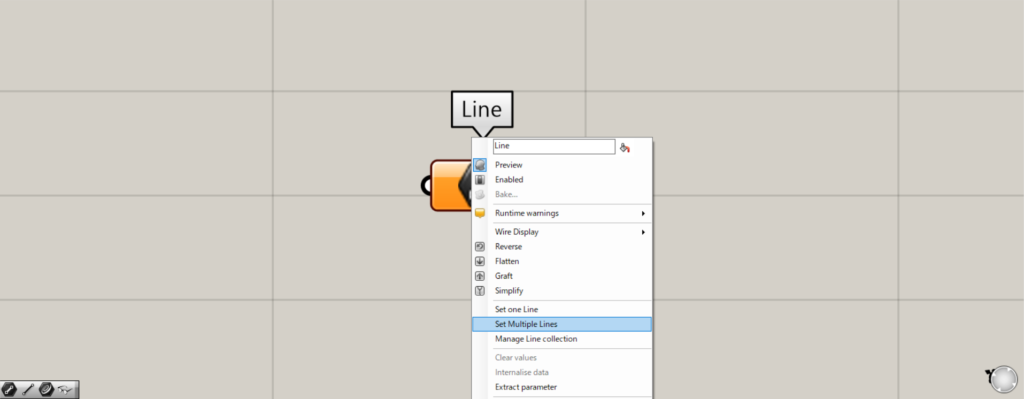
To set multiple lines, right-click the Line and select “Set Multiple Lines”.
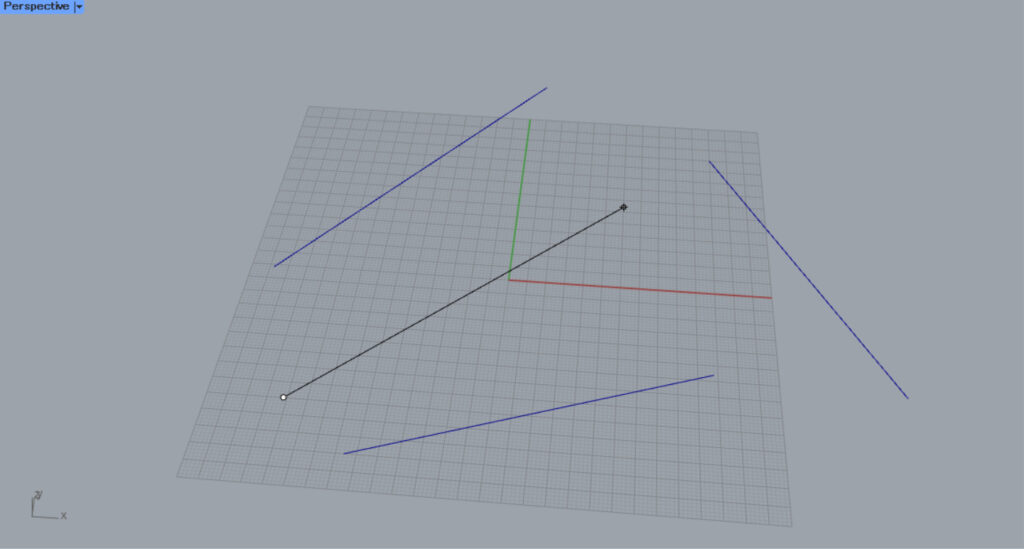
Then, as before, create multiple straight lines on Rhino.
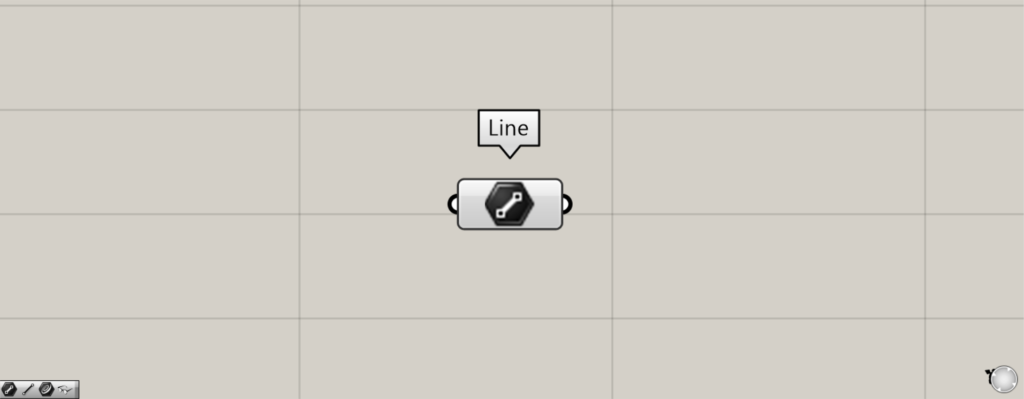
Then, multiple lines were created and set in Line.
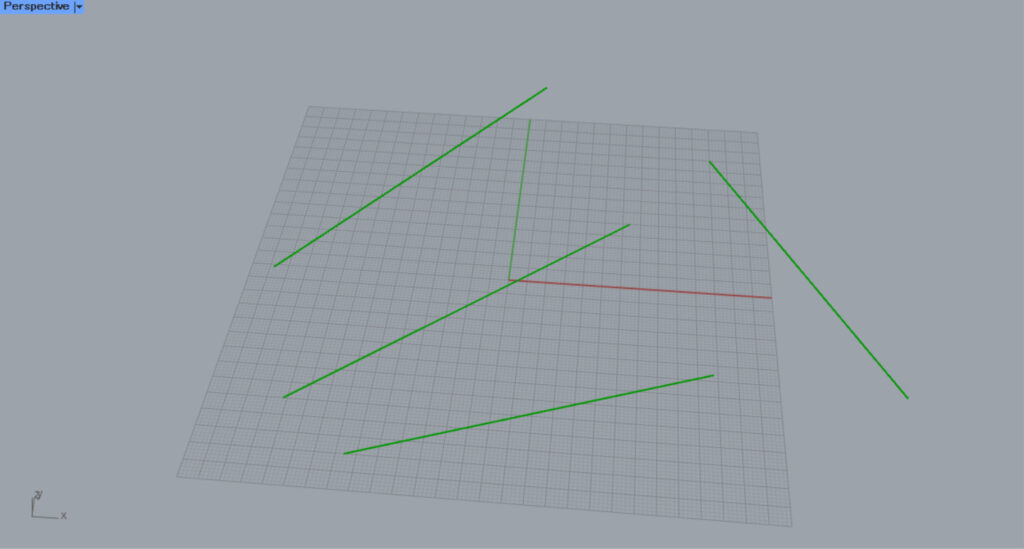
This is the situation on Rhino.
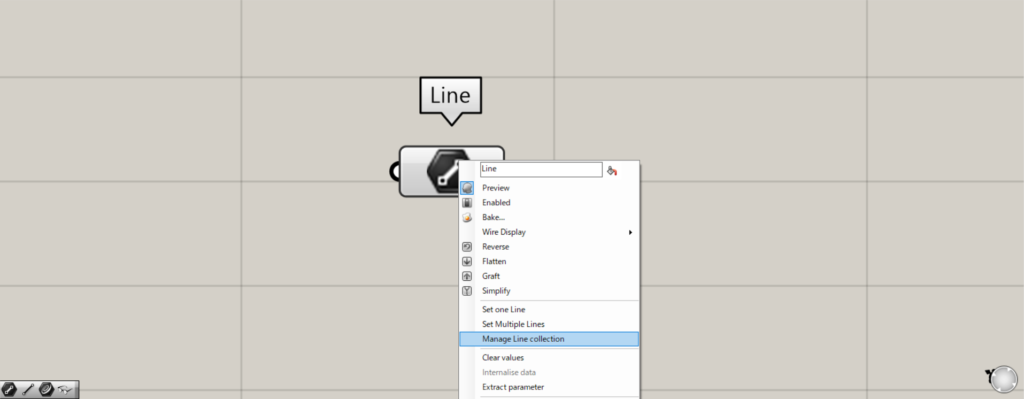
To manage and edit set lines, right-click on Line and select “Manage Line Collection”.
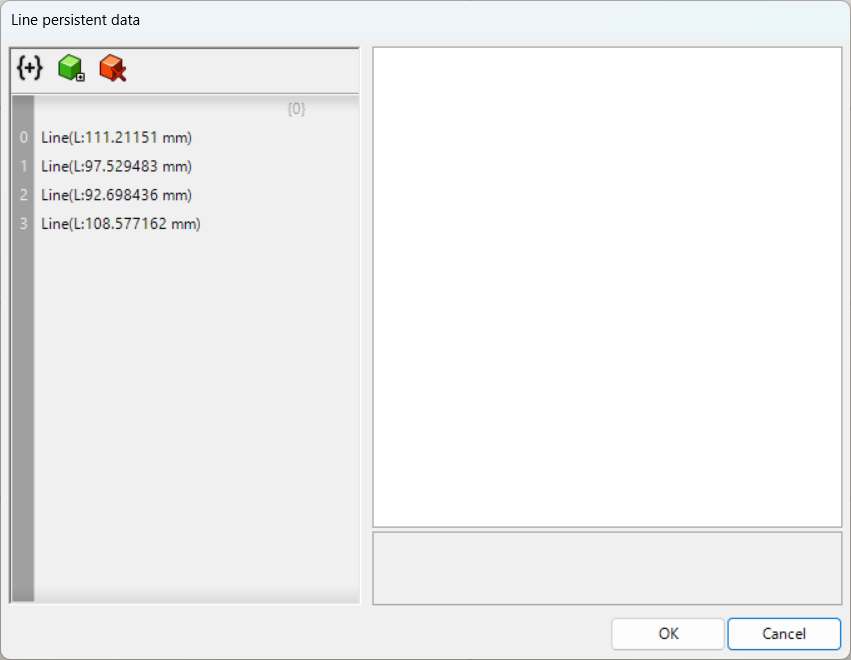
Then, this Line settings screen will appear.
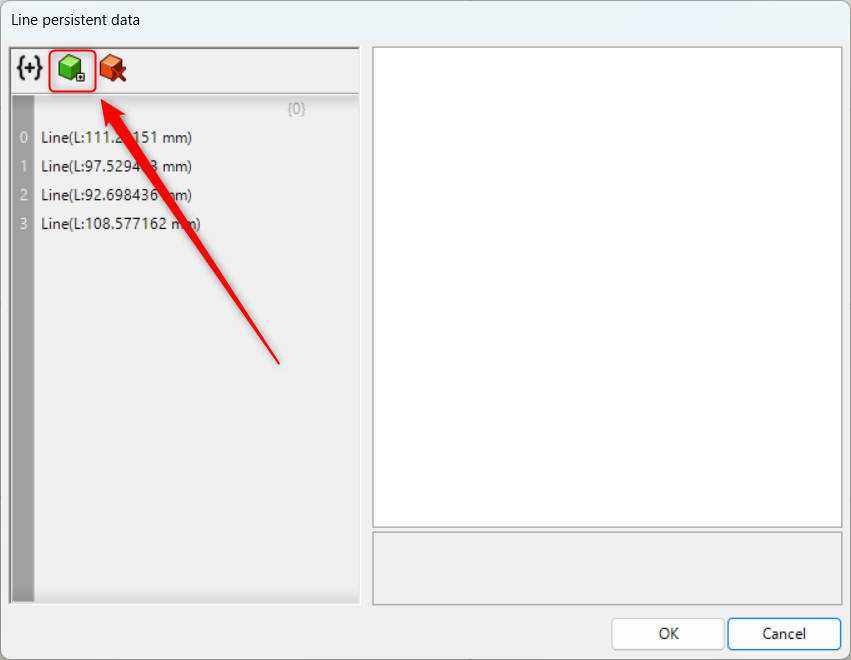
Click the green icon in the upper left to add a straight line.
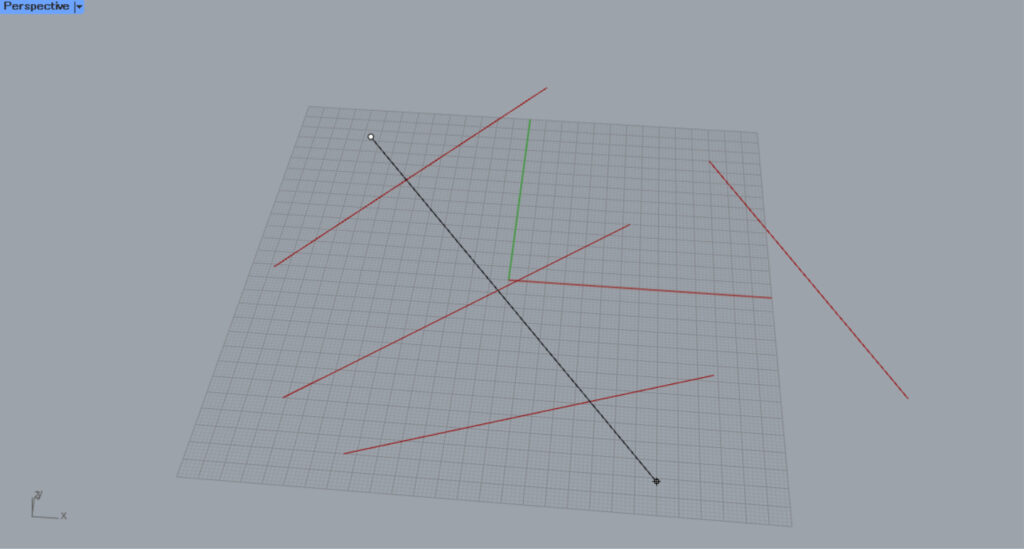
After clicking, create a line on Rhino.
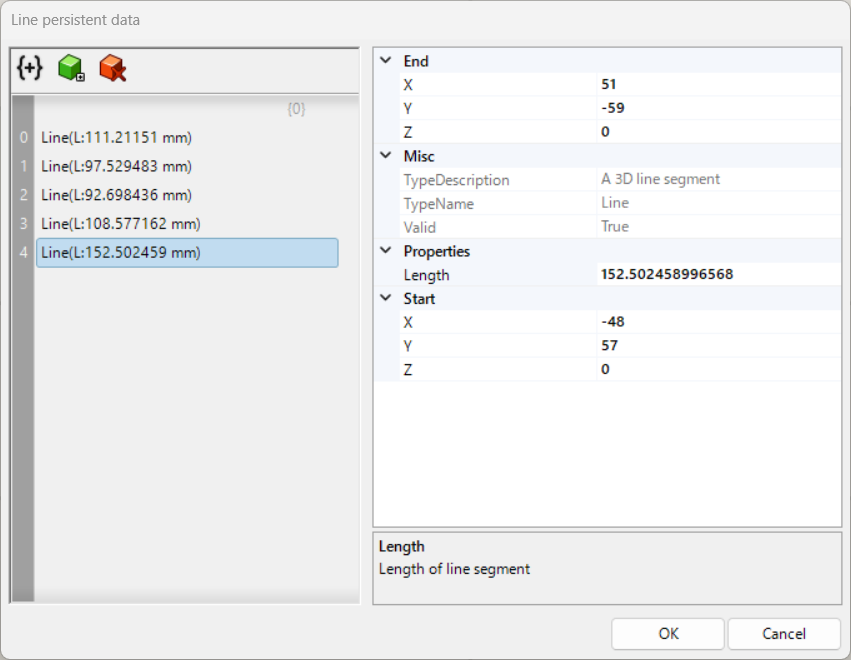
Then, a straight line was added like this.
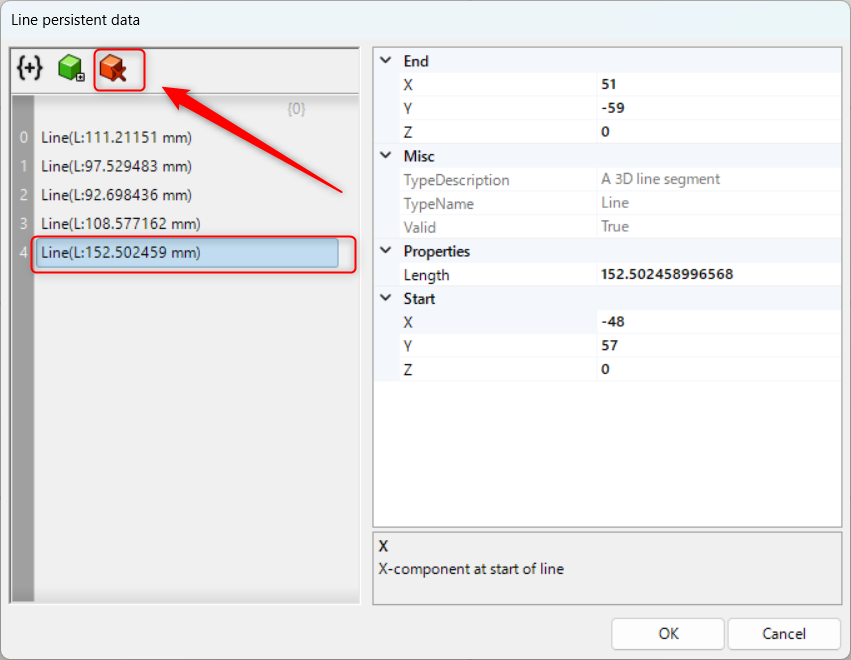
With the line data selected, click the red icon in the upper left corner to delete the line.
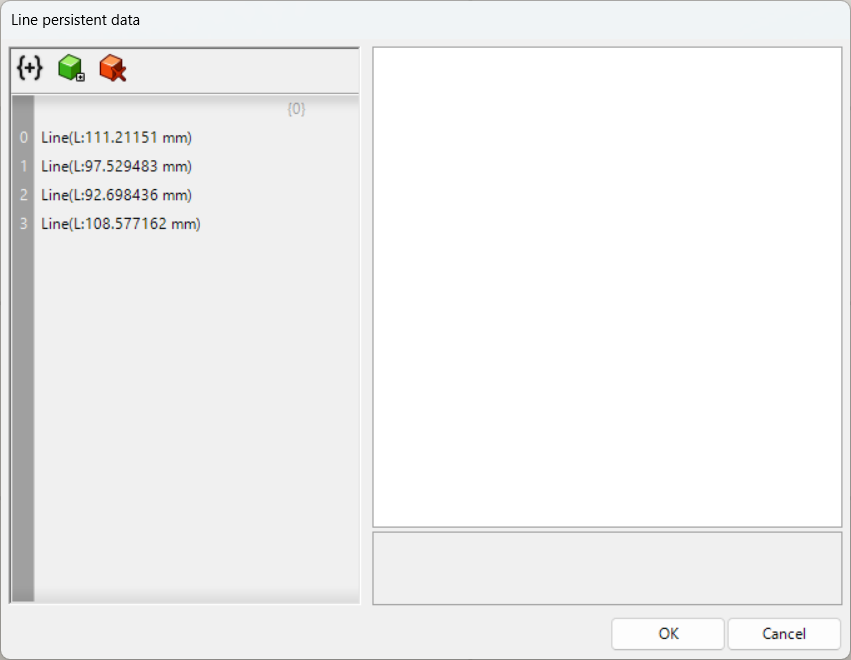
In this way, the line has been deleted.
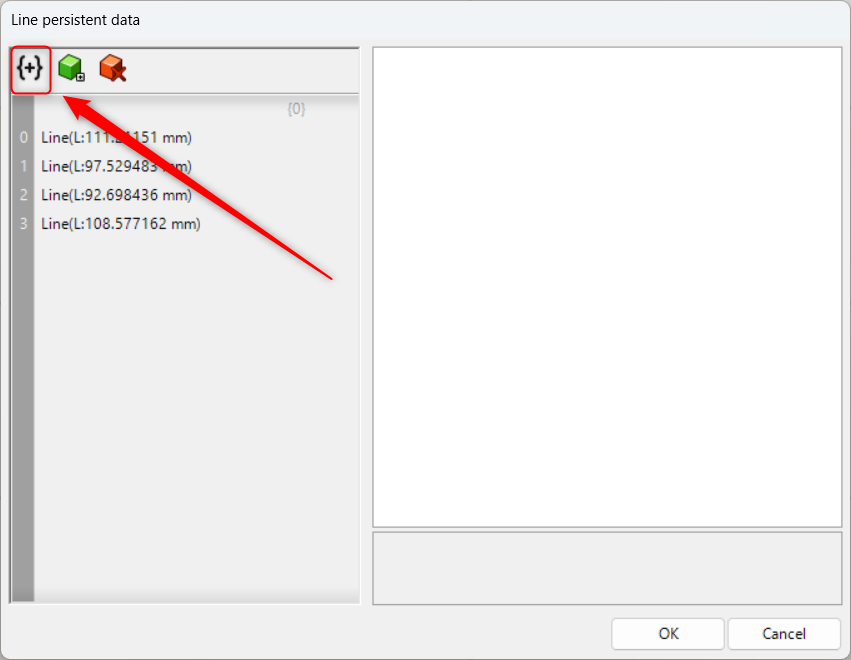
Click the icon in the top-left corner to create a hierarchy.
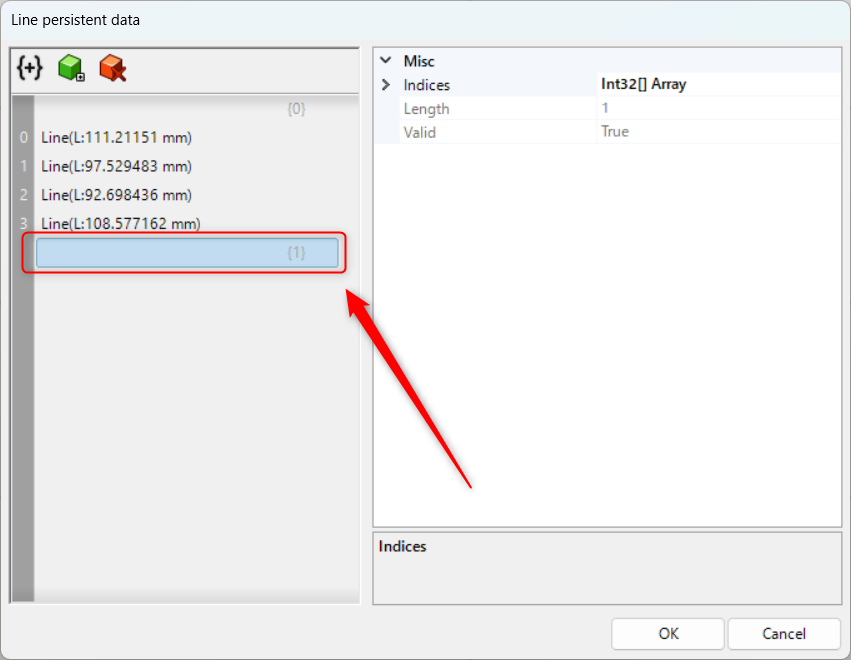
In this way, the hierarchy has been created.
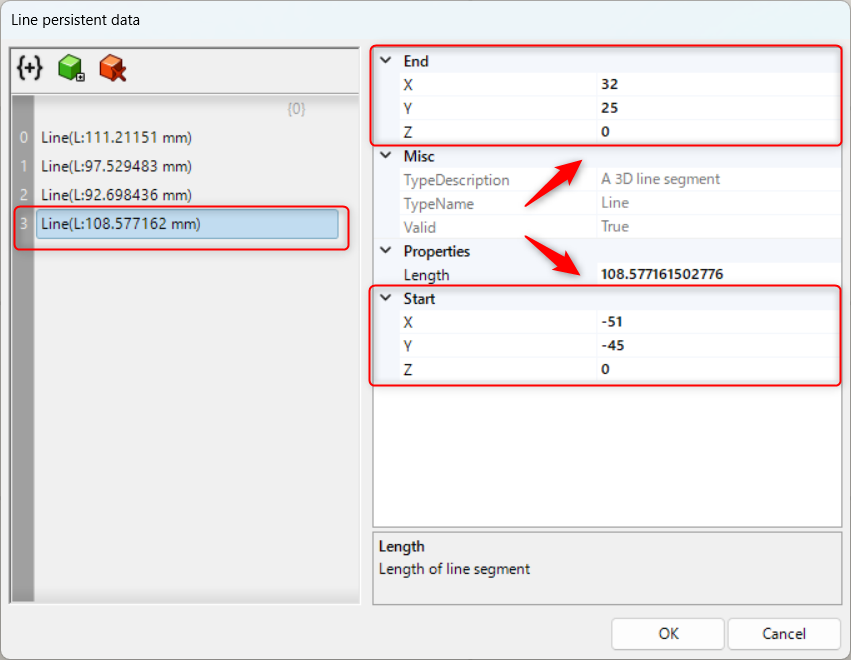
With a line selected, you can edit the start and end point coordinates by changing the XYZ values for End and Start in the right pane.
List of Grasshopper articles using Line component↓




Comment