
![[Grasshopper] How to Use Rectangle for Setting and Creating Rectangles](https://iarchway.com/wp-content/uploads/2026/01/Rectangle2.png)
This guide explains how to use Rectangle for setting and creating rectangles.
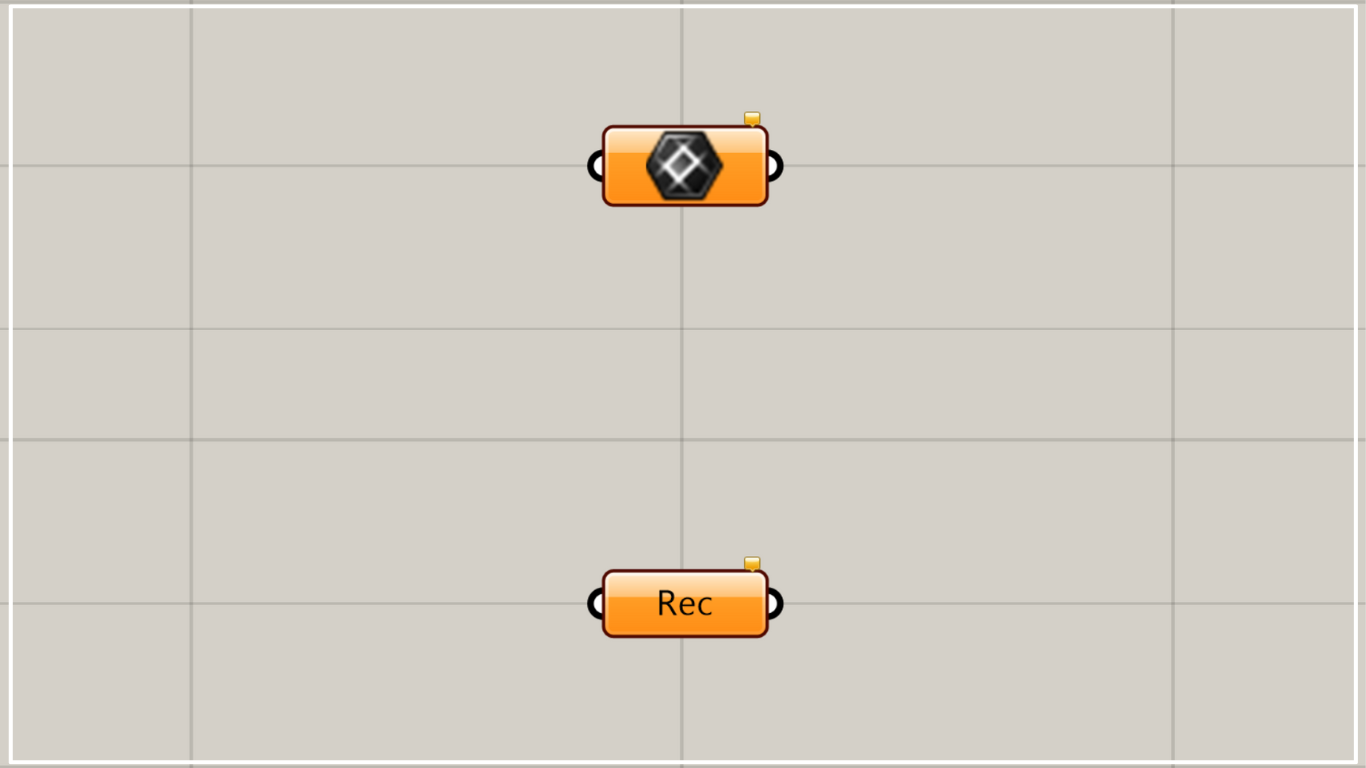
On the Grasshopper, it is represented by either of the two above.
Set rectangle lines
Using Rectangle allows you to store rectangle lines.
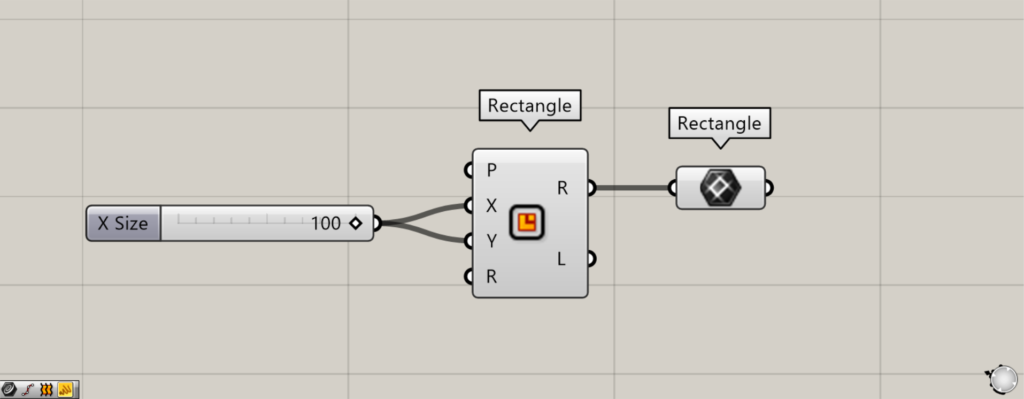
Components used: ① Rectangle ② Rectangle
Please note that in addition to this Rectangle, there is another Rectangle component with the same name.
The other Rectangle creates rectangle line data.
With that in mind, let’s set the created rectangle in this Rectangle.
Enter 100 into the other Rectangle(X and Y).
Then, a line data point with a 100-unit side will be created at the origin.
Next, connect the other Rectangle(R) to this Rectangle.
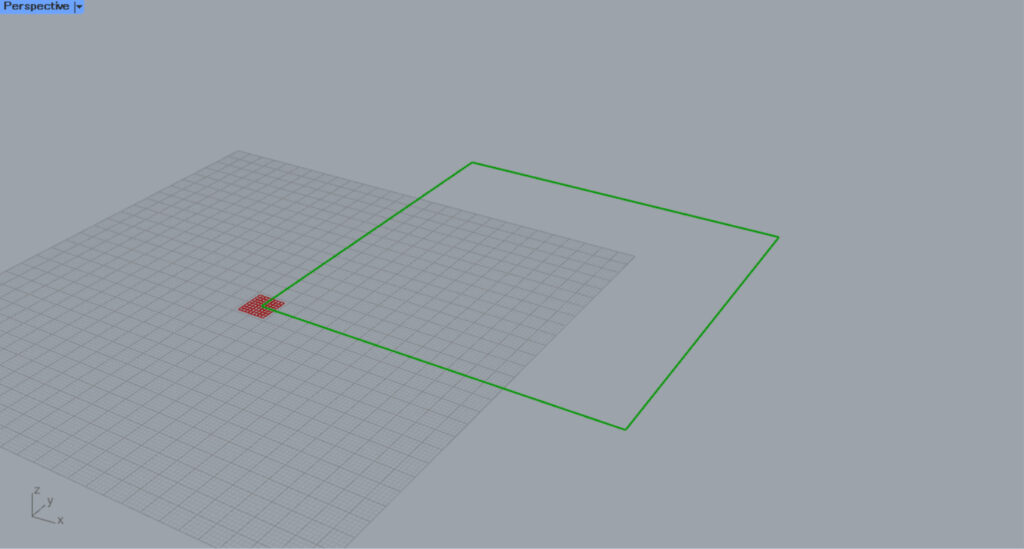
Then, the rectangle line data was set in the Rectangle.
In this way, you can set the line data of a rectangle in Rectangle.
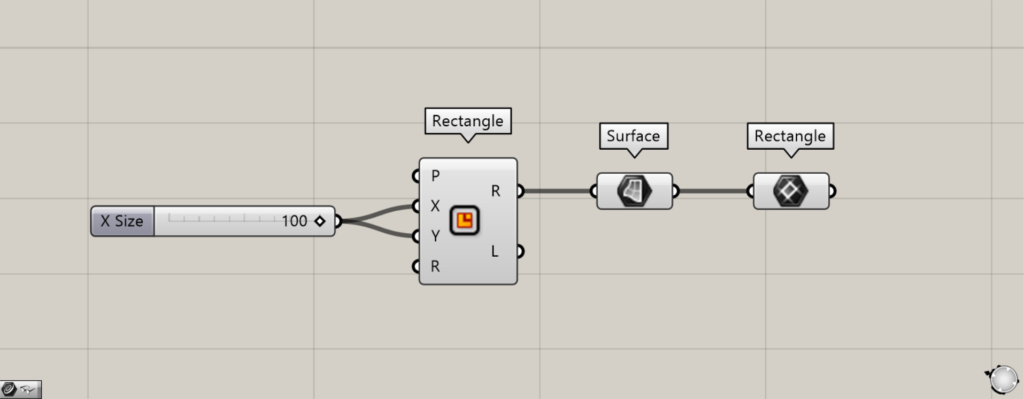
Components used: ① Rectangle ② Surface ③ Rectangle
For reference, you can also set the surface’s rectangle in Rectangle.
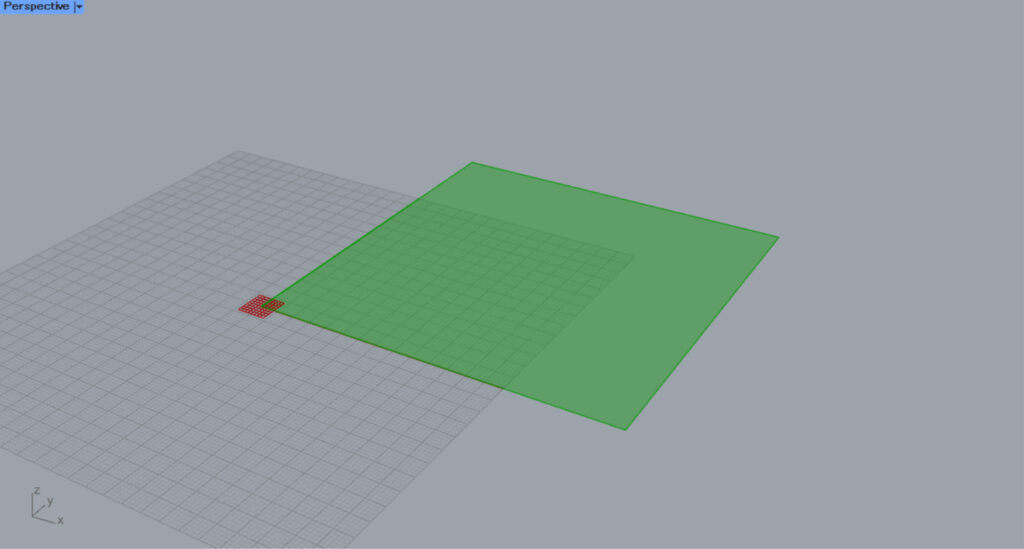
We’ll try setting this surface’s rectangle.
Connect the other Rectangle(R) to the Surface.
Then, the rectangle of the line data is converted to a surface.
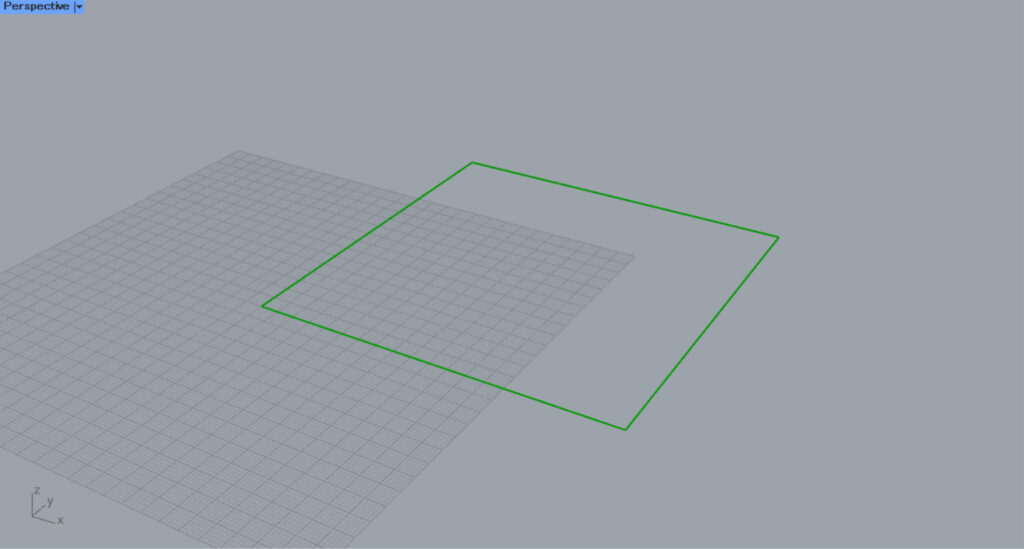
Connect the Surface to this Rectangle.
Then, the surface was set; it is set as line data.
For open line data
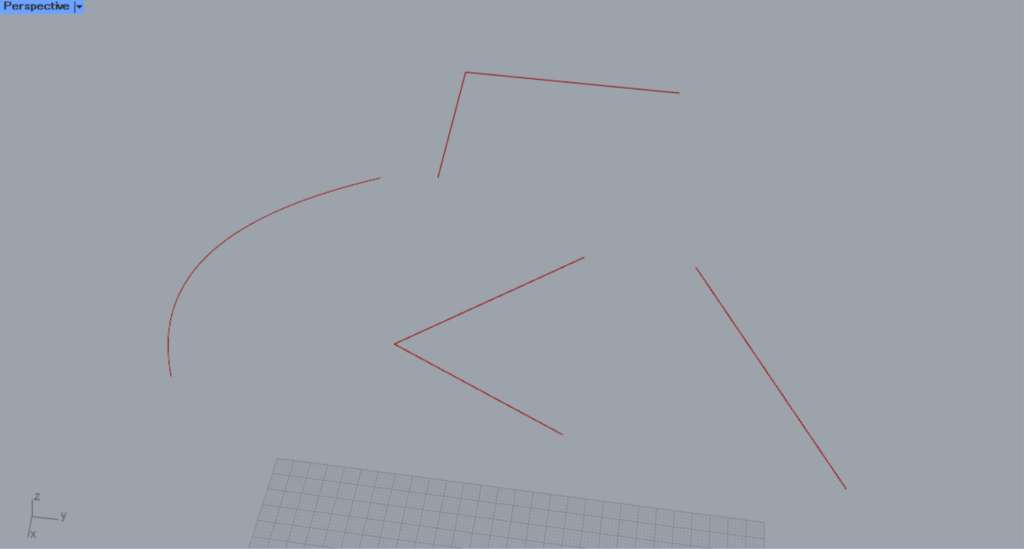
Open line data can also be connected to Rectangle.
In this case, a rectangle line data is created from the open line data.
This time, we will use the line data created in Rhino as shown in the image above.
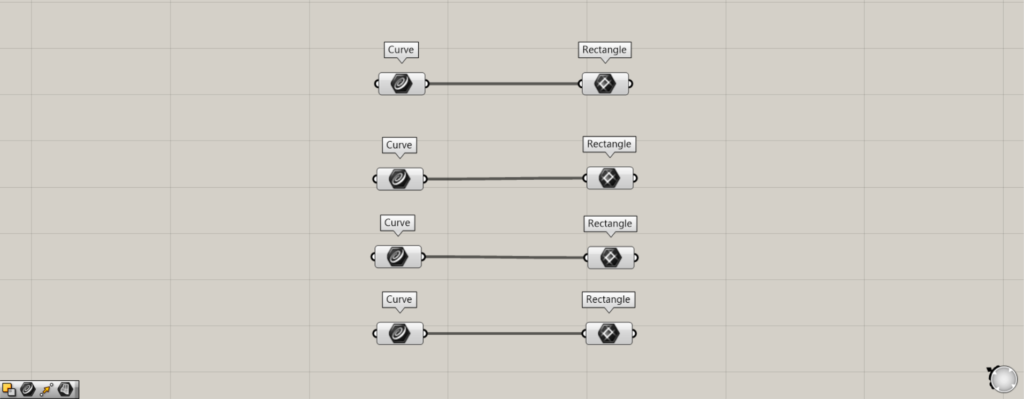
Components used: ①Curve ②Rectangle
Connect the Curve containing the line and curve data created on Rhino to Rectangle.
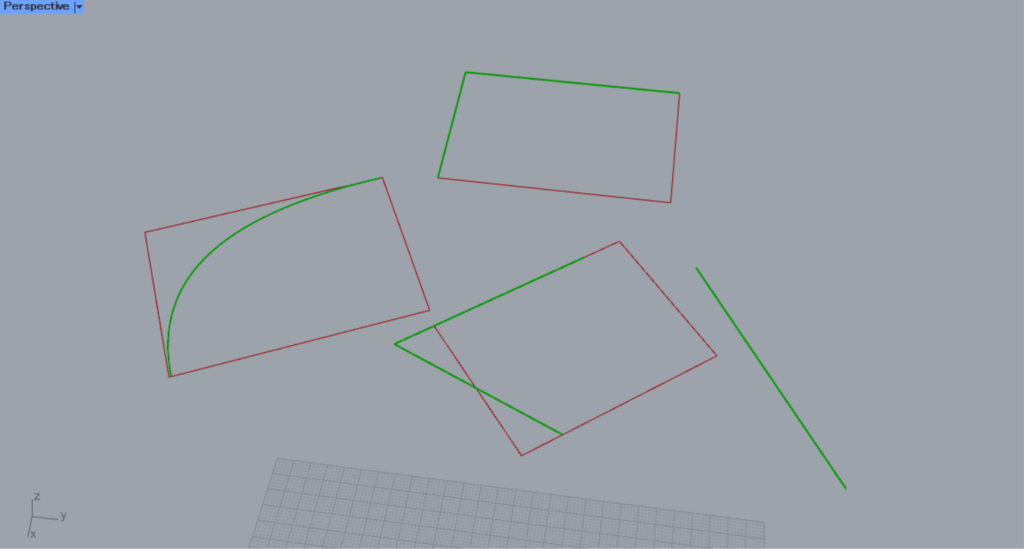
Then, a rectangle was created from the line and curve opened in this manner.
Other data cannot be set.
Only rectangles and open line data can be set in Rectangle.
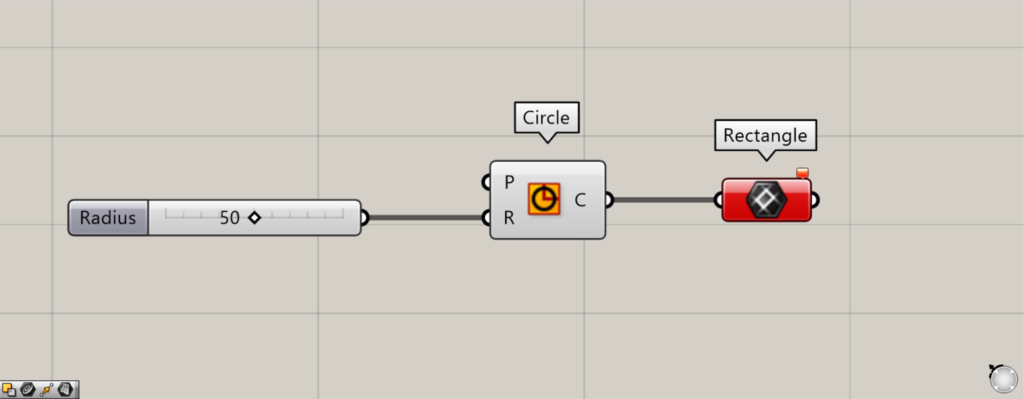
Components used: ①Circle ②Rectangle
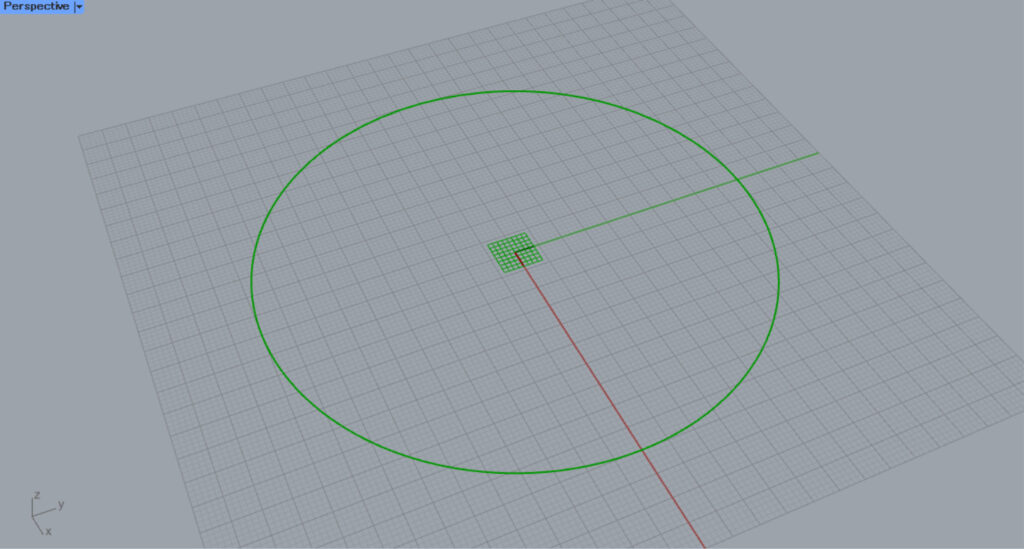
We created a circle in Circle and connected it to Rectangle, but it resulted in an error.
Setting and creating rectangles directly in Rectangle
You can also directly set or create rectangles within a Rectangle.
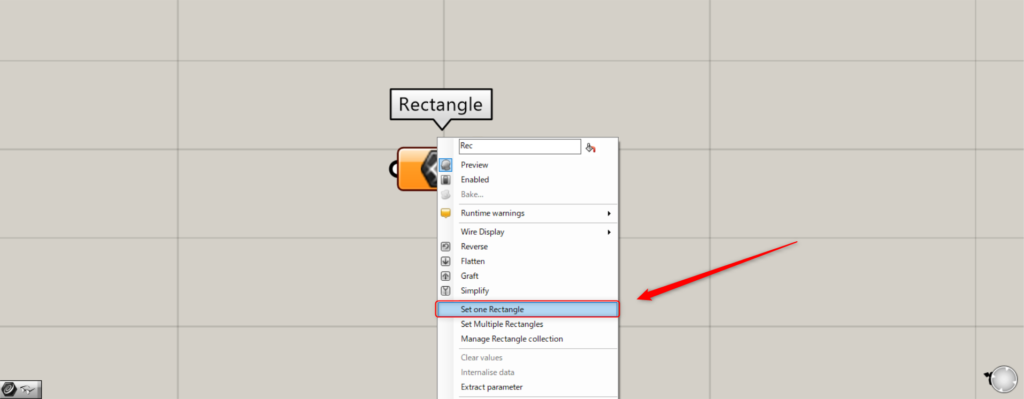
For a single rectangle, right-click Rectangle and select “Set one Rectangle”.
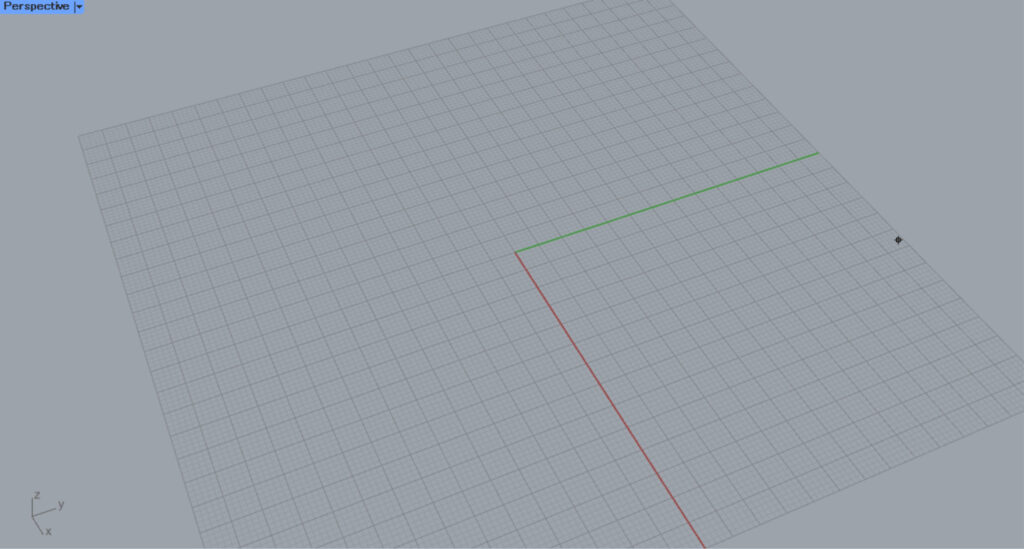
Then, the screen will switch to Rhinoceros.
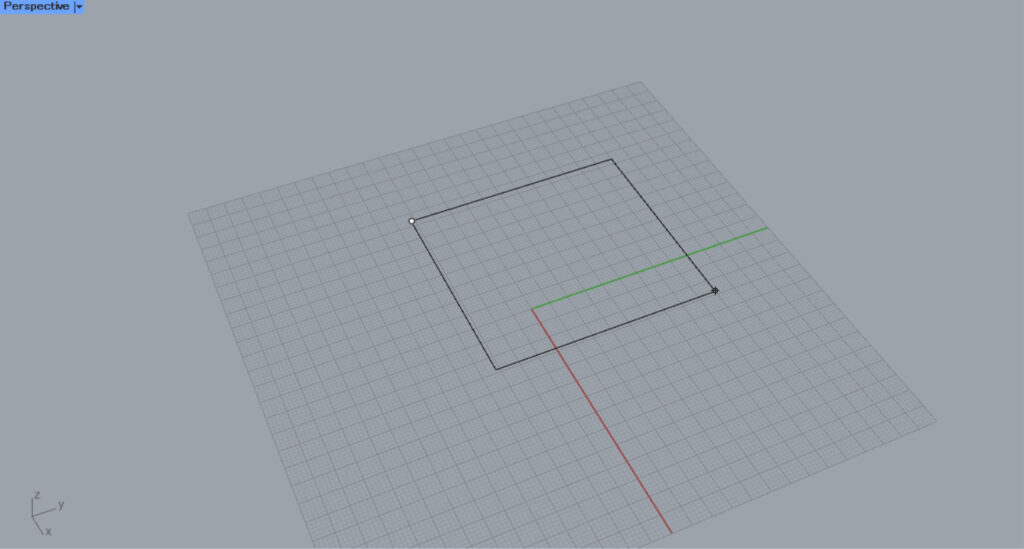
Then, create a rectangle on Rhino.
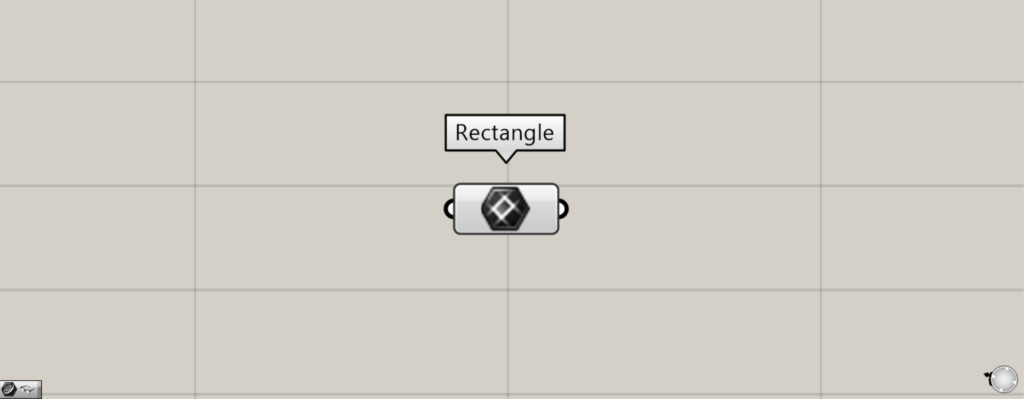
Then, a rectangle was created and set in Rectangle.
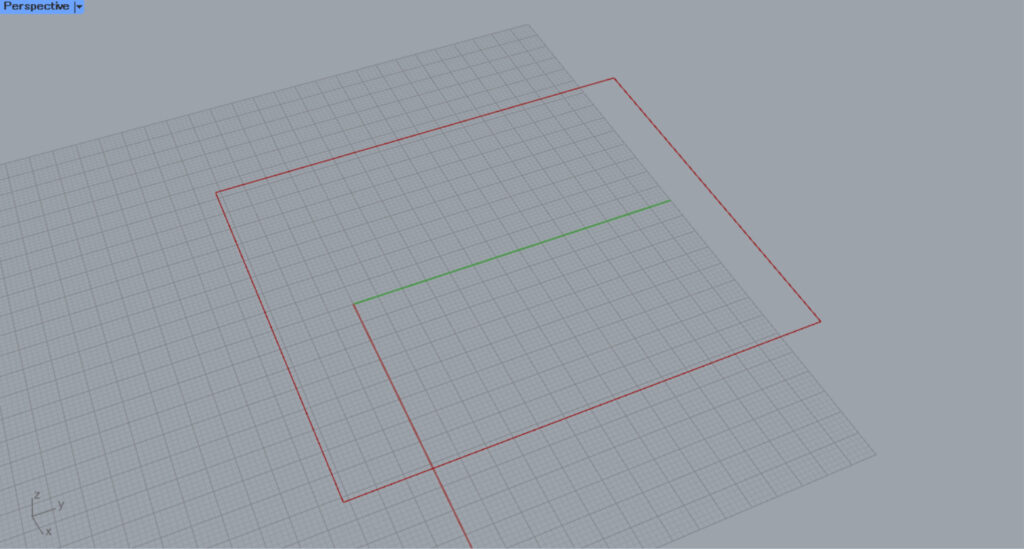
This is the situation on Rhino.
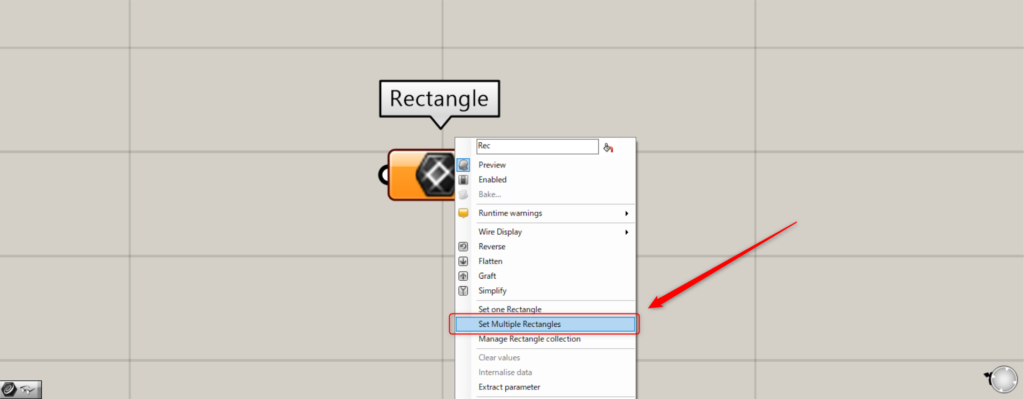
To set multiple rectangles directly, right-click Rectangle and select “Set Multiple Rectangles”.
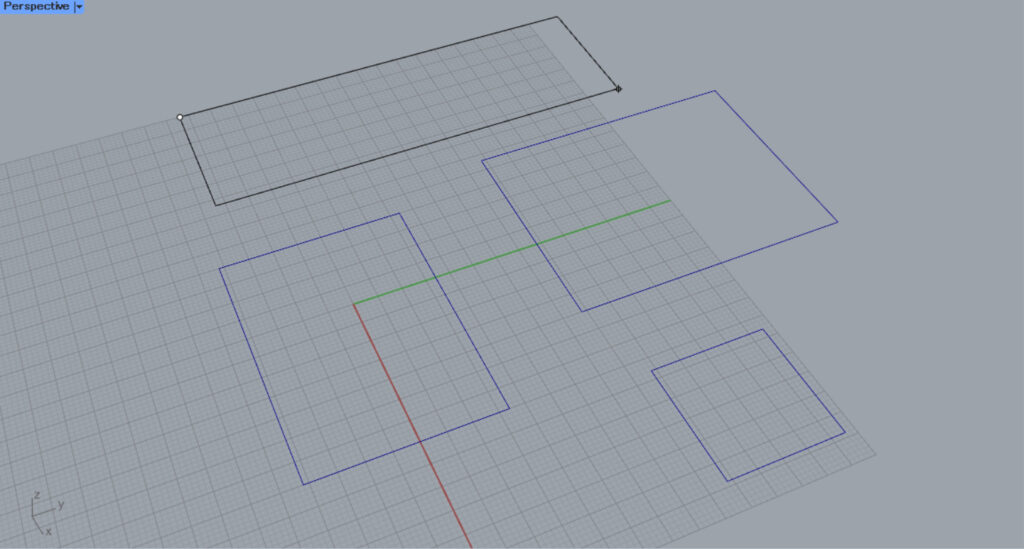
After that, create multiple rectangles in Rhino.
Then, multiple rectangles were created and set directly in Rectangle.
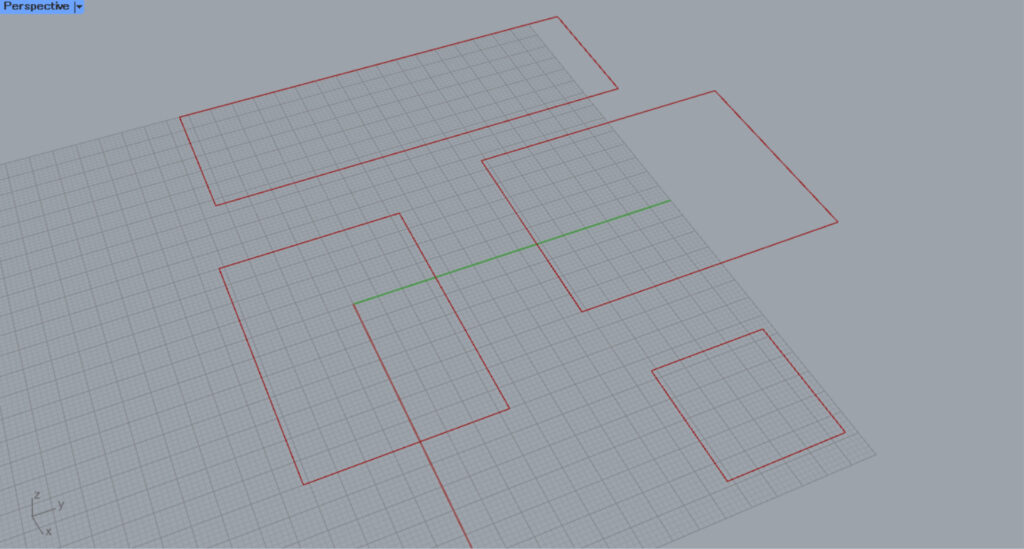
This is the situation on Rhino.
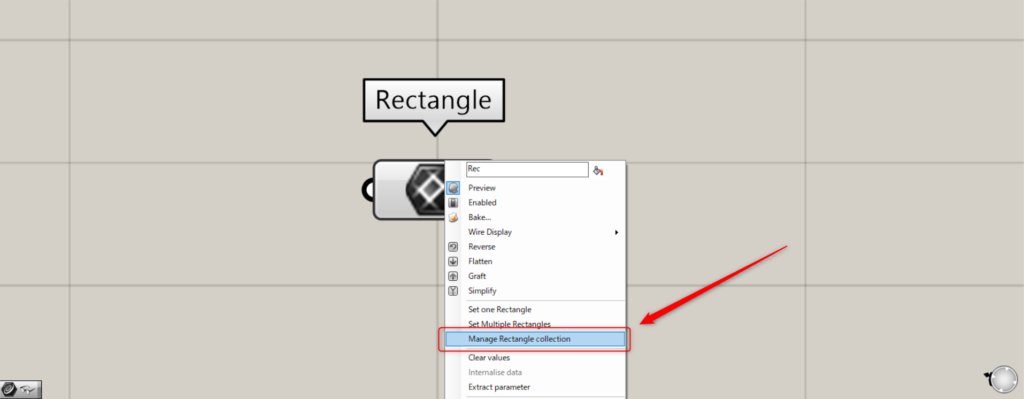
To manage and edit set rectangles, right-click Rectangle and select “Manage Rectangle Collection”.
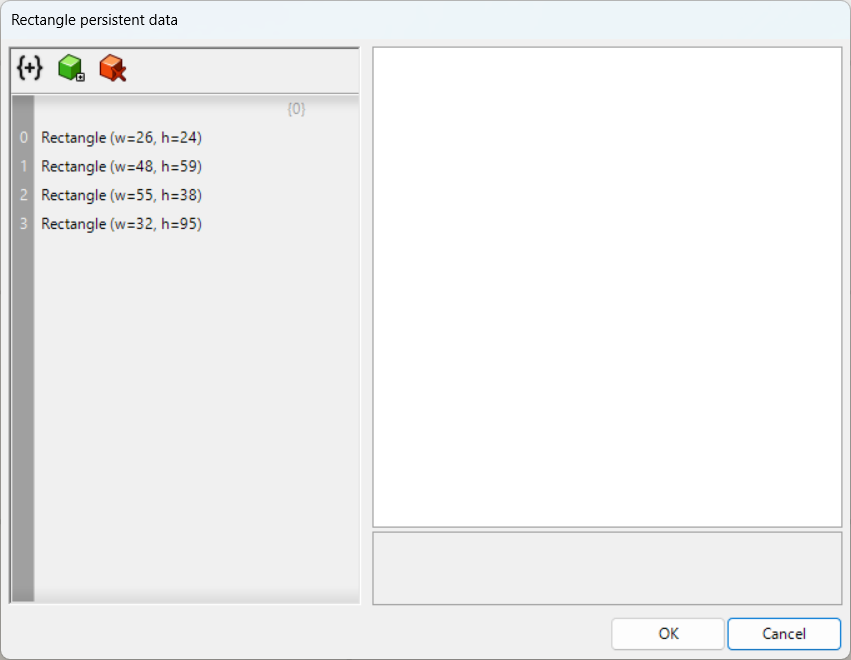
Then, the Rectangle settings screen will appear.
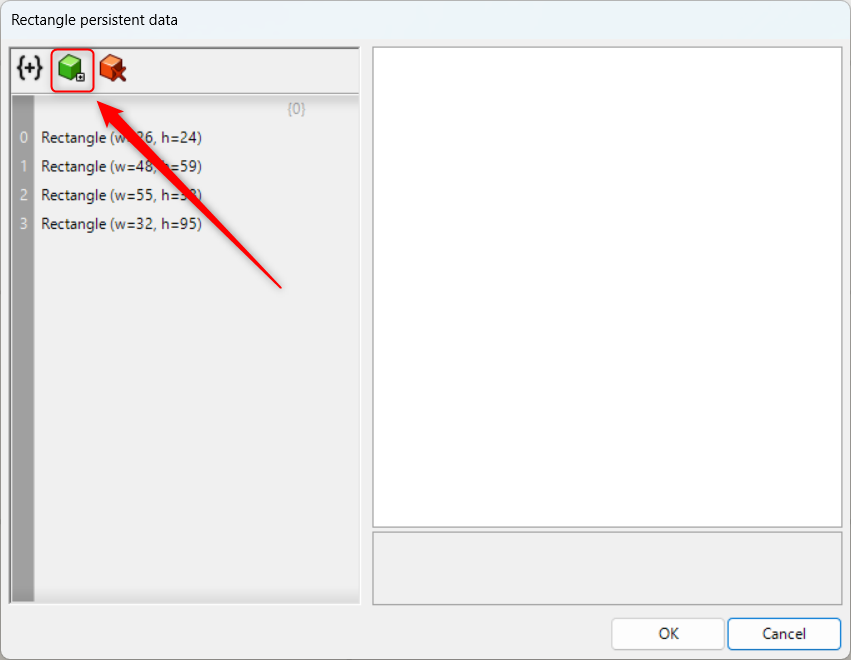
Click the green icon in the upper left to add a rectangle.
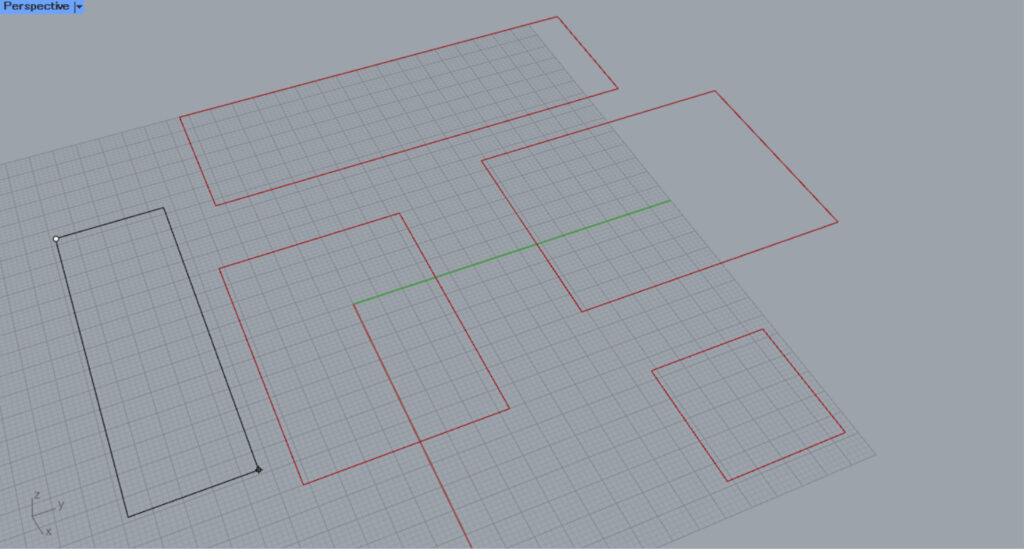
After clicking, create a rectangle on Rhino.
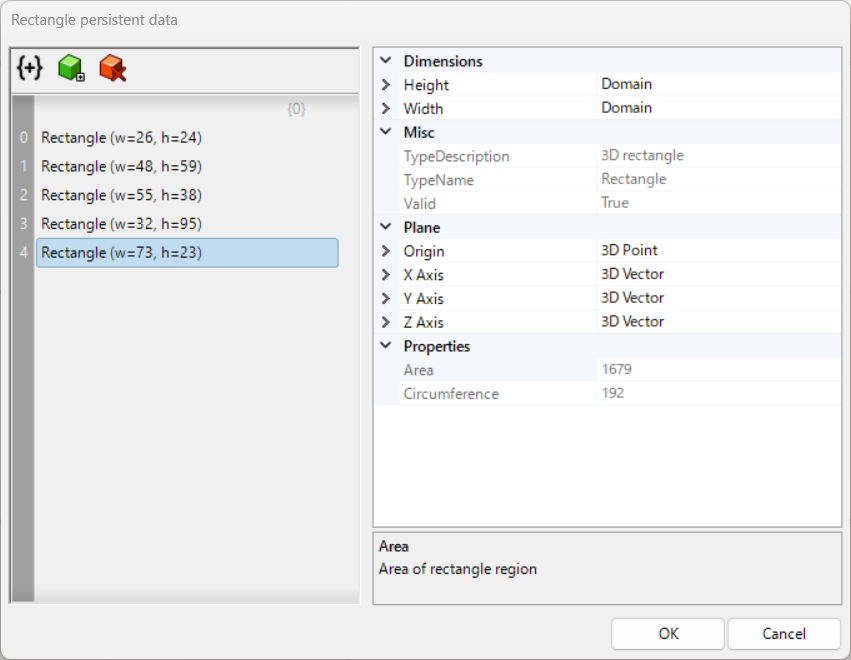
Then, a rectangle was added like this.
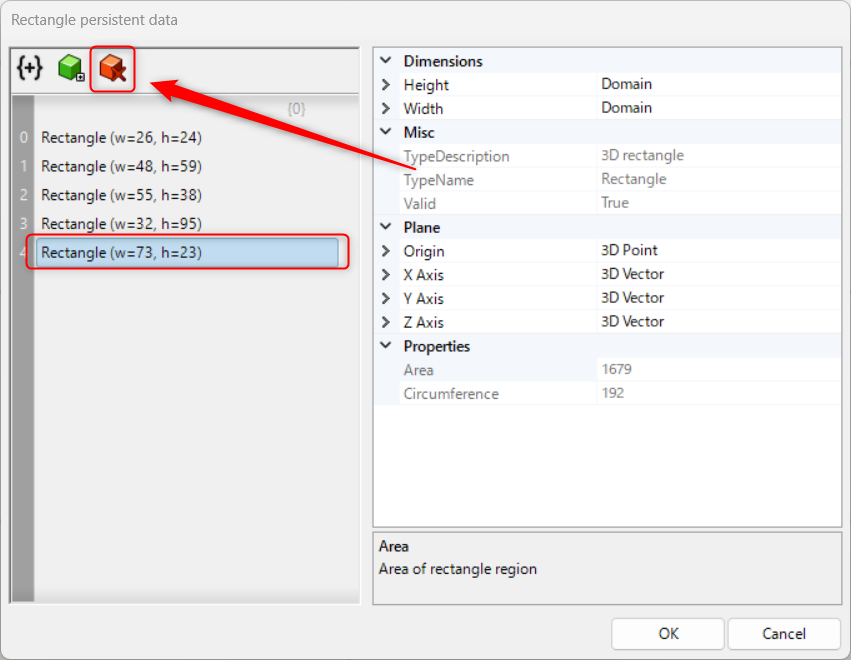
With the rectangle data selected, click the red icon in the upper-left corner to delete the rectangle.
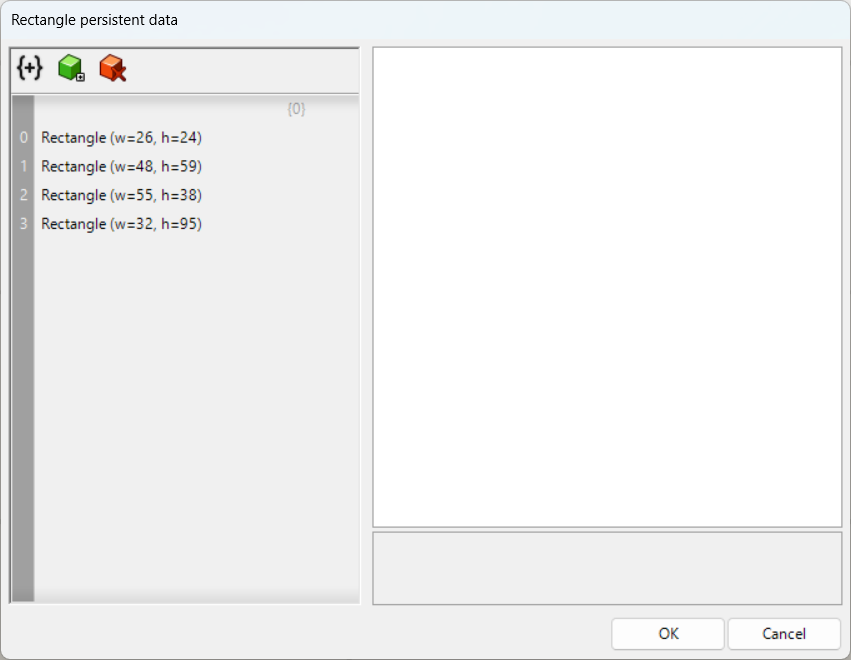
In this way, the rectangle has been deleted.
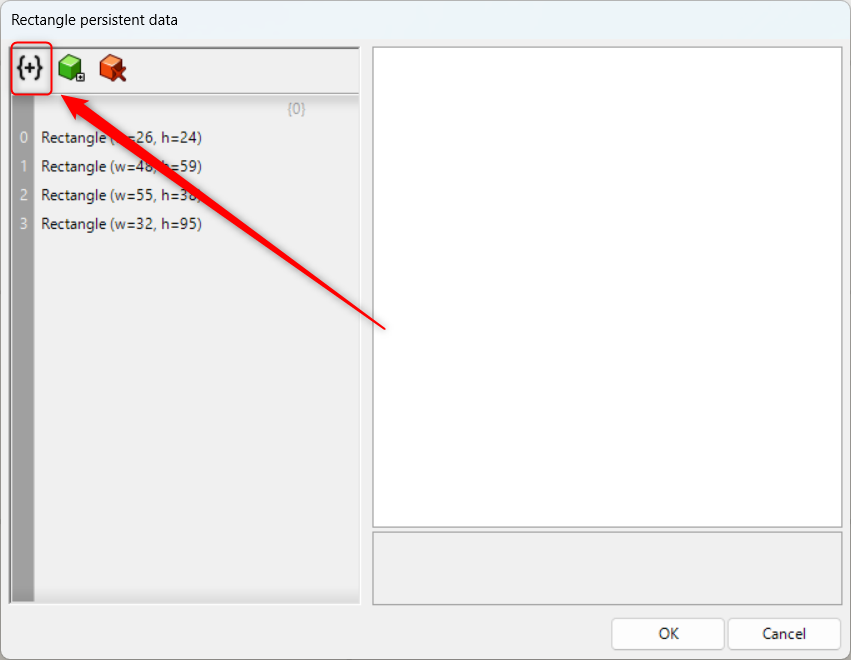
Click the icon in the top-left corner to create a hierarchy.
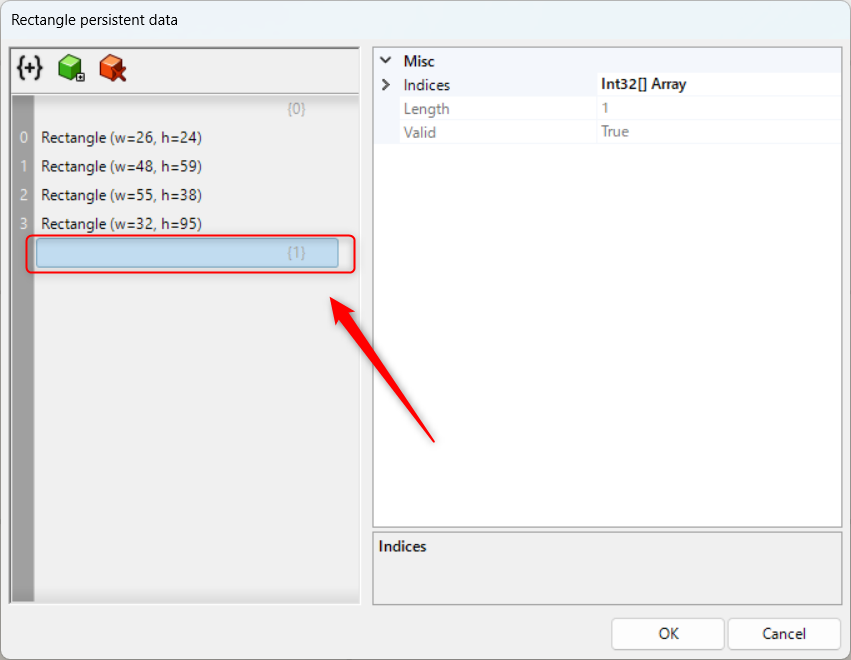
In this way, the hierarchy has been created.
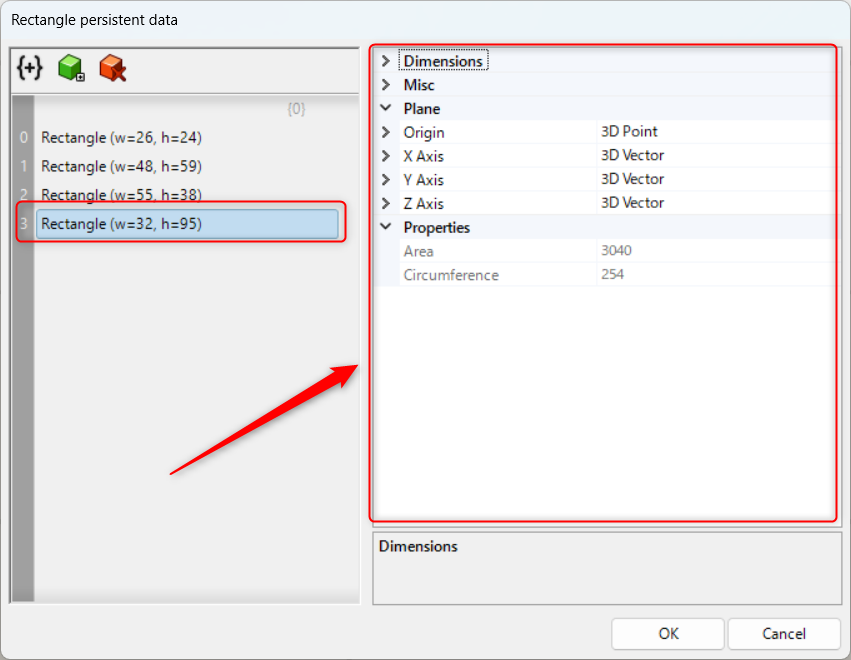
Select a rectangle to individually edit its side lengths and coordinates in the right-hand window.
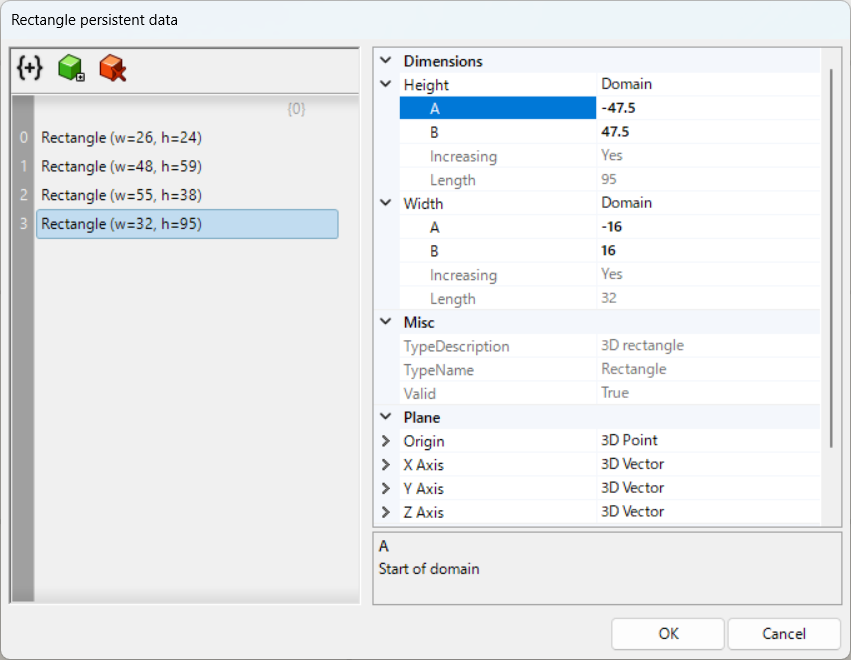
Click the arrow to display various dropdown menus and edit each item.
List of Grasshopper articles using Rectangle component↓




Comment