
![[Grasshopper] How to Use Point Cloud to Convert and Set Models as Point Clouds](https://iarchway.com/wp-content/uploads/2026/01/Point-Cloud.png)
This article explains how to use Point Cloud to convert and set models as point clouds.
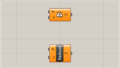
On the Grasshopper, it is represented by either of the two above.
Convert the model to a point cloud
Using Point Cloud allows you to convert models into point clouds.
A point cloud differs from regular point data in that it treats a collection of multiple points as a single data set.
One advantage of using point clouds is that they can be made lighter in terms of data compared to regular objects.
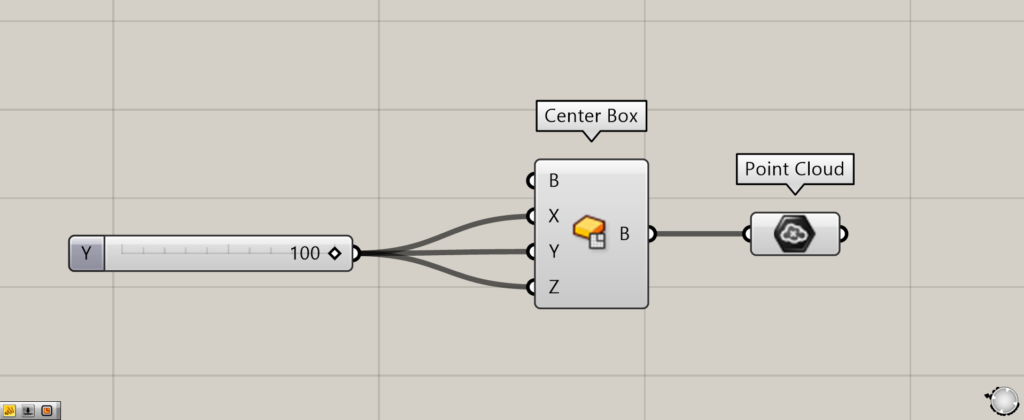
Components Used: ①Center Box ②Point Cloud
As a first example, let’s convert a box into a point cloud.
Enter the numerical values for the desired side lengths into the Center Box(X, Y, and Z).
This time, the value 100 is entered. Since this value represents the distance from the center of the edge to the end, the length of one side becomes 200.
This creates a cube with dimensions 200×200×200.
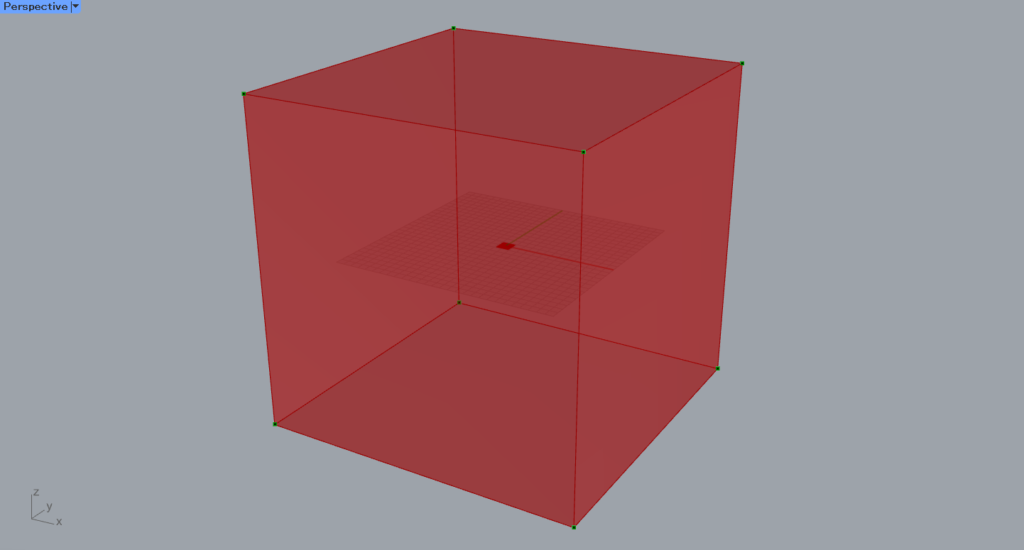
Then, connect the Center Box to the Point Cloud.
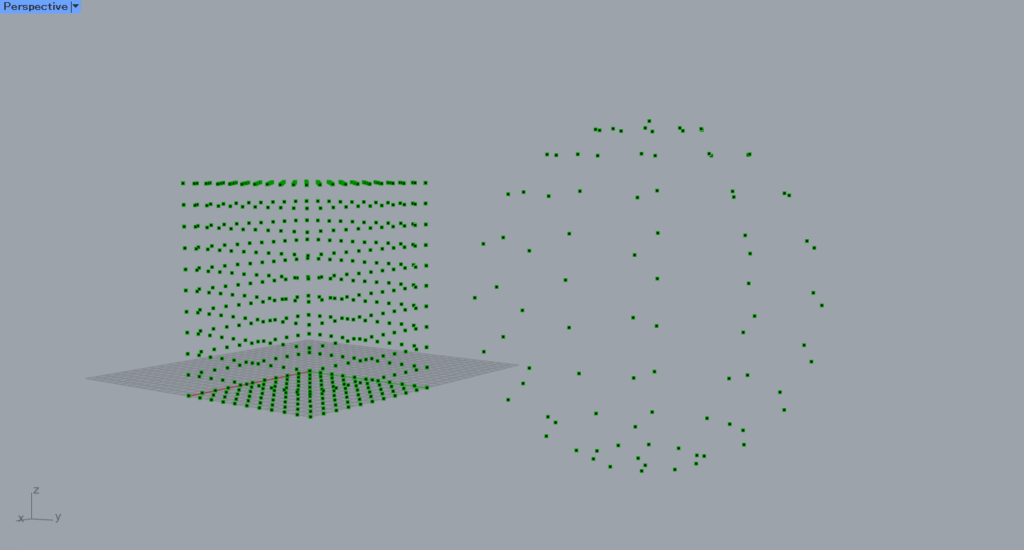
Then, a point cloud is created from the box.
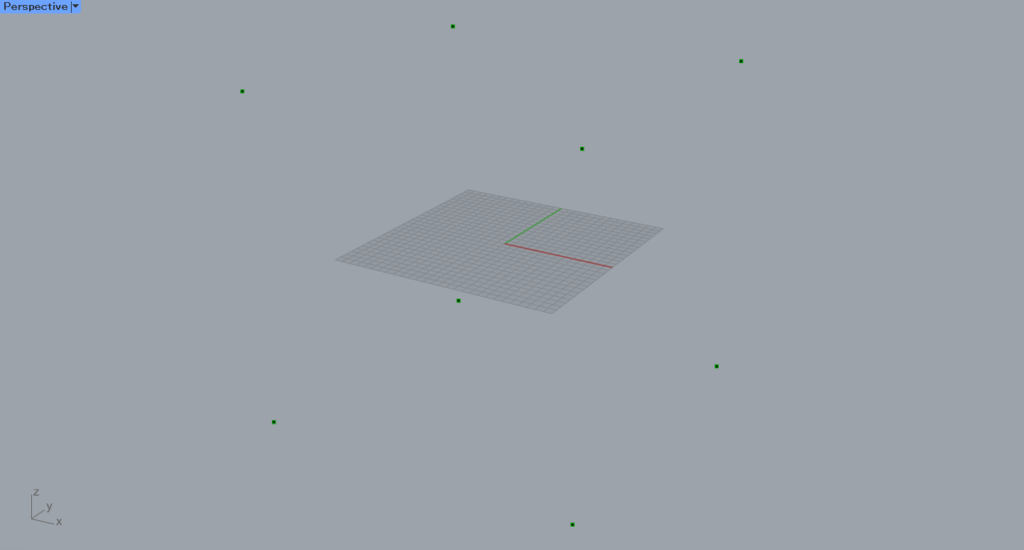
When you hide the box, you can see that it is represented by a point cloud.
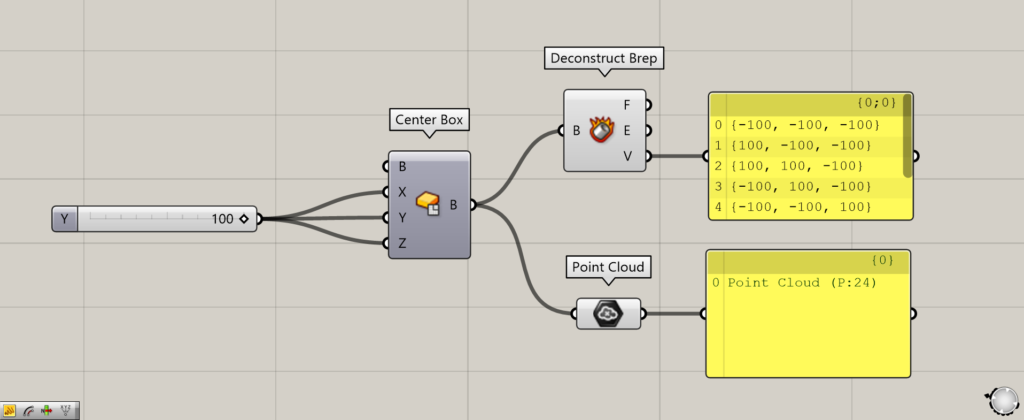
Additional Components: ① Deconstruct Brep
We will compare the data of regular point data and point cloud data.
Connecting the Center Box to the Deconstruct Brep(V) outputs point data for the box’s vertices
Compared to point clouds, regular point data consists of individual point data elements.
On the other hand, the point cloud is consolidated into a single data set.
In this way, a point cloud treats a collection of multiple points as a single data set.
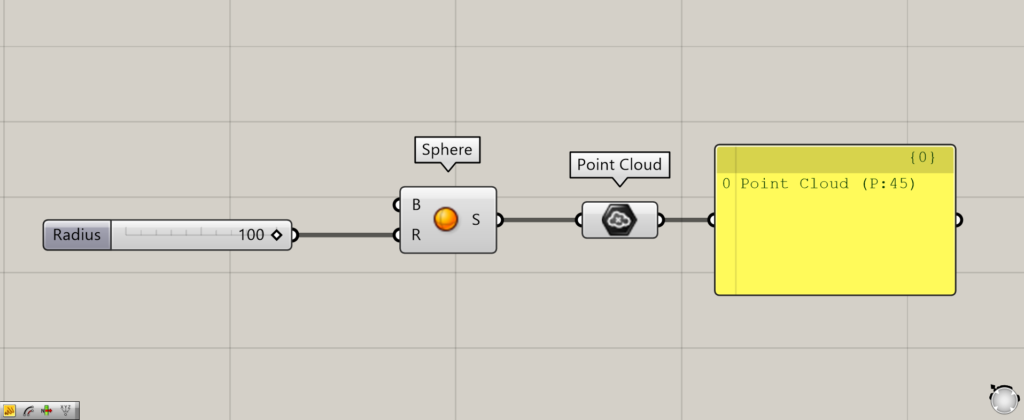
Components used: ① Sphere ② Point Cloud
As a second example, let’s transform the sphere into a point cloud.
Enter the radius value into the Sphere(R).
This time, we entered 100.
Then, the sphere was created.
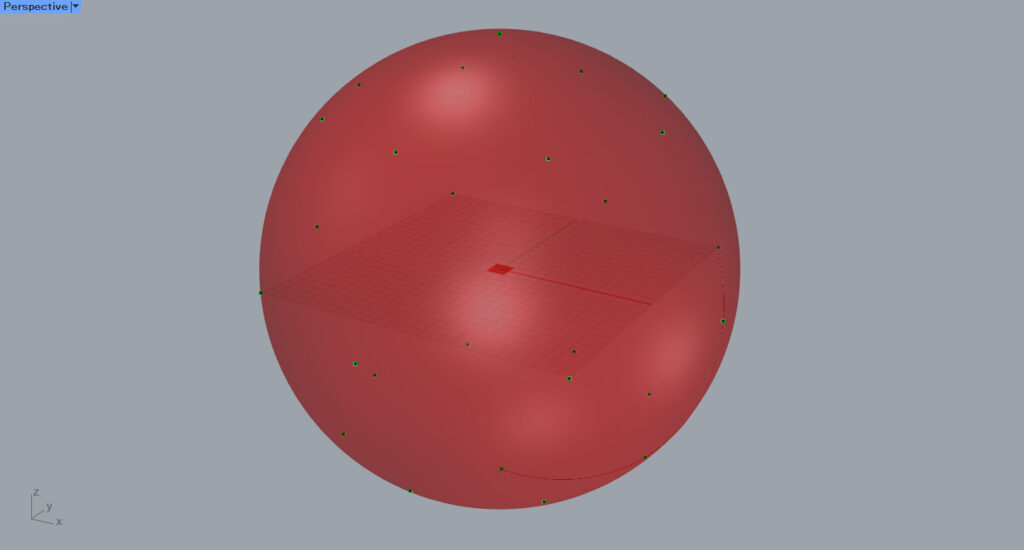
Then, connect the Sphere to the Point Cloud.
Then, a point cloud was created from the sphere like this.
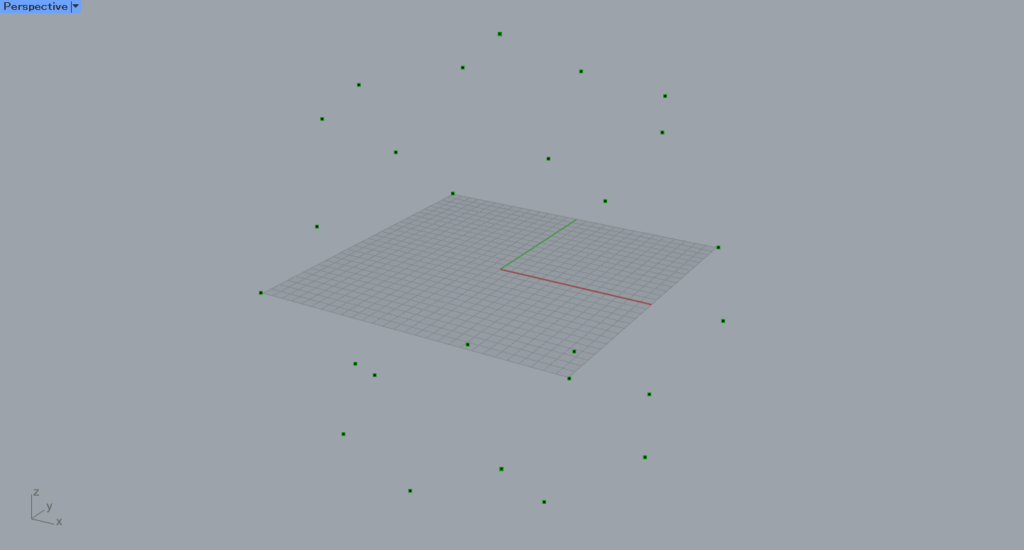
Let’s try hiding the sphere.
Because it has more points than the previous cube, it’s easier to recognize as a sphere even just by looking at the points.
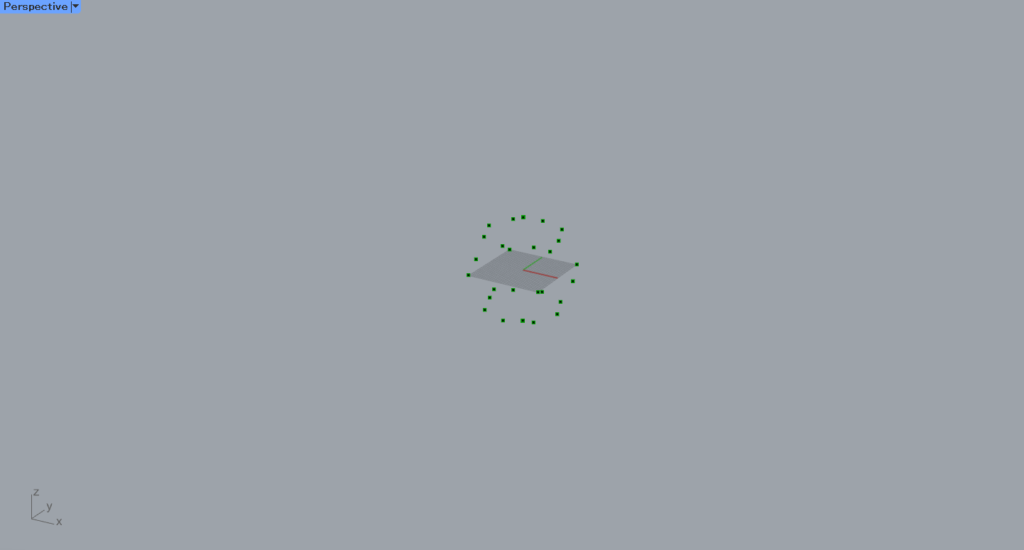
Stepping back, you can see it’s more spherical.
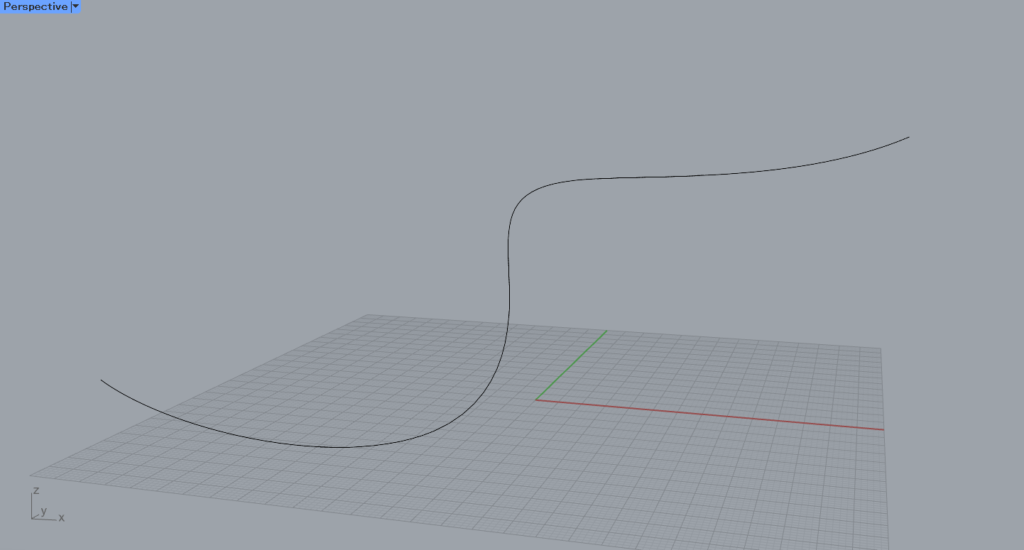
Next, we’ll create a point cloud from a more complex shape.
We will use a curve like the one shown in the image above, created in Rhino.
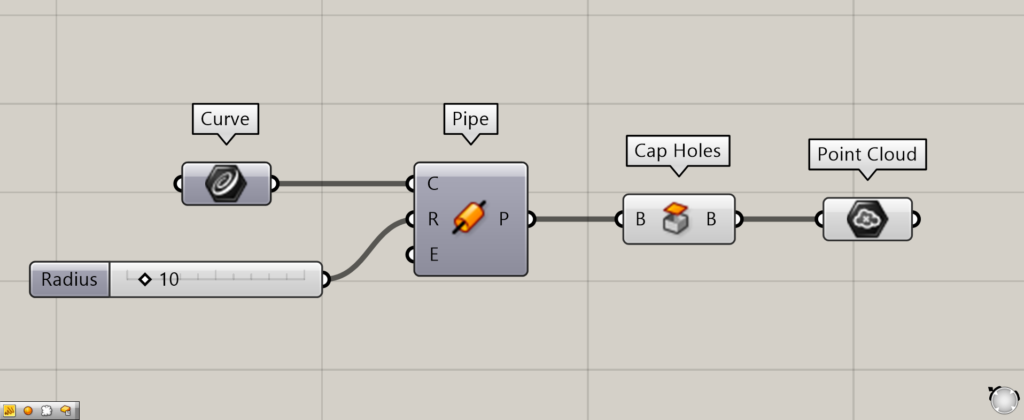
Components used: ①Curve ②Pipe ③Cap Holes ④Point Cloud
First, set the curve on Rhino in Curve.
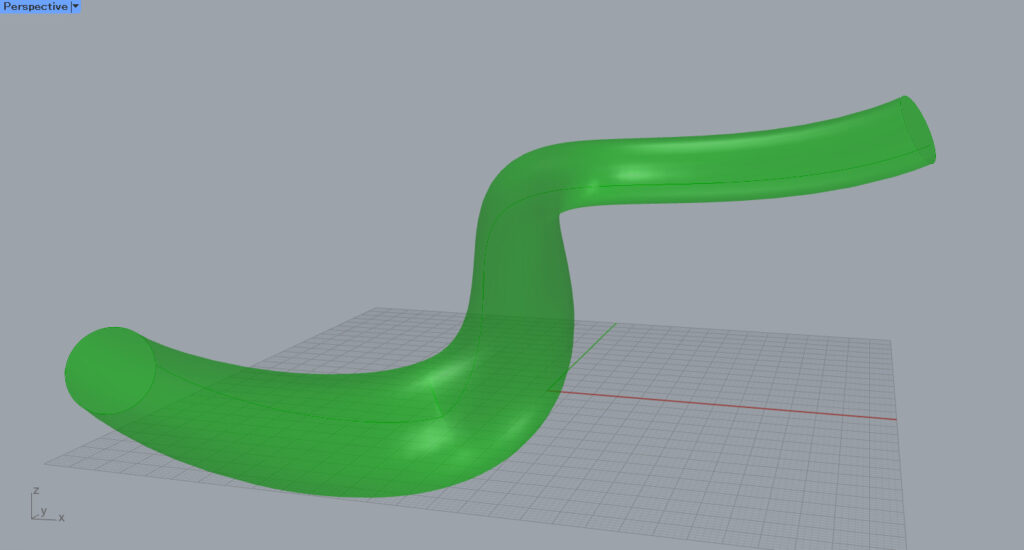
Then connect the Curve to the Pipe(C).
Additionally, enter the radius value into the Pipe(R).
This time, we entered 10.
Then, the pipe will be created.
Since it’s currently open, connect the Pipe to the Cap holes to close the pipe.
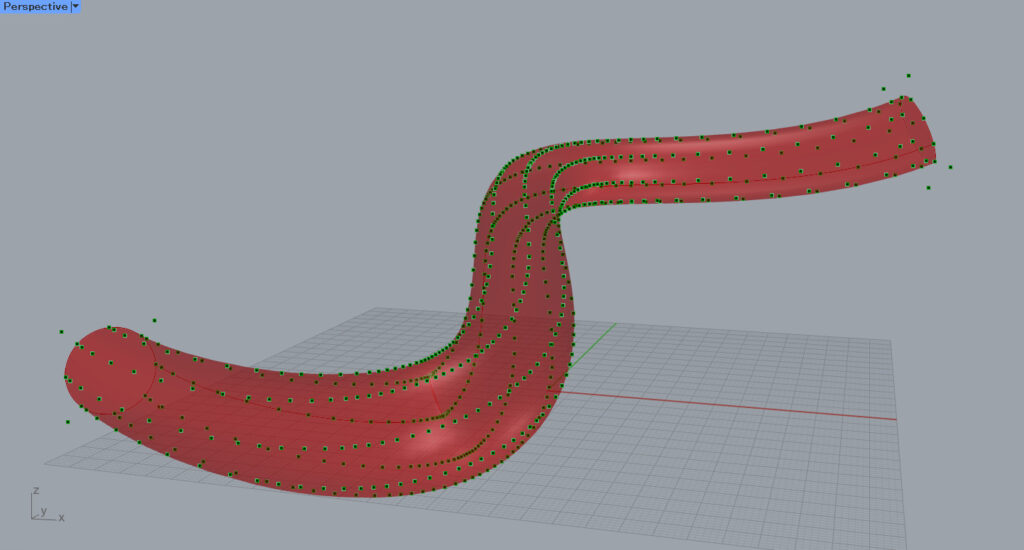
Then, connect the Cap Holes to the Point Cloud.
Then, a point cloud was created from the pipe.
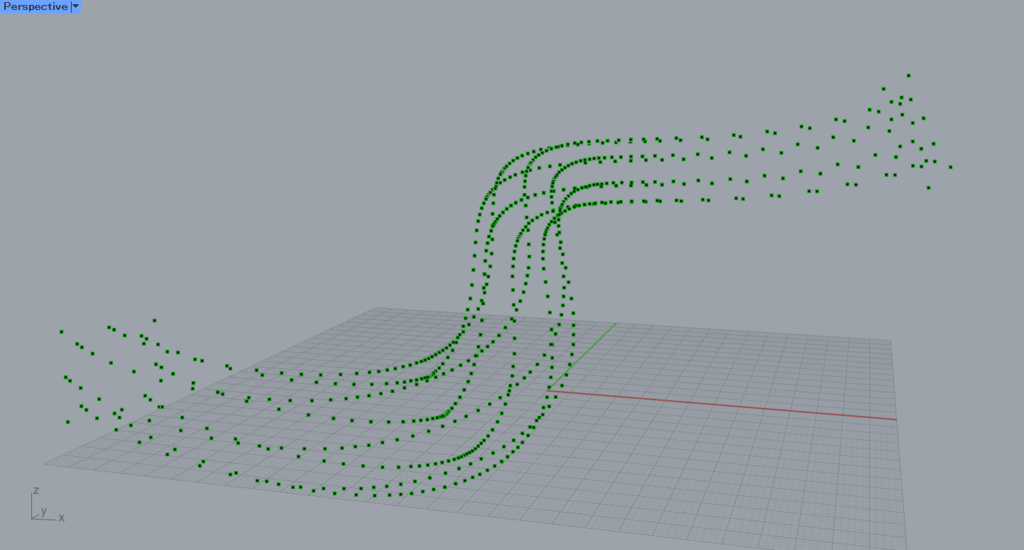
Let’s try hiding the pipe.
Thus, the more complex the shape of an object, the greater the number of points that make up the point cloud.
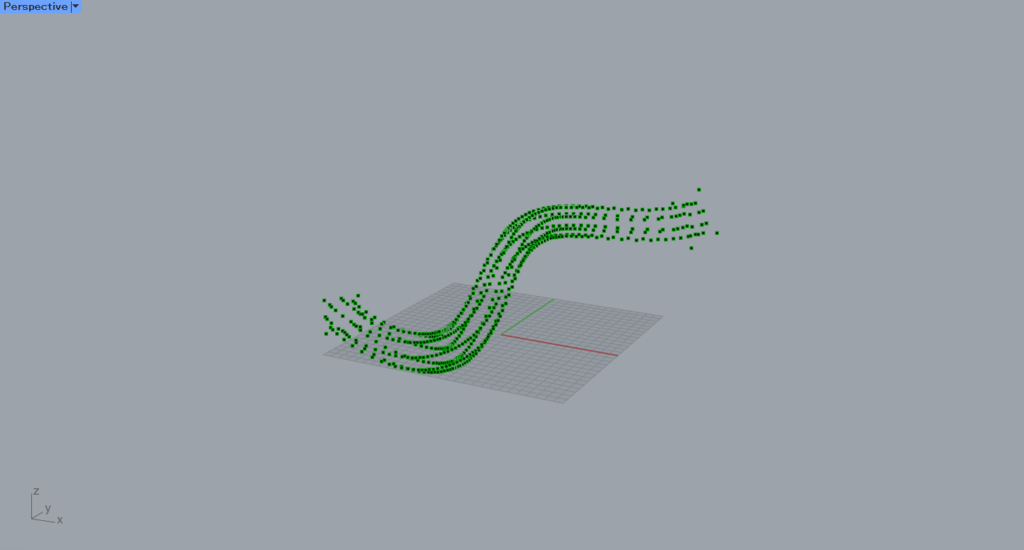
From a distance, the point cloud is more recognizable as a pipe.
Set point clouds
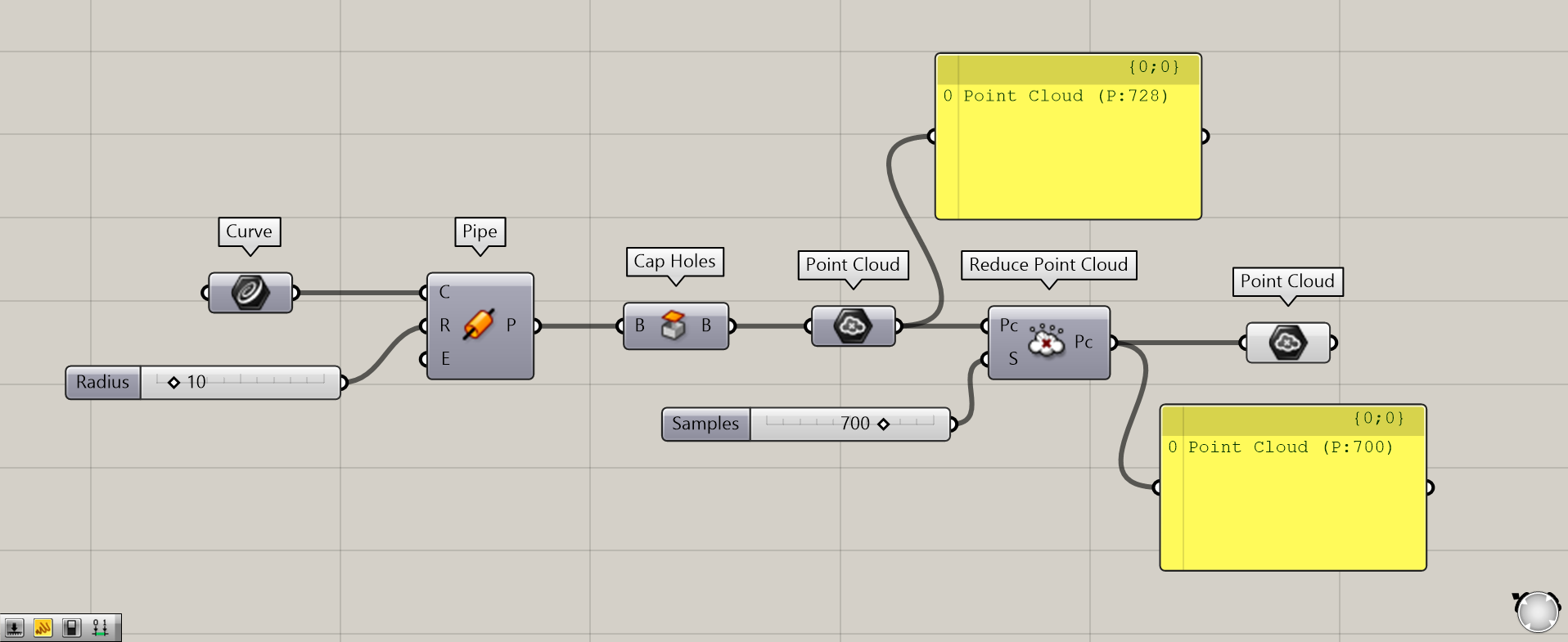
Additional Component: ① Reduce Point Cloud
Point cloud data can also be set in Point Cloud.
The example above reduces the number of points in the point cloud using Reduce Point Cloud and then sets it back in Point Cloud.
Setting ordinary points alone cannot create a coherent point cloud dataset
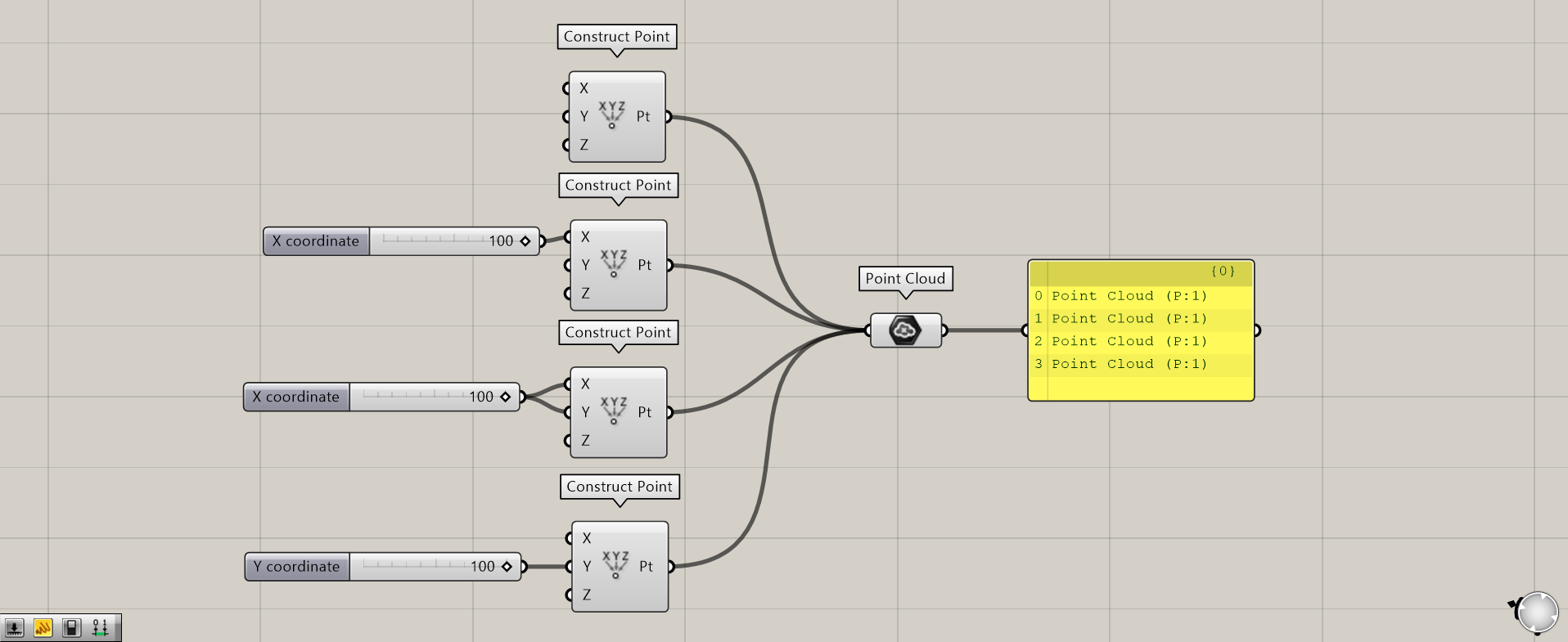
Components used: ①Construct Point ②Point Cloud
Let’s look at the case of setting a regular point.
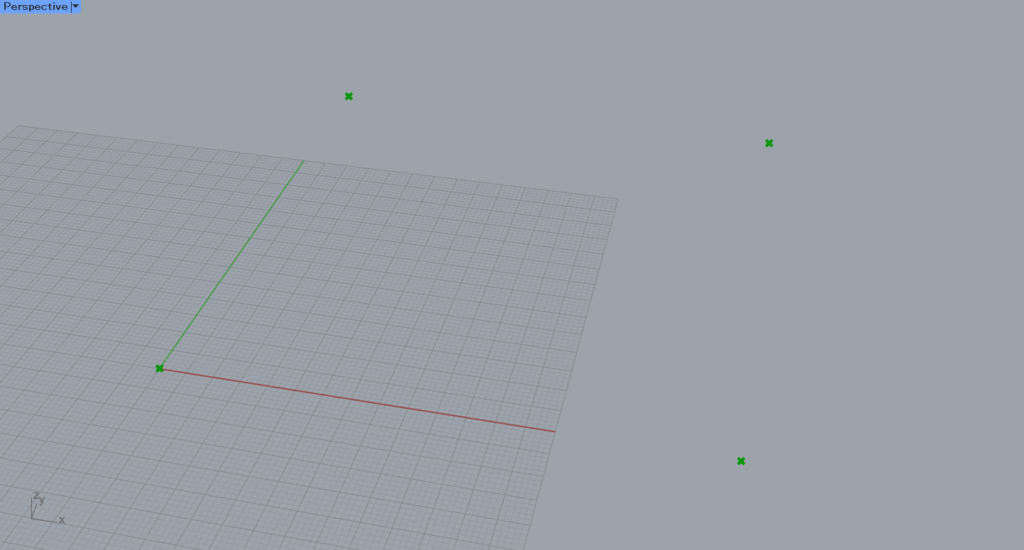
This time, we used four Construct Points to create four points.
The first point has been created at the origin because no numerical value was entered.
Second, since the value 100 is entered only for the X terminal, a point is created at the position 100,0,0.
Third, since the values 100 are entered into the X and Y terminals, points are created at the positions 100,100,0.
Fourth, since the value 100 is entered only for the Y terminal, points are created at the positions 0, 100, and 0.
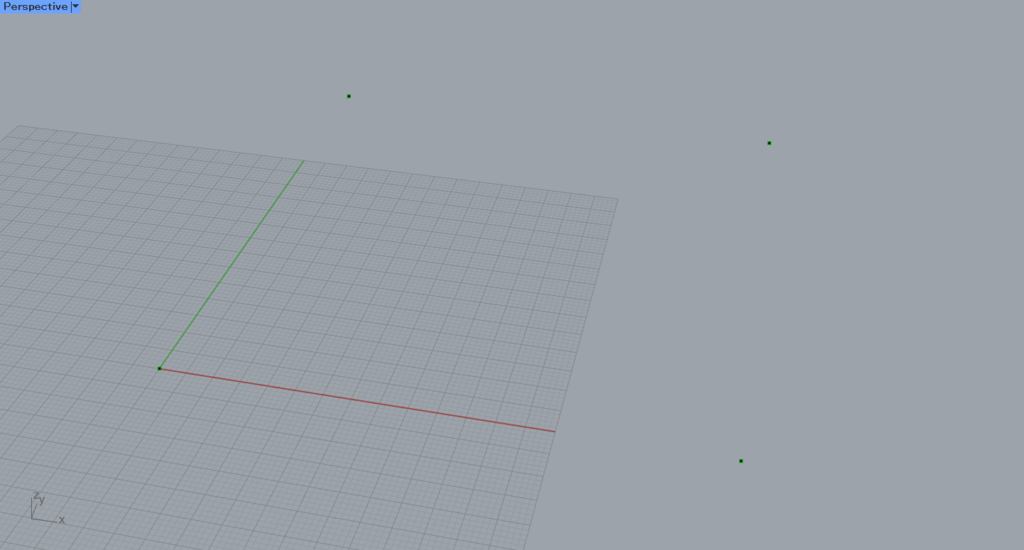
We connected the four Construct Points to the Point Cloud.
Then, it changes to point cloud data, but you’ll notice that instead of a single point cloud dataset, four separate point cloud datasets have been generated.
This is because four point cloud datasets are created from a single point, rather than four points being consolidated into one.
In this way, even if you connect multiple ordinary points, you cannot create a coherent point cloud dataset.
Set point cloud data on Rhino
Point cloud data on Rhino can also be set in Point Cloud.
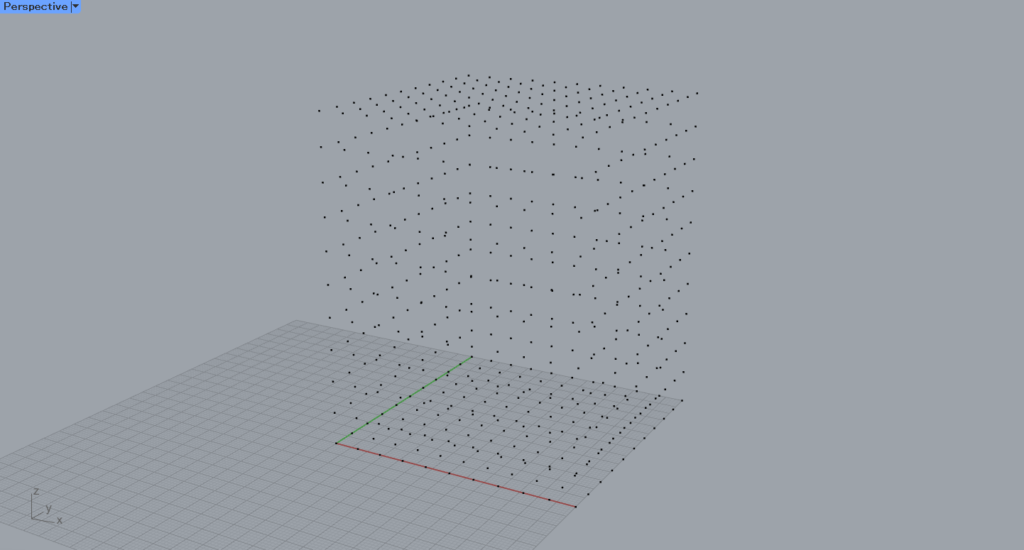
This is the point cloud data on Rhino that we will be using this time.
Setting point cloud data on Rhino
First, let’s look at how to set point cloud data on Rhino.
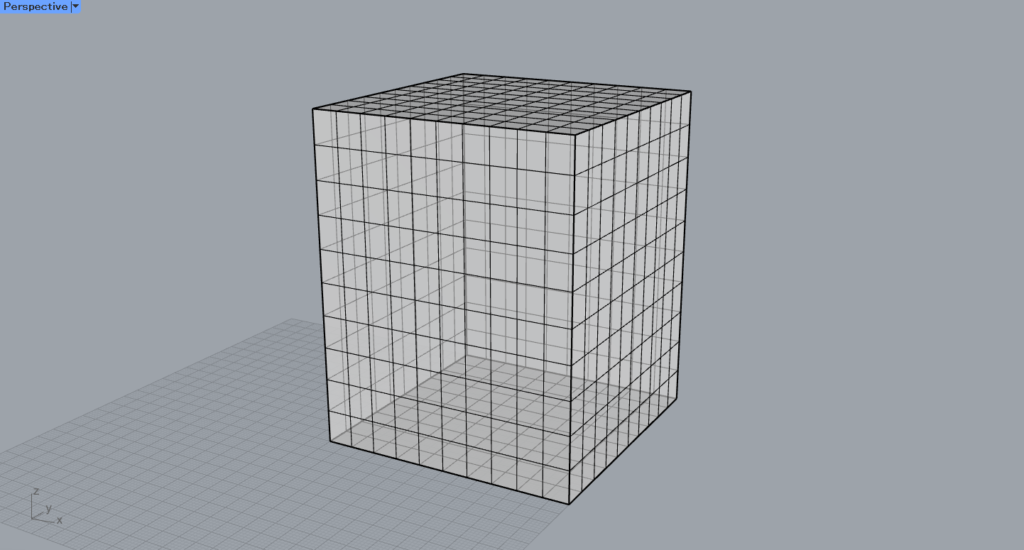
In Rhino, you can only create point cloud data by converting mesh data.
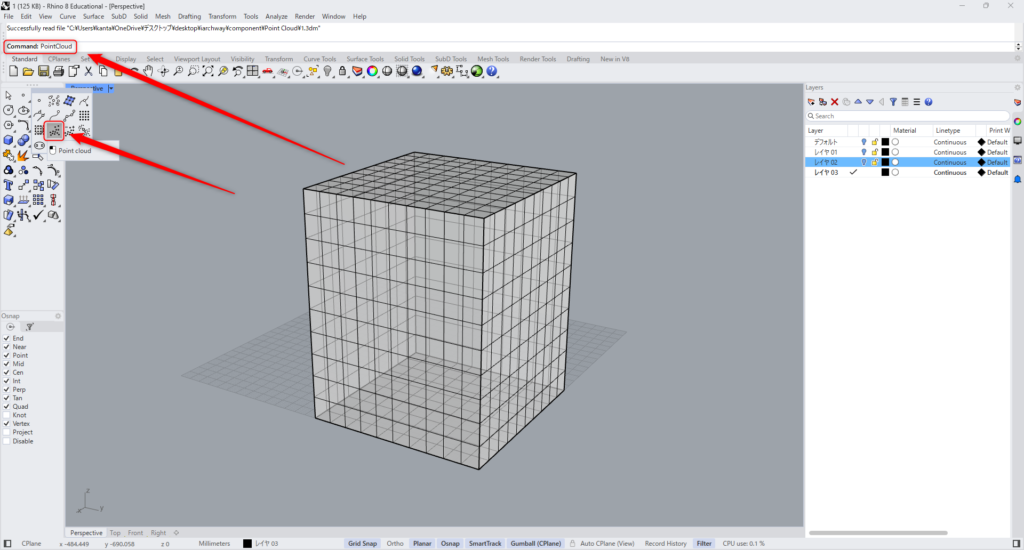
Type “PointCloud” into the command line.
Or click the icon in the image above.
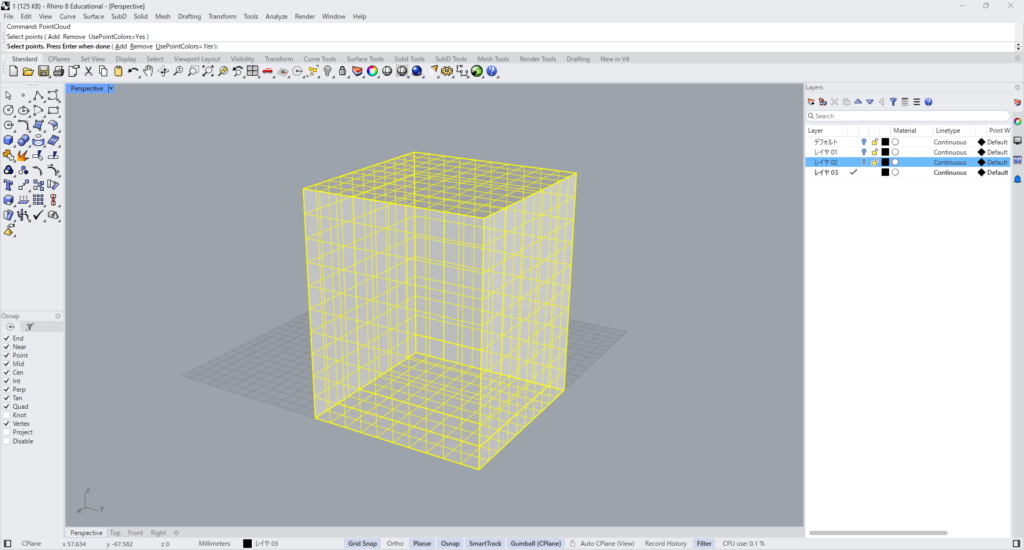
Then, select the mesh.
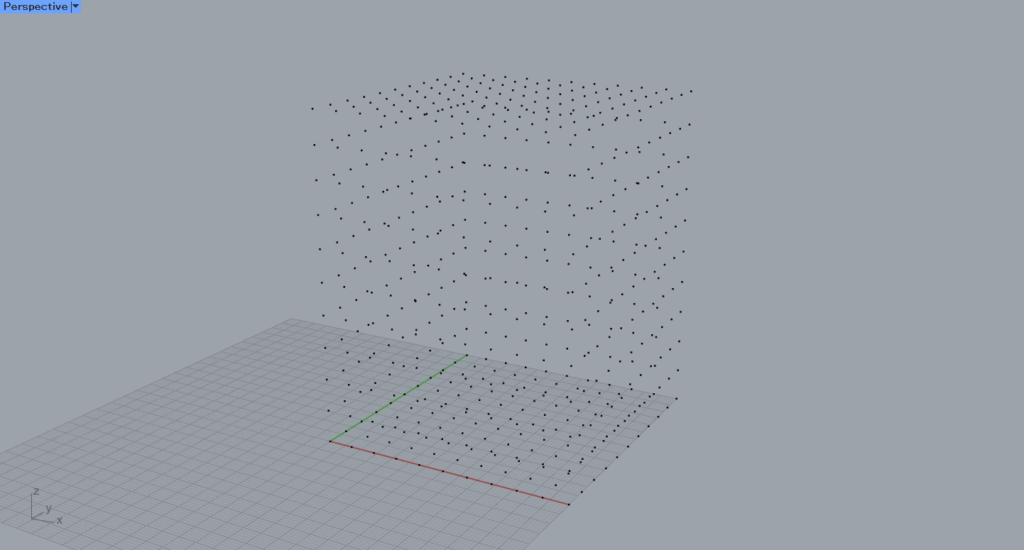
Then, a point cloud is created from the mesh in this method.
Stet point cloud data from Rhino in Point Cloud
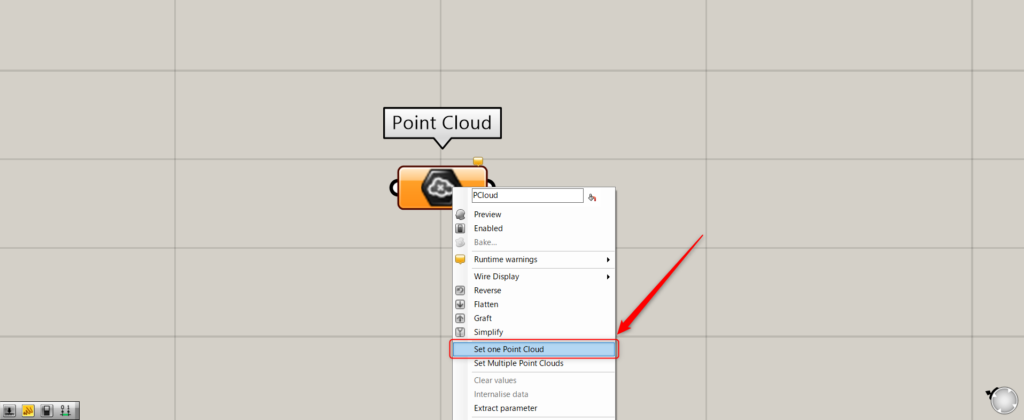
To store a single point cloud, right-click on Point Cloud and select “Set one Point Cloud”.
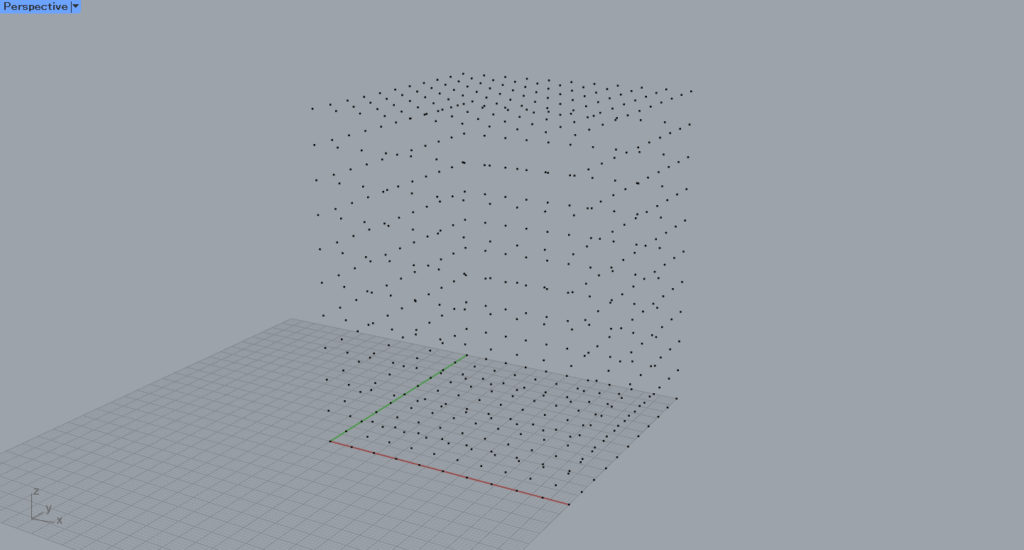
The screen will then switch to Rhino.
Select the point cloud you want to set.
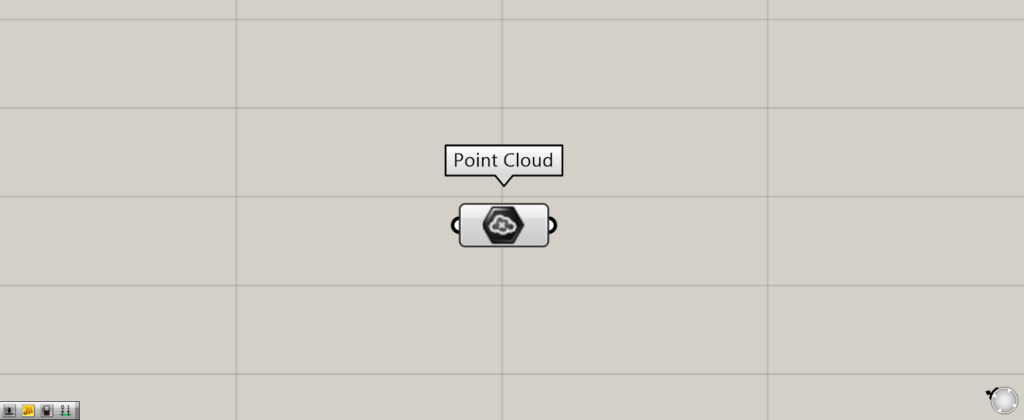
Then, the point cloud was set.
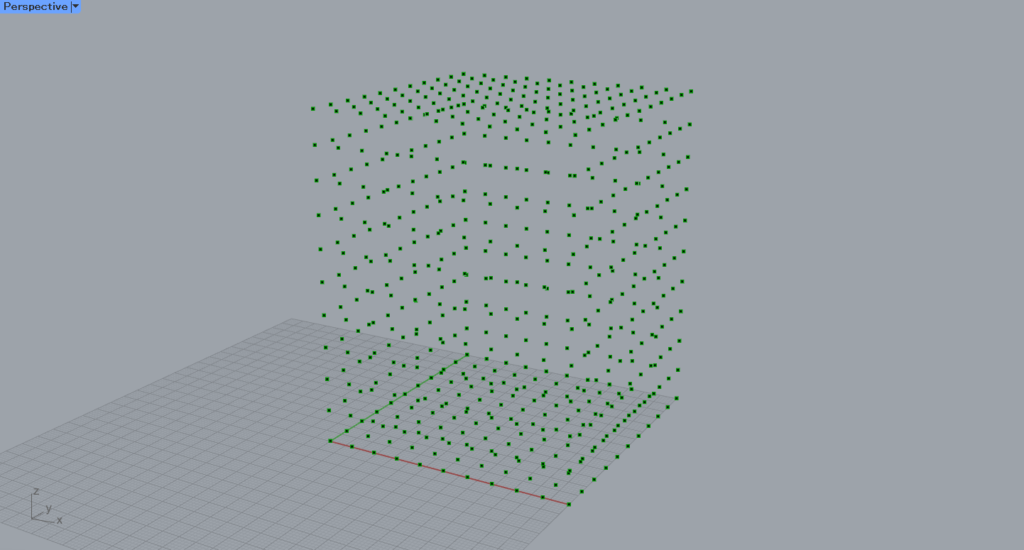
This is the result on Rhino.
Setting a point cloud does not mean setting a single point; rather, the entire point cloud is set.
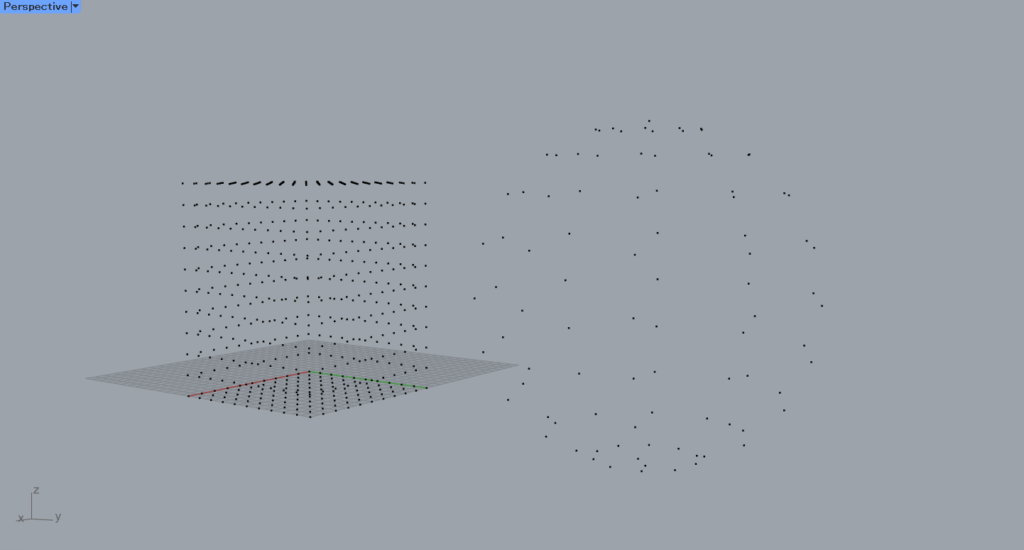
Next, we’ll try setting multiple point clouds.
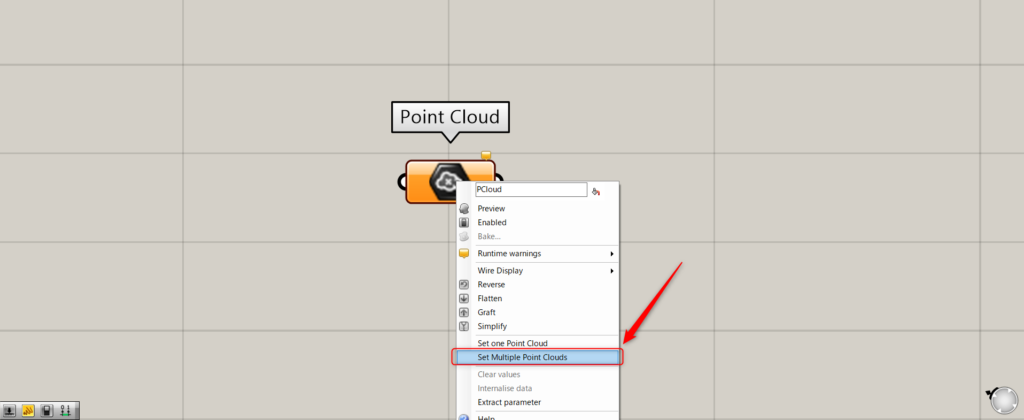
To store multiple point clouds, right-click on Point Cloud and select “Set Multiple Point Clouds”.
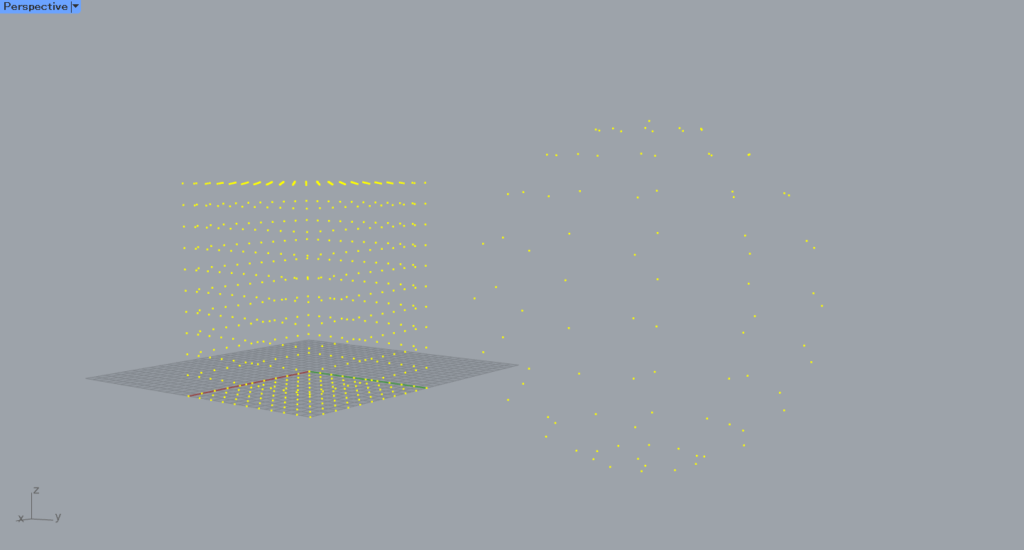
Then, select multiple point clouds on Rhino.
Then, multiple point clouds were set.
This is the result on the Rhino.
List of Grasshopper articles using Point Cloud component↓




Comment