
![[Grasshopper] How to Use Reduce Point Cloud to Reduce Points in a Point Cloud](https://iarchway.com/wp-content/uploads/2026/01/Reduce-Point-Cloud.png)
This article explains how to Use Reduce Point Cloud to Reduce the Number of Points in a Point Cloud
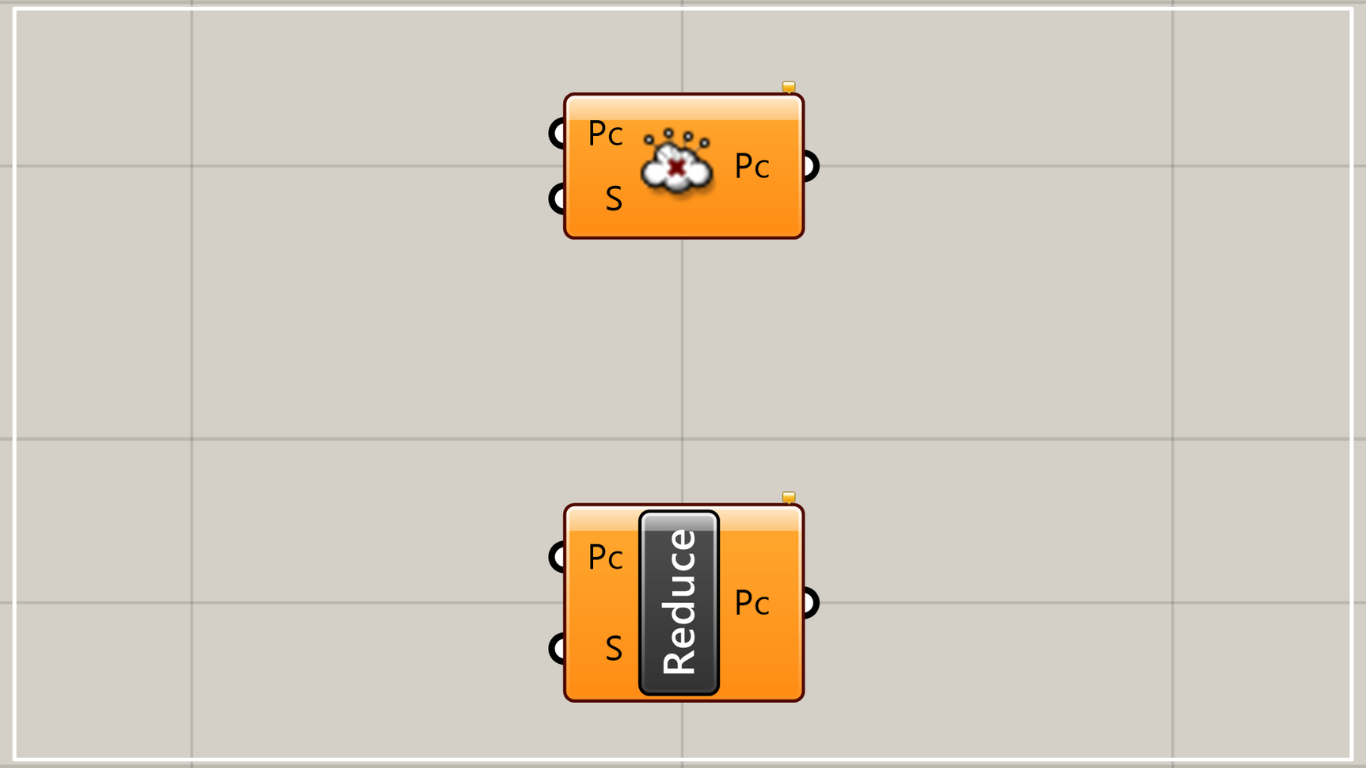
On the Grasshopper, it is represented by either of the two above.
Reduce the number of points in the point cloud
Using Reduce Point Cloud allows you to reduce the number of points in a point cloud.
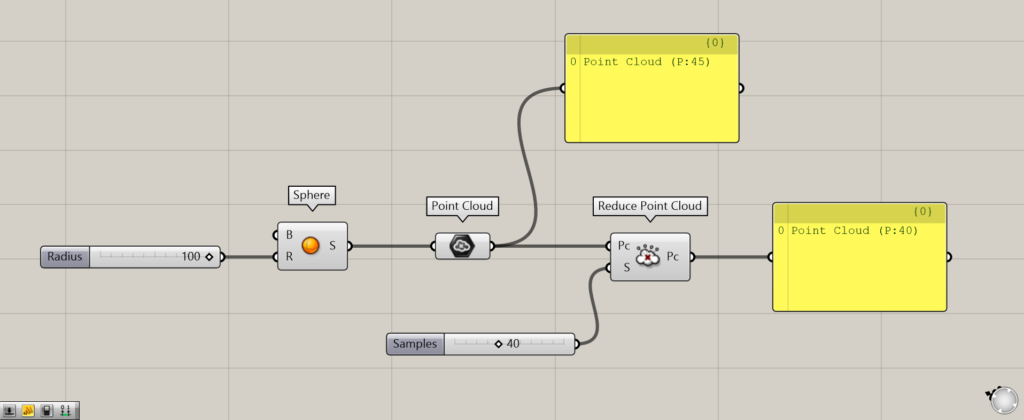
Components used: ① Sphere ② Point Cloud ③ Reduce Point Cloud
This time, as an example, we will create a point cloud from a sphere and reduce the number of points that make up that point cloud.
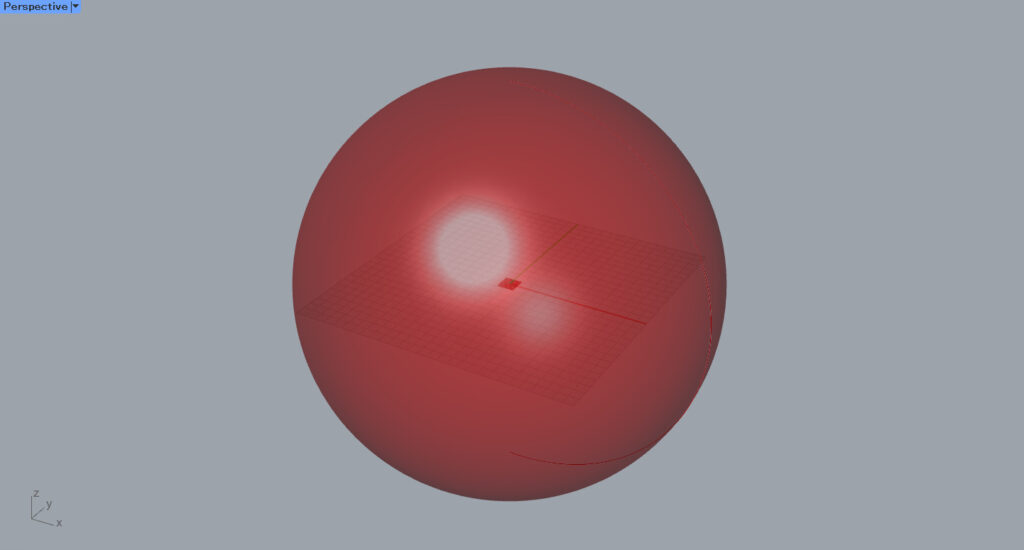
First, enter the radius value into the Sphere(R).
This time, we entered 100.
Then, a sphere is created.
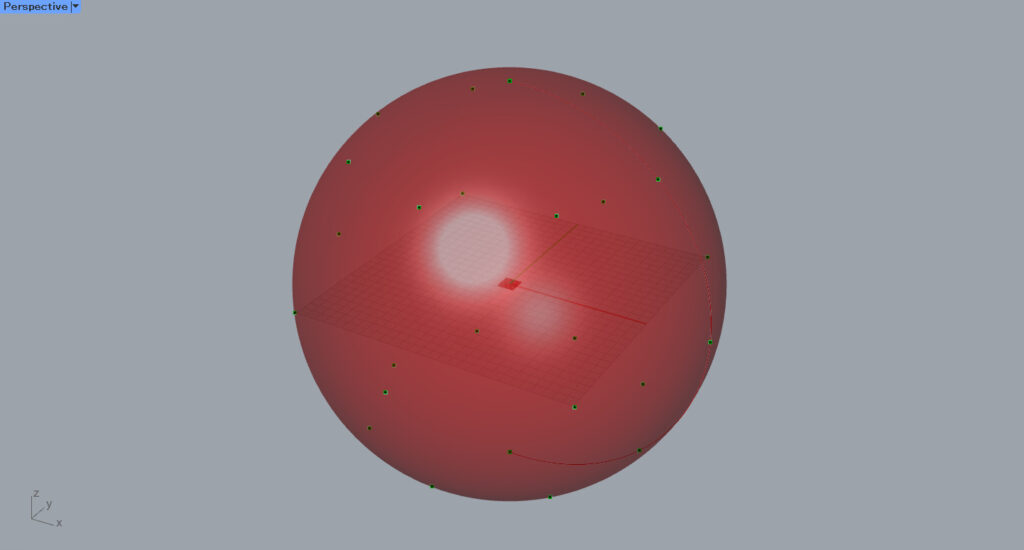
Then, connect the Sphere to the Point Cloud.
Then, a point cloud is created from the sphere.
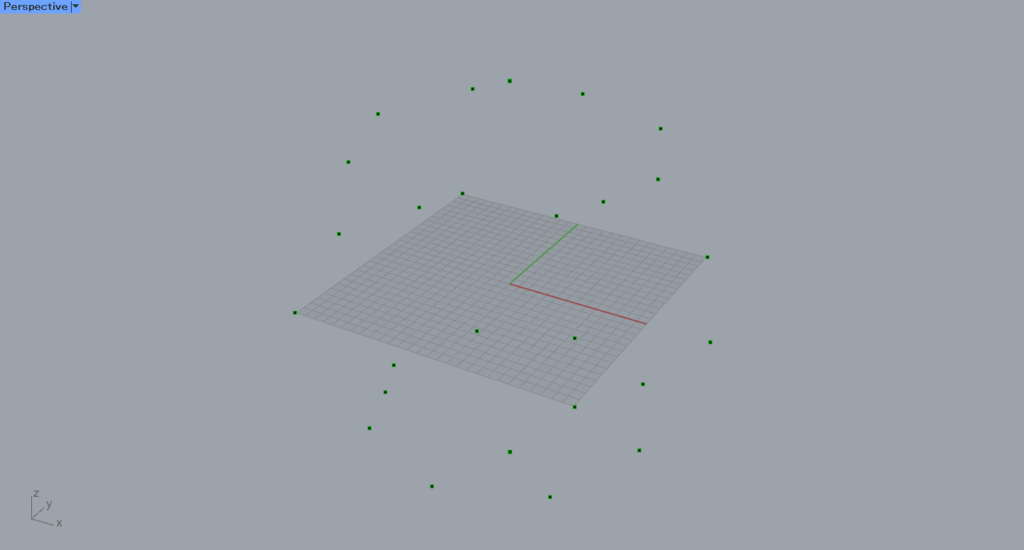
The sphere is hidden.
When you connect a Panel to the Point Cloud, it displays as P:45, indicating it consists of 45 points.
Then, connect the Point Cloud to the Reduce Point Cloud(Pc).
Then, enter the number of points into the Reduce Point Cloud(S).
This time, we entered 40.
Originally, there were 45 points, but after processing with Reduce Point Cloud, the output shows P40, indicating that the number of points has decreased to 40.
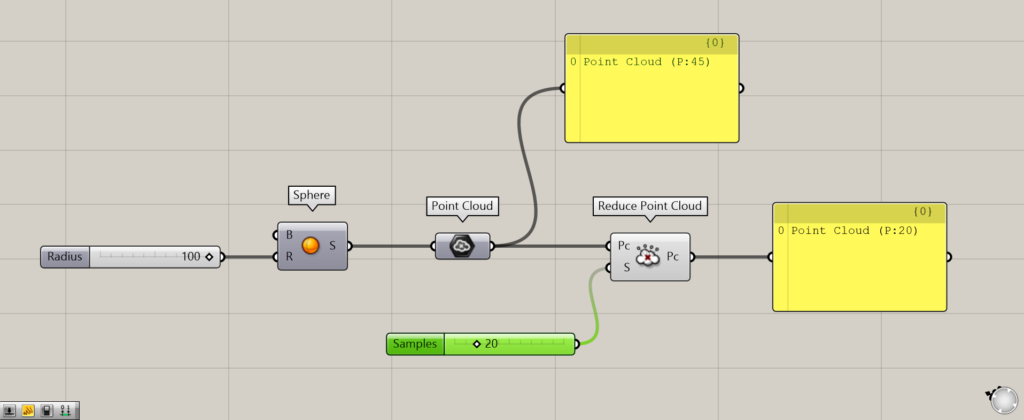
To make it easier to understand, we changed the value of the Reduce Point Cloud(S) to 20.
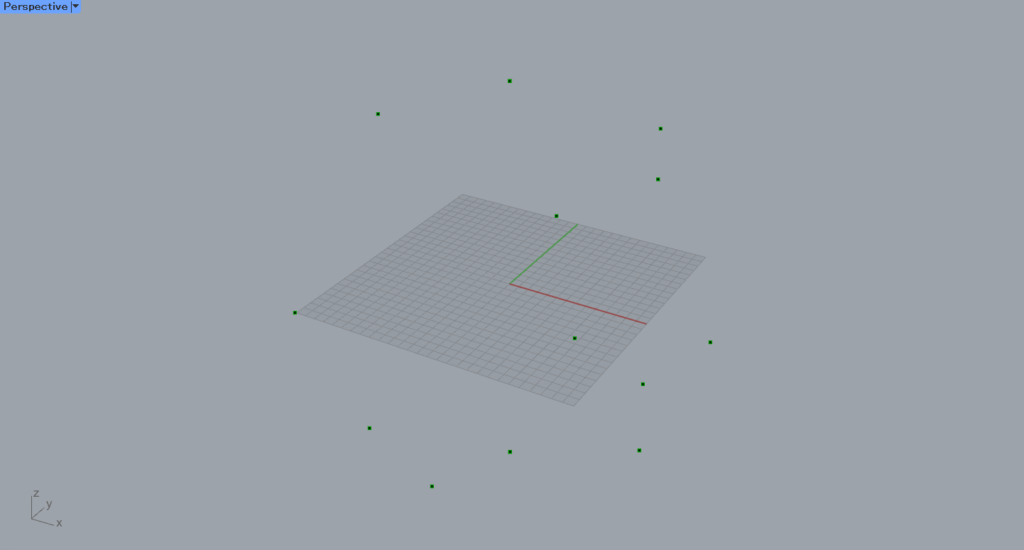
Then, the number of points became 20, which is fewer.
In this way, using Reduce Point Cloud allows you to reduce the number of points in a point cloud.
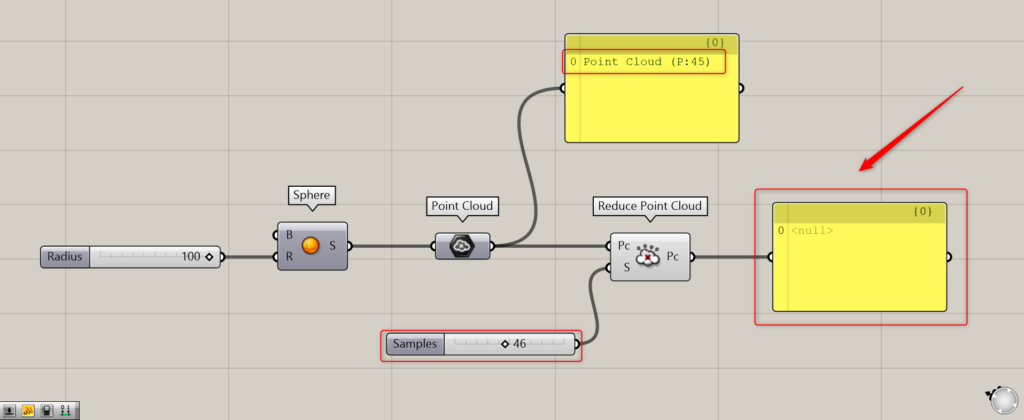
If the number of points exceeds the original count, no data will be output from Reduce Point Cloud.
In the case of the image above, the original number of points is 45, but 46—exceeding 45—has been entered into the Reduce Point Cloud(S).
Since the value is greater than 45, the data will not be output.
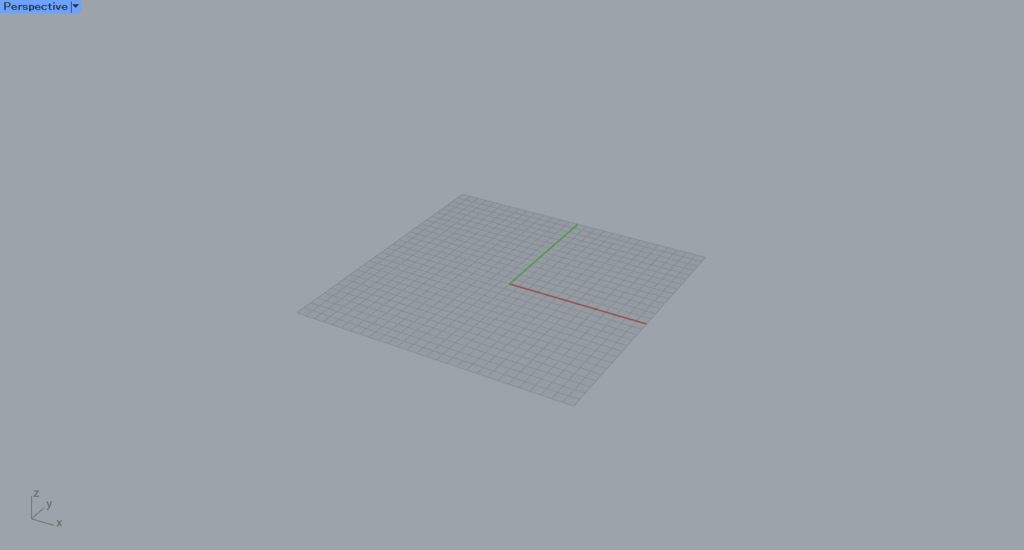
Point clouds will no longer be displayed in Rhino either.
List of Grasshopper articles using Reduce Point Cloud component↓




Comment