
![[Grasshopper] How to Use Angular Dimension to Create Angular Dimensions from Three Points](https://iarchway.com/wp-content/uploads/2026/01/Angular-Dimension-2.png)
This article explains how to use Angular Dimension to create angular dimensions from three points.
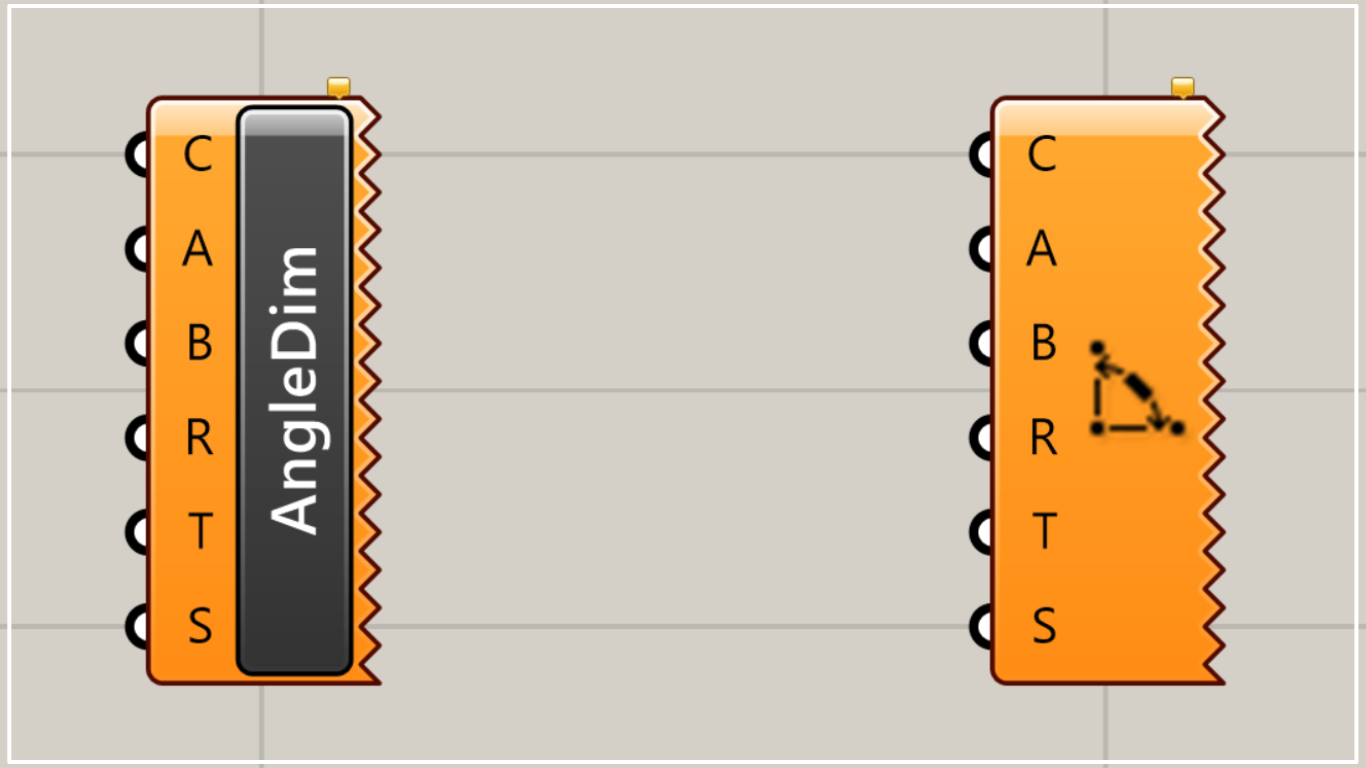
On the Grasshopper, it is represented by either of the two above.
Create angular dimensions
Using Angular Dimension allows you to create angular dimensions.
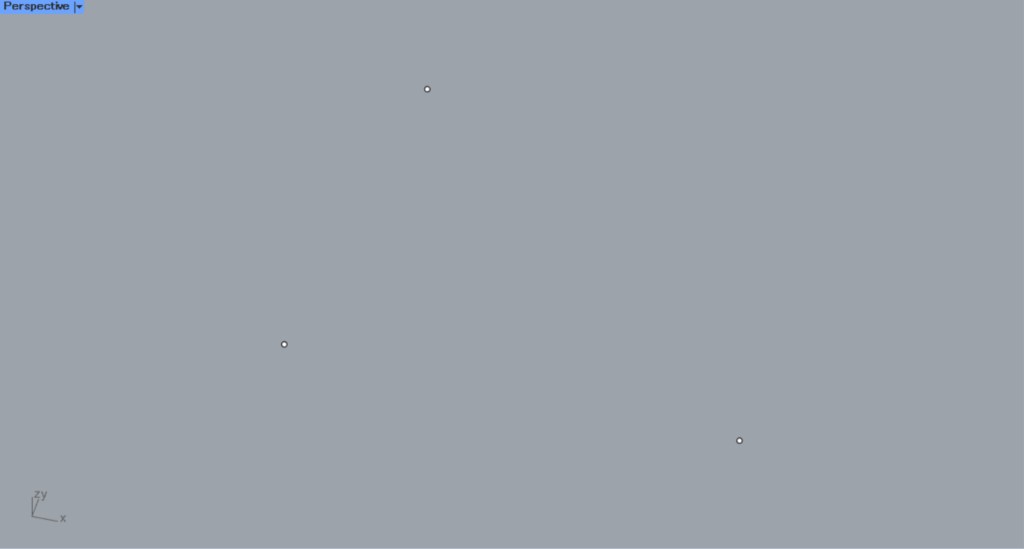
This time, we will create an angular dimension using three points on Rhino.
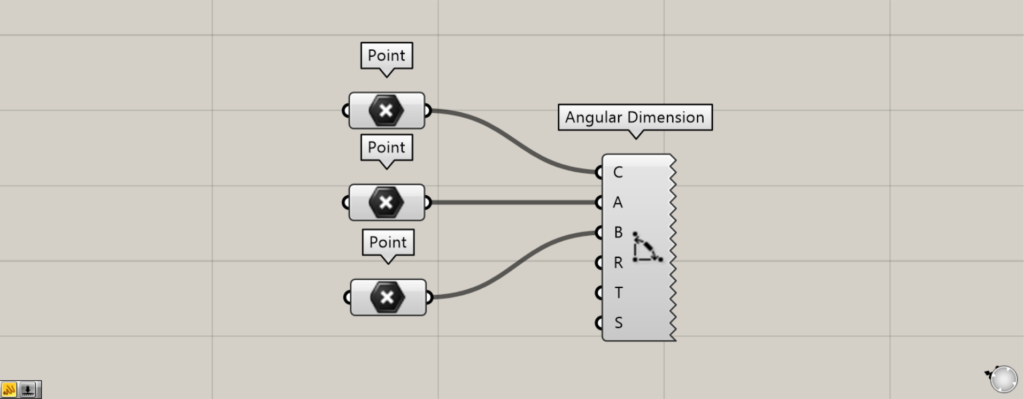
Components used: ①Point ②Angular Dimension
First, set three points on Rhino in each Point.
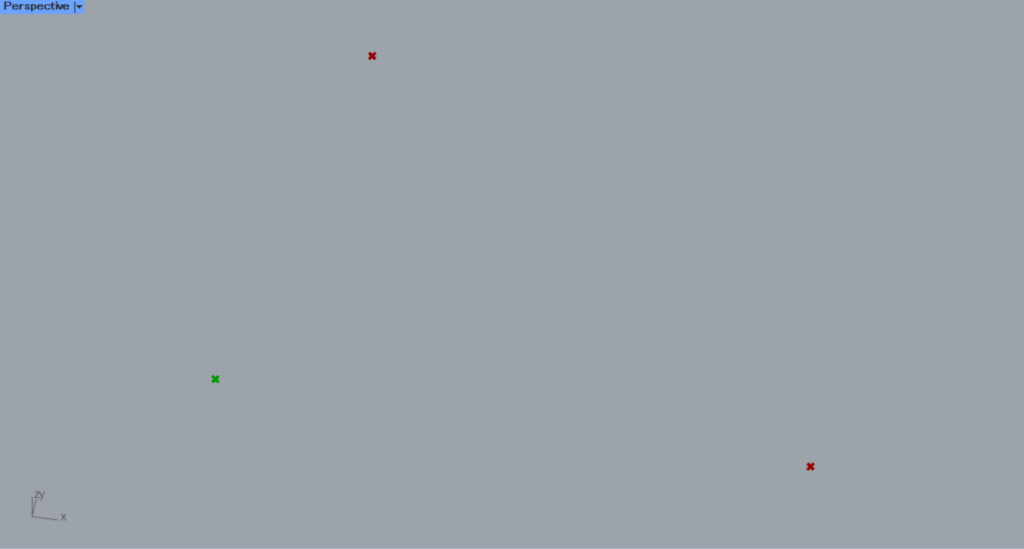
Connect the Point containing the central point to the Angular Dimension(C).
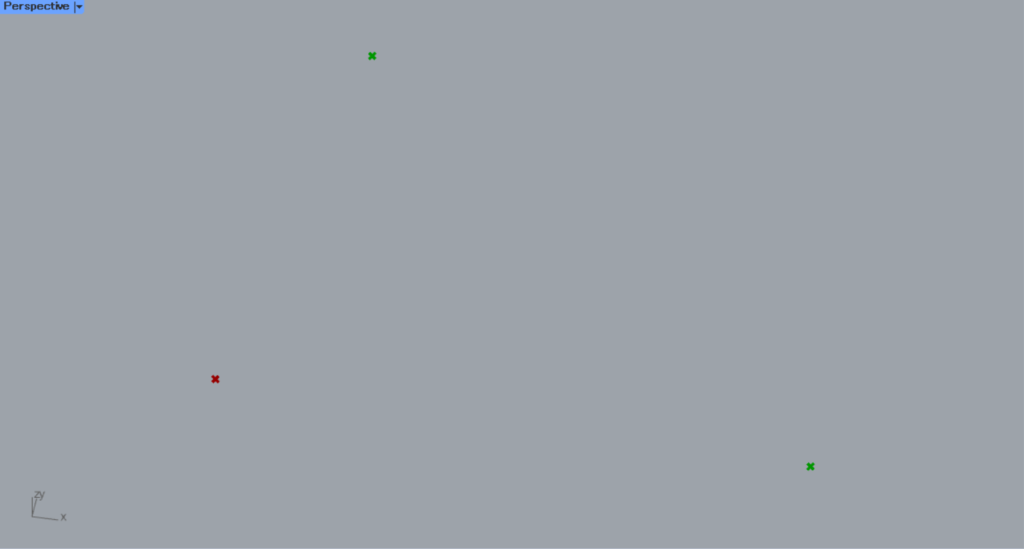
Set the Point containing the start and end points in Angular Dimension(A and B), respectively.
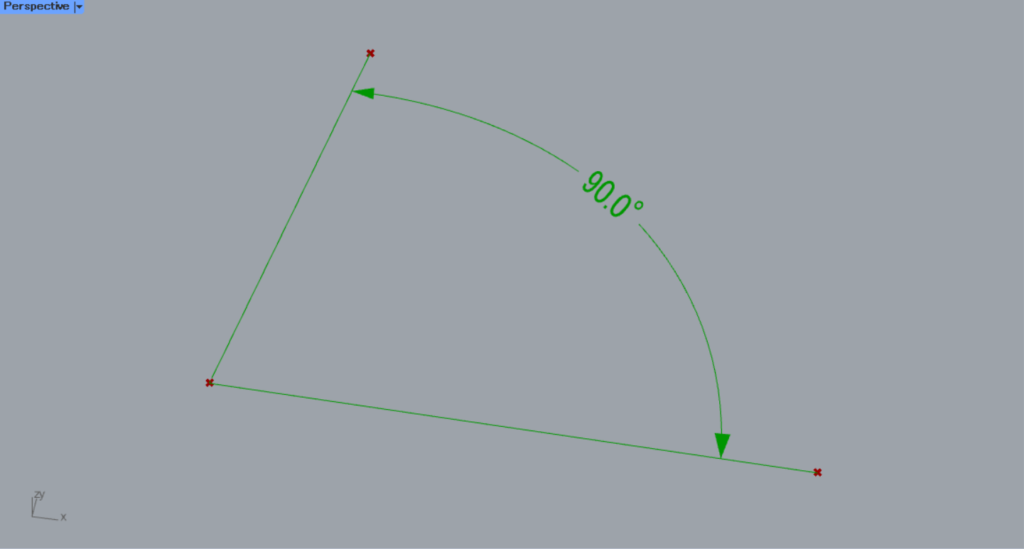
Then, the angular dimensions were created as shown.
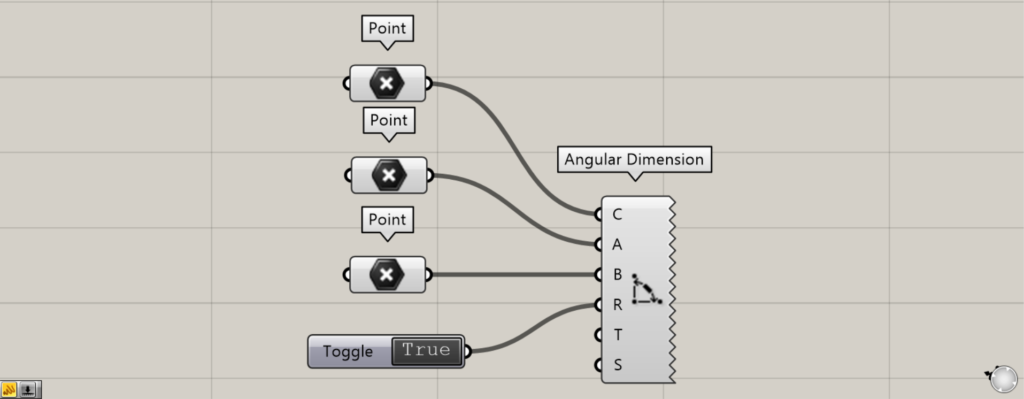
Additional Component: ① Boolean Toggle
The R terminal allows you to set whether to invert the angular dimensions.
To invert, connect True.
This time, we are connecting Boolean Toggle set to True.
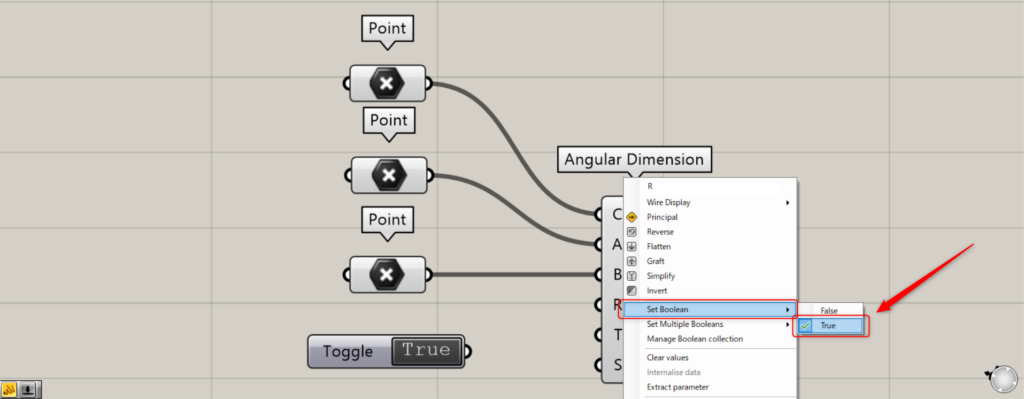
Alternatively, right-click the Angular Dimension(R) and select True from “Set Boolean”.
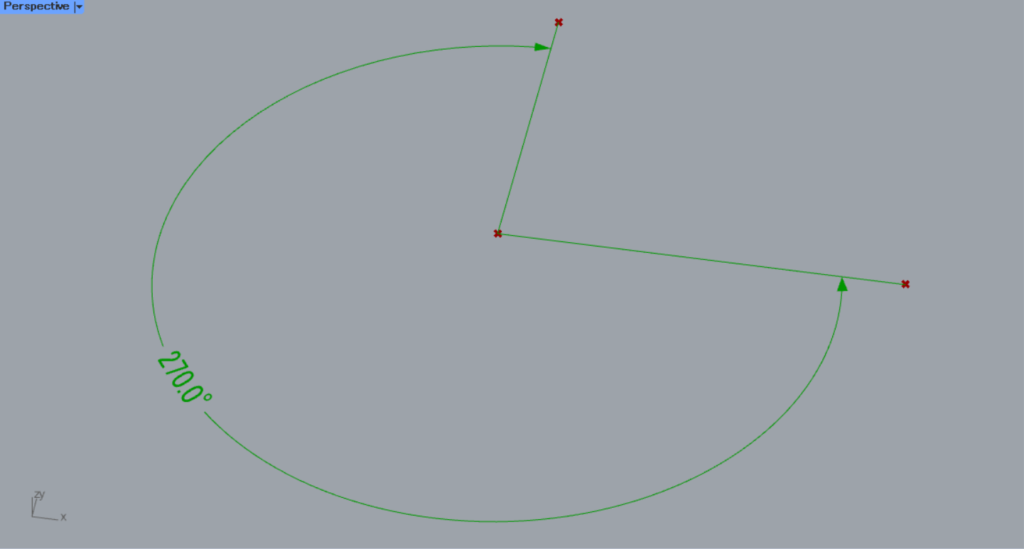
Then, the angular dimensions were reversed like this.
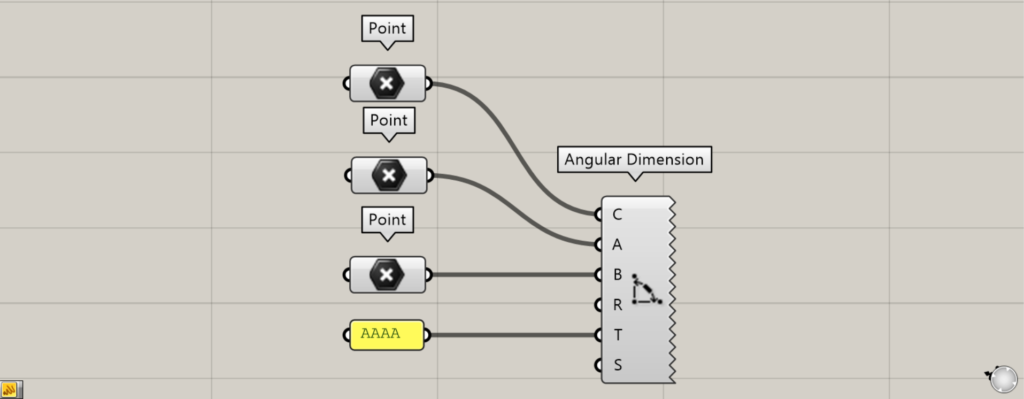
Connecting character information to the T terminal allows you to set the characters to be displayed.
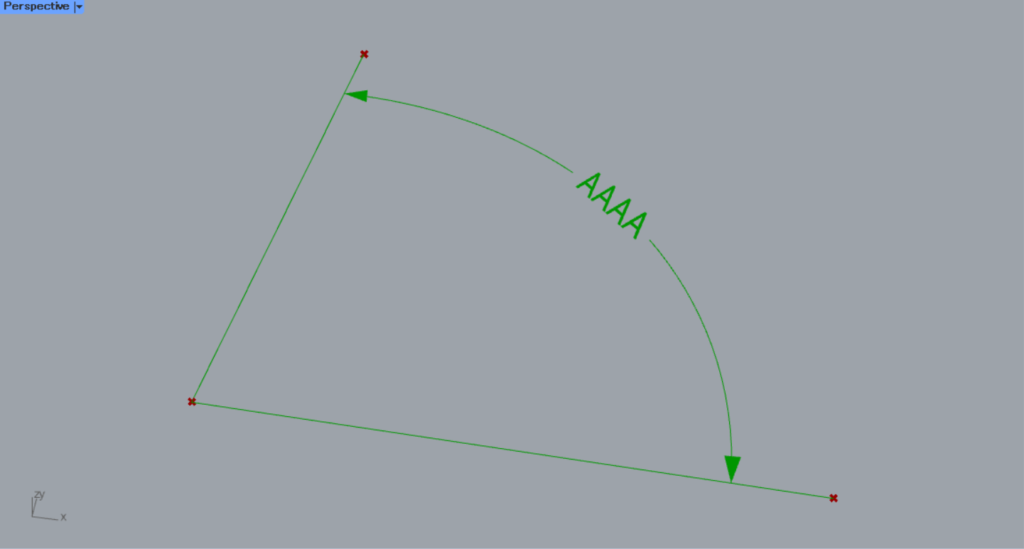
Then, the displayed characters changed like this.
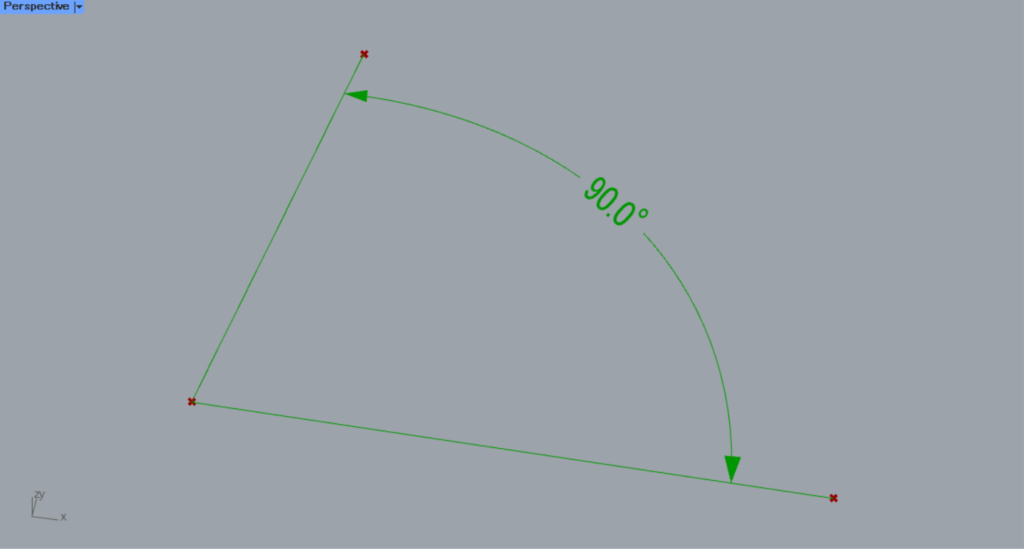
You can change the text size by entering a value into the S terminal.
The image above shows the default state.
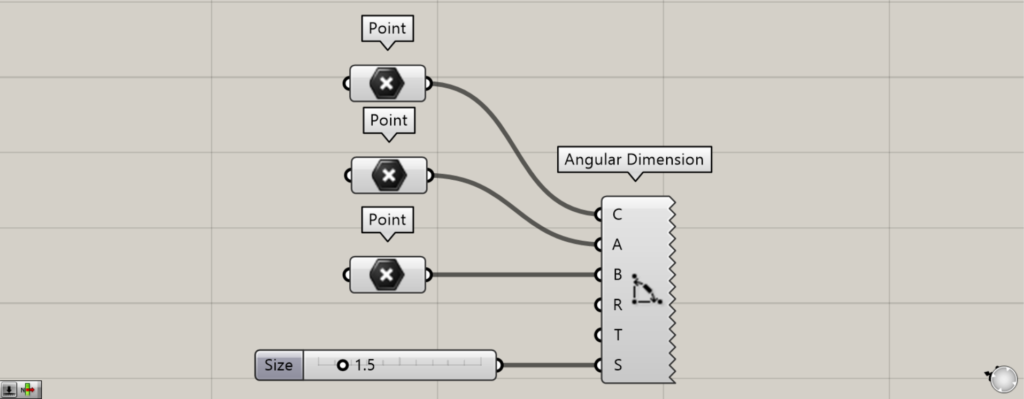
We entered 1.5 into the Angular Dimension(S).
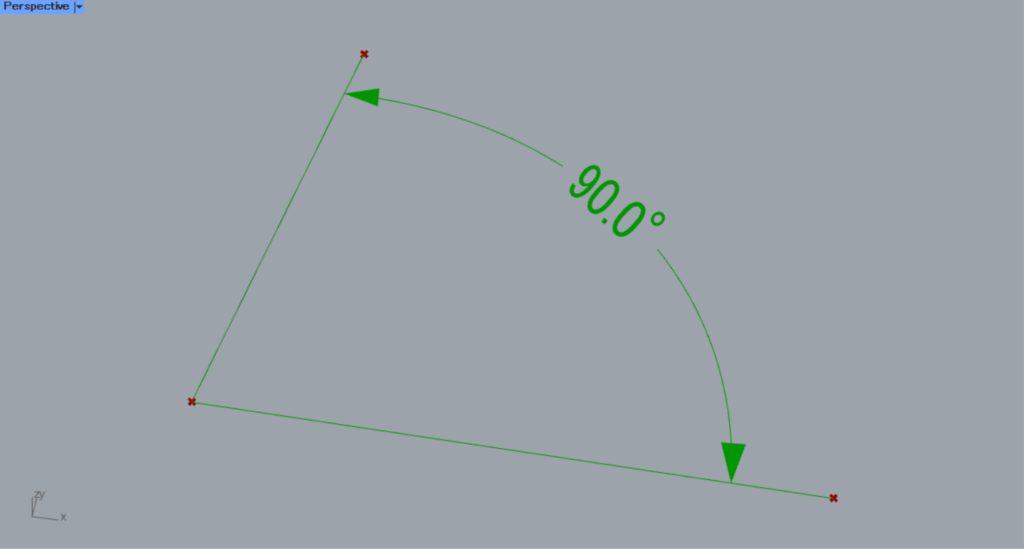
Then, the font size changed like this.
List of Grasshopper articles using Angular Dimension component↓




Comment