
![[Grasshopper] How to use Ordinate Dimension to set coordinate dimensions](https://iarchway.com/wp-content/uploads/2026/01/Ordinate-Dimension-1.png)
This article explains how to use Ordinate Dimension to set coordinate dimensions.
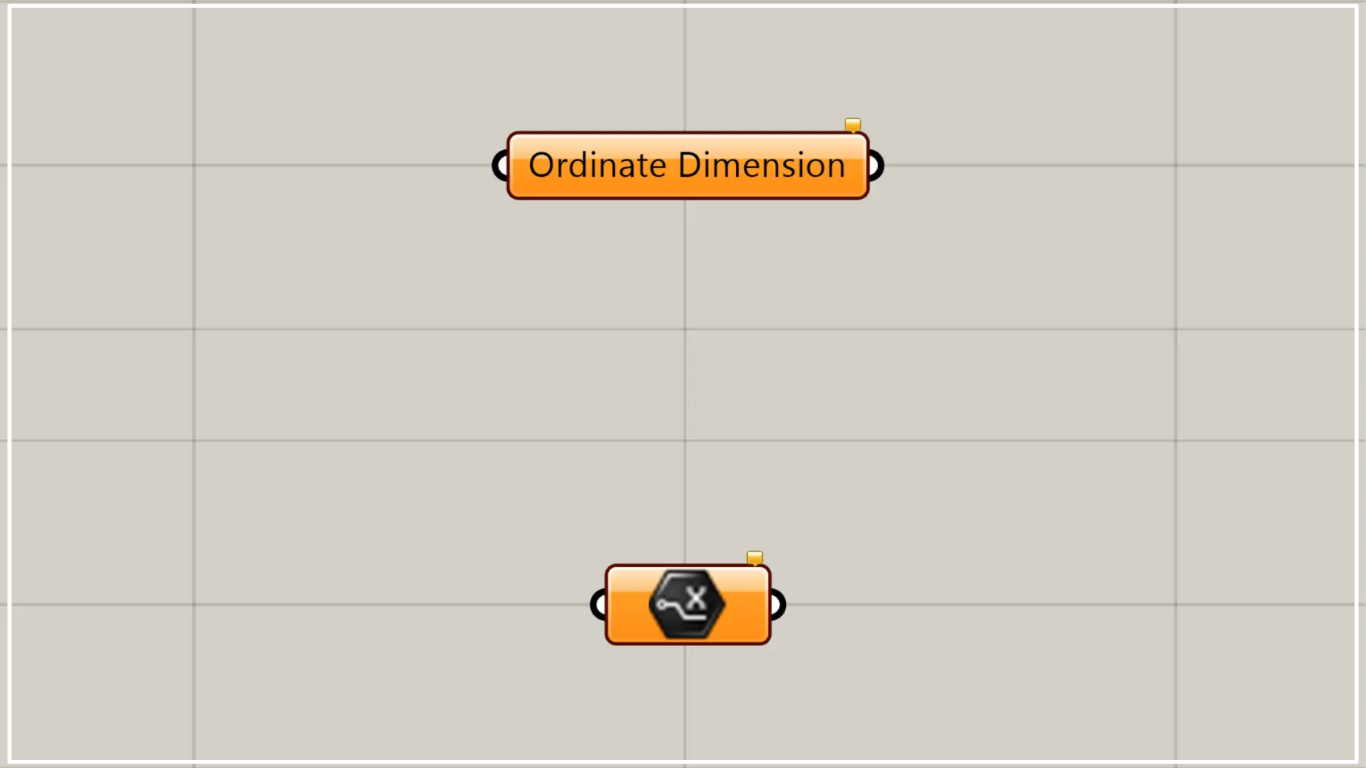
On the Grasshopper, it is represented by either of the two above.
Set coordinate dimensions
Using the Ordinate Dimension allows you to set coordinate dimensions.
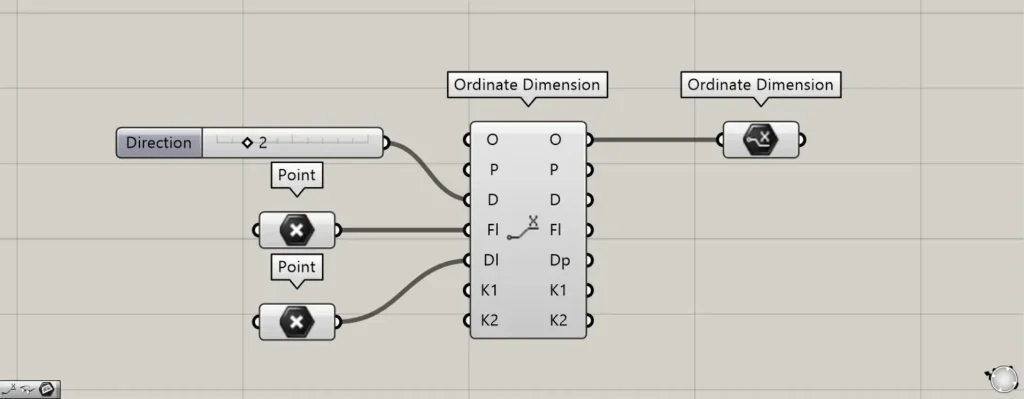
Components used: ①Point ②Ordinate Dimension ③Ordinate Dimension
Note that there is another component with the same name.
The other Ordinate Dimension is a component for creating coordinate dimensions.
This time, we’ll use two Ordinate Dimensions as an example for explanation.
Enter the value 2 into the other Ordinate Dimension(D).
Then, you will be able to obtain the horizontal coordinate.
Then, connect the points to the other Ordinate Dimension(Fl and Dl).
Connect the starting point data to the other Ordinate Dimension(Fl).
Connect the endpoint point data to the Ordinate Dimension(Dl).
This time, we are connecting the point data set in Point.
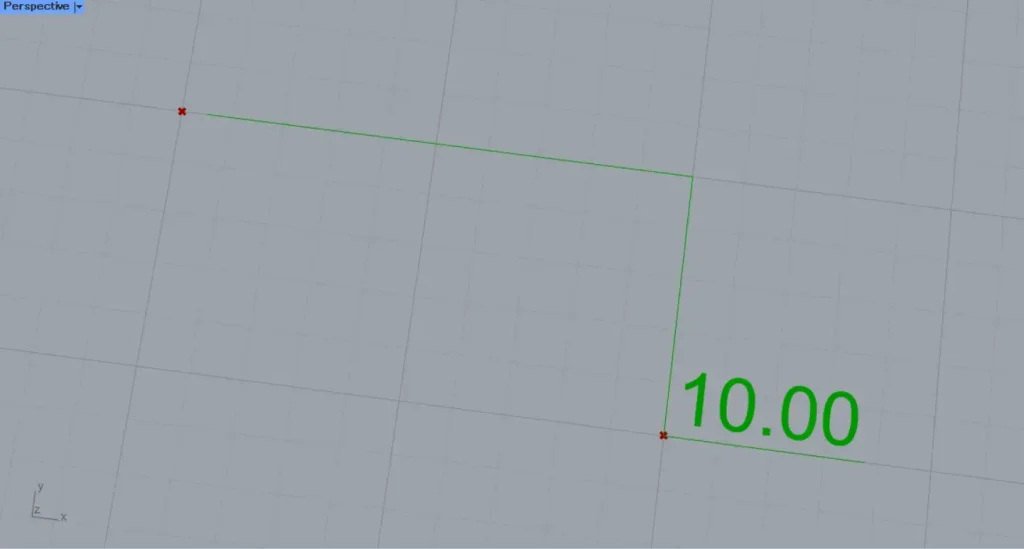
Then, you can create the coordinate dimensions for the position of the second specified point, using the first specified point as the reference.
In this case, since the horizontal coordinate was acquired, a coordinate dimension of 10.00 was created.
Next, connect the other Ordinate Dimension(O) on the right side to this Ordinate Dimension.
The created coordinate dimension was then set in this Ordinate Dimension.
In this way, you can store coordinate dimensions in the new Ordinate Dimension.
Set coordinate dimensions on Rhino
Normally, coordinate dimensions on Rhino can also be set using this Ordinate Dimension feature, but as of 2026, an error occurs and they cannot be set.
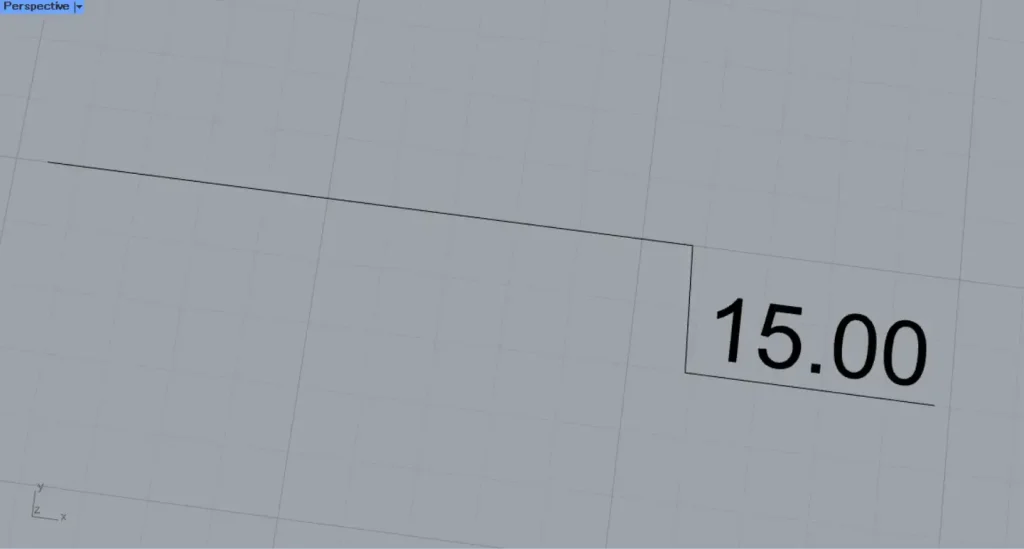
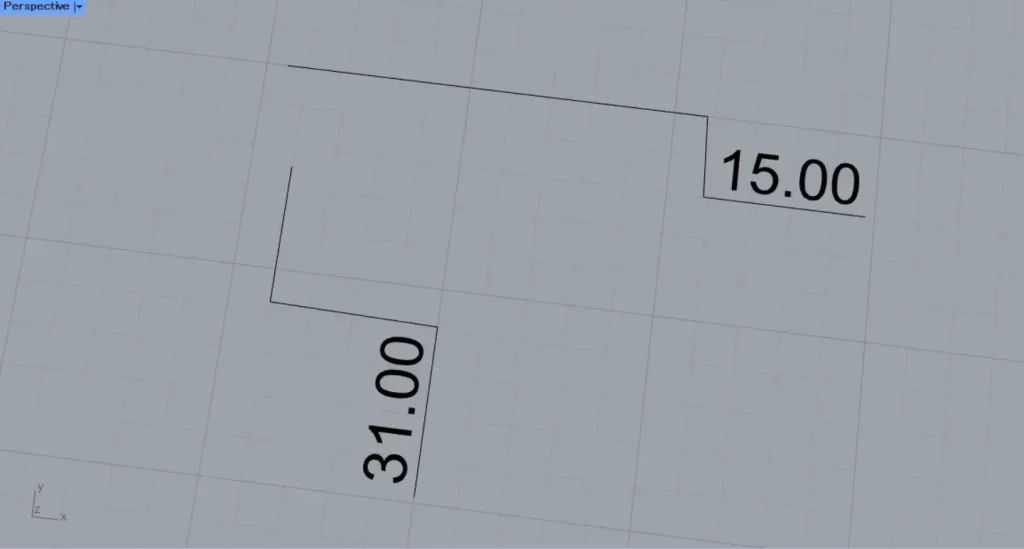
Let’s look at the case with one coordinate dimension and the case with multiple coordinate dimensions.
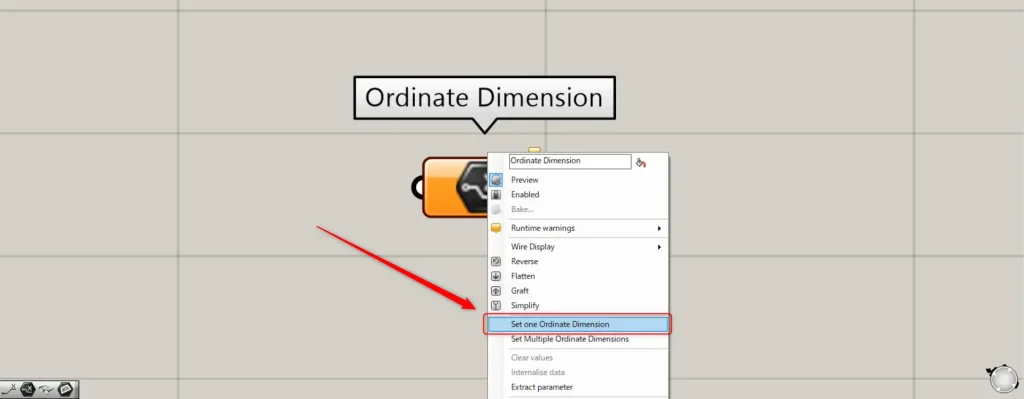
In one case, right-click the Ordinate Dimension and select “Set one Ordinate Dimension”.
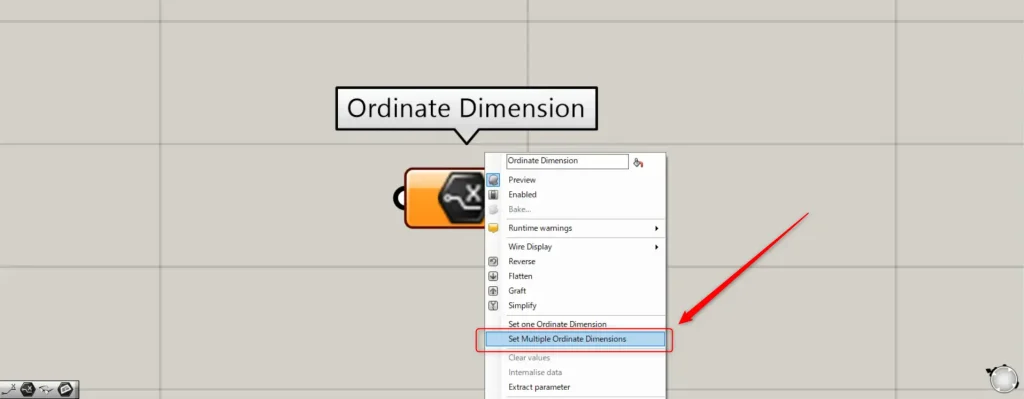
For multiple coordinate dimensions, right-click the Ordinate Dimension and select “Set Multiple Ordinate Dimensions”.
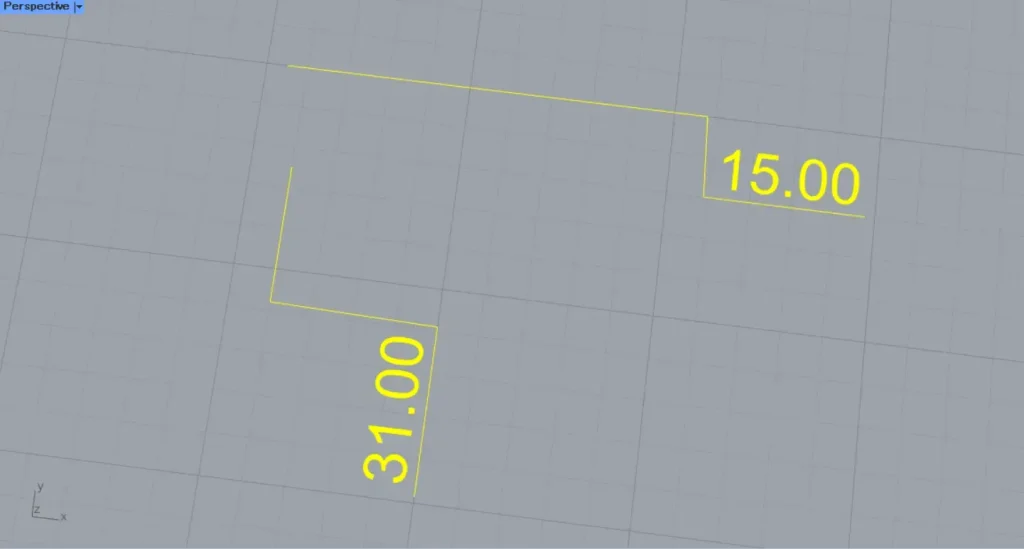
Then, the screen will switch to Rhino, so select the coordinate dimensions you want to set.
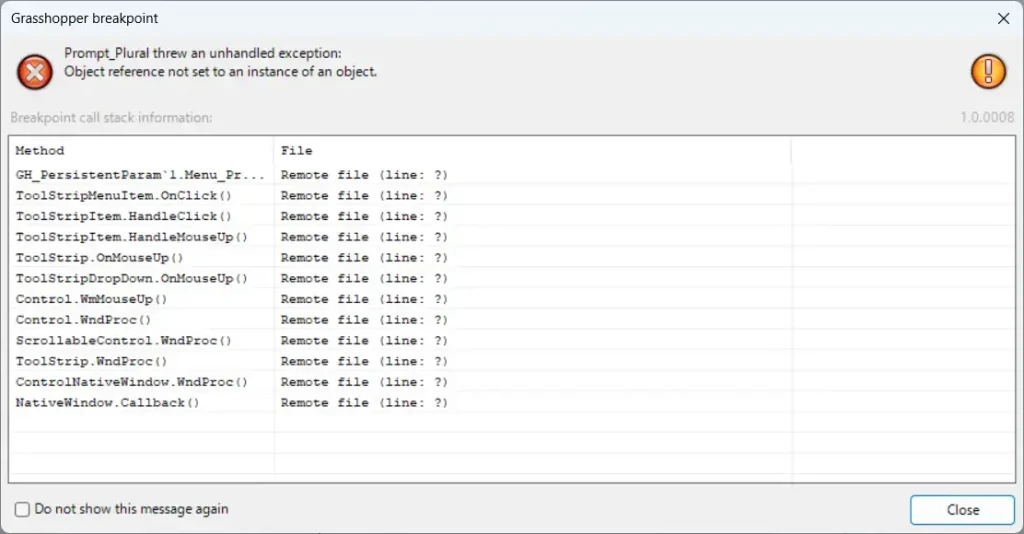
However, as of October 2026, an error like this is displayed, preventing storage.
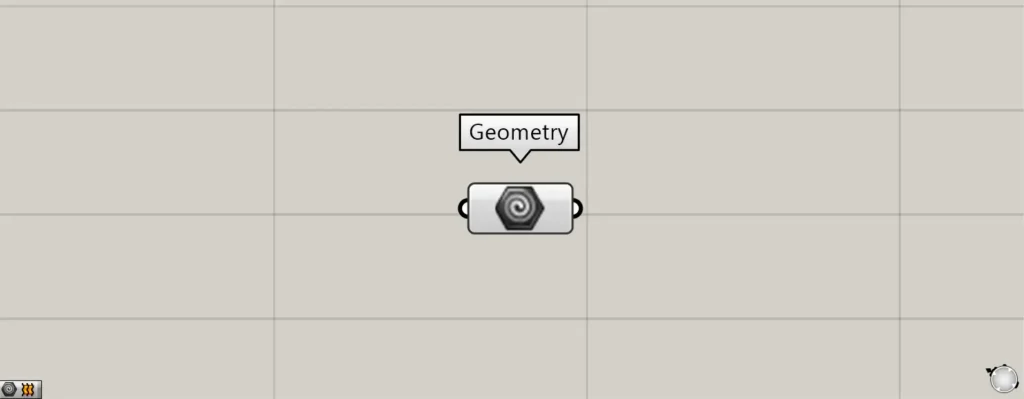
Components used: ①Geometry
Therefore, we will use the Geometry component instead.
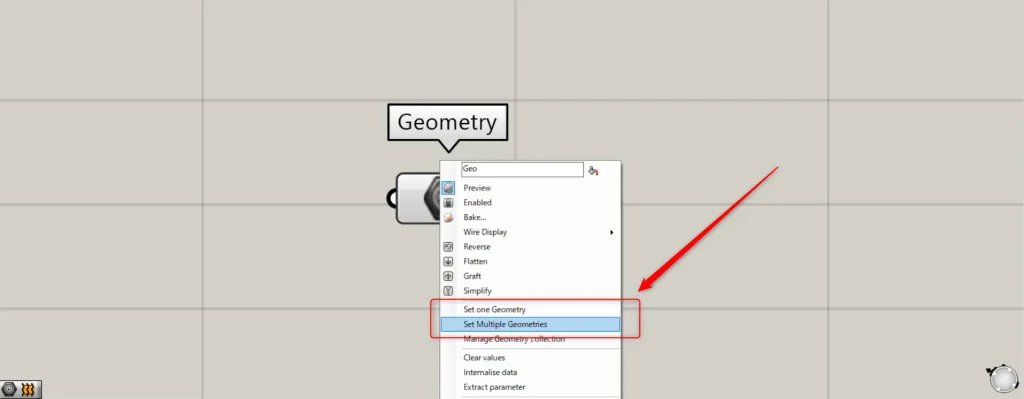
As before, right-click on Geometry.
In the case of one, select “Set one Geometry”.
If there are multiple geometries, select “Set Multiple Geometries”.
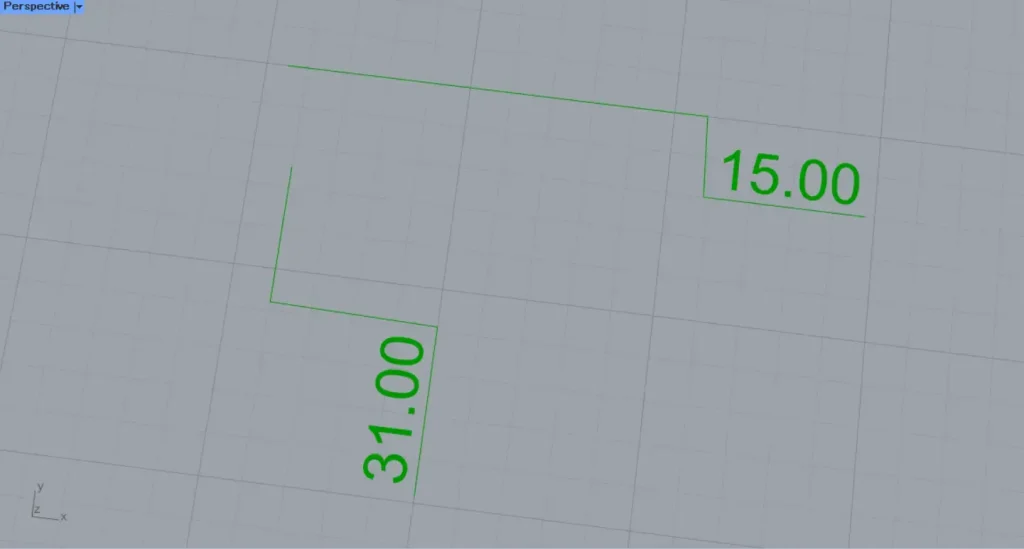
Then, select the coordinate dimensions you want to store on Rhino.
Then, we were able to set it like this.
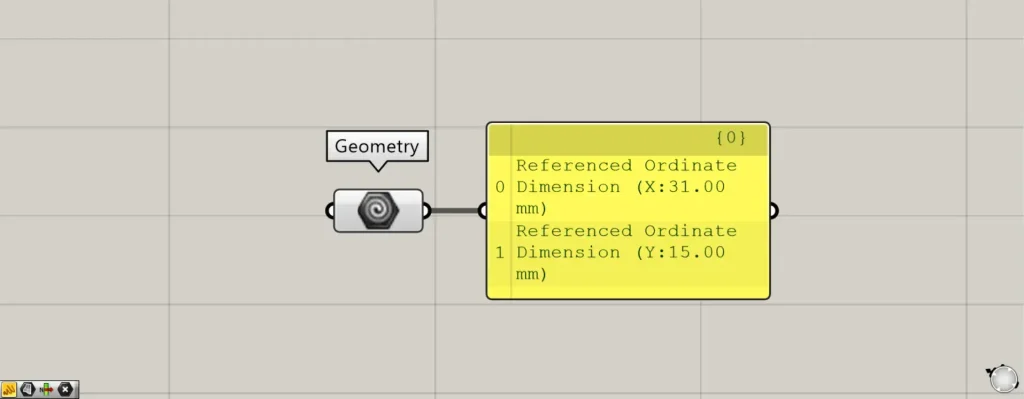
As shown here, you can see that coordinate dimension data is reflected in Geometry as well.
List of Grasshopper articles using Ordinate Dimension component↓




Comment