
![[Grasshopper] How to use Radial Dimension to set radius dimensions](https://iarchway.com/wp-content/uploads/2026/01/Radial-Dimension.png)
This article explains how to use Radial Dimension to set radius dimensions.
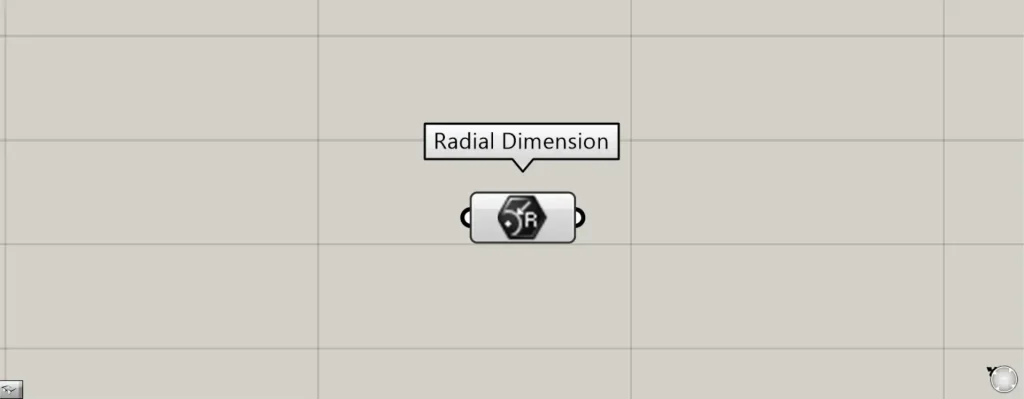
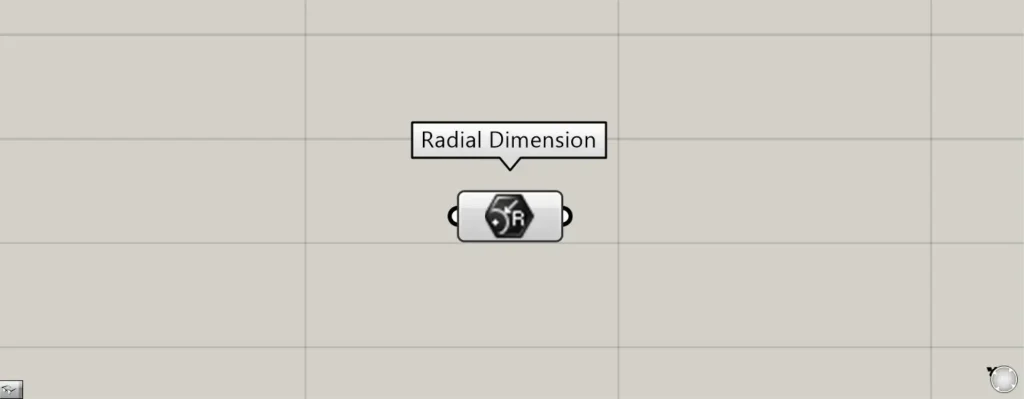
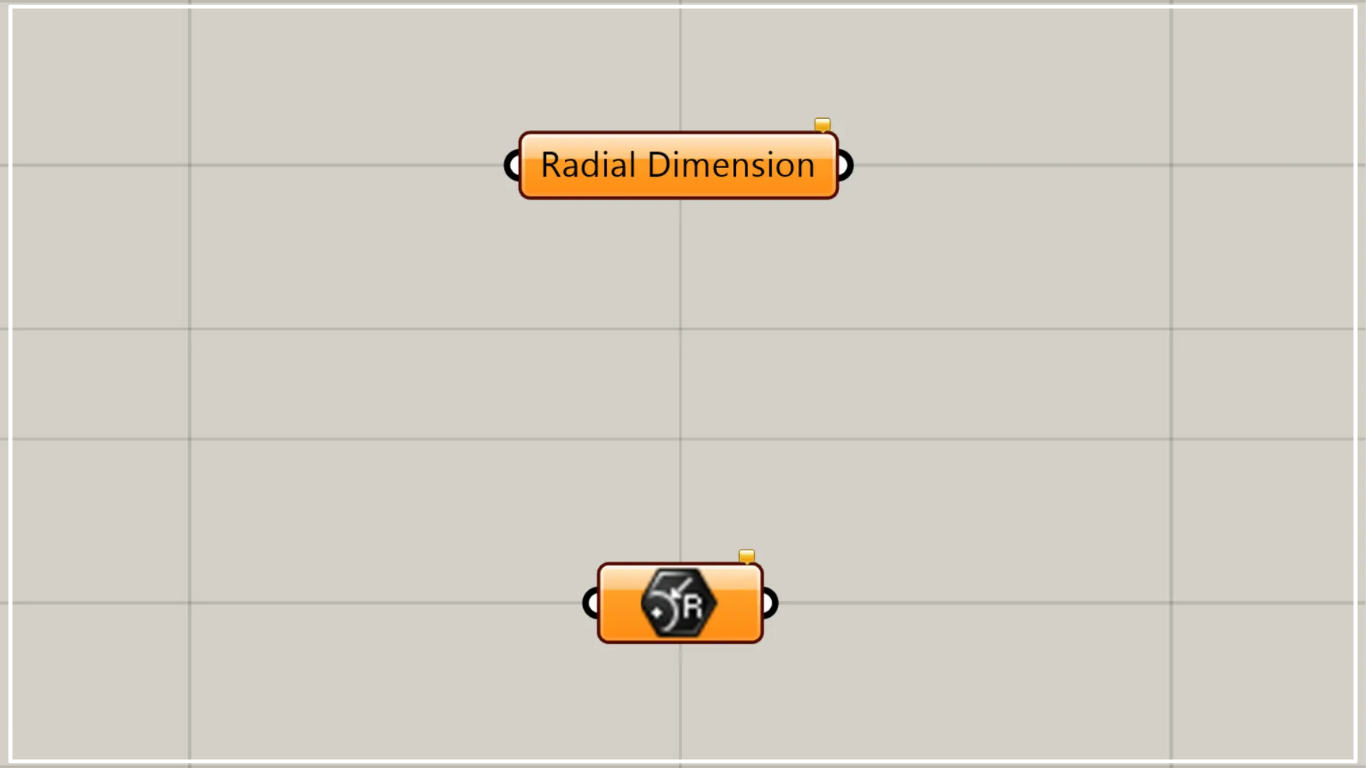
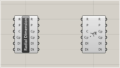
On the Grasshopper, it is represented by either of the two above.
Set radius dimension
Using Radial Dimension allows you to set radial dimensions.
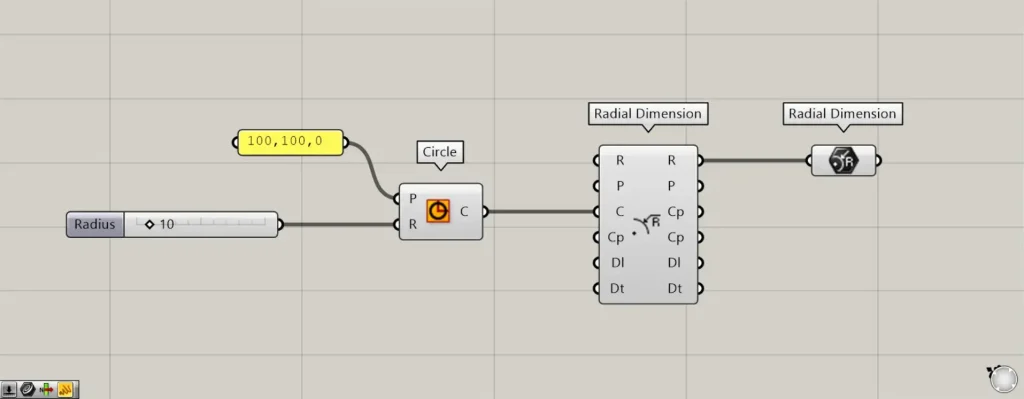
Components used: ①Circle ②Radial Dimension ③Radial Dimension
Note that there is another component with the same name.
The other Radial Dimension is the component that creates radial dimensions.
This time, we’ll use two Radial Dimensions as an example for explanation.
This time, we’ll create a radius dimension from the circle we made and set that radius dimension in the Radial Dimension we’re working on.
First, input the coordinate data into the Circle(P).
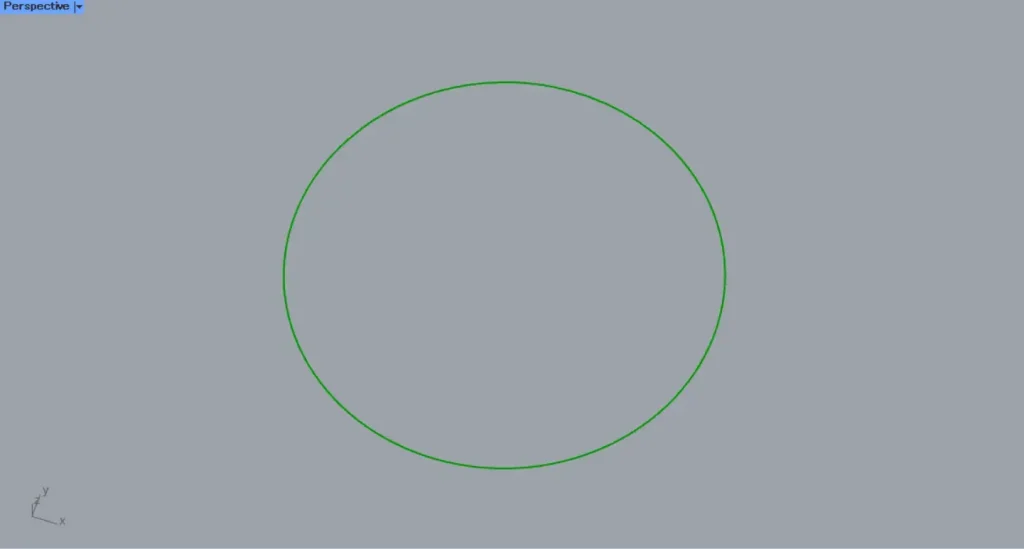
This time, since we entered 100,100,0, we can create a circle centered at the coordinates 100,100,0.
Then, enter the radius value into the Circle(R).
This time, since we entered 10, we were able to create a circle with a radius of 10.
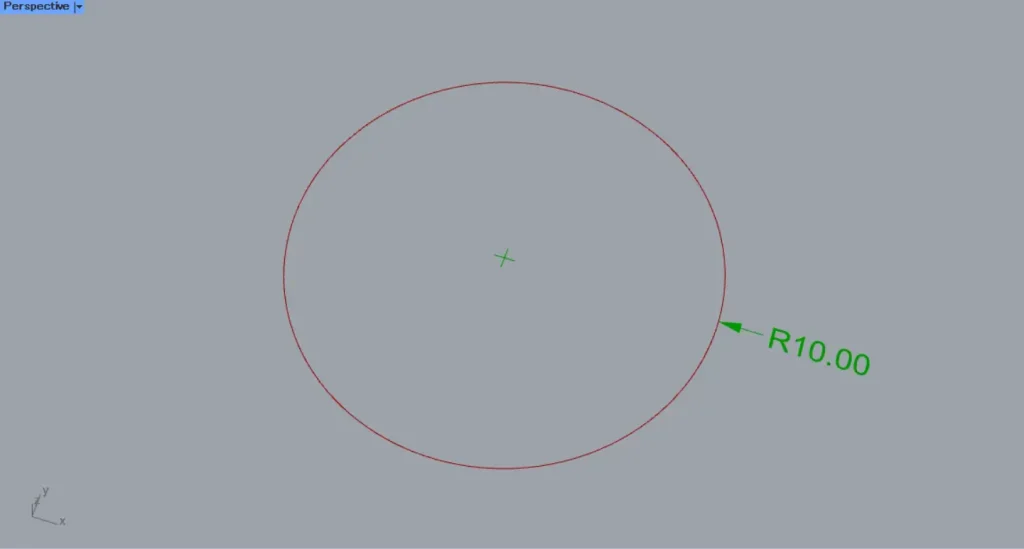
Next, connect the Circle to another Radial Dimension(C).
Then, the radius dimension was created.
Then, connect the the other Radial Dimension(R) on the right side to this Radial Dimension.
The created radial dimension was then set in this Radial Dimension.
In this way, you can set the radius dimension in the Radial Dimension field.
Set the radius dimension on the rhino
You can also set the radius dimension on Rhino.
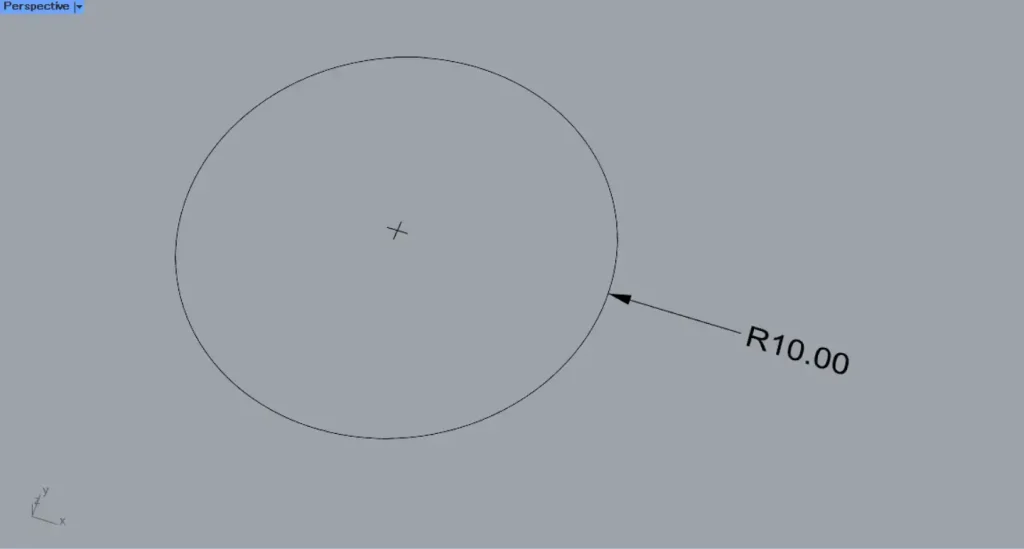
First, let’s set one radius dimension on Rhino.
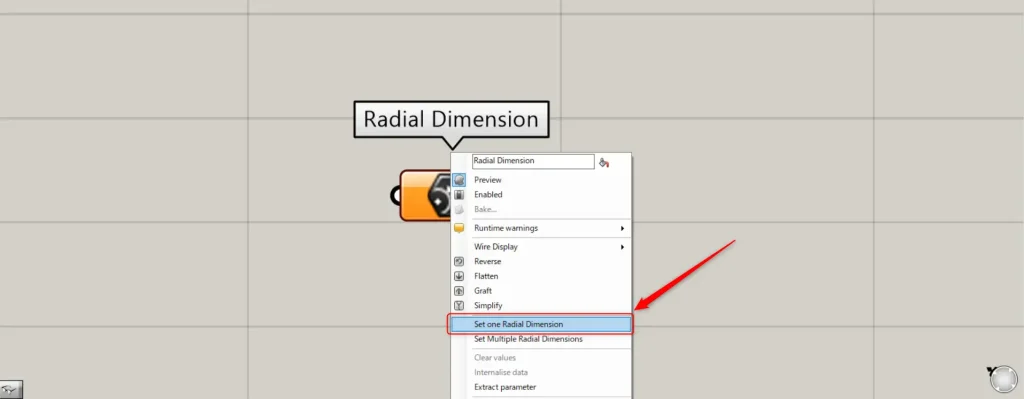
In one case, right-click the Radial Dimension and select “Set one Radial Dimension”.
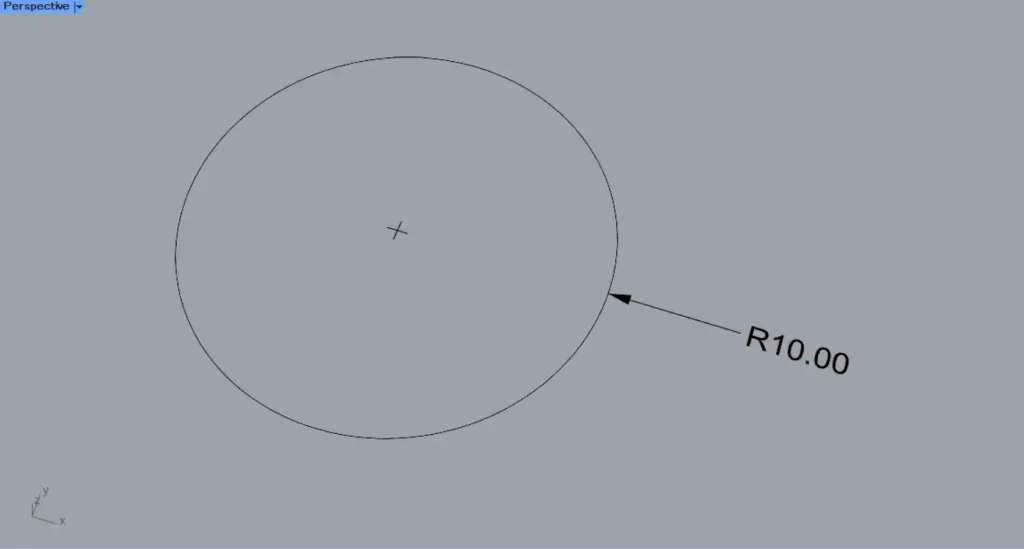
Then, the screen will switch to Rhino.
Select the radius dimension you wish to set.
Then, one radius dimension was set on Rhino.
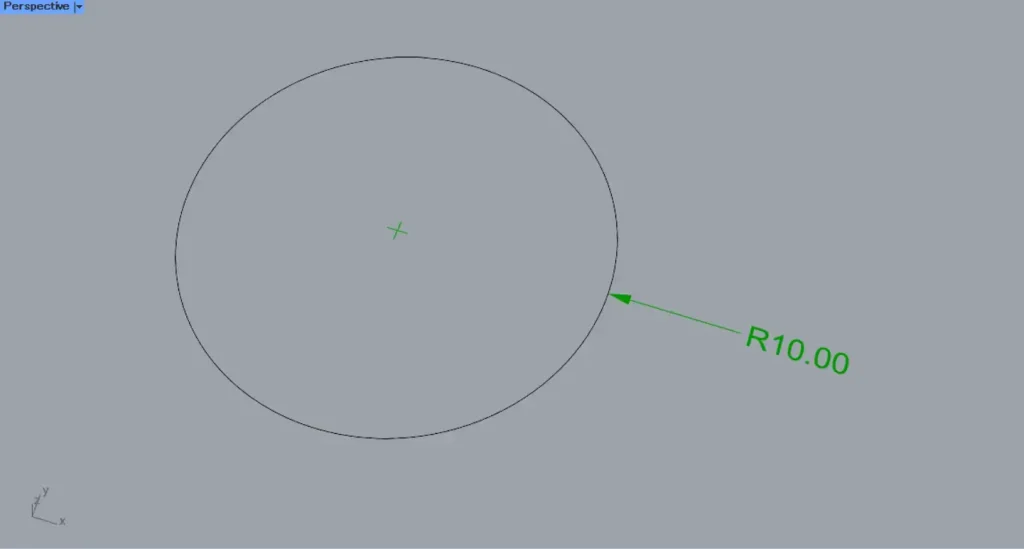
This is the result on Rhino.
Next, we’ll set multiple radius dimensions on Rhino.
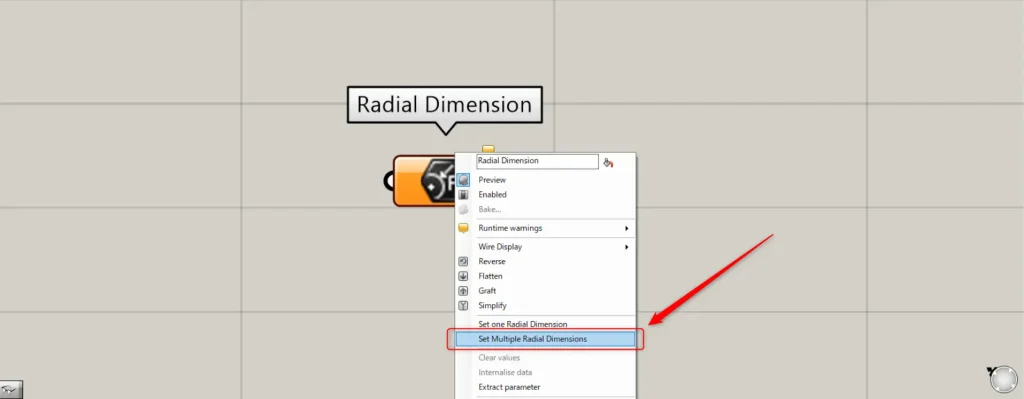
For multiple instances, right-click the Radial Dimension and select “Set Multiple Radial Dimensions”.
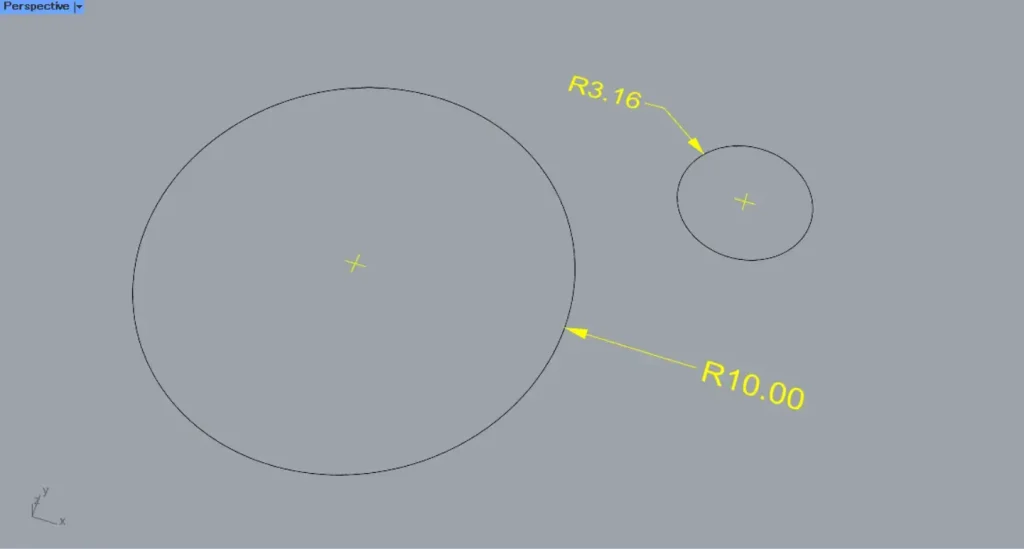
Then, select multiple radius dimensions on Rhino.
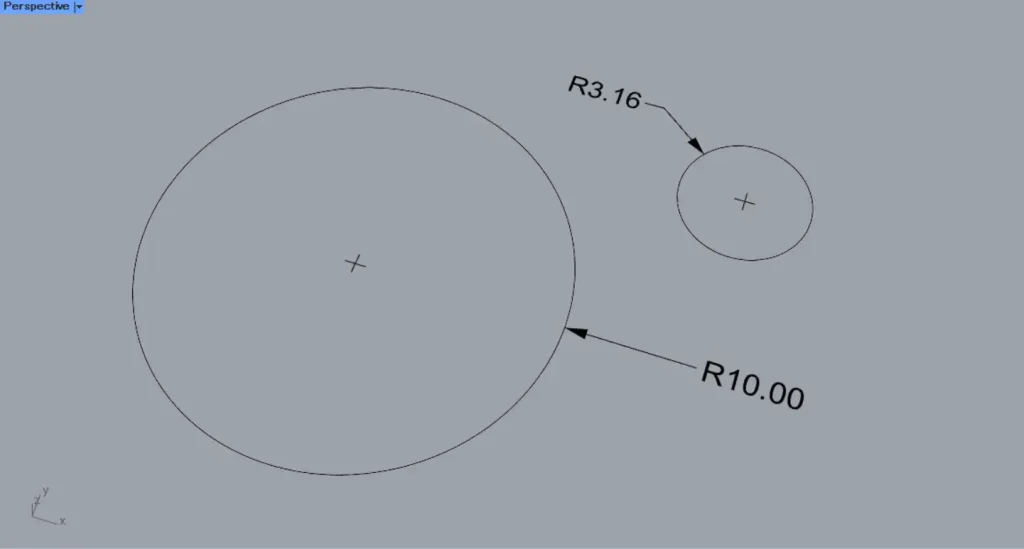
Then, multiple radius dimensions were set on Rhino.
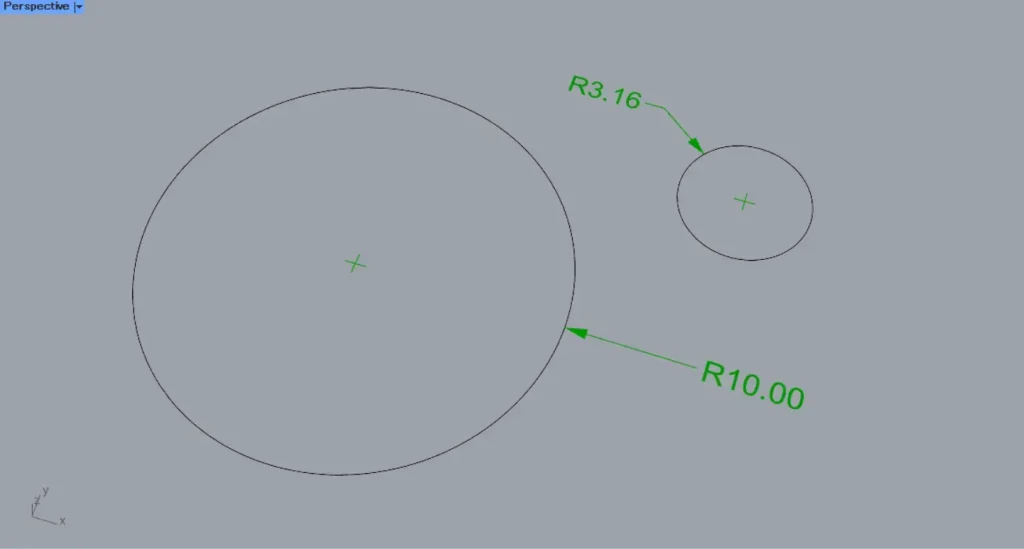
This is the result on Rhino.
List of Grasshopper articles using Radial Dimension component↓




Comment