
![[Grasshopper] How to use Merge Fields to combine multiple magnetic fields](https://iarchway.com/wp-content/uploads/2026/01/Merge-Fields.png)
This article explains how to use Merge Fields to combine multiple magnetic fields.
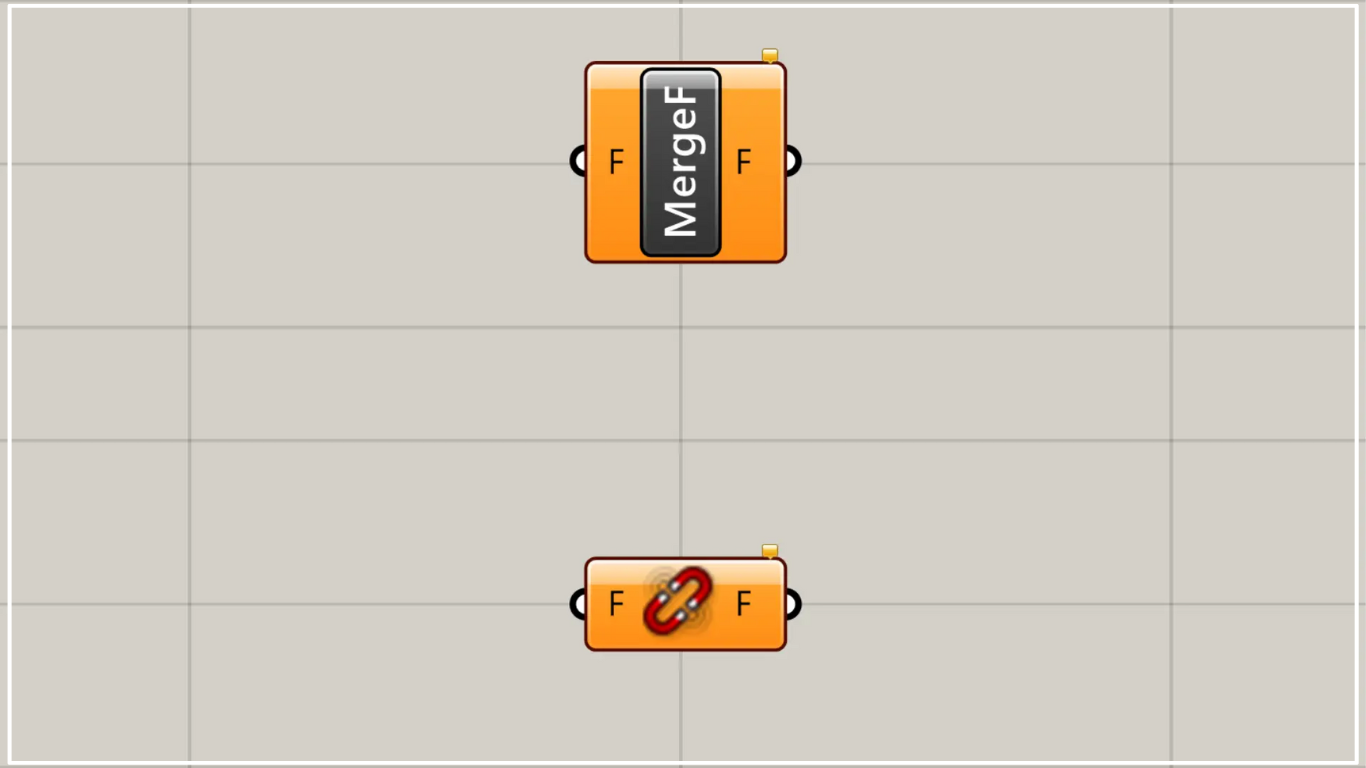
On the Grasshopper, it is represented by either of the two above.
Combining multiple magnetic fields
Using Merge Fields allows you to combine multiple magnetic fields.
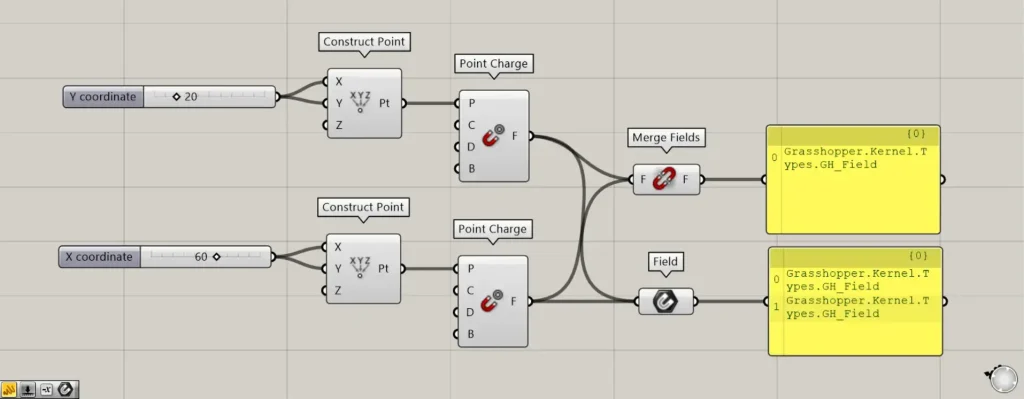
Components Used: ①Construct Point ②Point Charge ③Merge Fields ④Field
This time, we’ll combine two magnetic fields we created.
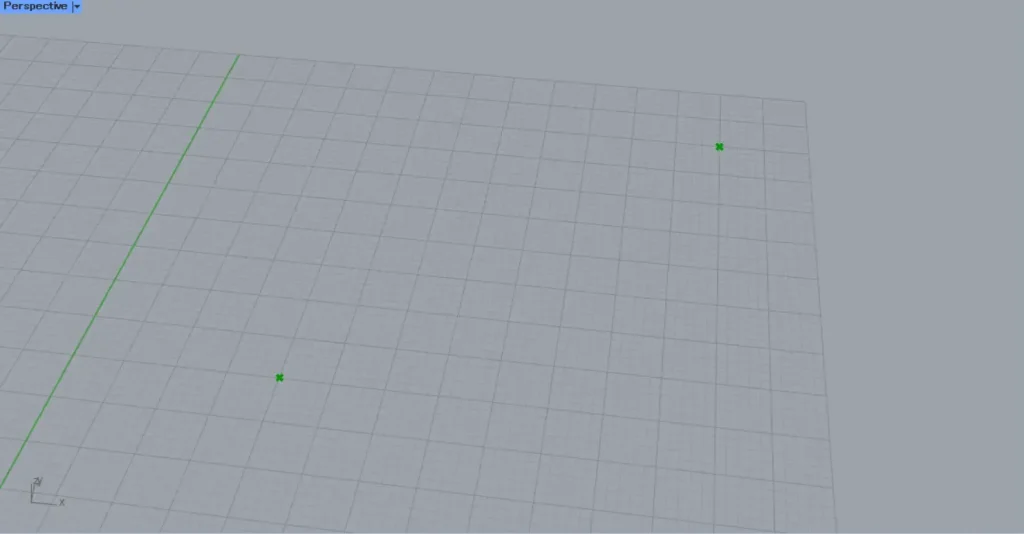
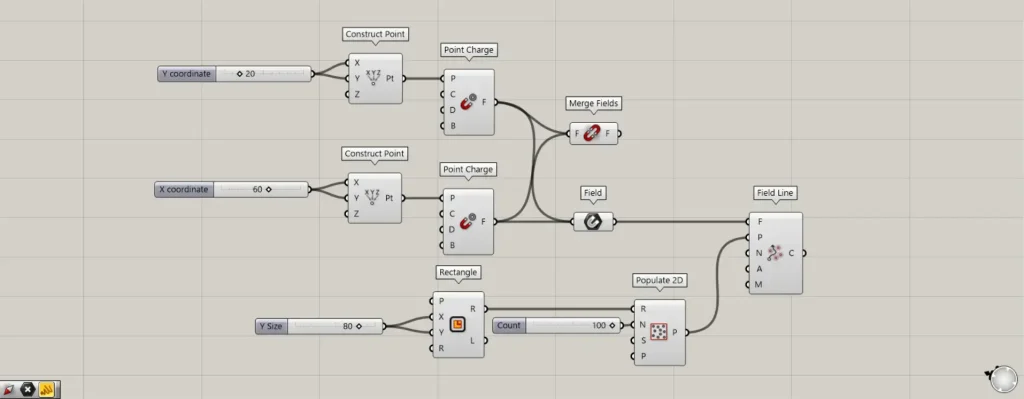
Prepare two Construct Point.
Enter 20 into the first Construct Point(X and Y).
Enter 60 into the second Construct Point(X and Y).
Then, points are created at the coordinates 20, 20, 0 and 60, 60, 0, respectively.
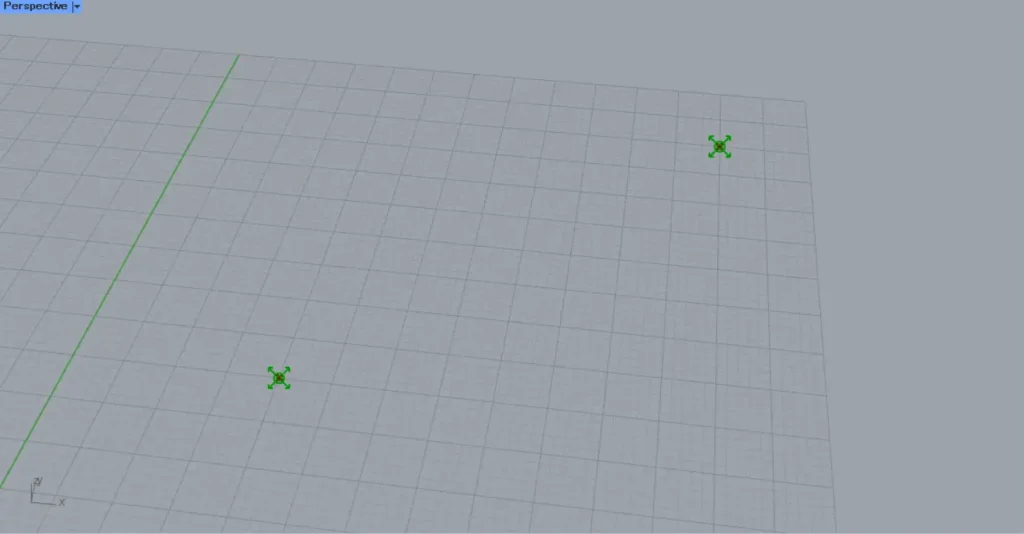
Then, connect the two Construct Point to the Point Charge(P), respectively.
Then, magnetic fields are created at the specified points.
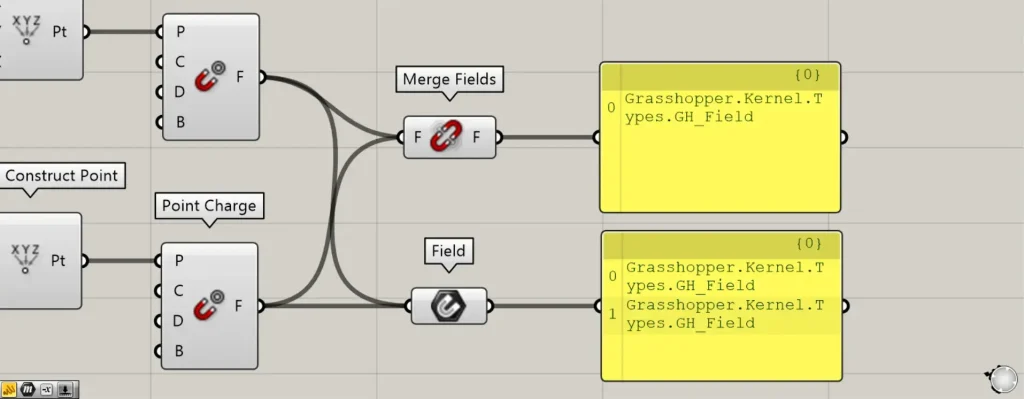
Then connect two Point Charges to the Merge Fields.
This combines the two magnetic fields into one.
Let’s compare it to the case of a Field that can set a magnetic field.
For Merge Fields, since they are combined into a single field, a single field data is output.
On the other hand, in the case of Field, since it is not combined, two magnetic field data sets are output.
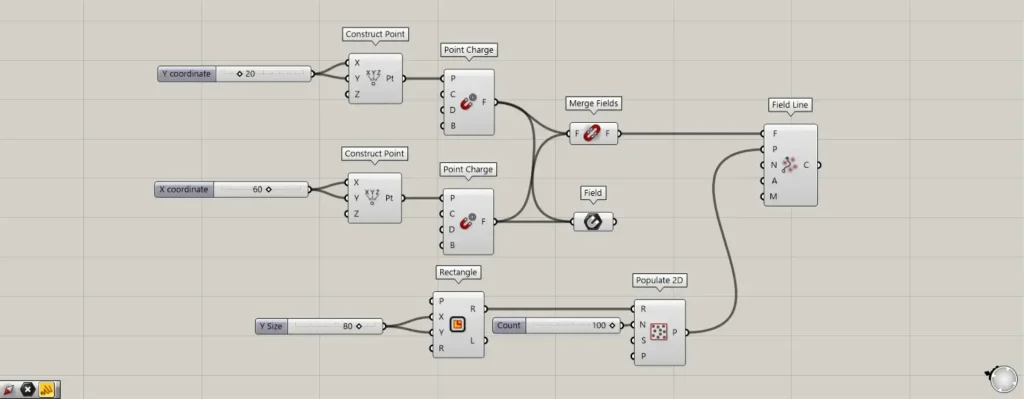
Additional Components: ① Rectangle ② Populate 2D ③ Field Line
Let’s visualize the magnetic fields of Merge Fields and Field.
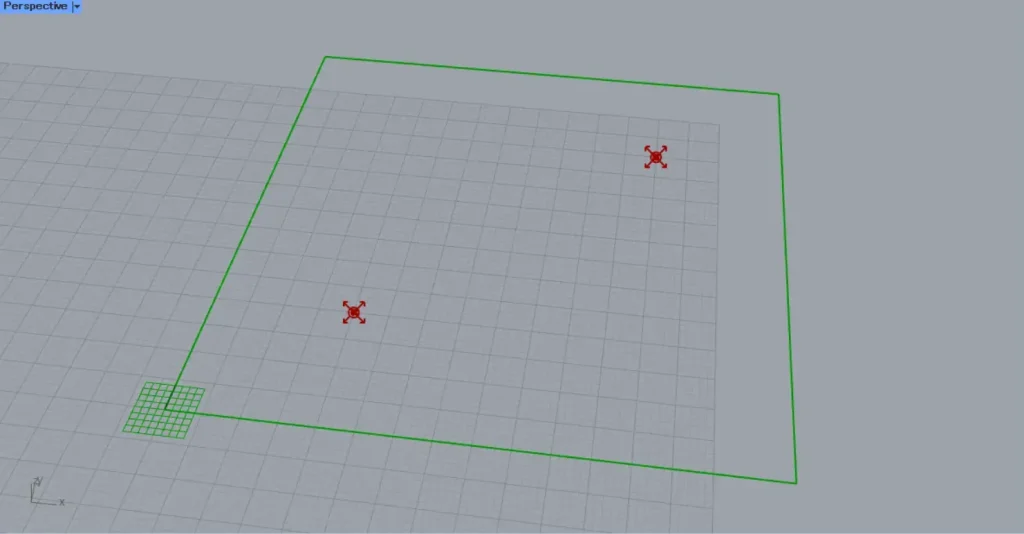
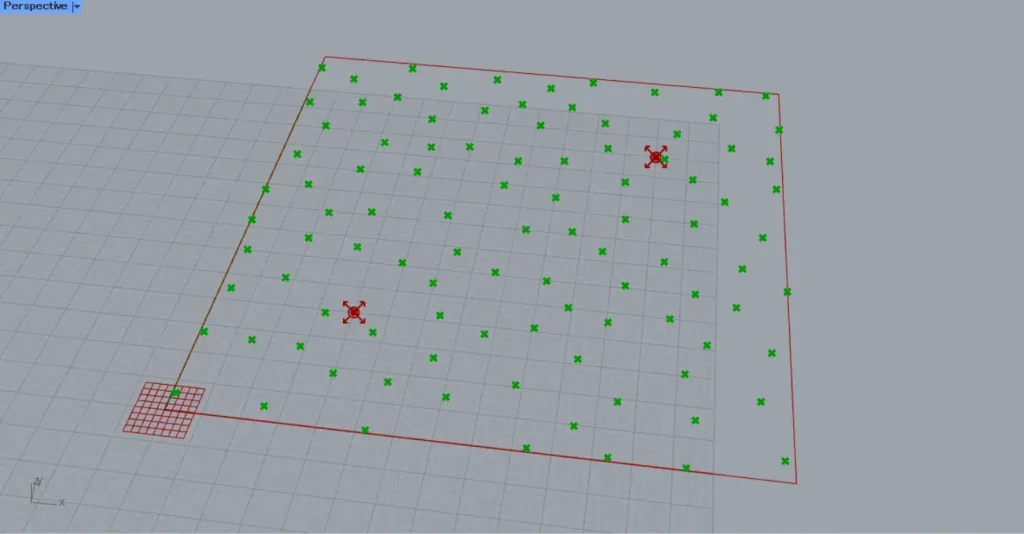
Enter 80 into the Rectangle(X and Y) to create an 80×80 square.
Next, connect the Rectangle(R) to the Populate 2D(R).
Then, enter the value 100 into the Populate 2D(N).
Then, 100 points were randomly created within the square.
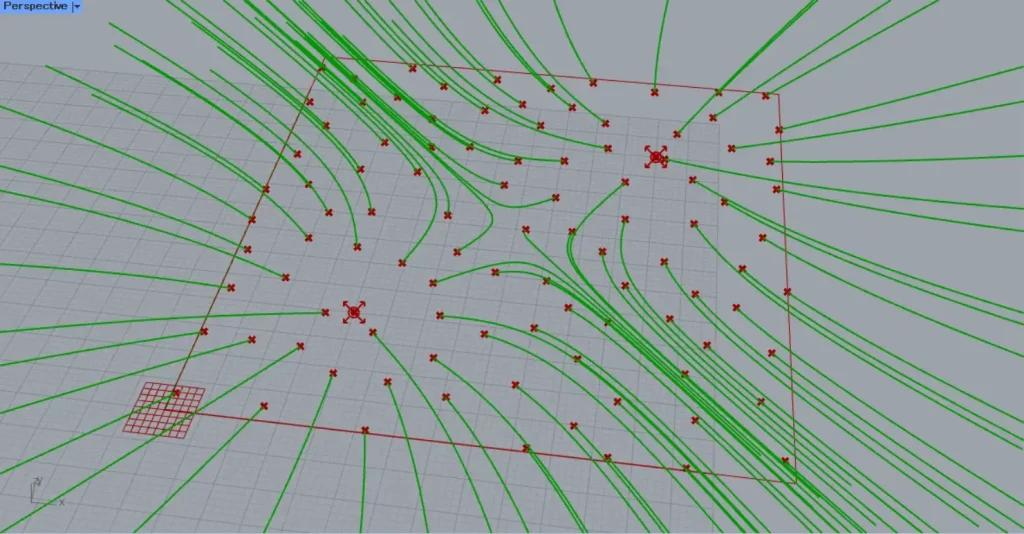
Next, connect the Merge Fields to the Field Line(F).
Then connect Populate 2D to the Field Line(P).
Then, as shown in the image above, a curve reflecting the two magnetic fields is created.
In this way, we can see that the magnetic fields are combined in the case of Merge Fields.
Connect the Field to the Field Line(F) and observe the Field case.
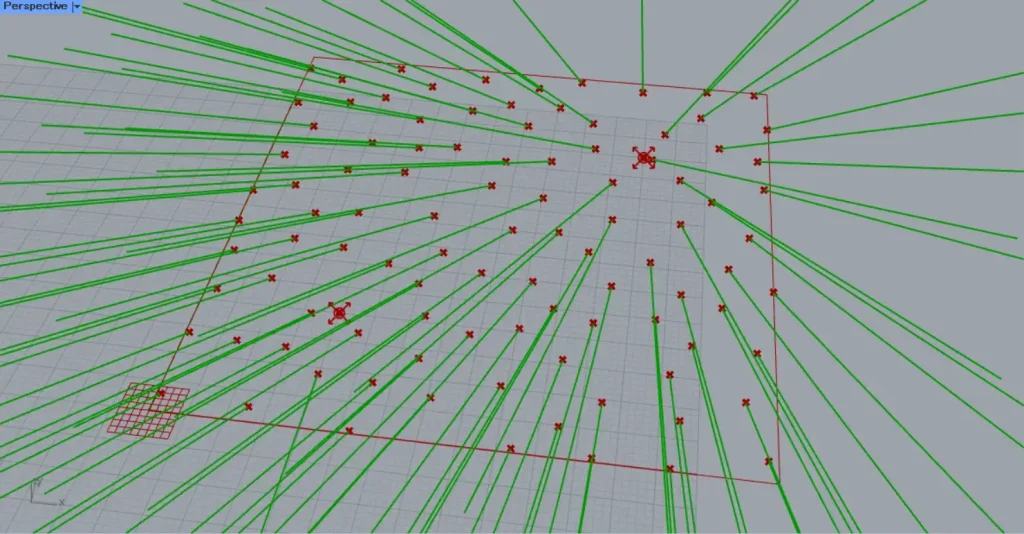
In this case, we can see that the magnetic fields are not merged.
Therefore, when you want to apply the effects of multiple magnetic fields, you must use Merge Fields.
List of Grasshopper articles using Merge Fields component↓




Comment