
![[Grasshopper] How to use Geometry Pipeline to filter and retrieve models on Rhino](https://iarchway.com/wp-content/uploads/2026/01/Geometry-Pipeline.png)
This article explains how to use Geometry Pipeline to filter and retrieve models on Rhino.
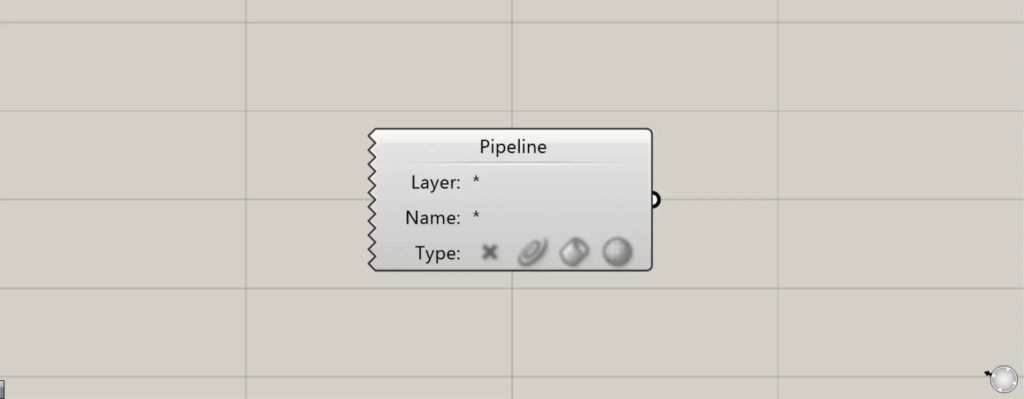
In Grasshopper, it is displayed as shown above.
Retrieve models on Rhino using a filter
Using the Geometry Pipeline, you can retrieve models in Rhino by filtering them by layer, name, or object type.
Basic Usage
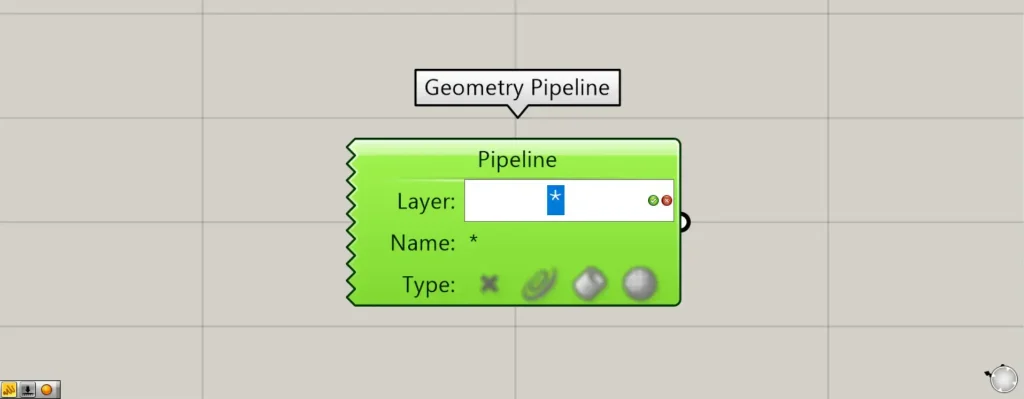
To specify a layer name, double-click the right side of the component’s Laye:・Name: field.
Then you will be able to enter any texts or numbers.
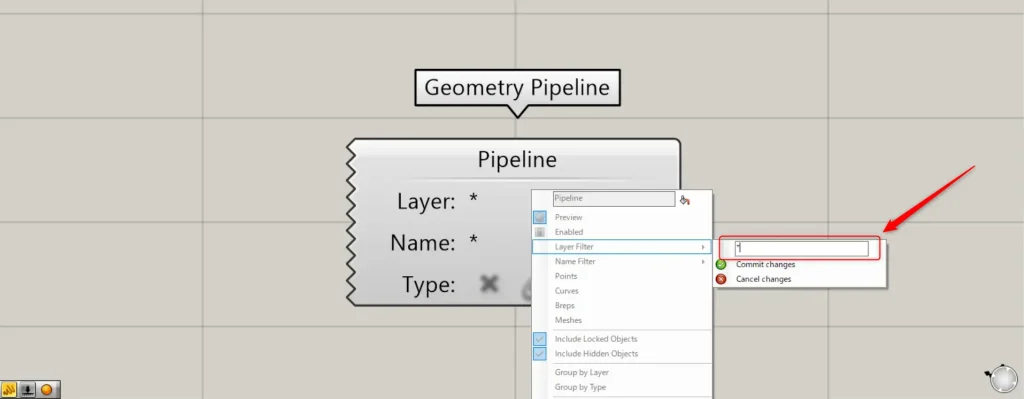
Alternatively, you can right-click the Geometry Pipeline and select Layer Filter or Name Filter.
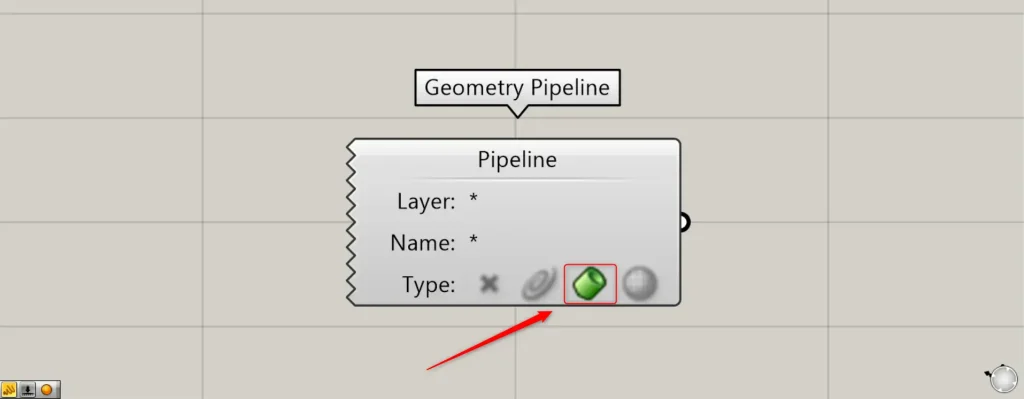
To select the object type, double-click the icon to the right of Type:.
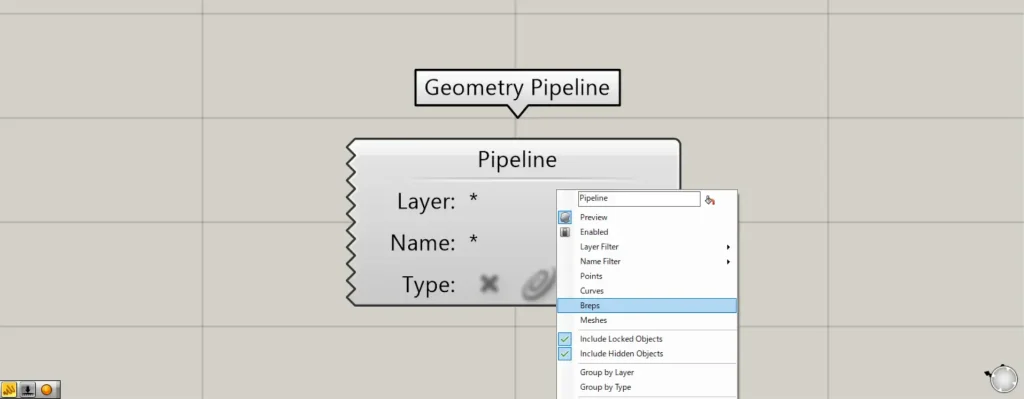
Alternatively, you can right-click the Geometry Pipeline and select Points, Curves, Breps, or Meshes.
Layer
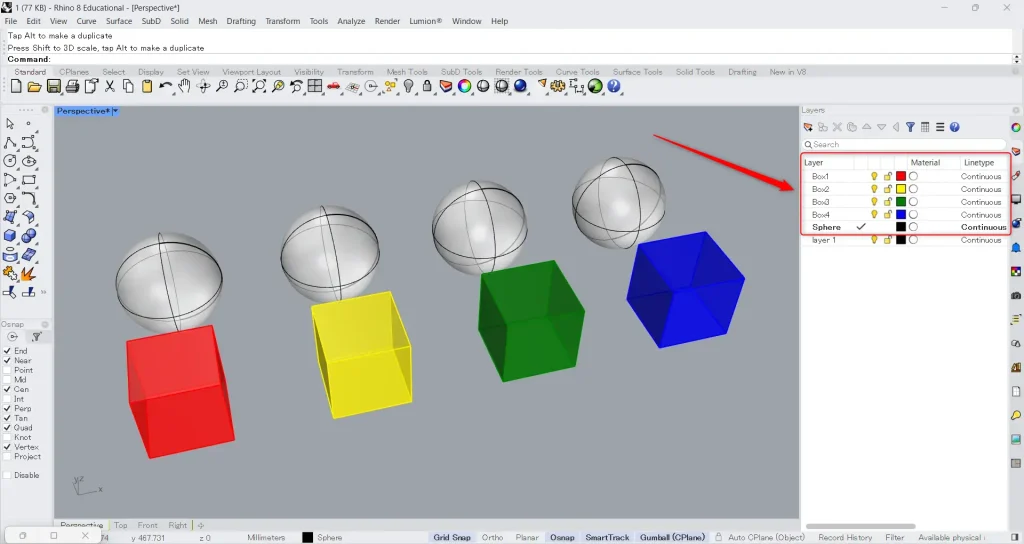
Using cube and sphere models on Rhino, we will explain Layers.
Layers uses five names: Box1, Box2, Box3, Box4, and Sphere.
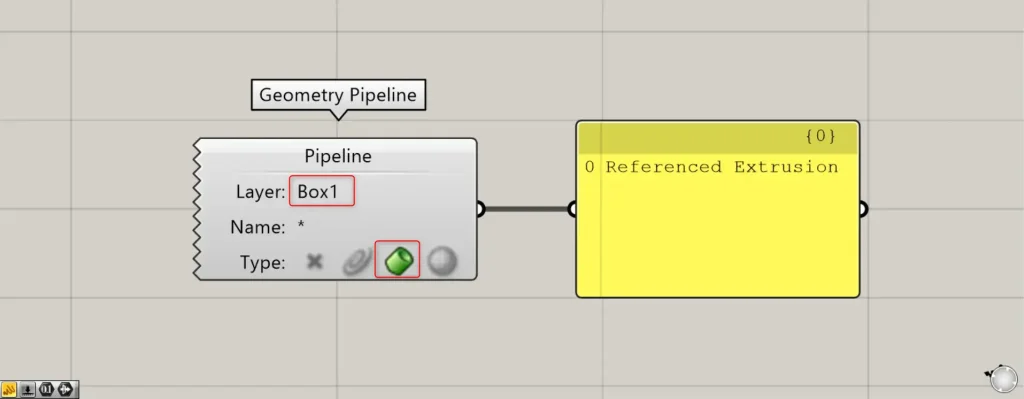
First, let’s try specifying the layer name directly.
First, let’s enter “Box1” into the Layer.
Also, this time, select Breps as the third option from the left.
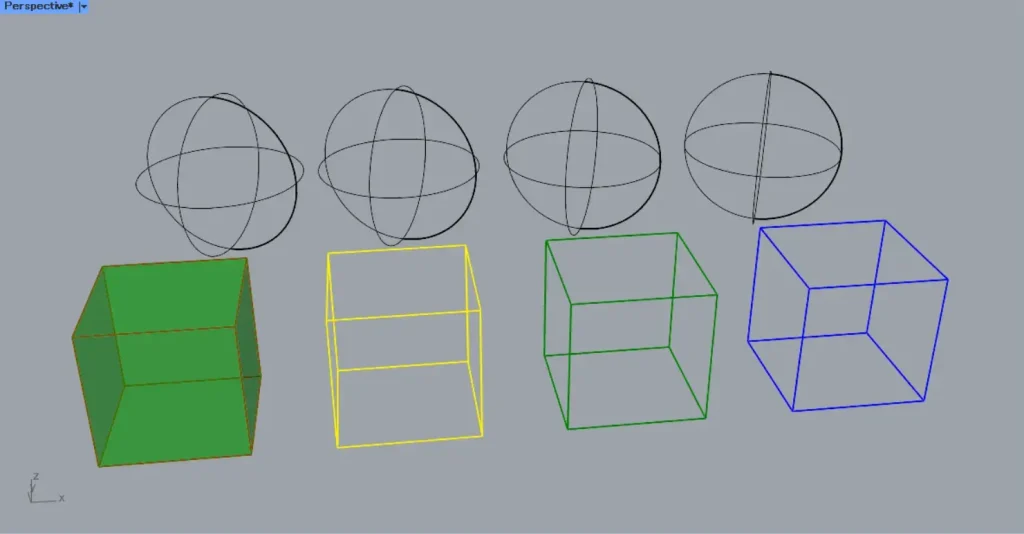
Then, the model with the specified layer name was retrieved.
Asterisk*
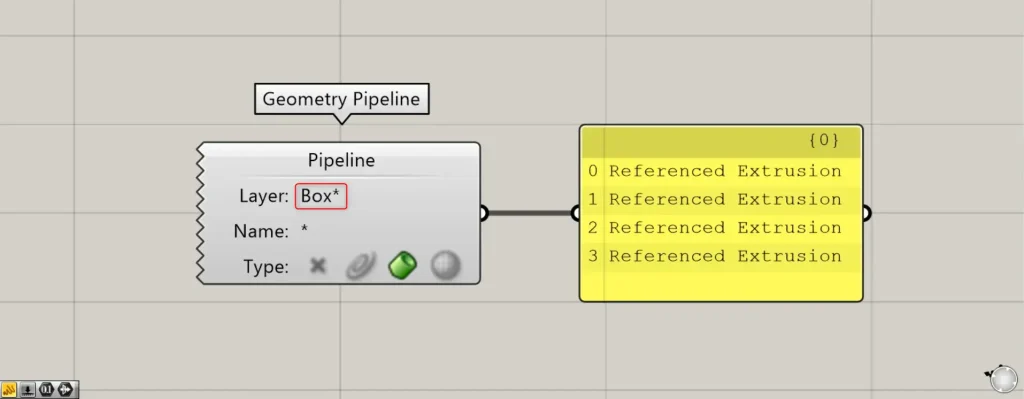
Next, let’s try using the asterisk symbol “*”.
Using “*” represents all texts.
For example, enter “Box*” in the Layer field.
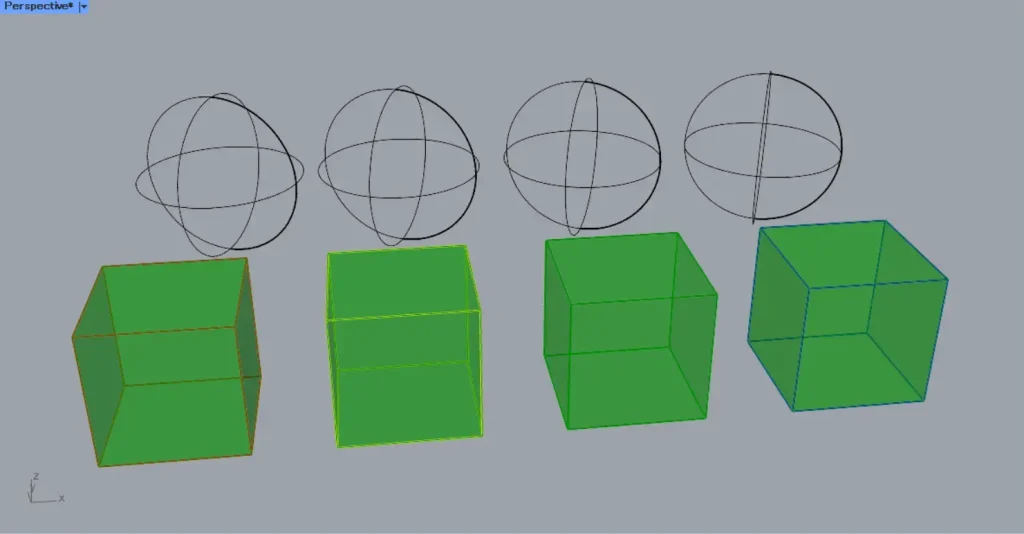
Then, the layer names for Box1, Box2, Box3, and Box4 were retrieved.
This is because “*” represents all texts, hence the selection of Box1, 2, 3, and 4.
If you enter only “*” in the Layer field, all layers will become selected.
Name
In Name, you can apply filters by specifying the name assigned to the object.
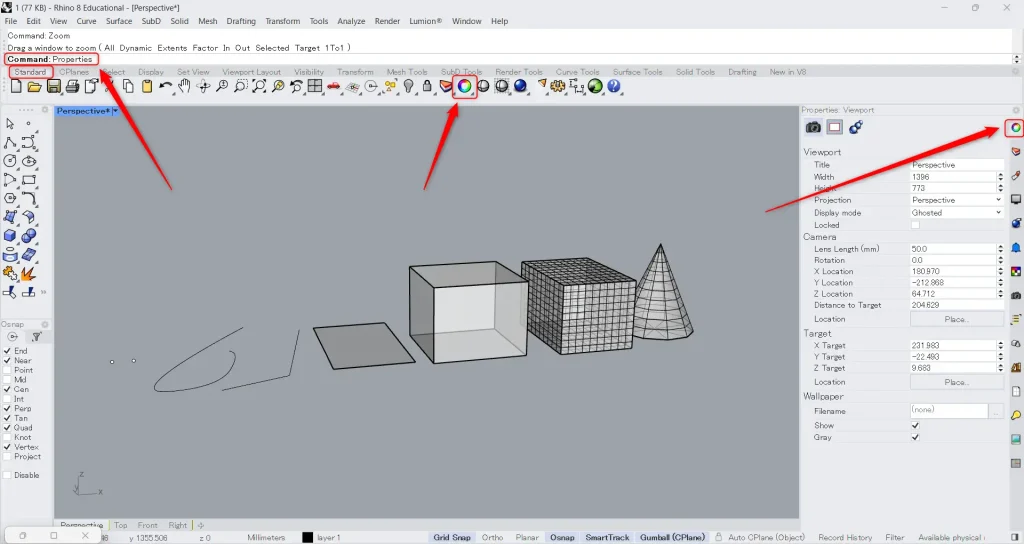
First, let’s try setting a name for an object in Rhino.
Open the Properties viewport.
If it is not visible on the screen, type “Properties” in the command.
Or, click the icon shown in the image above in the Standard tab.
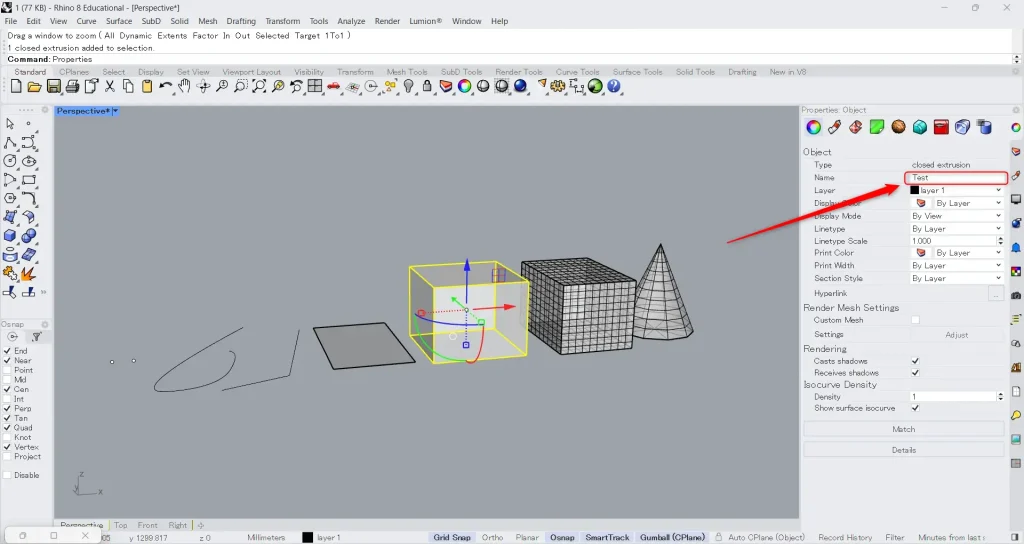
Select a model.
This time, we selected the cube.
After that, set any name you like.
This time, we entered “Test”.
Now you can name objects in Rhino.
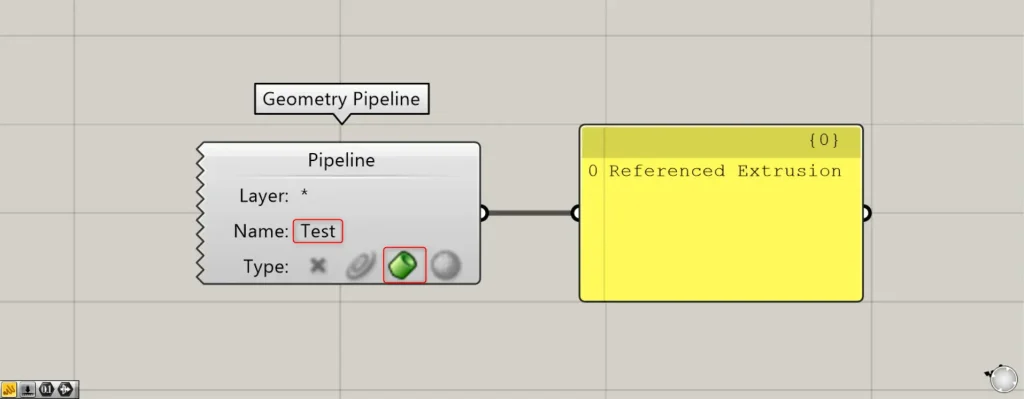
Then, enter the specified name in the Name field.
This time, we entered “Test”.
Also, since it’s a cube, in the Type field, select the third Breps option from the left.
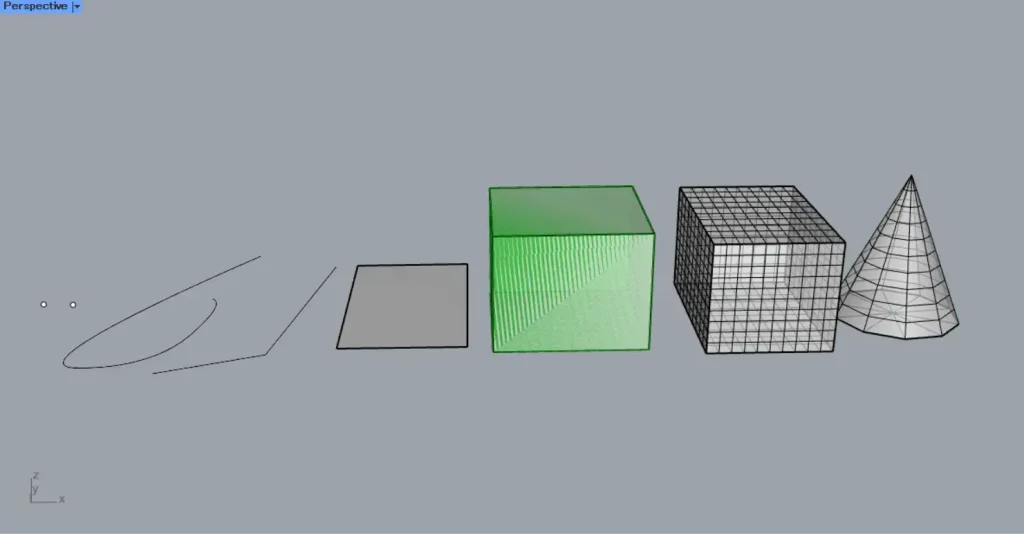
Then, we were able to retrieve the object with the specified name.
Type
In Type, you can filter by object type.
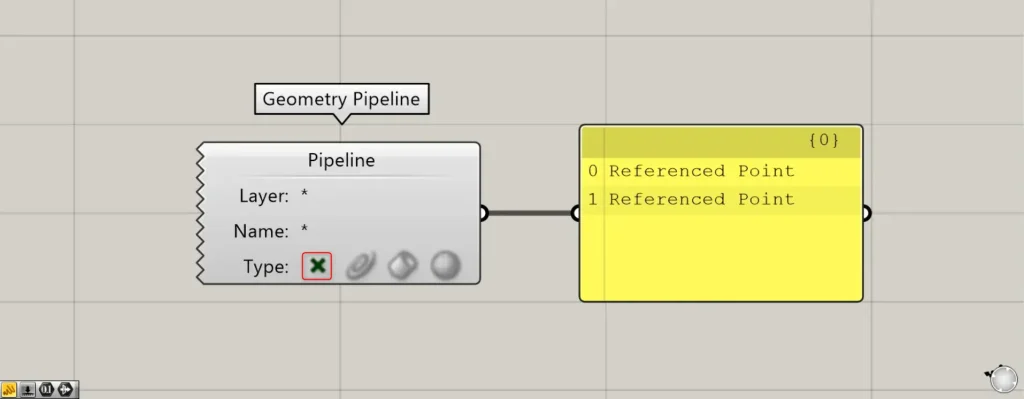
The leftmost one is Points, which allows you to retrieve point data.
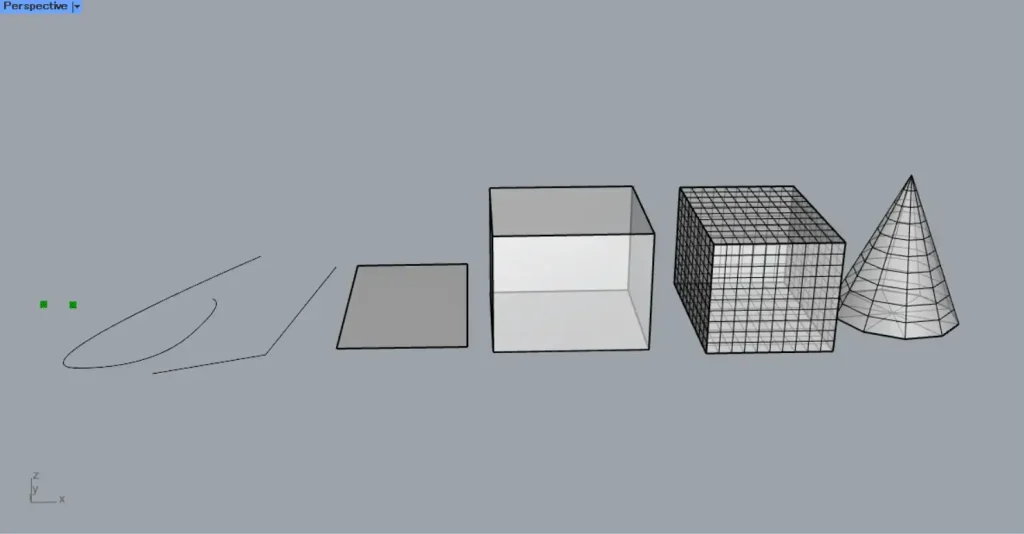
In this way, the point data was acquired.
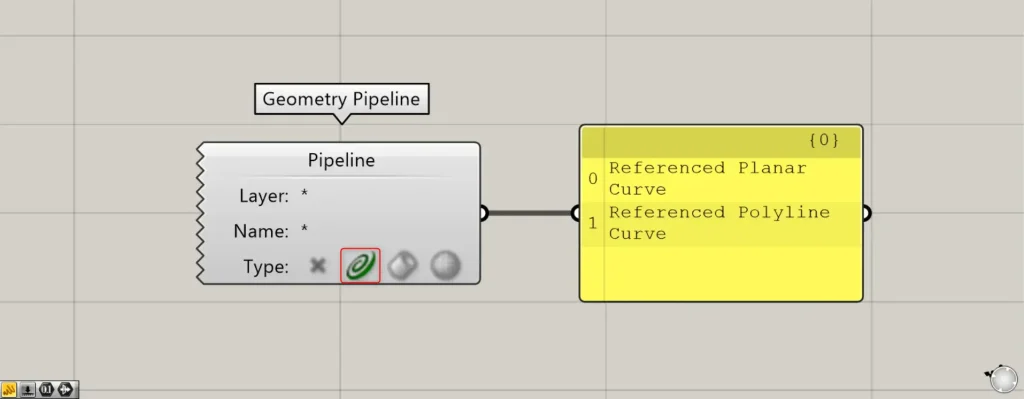
The second one from the left is Curves, which allows you to obtain line data.
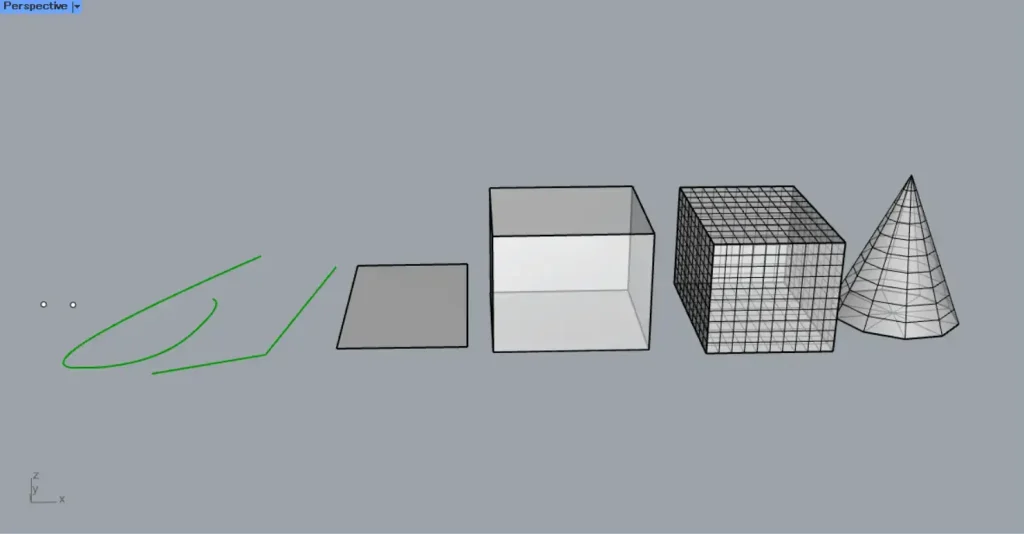
In this way, the curve data was acquired.
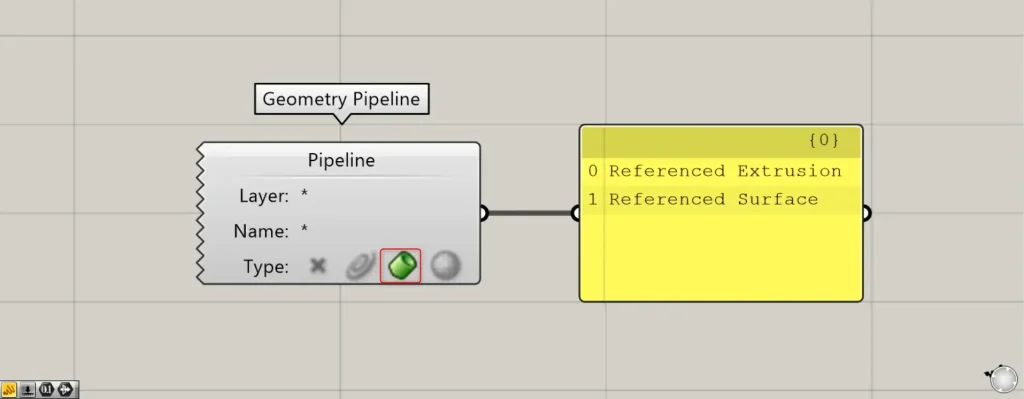
The third one from the left is Breps, which allows you to obtain Breps data (such as solids, polysurfaces, and surfaces).
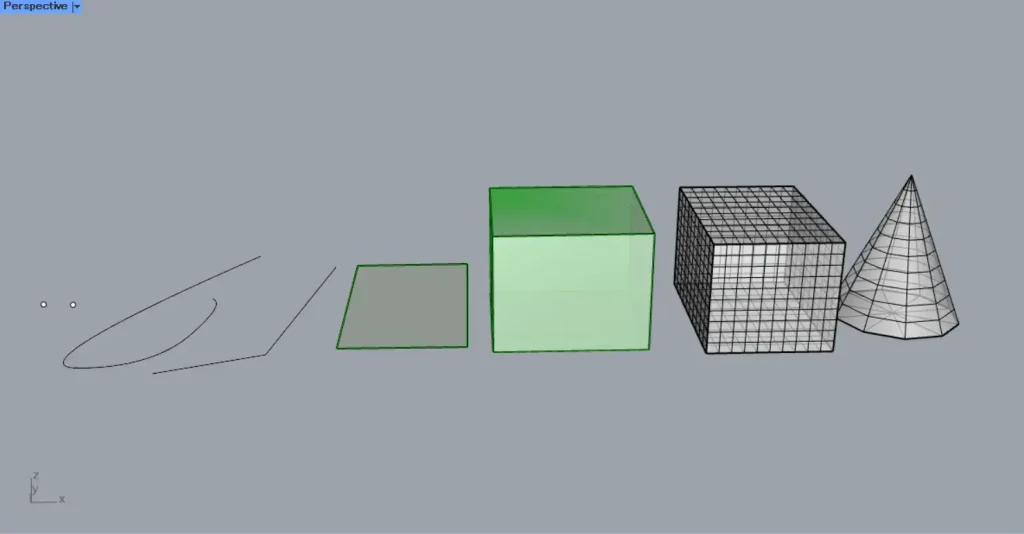
In this way, the Brep data was acquired.
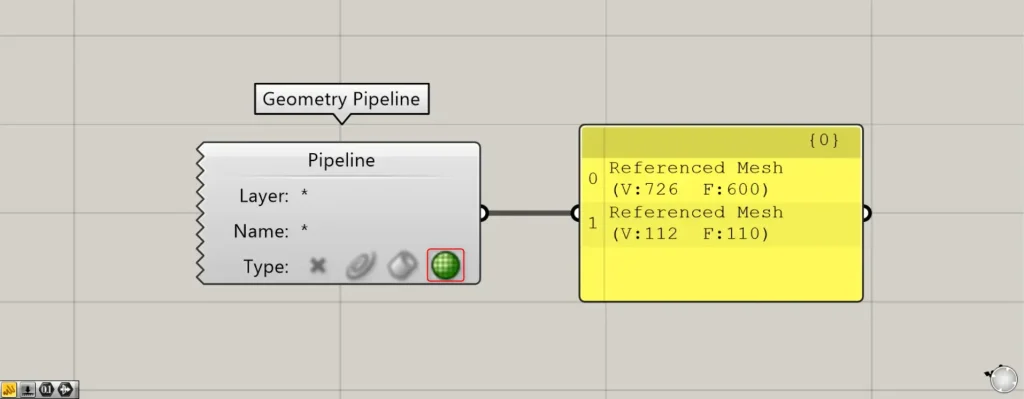
The far right is Meshes, where you can retrieve mesh data.
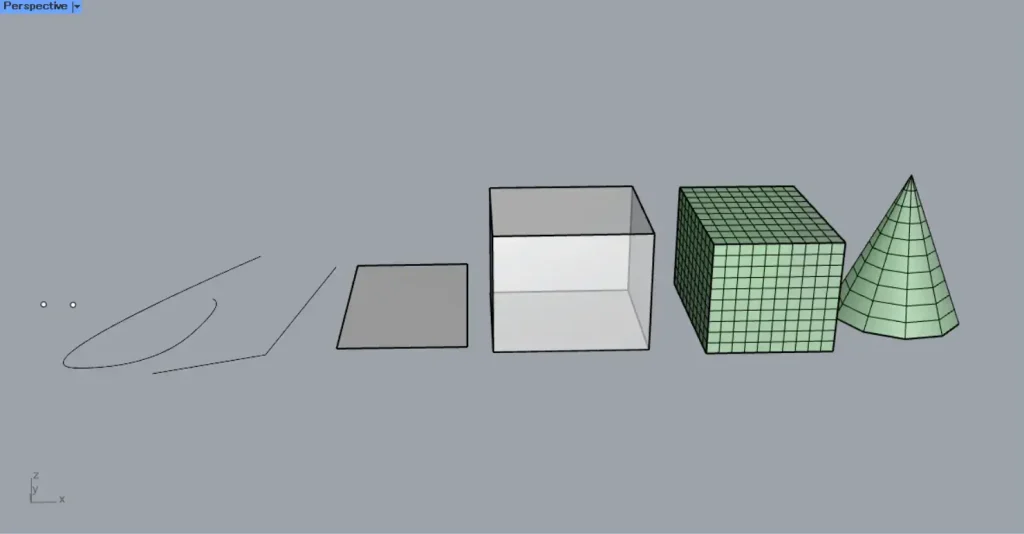
In this way, the mesh data has been acquired.
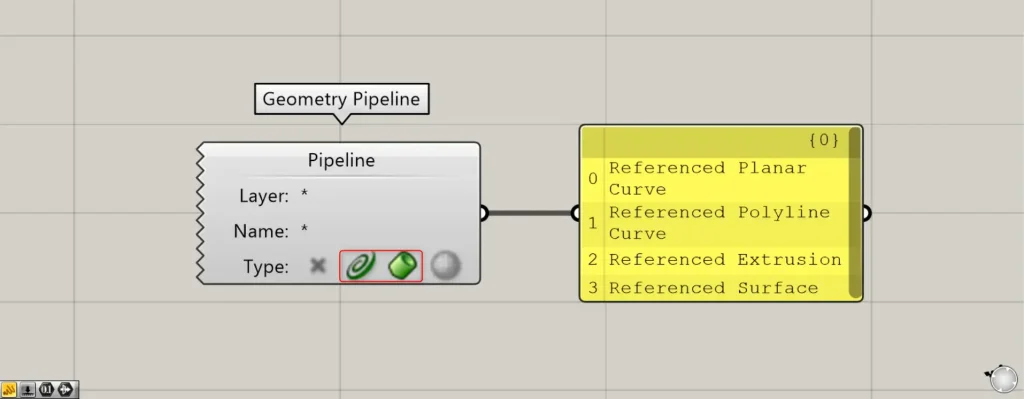
You can also select multiple object types.
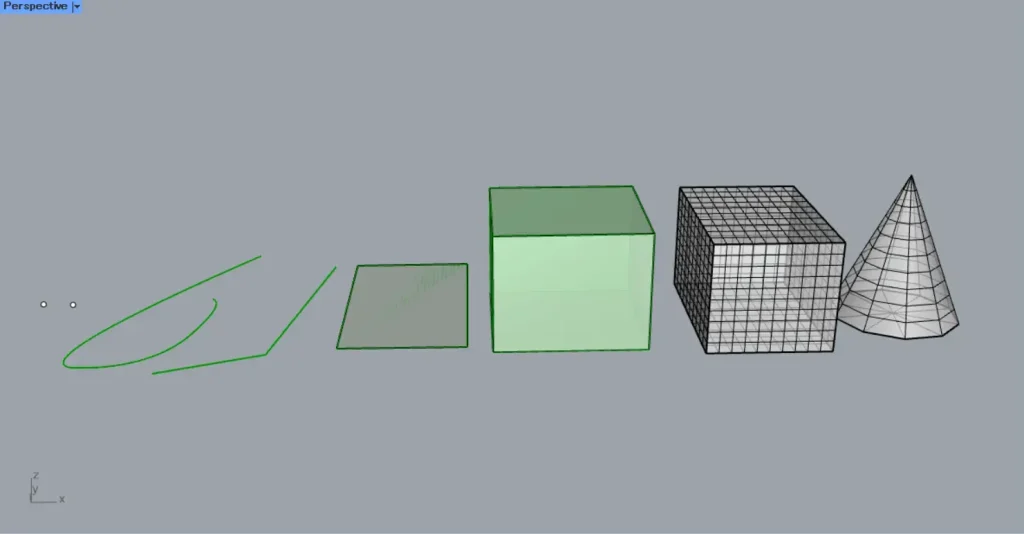
In this way, we were able to obtain data for multiple object types.
Configure whether to retrieve locked or hidden models
You can also configure whether to retrieve locked or hidden models.
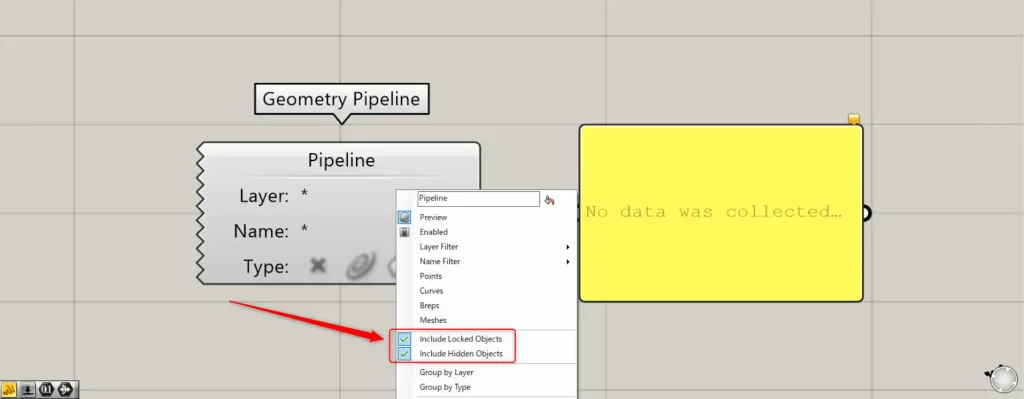
To configure, right-click the Geometry Pipeline.
To retrieve locked models, check “Include Locked Objects”.
To retrieve hidden models, check “Include Hidden Objects”.
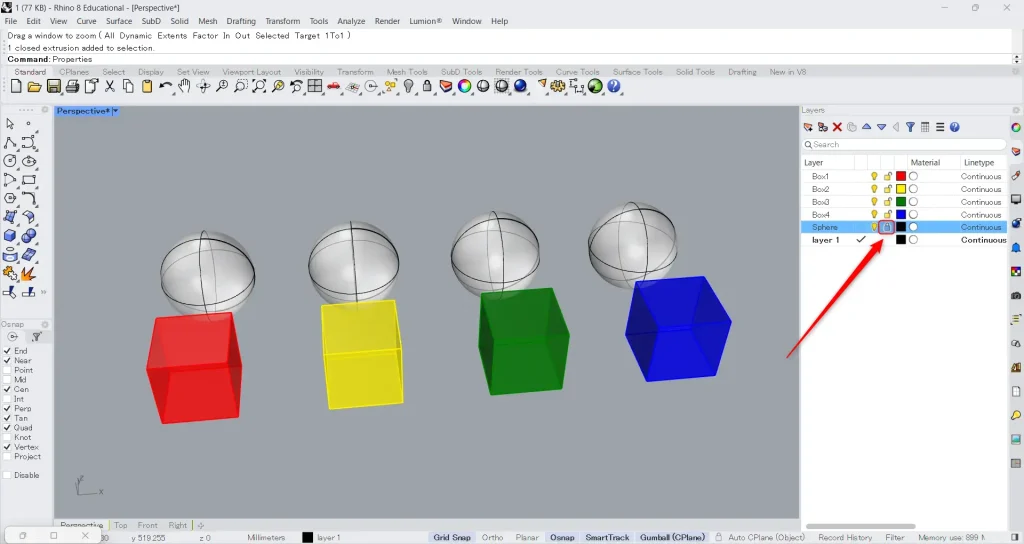
There is a sphere model on Rhino, so we’ll try locking the Sphere layer.
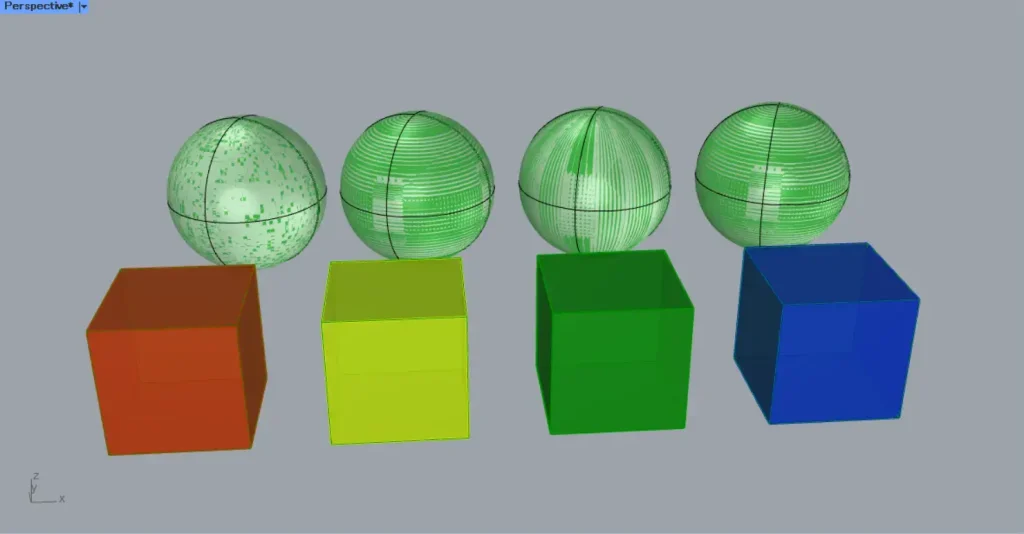
When Include Locked Objects is checked, the sphere is selected.
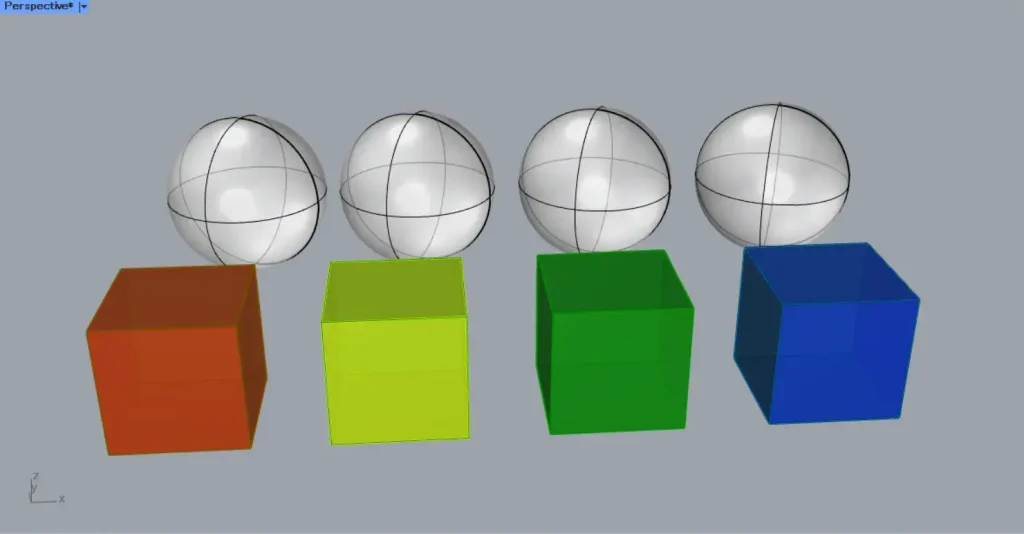
When the Include Locked Objects checkbox was unchecked, the sphere was not selected.
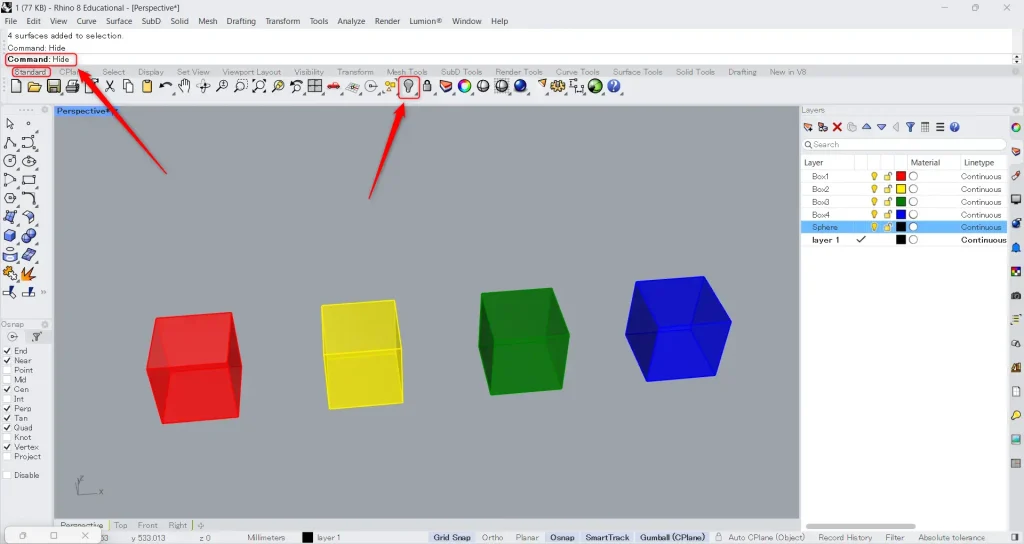
This time, let’s try hiding the model on Rhino.
Type “Hide” in the command line or click the icon shown in the image above on the Standard tab.
Using the Hide command made the sphere disappear.
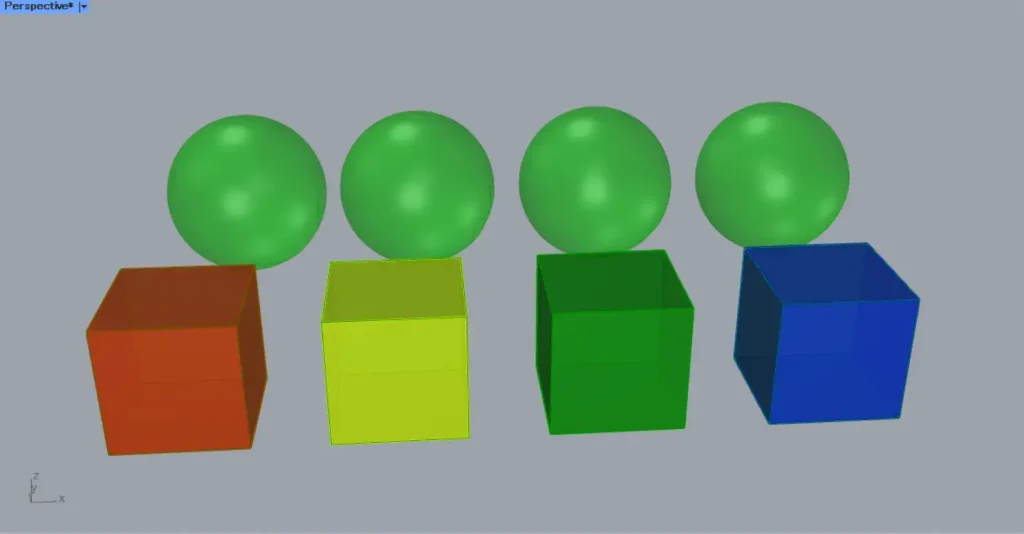
If the “Include Hidden Objects” checkbox is selected, hidden models are also selected.
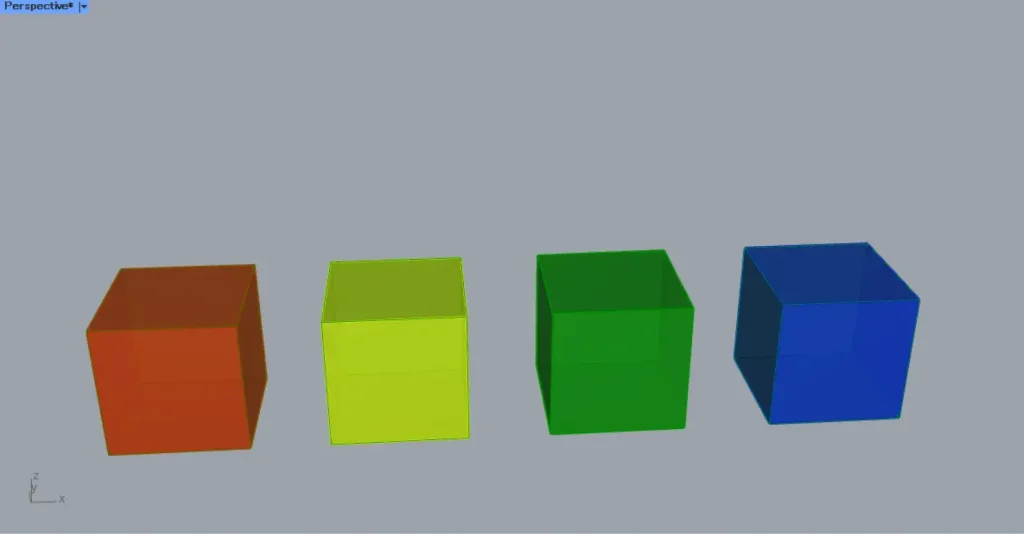
If the “Include Hidden Objects” checkbox is unchecked, hidden models were not selected.
Organize output branch data by layer type
You can also organize the output branch data by layer type.
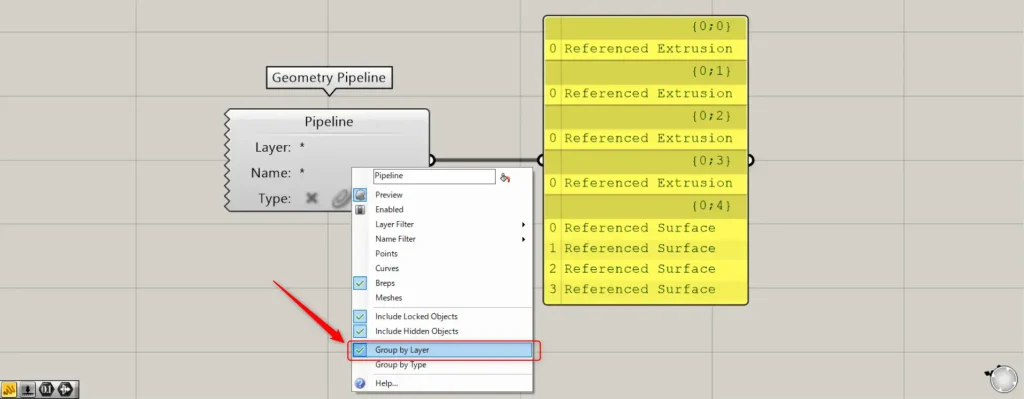
To group by layer, right-click the Geometry Pipeline and select Group by Layer.
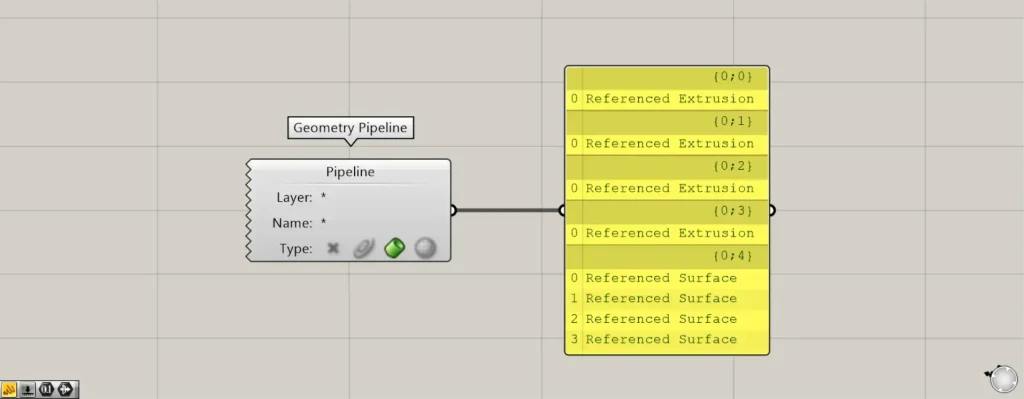
Then, it was organized into layers like this.
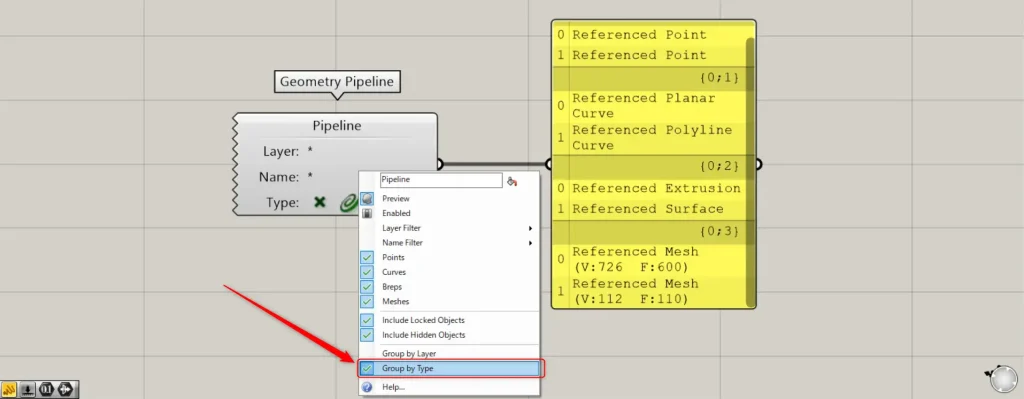
To group by type, right-click the Geometry Pipeline and select Group by Type.
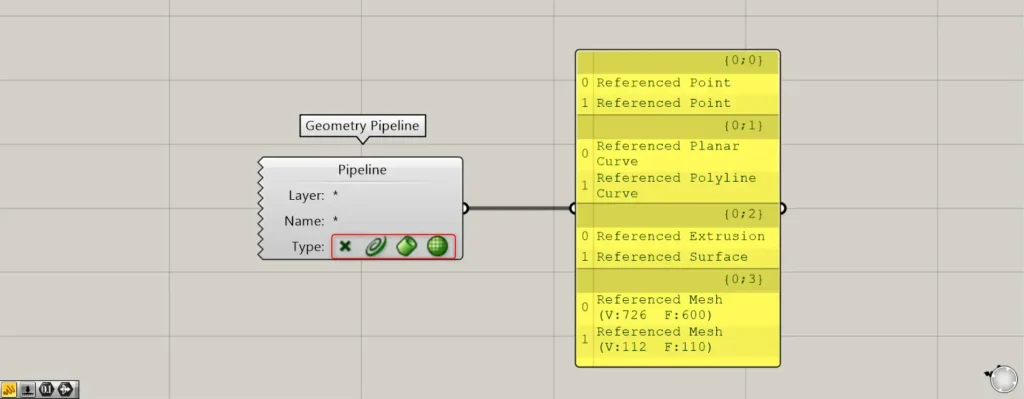
Then, the objects were categorized hierarchically by type like this.
In this case, you need to select multiple Types.
List of Grasshopper articles using Geometry Pipeline component↓




Comment