
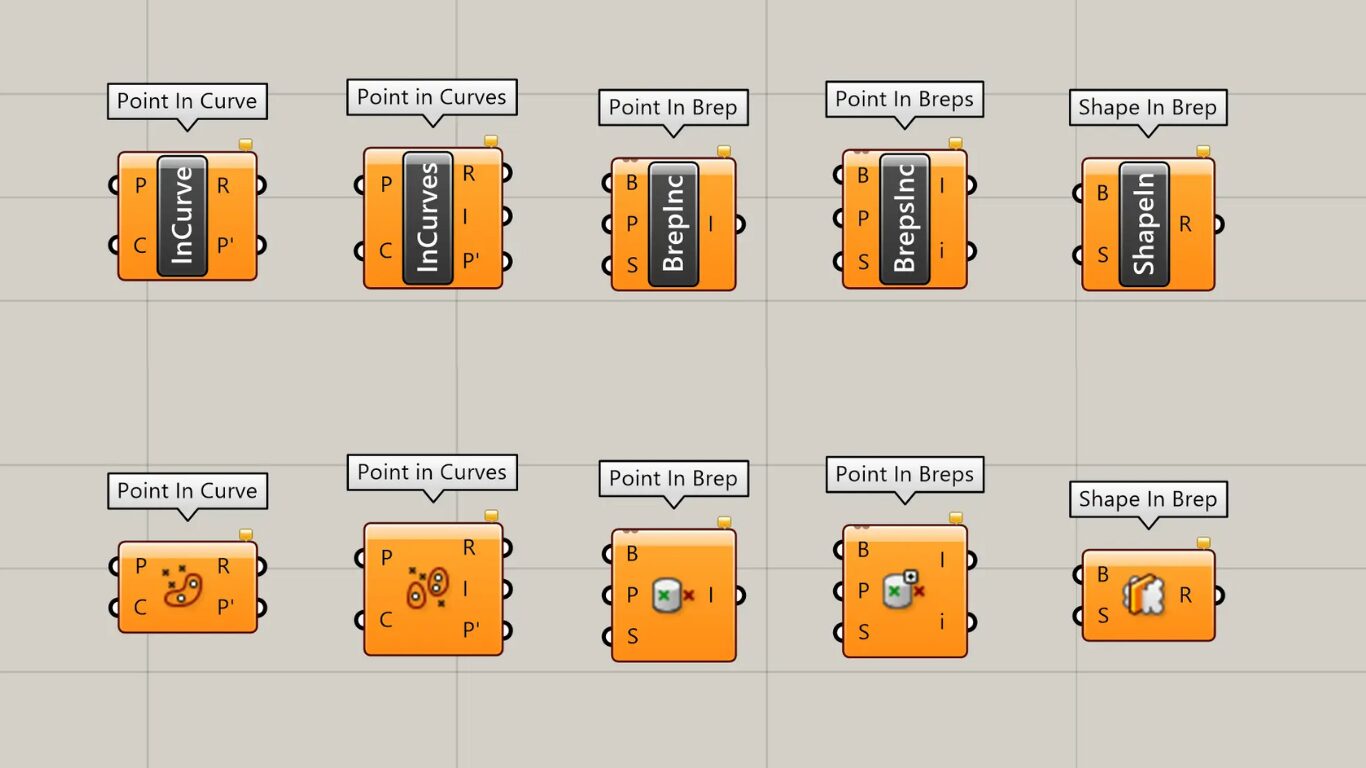
This time, we’ll explain five components for determining inside/outside conditions in Grasshopper.
Now, let’s go through the explanation step by step.
Video
The five components used
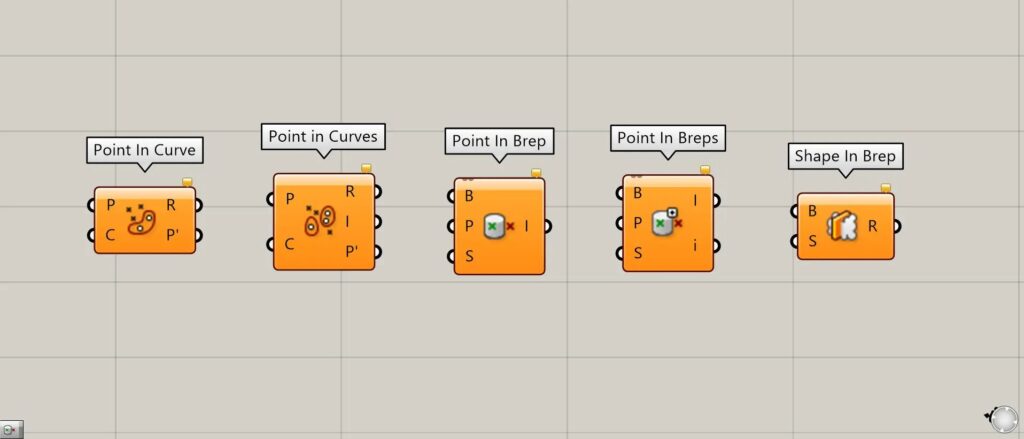
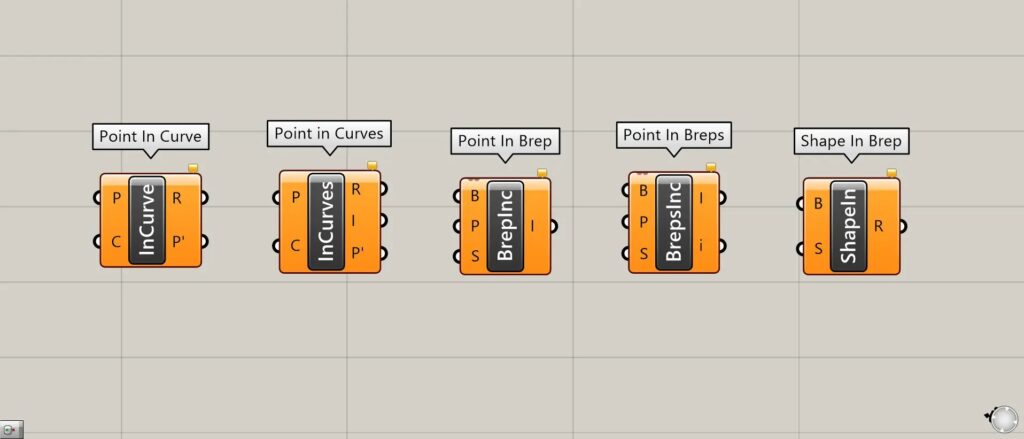
- Point in Curve
- Point in Curves
- Point in Brep
- Point in Breps
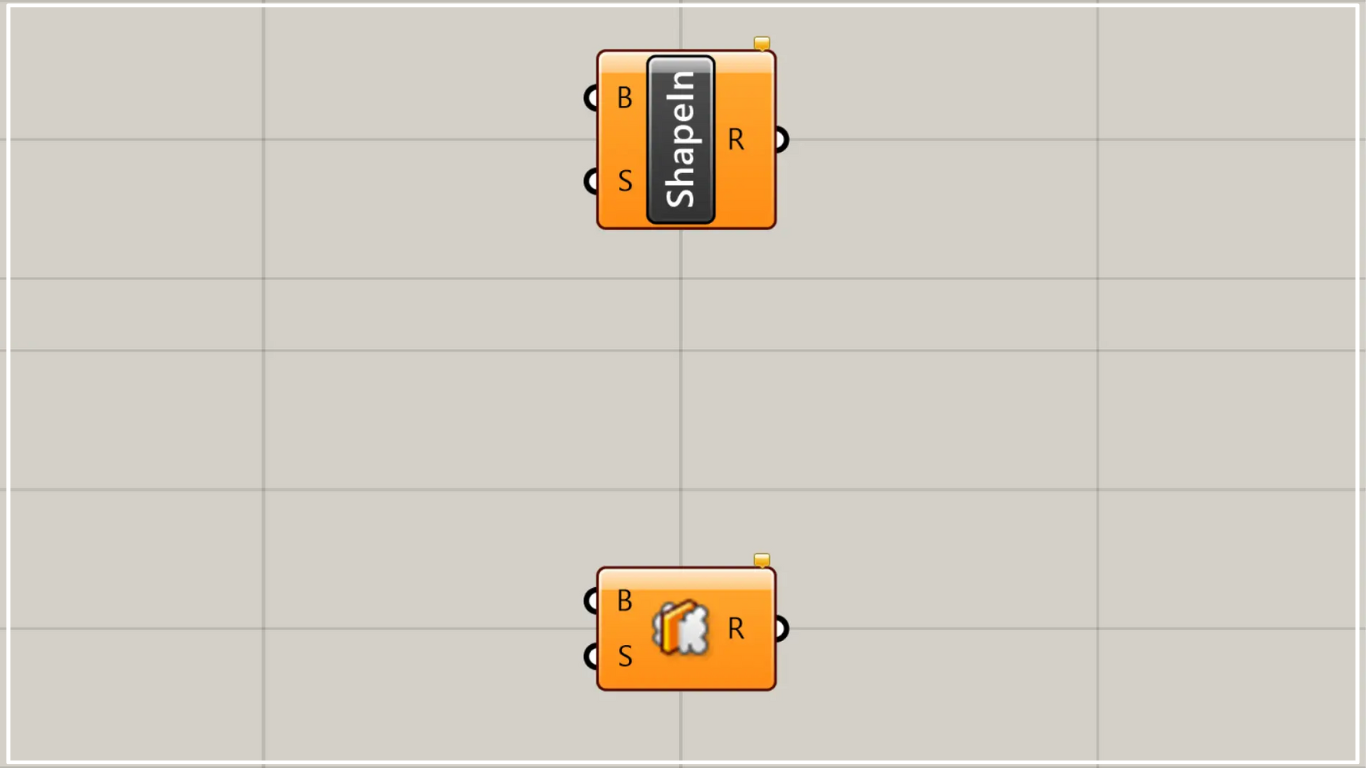
- Shape In Brep
Data downloads for the Grasshopper and Rhinoceros used this time are available here.
For information regarding the use of downloadable data, please refer to the Terms of Use.
Point in Curve
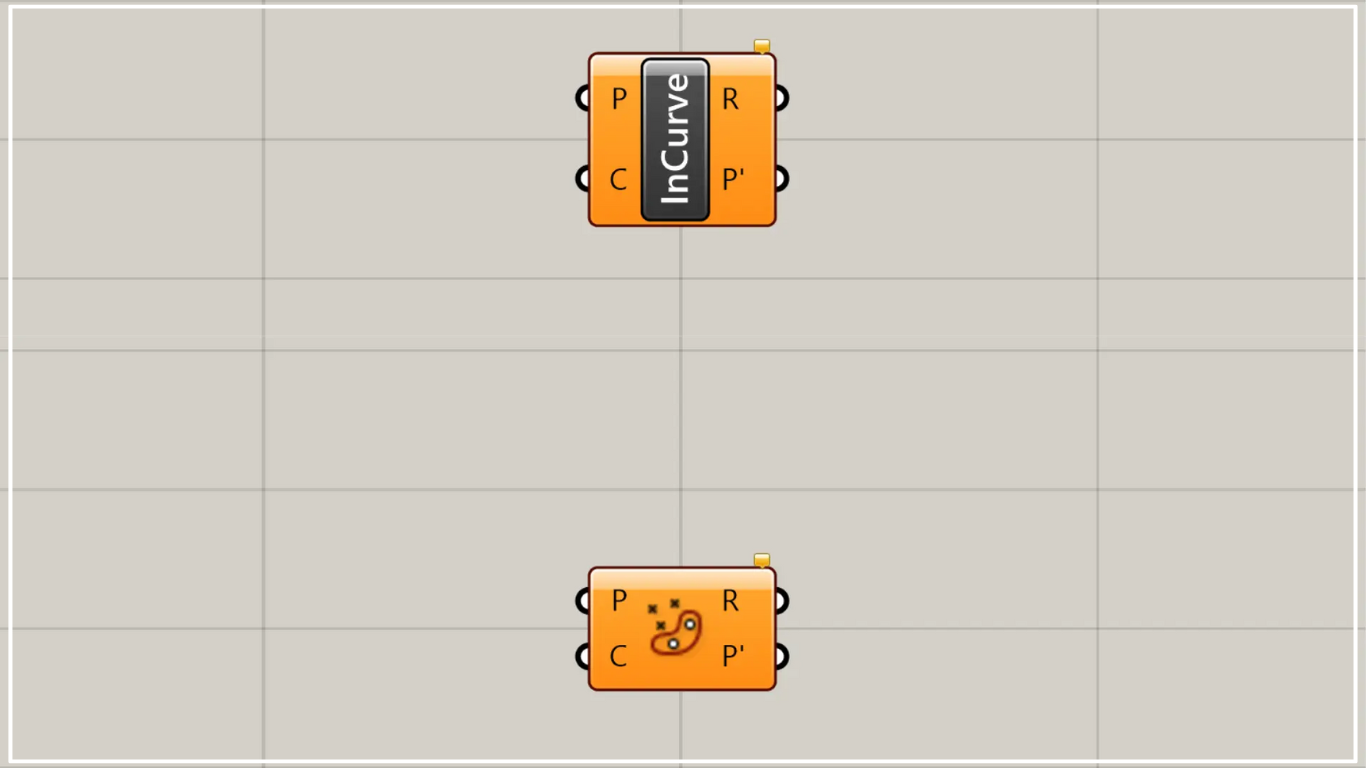
First, we’ll explain Point In Curve.
Point In Curve can determine whether a point lies inside, on, or outside a closed line or curve.
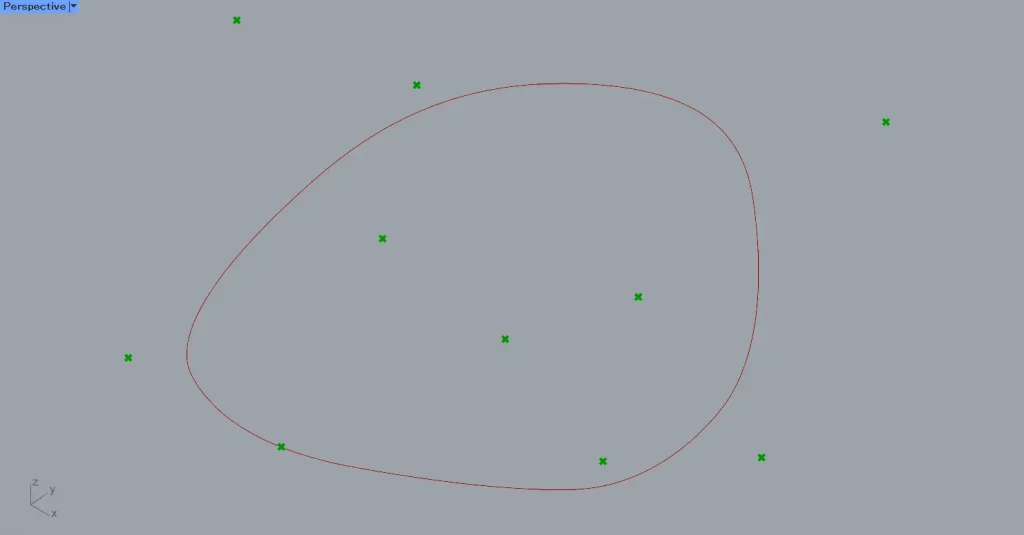
For this example, we will use the closed curve and multiple points shown in the image above.
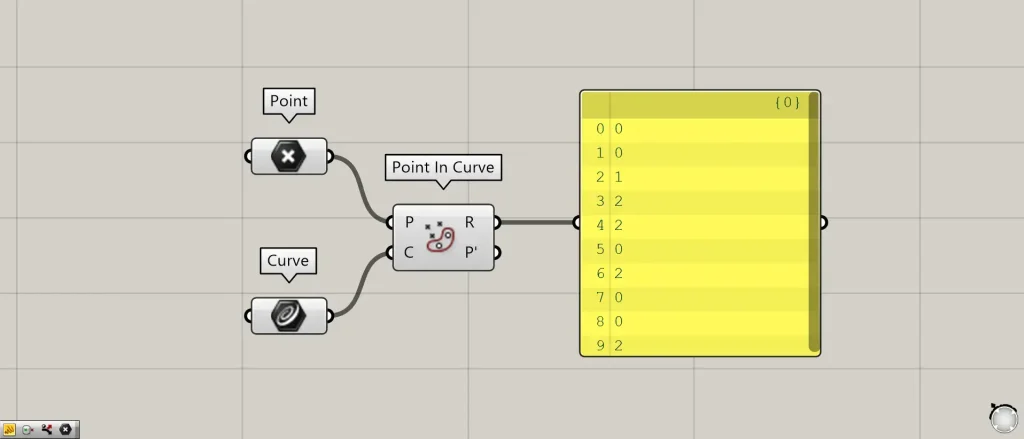
Components used: ①Point ②Curve ③Point In Curve
Connect the point data to the Point In Curve(P).
This time, we are connecting the Point that sets multiple points.
Connect the data for a single closed line or curve to the Point In Curve(C).
This time, we are connecting the Curve that each contain a single curve.
Then, as shown in the image above, one of the three values 0, 1, or 2 will be output from the Point In Curve(R).
A value of 0 indicates that the point lies outside the line or curve.
A value of 1 indicates that the point lies on a line or curve.
A value of 2 indicates that the point lies inside the line or curve.
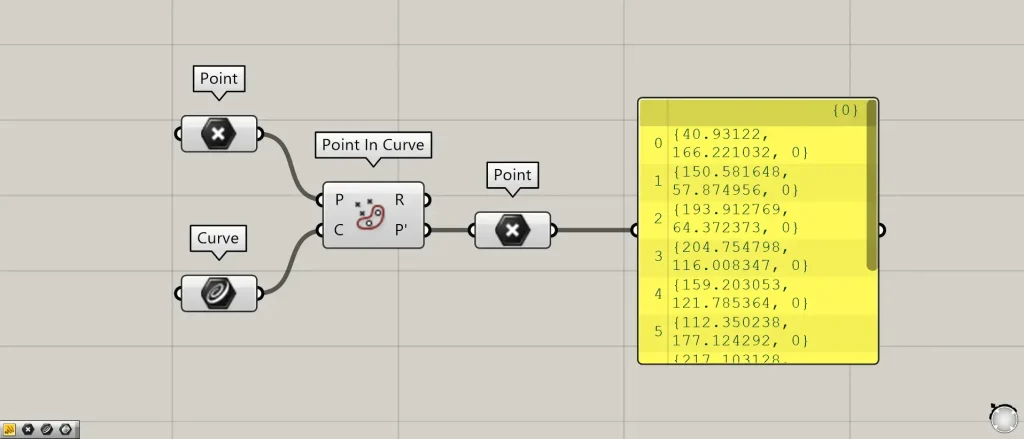
The Point In Curve(P’) outputs point data projected onto a plane from lines or curves.
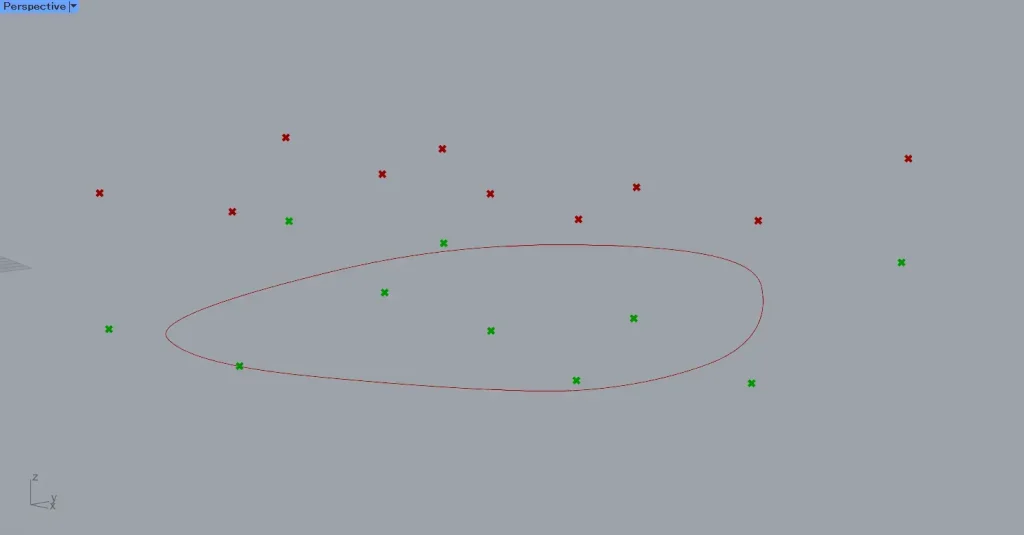
For example, let’s place multiple points above the curve.
Then, we can see that the points are projected onto a plane with a curve.
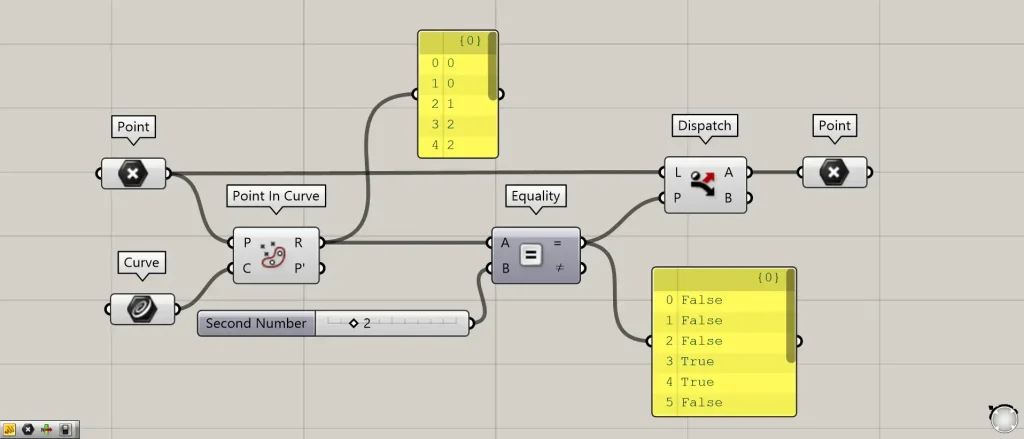
Additional Components: ① Equality ② Dispatch
Let’s try to obtain the points located inside the curve, on the curve, and outside the curve, respectively.
Connect the Point In Curve(R) to the Equality(A).
Furthermore, when acquiring the inner point, connect the value of 2 to the Equality(B).
To obtain points on the curve, connect the value 1 to the Equality(B).
To obtain the outer point, connect the value 0 to the Equality(B).
Then, the Equality outputs True if the values match, and False if they do not.
Next, connect the Equality(=) to the Dispatch(P).
Additionally, connect the original point data to the Dispatch(L).
This time, we are connecting the Point.
Then, points located inside, on the curve, and outside will be output from the Dispatch(A).
This time, we are connecting the Dispatch(A) to the Point to acquire the point.
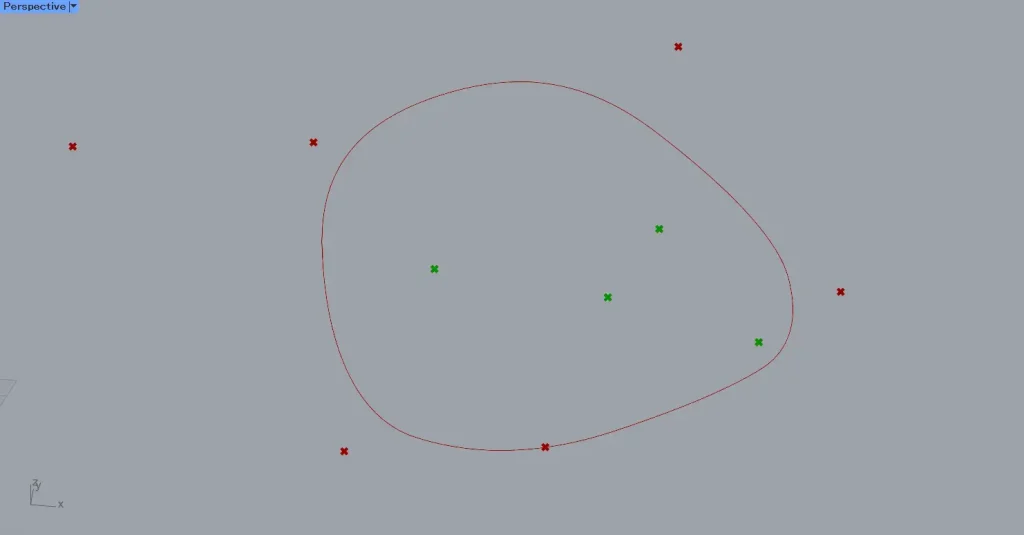
The image above shows the Equality with the value 2 entered into the Equality(B).
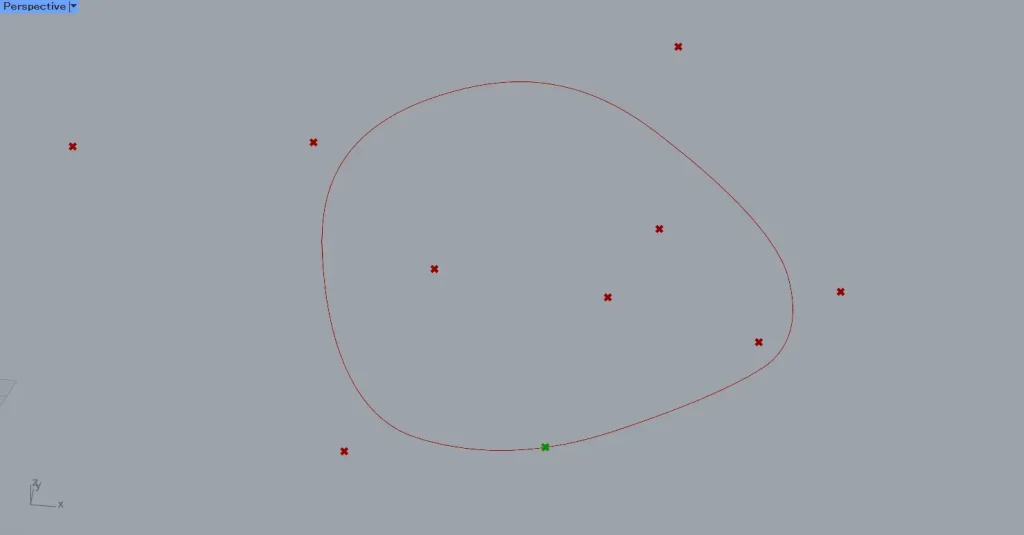
The image above shows the Equality with the value 1 entered into the Equality(B).
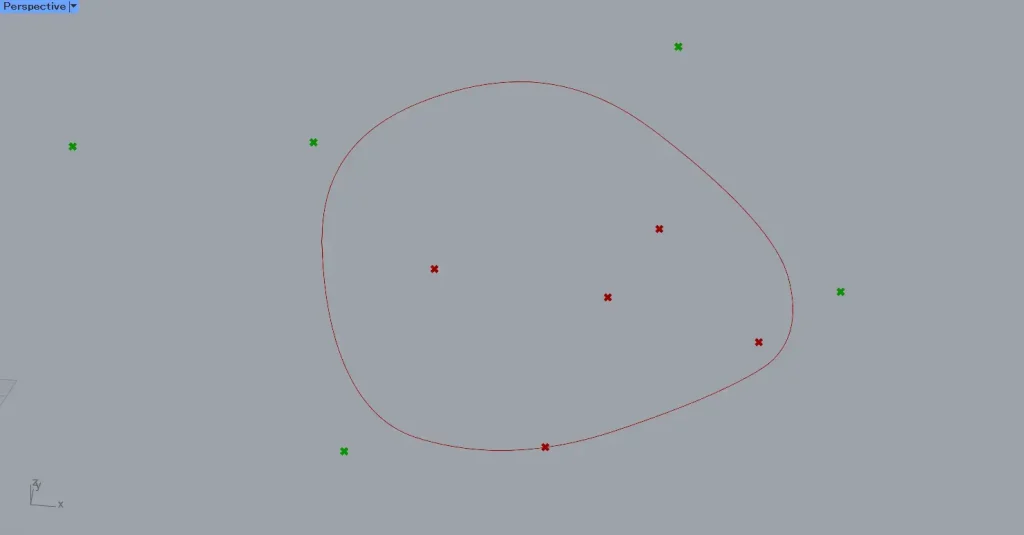
The image above shows the Equality(B) set to the value 0.
Point in Curves
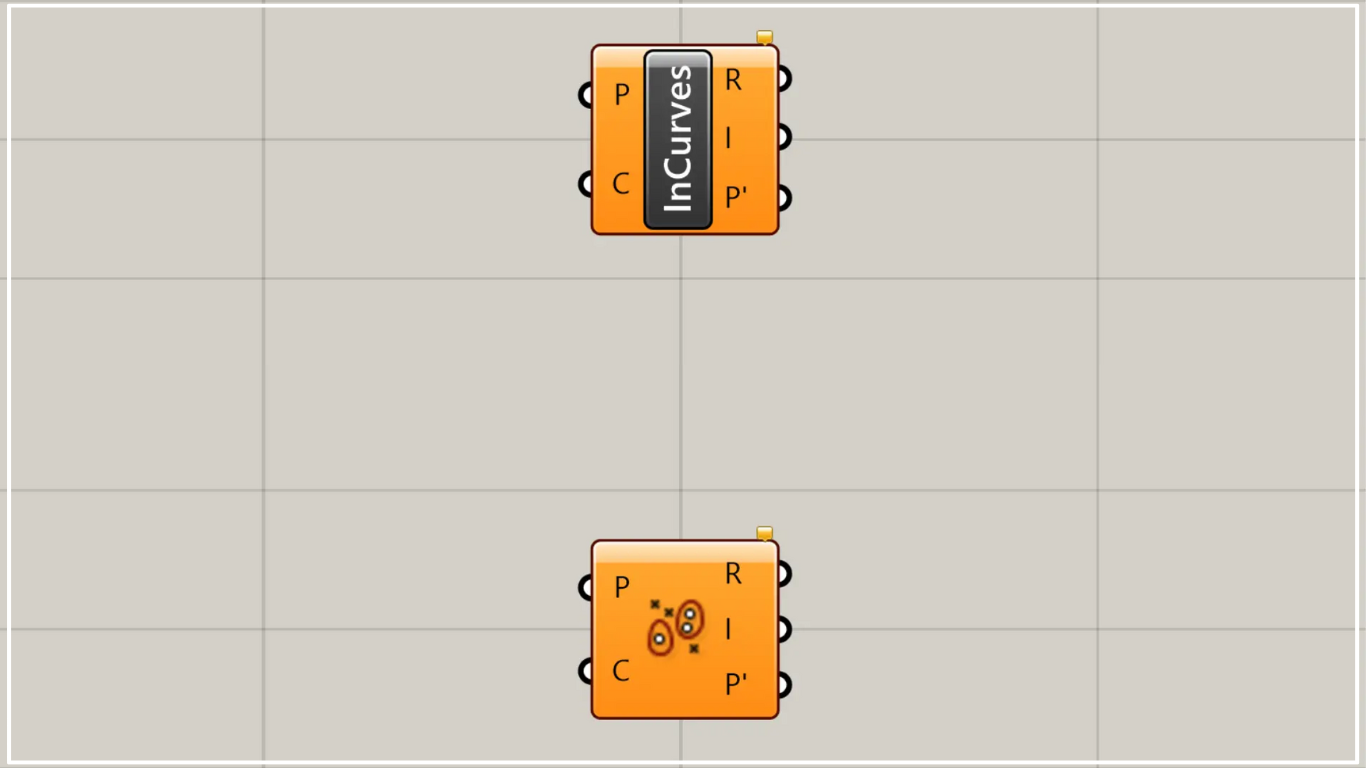
Next, we’ll explain Point in Curves.
Point in Curves can determine whether points lie inside, on, or outside multiple closed lines or curves.
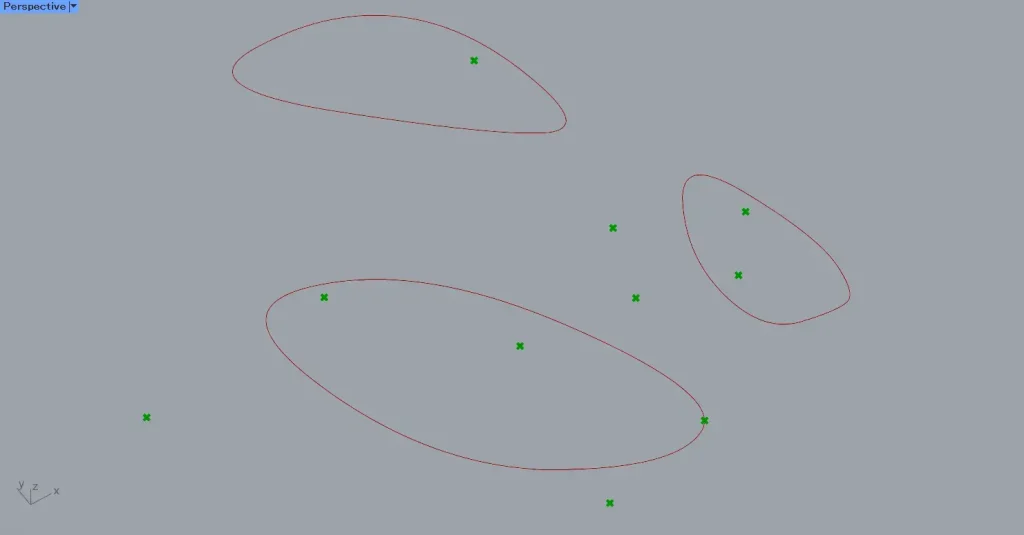
For this example, we will use the three closed curves and multiple points shown in the image above.
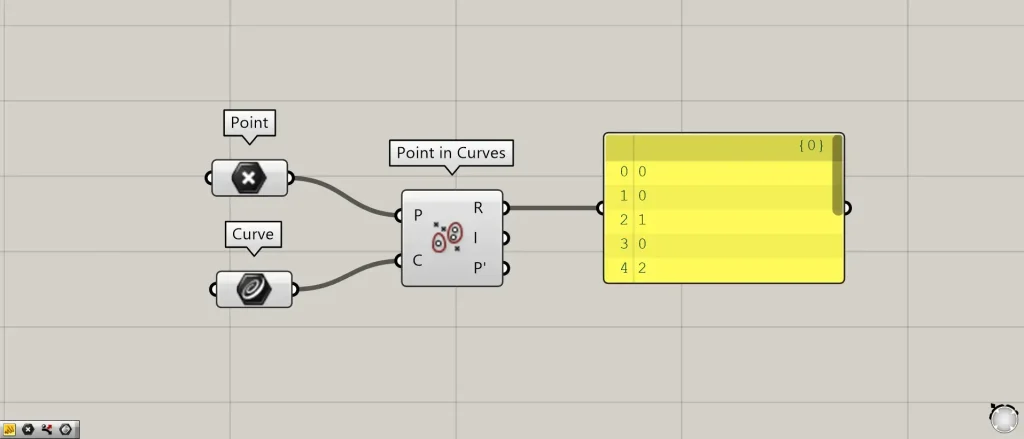
Components used: ①Point ②Curve ③Point in Curves
Connect the point data to the Point in Curves(P).
This time, we are connecting the Point that sets multiple points.
Connect multiple closed line or curve data points to the Point in Curves(C).
This time, we are connecting the Curve that sets three curves.
Then, as shown in the image above, one of the three values 0, 1, or 2 will be output from the Point in Curves(R).
A value of 0 indicates that the point lies outside the line or curve.
A value of 1 indicates that the point lies on a line or curve.
A value of 2 indicates that the point lies inside the line or curve.
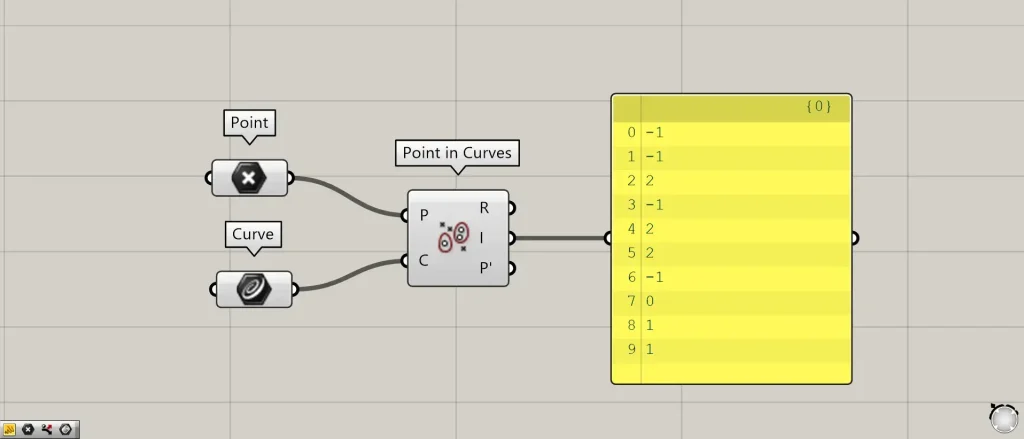
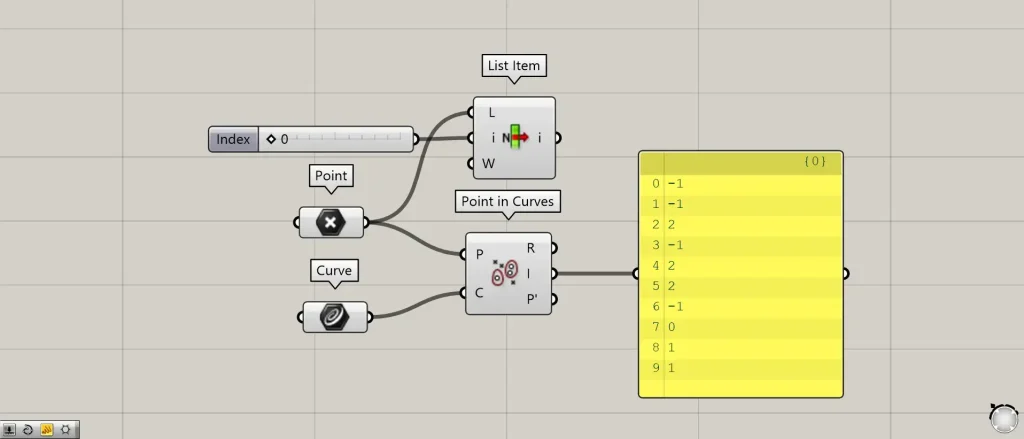
From the Point in Curves(I), if the point is inside a line or curve, the index number of the curve enclosing the point (the curve’s sequence number) is output.
If the point lies outside the line or curve, a value of -1 is output.
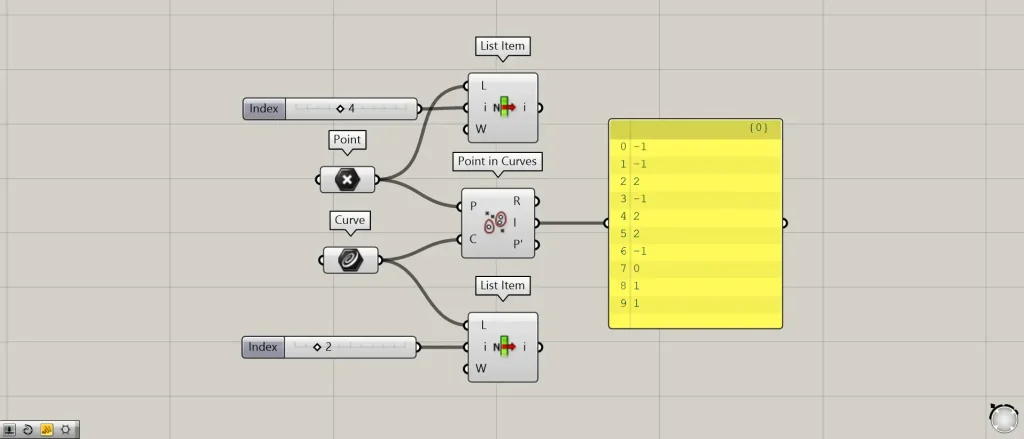
Additional Component: ①List Item
Let’s actually retrieve and examine the points and curves.
This time, we will use the value 2 from index number 4.
Connect the Point to the List item(L).
Next, connect the value 4 to the List item(i).
Then, connect the Curve to the List Item(L).
Next, connect the value of 2 to the List Item(i).
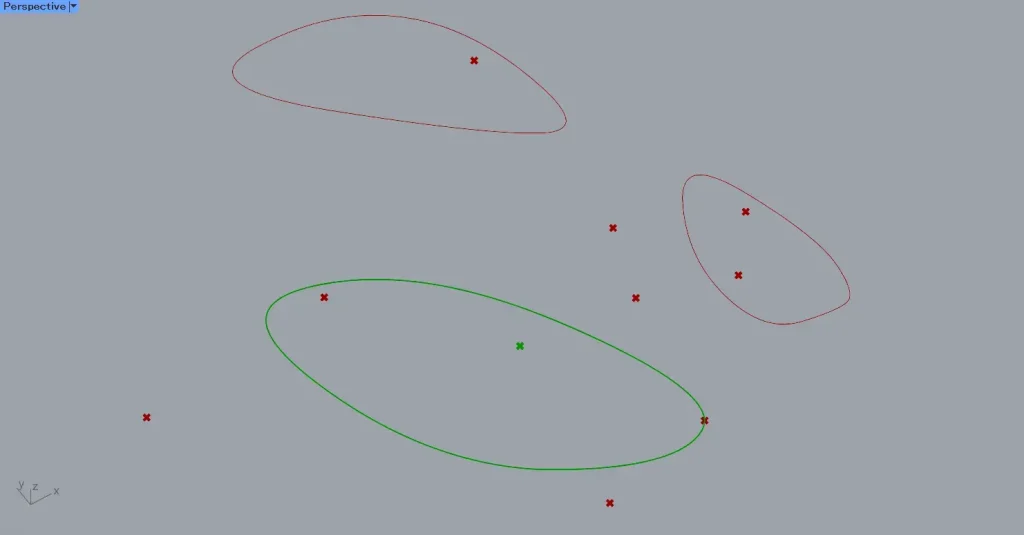
Then, as shown in the image above, we were able to obtain the curve with index number 2 and the point with index number 4.
Next, let’s look at the case where the value is -1.
This time, we’ll look at the case where the index number is 0 and the value is -1.
Connect the Point to the List Item(L).
Additionally, connect the value 0 to the List Item(i).
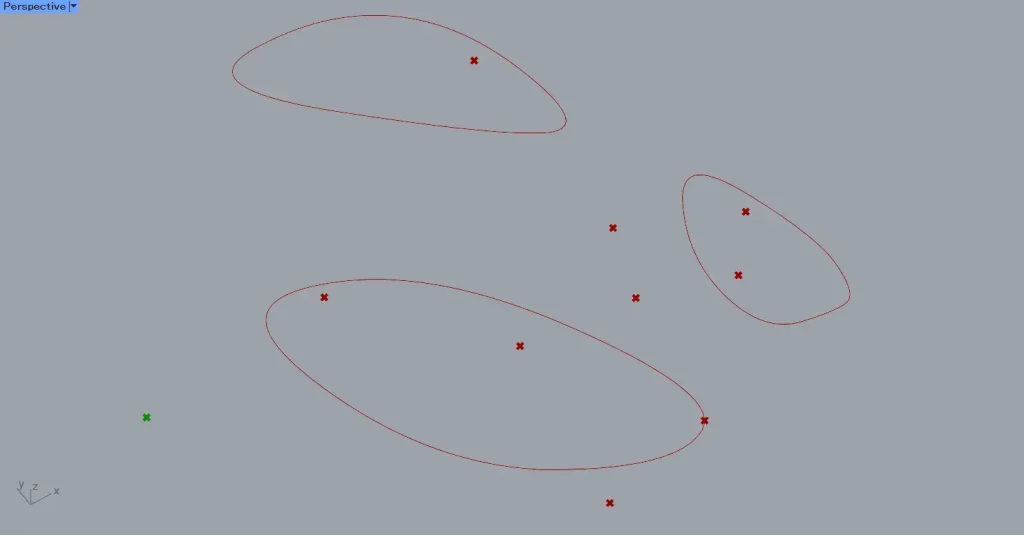
Then, as shown in the image above, we were able to obtain the outer points.
Thus, from the Point in Curves(I), the index number of the curve enclosing the point is output if the point lies inside the line or curve; if the point does not lie inside, the value -1 is output.
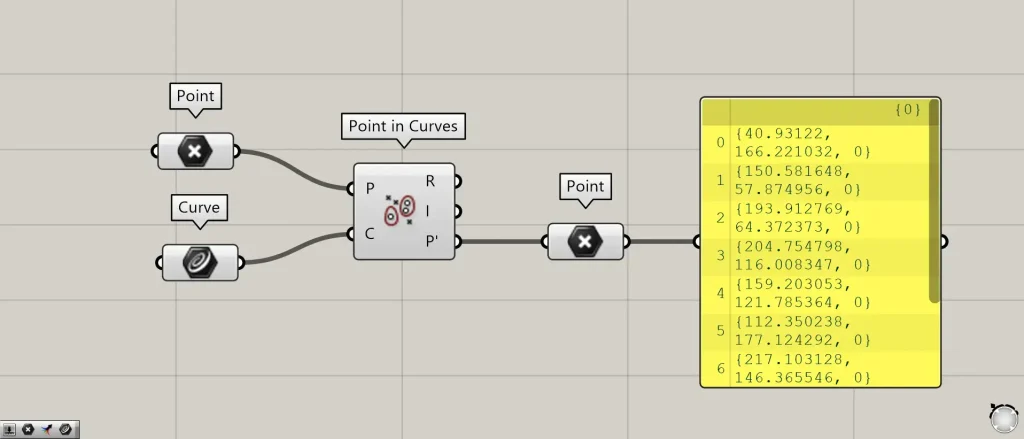
The Point in Curves(P’) outputs point data projected onto a plane containing lines or curves.
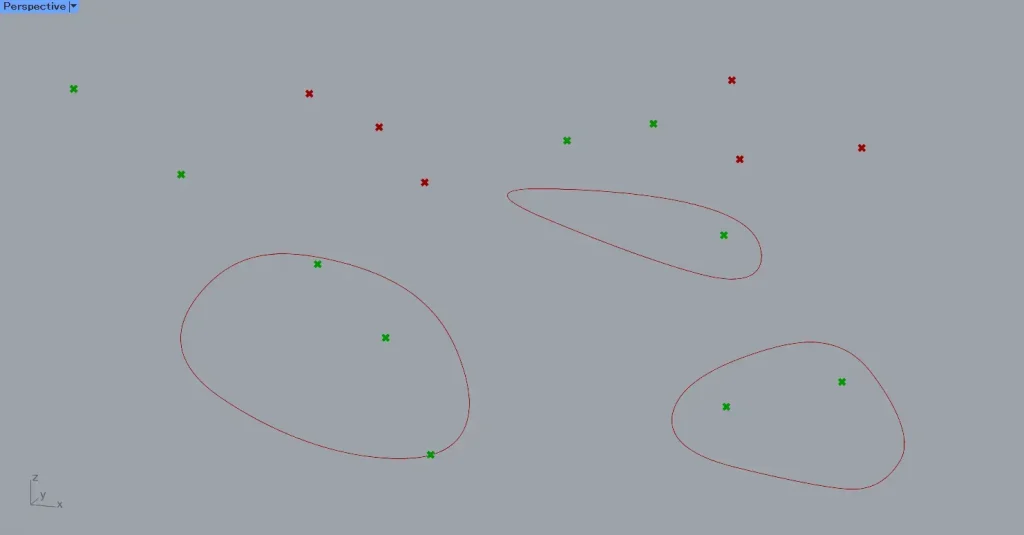
For example, let’s place multiple points above the curve.
Then, if there are points inside the curve, we can see that only those points are projected onto the plane of the curve.
When points lie outside the curve, they are not projected and remain at their original positions.
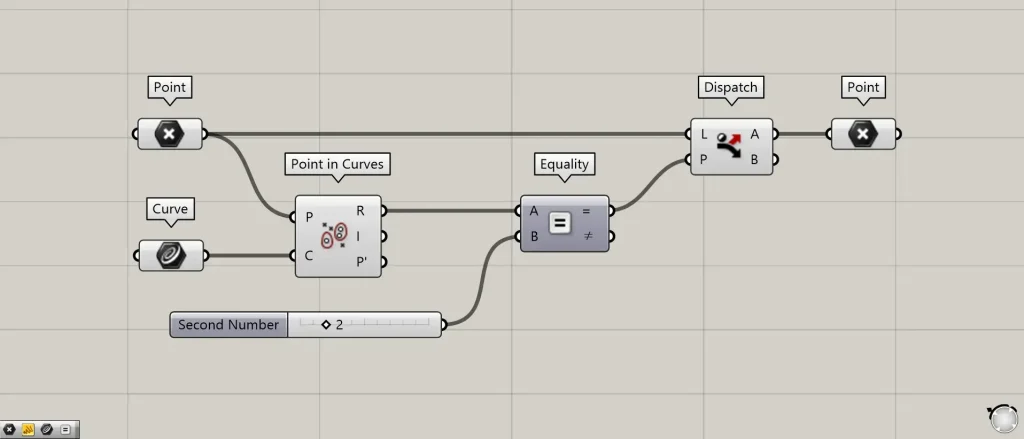
Additional Components: ① Equality ② Dispatch
Let’s try to obtain points located inside, on the line, and outside multiple curves.
Connect the Point in Curves(R) to the Equality(A).
Furthermore, when obtaining the inner point, connect the value of 2 to the Equality(B).
To obtain a point on the line, connect the value 1 to the Equality(B).
To obtain the outer point, connect the value 0 to the Equality(B).
Then, the Equality outputs True if the values match, and False if they do not.
Next, connect the Equality(=) to the Dispatch(P).
Additionally, connect the original point data to the Dispatch(L).
This time, we are connecting the Point.
Then, points located inside, along the line, and outside will be output from the Dispatch(A).
This time, we are connecting the Dispatch(A) to the Point to acquire the point.
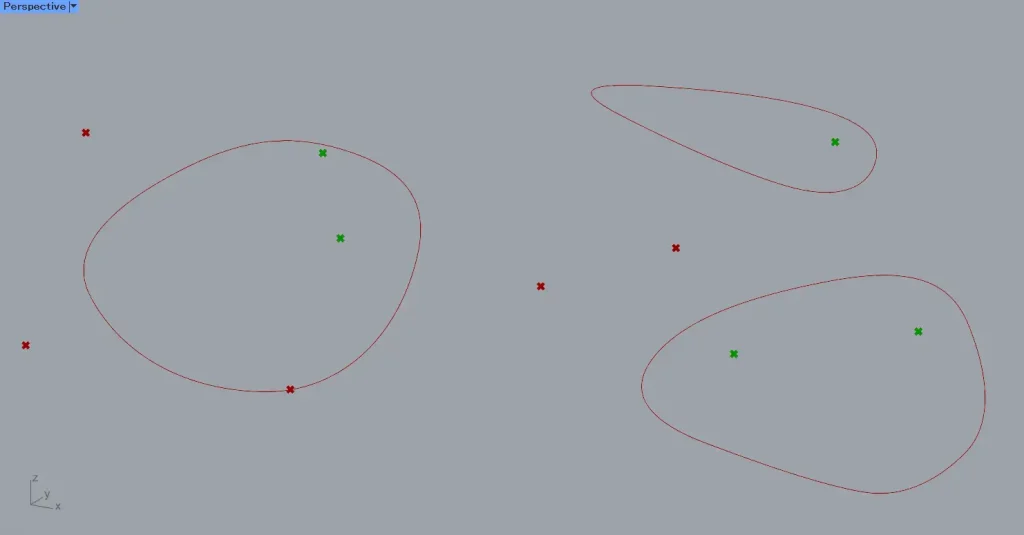
The image above shows the Equality with the value 2 entered into the Equality(B).
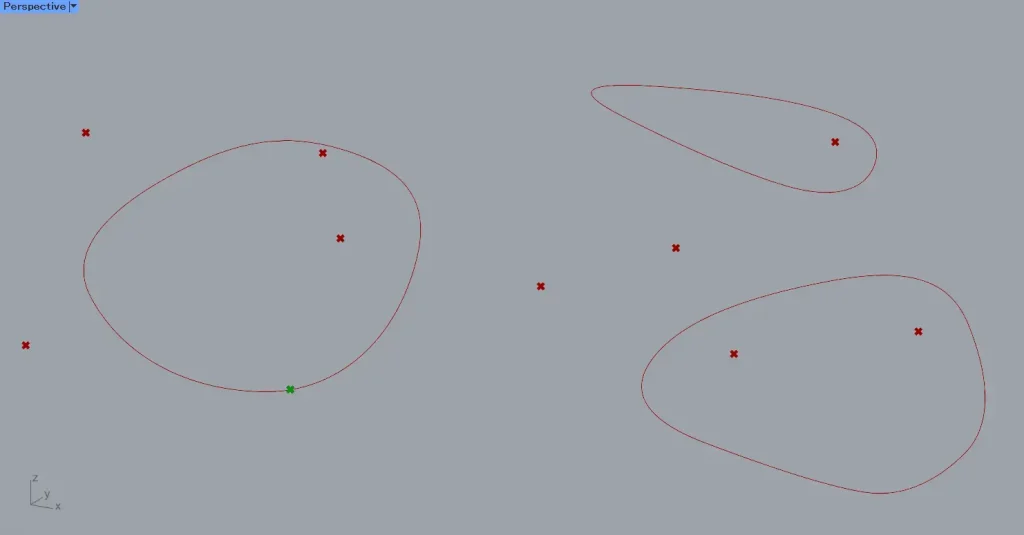
The image above shows the Equality with the value 1 entered into the Equality(B).
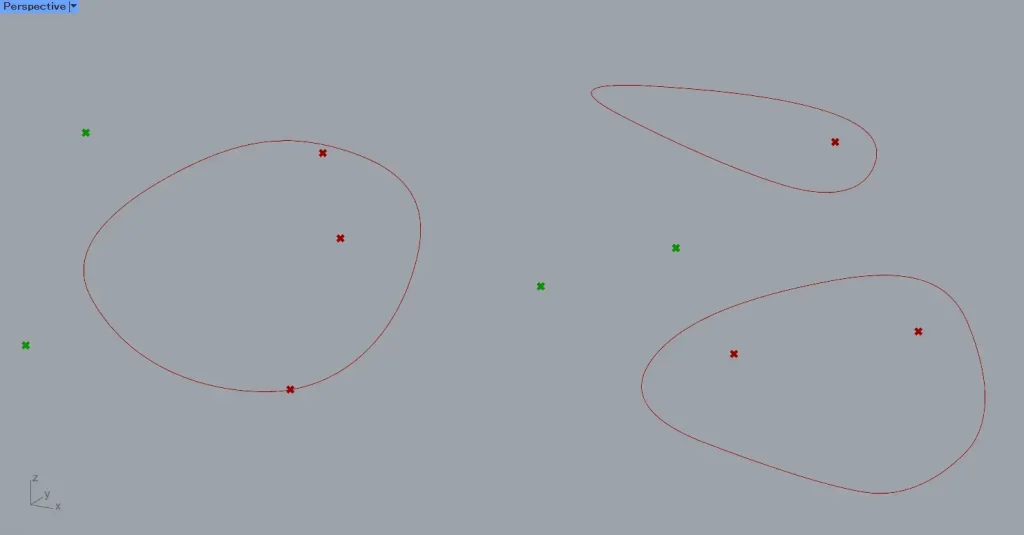
The image above shows the Equality(B) set to the value 0.
Point In Brep
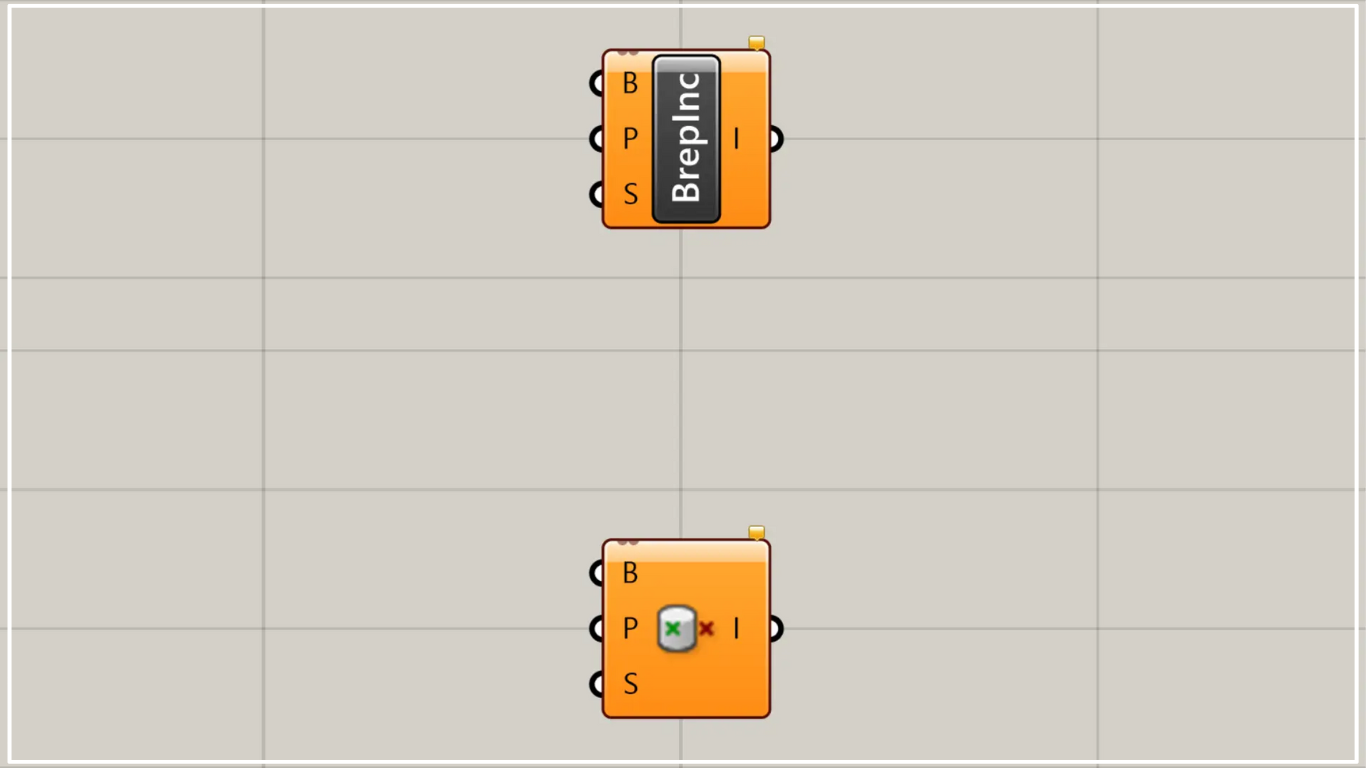
Next, we explain Point In Brep.
Point In Brep can determine whether a point is inside or outside a single Brep model.
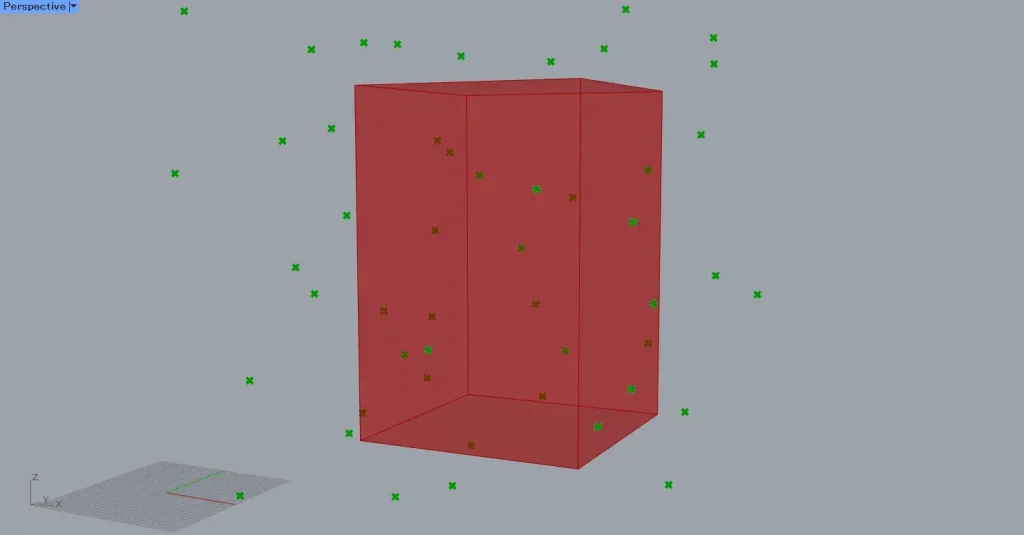
For this example, we will use multiple points from the image above and a single rectangular prism Brep model.
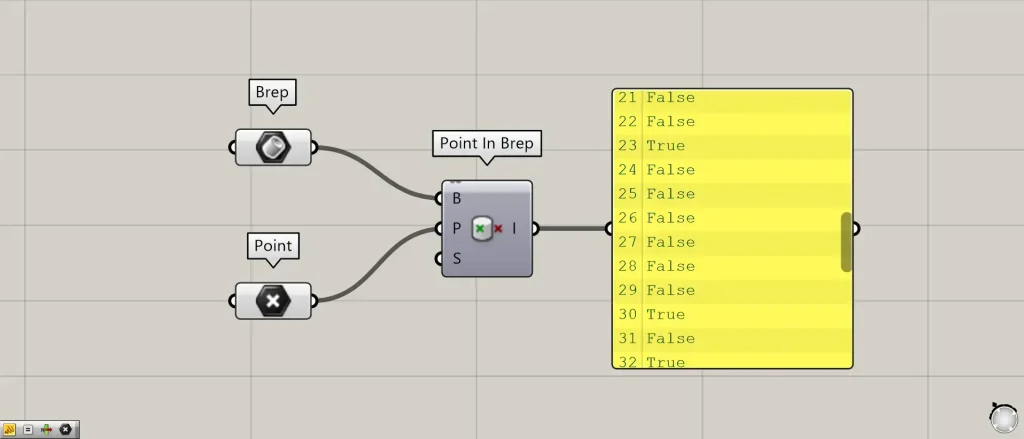
Components used: ①Brep ②Point ③Point in Brep
Connect the Brep model to the Point In Brep(B).
This time, we are connecting models set in the Brep.
Connect the point data to the Point In Brep(P).
This time, we are connecting the Point that set multiple points.
Then, Point In Brep outputs information indicating True if the point is inside the Brep model and False if the point is outside the Brep model.
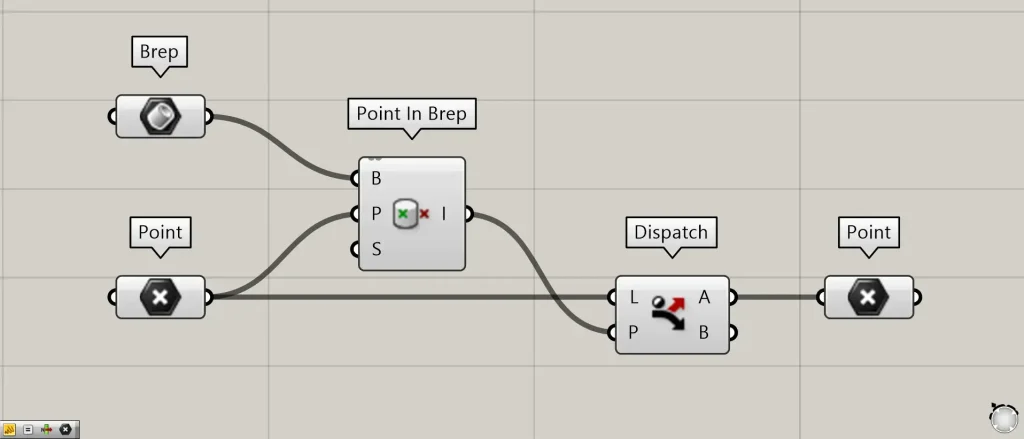
Additional Components: ① Dispatch
Let’s actually try retrieving points located inside and outside the Brep model.
Connect the Point In Brep to the Dispatch(P).
Additionally, connect the original point data to the Dispatch(L).
This time, we are connecting the Point.
Then, the inner point data is output from the Dispatch(A).
Additionally, point data from the outer area is output from the Dispatch(B).
This time, we are connecting to the Point using either the A terminal or the B terminal of the Dispatch to acquire the point.

The image above shows the point data output from the Dispatch(A).
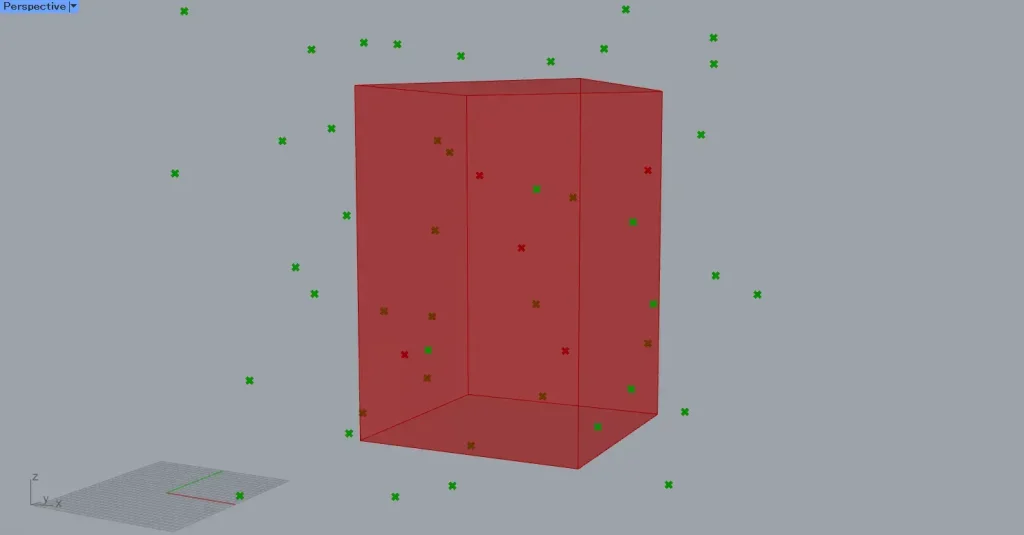
The image above shows the point data output from the Dispatch(B).
Point in Breps
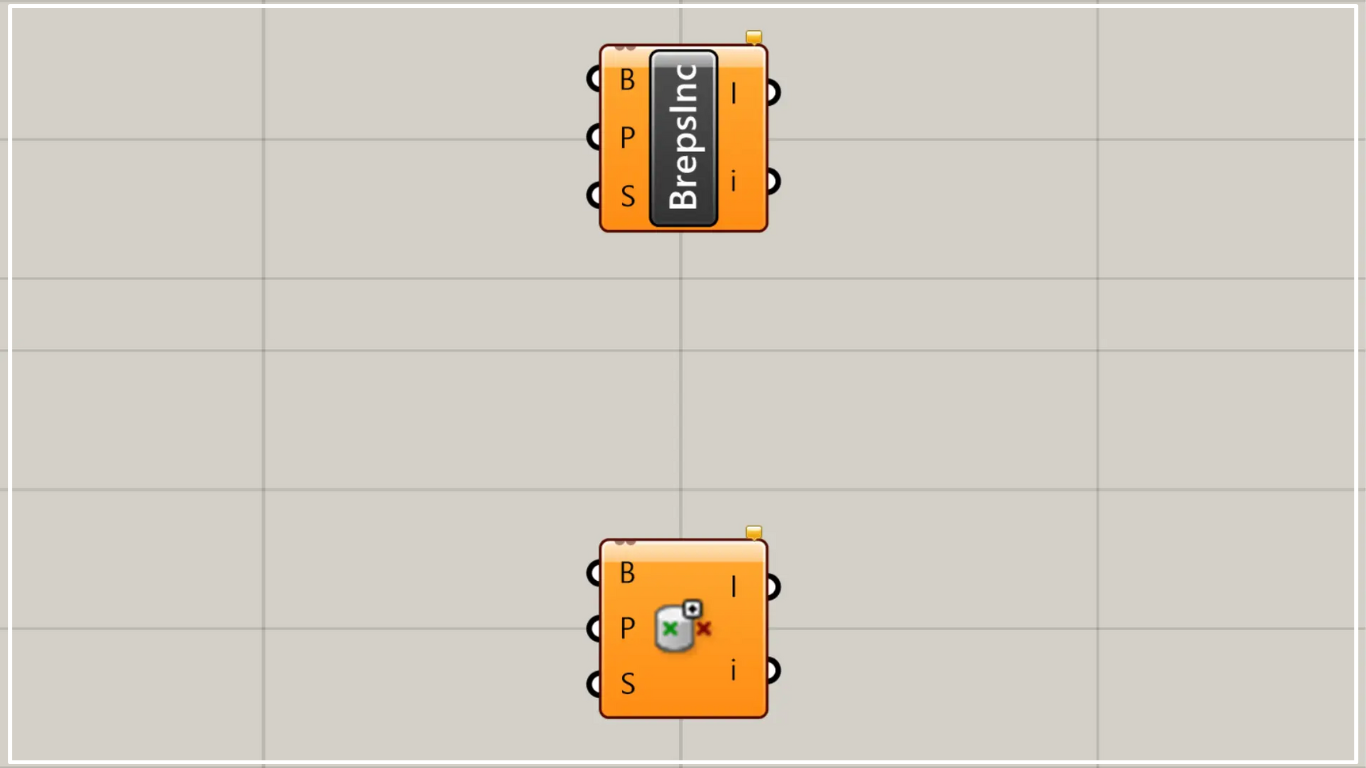
Next, we’ll explain Point In Breps.
Point In Breps can determine whether a point lies inside or outside multiple Brep models.
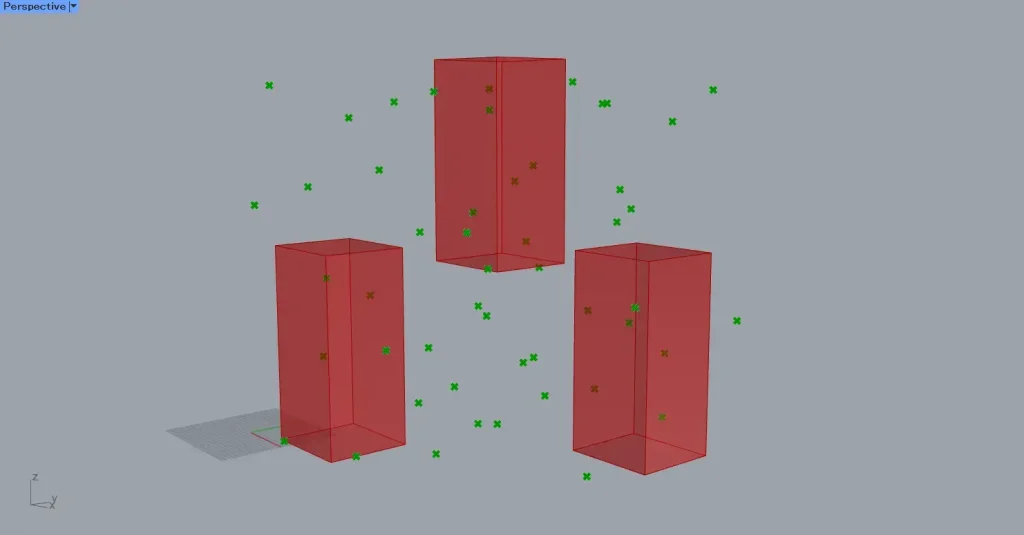
For this example, we will use multiple Brep models and multiple point data sets from the image above.

Components used: ①Brep ②Point ③Point in Breps
Connect multiple Brep models to the Point In Breps(B).
This time, we are connecting models set in Brep.
Connect the point data to the Point in Breps(P).
This time, we are connecting the Point that sets multiple points.
Then, the Point In Breps(I) outputs information: True if the point is inside the Brep model, False if the point is outside the Brep model.
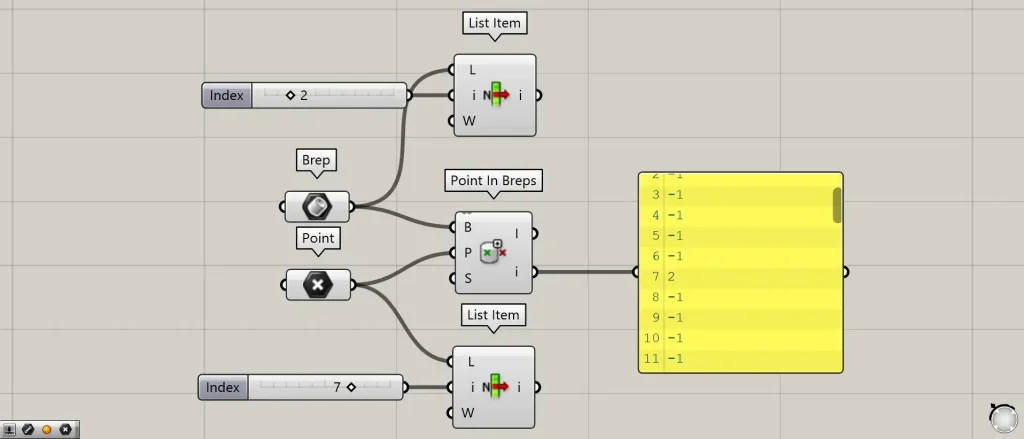
Additional Component: ①List Item
The Point In Breps(i) outputs the index number (sequence number) of the Brep model enclosing the point when the point is located inside the Brep model.
If the point is outside the Brep model, a value of -1 is output.
For example, let’s look at the data for index number 7-2 output from the Point In Breps(i).
Connect the Point to the List Item(L).
Next, connect the value 7 to the List Item(i).
Next, connect the Brep to the List Item(L).
Next, connect the value of 2 to the List Item(i).
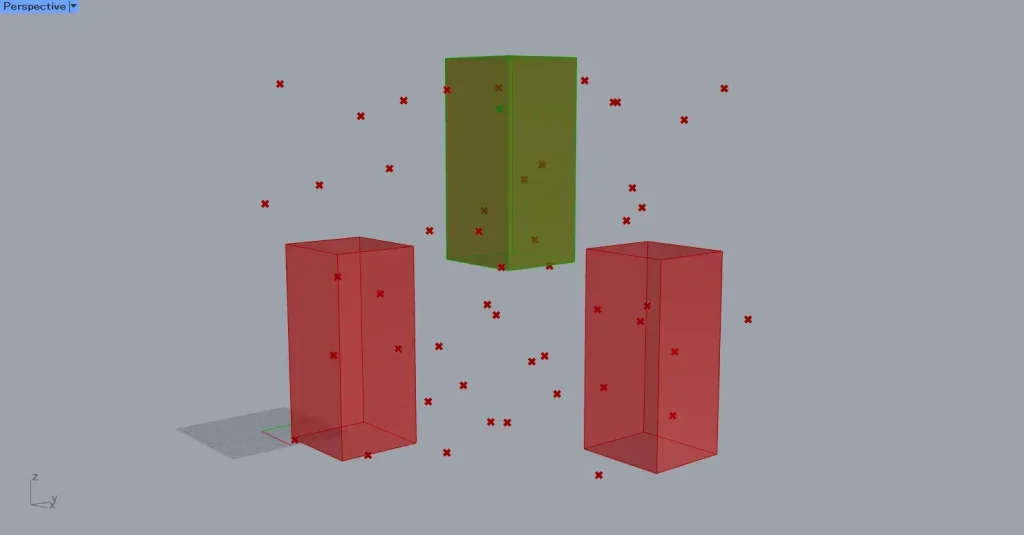
Then, as shown in the image above, we were able to retrieve the Brep model with index number 2 and the point data with index number 7.
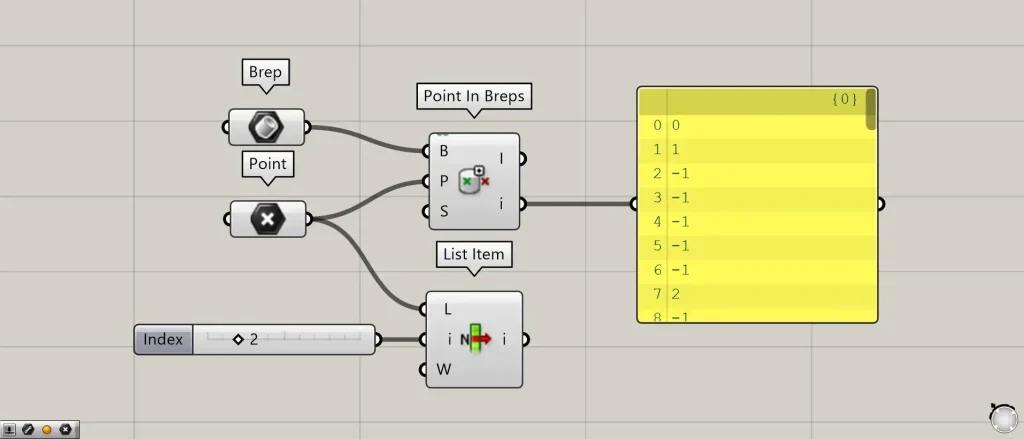
Next, let’s look at the case where the value is -1.
This time, we’ll look at the case where the index number is 2 and the value is -1.
Connect the Point to the List Item(L).
Next, connect the value of 2 to the List Item(i).
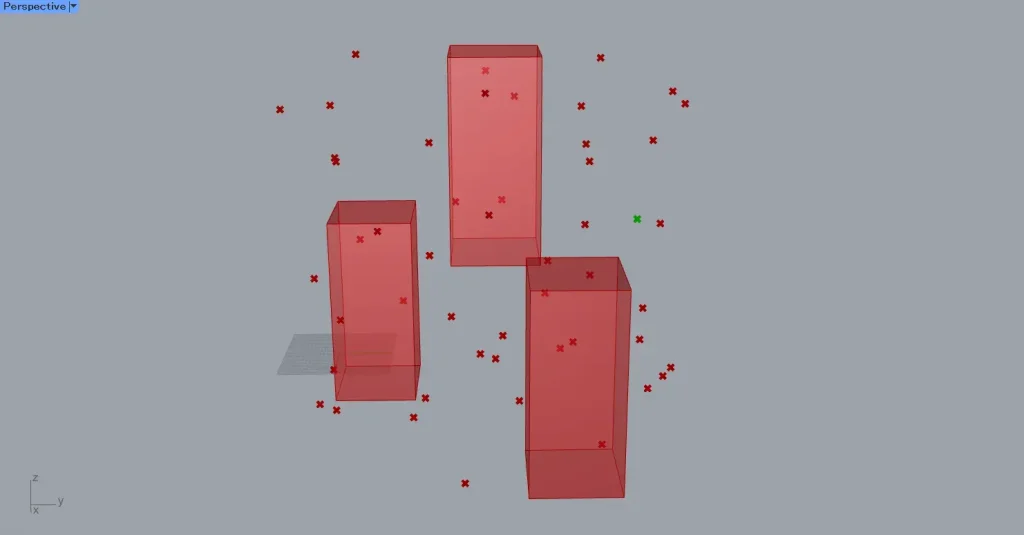
Then, as shown in the image above, we were able to obtain the outer points.
Thus, the Point In Breps(i) outputs the index number of the Brep model enclosing the point if the point is inside the Brep model, and outputs the value -1 if the point is not inside.
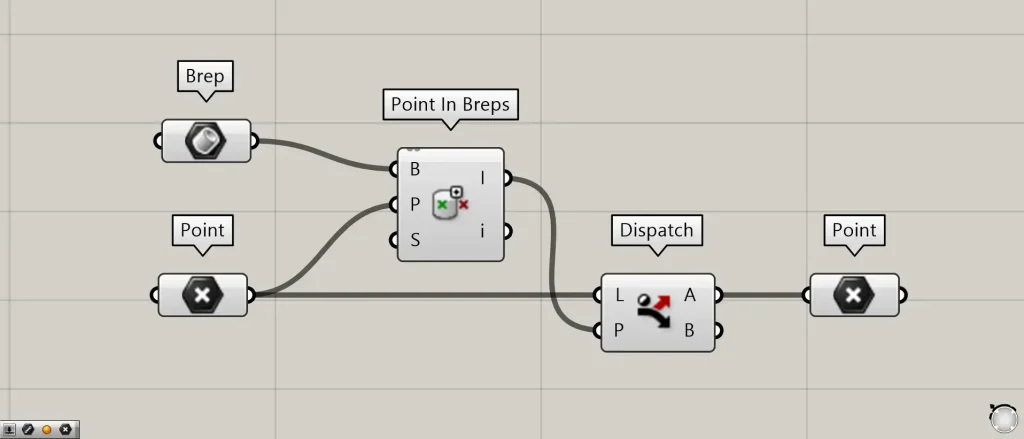
Additional Components: ① Dispatch
Let’s actually try acquiring points located inside and outside multiple Brep models.
Connect the Point In Breps(I) to the Dispatch(P).
Additionally, connect the original point data to the Dispatch(L).
This time, we are connecting the Point.
Then, the inner point data is output from the Dispatch(A).
Additionally, point data from the outer area is output from the Dispatch(B).
This time, we are connecting to the Point using either the A terminal or the B terminal of the Dispatch to acquire the point.
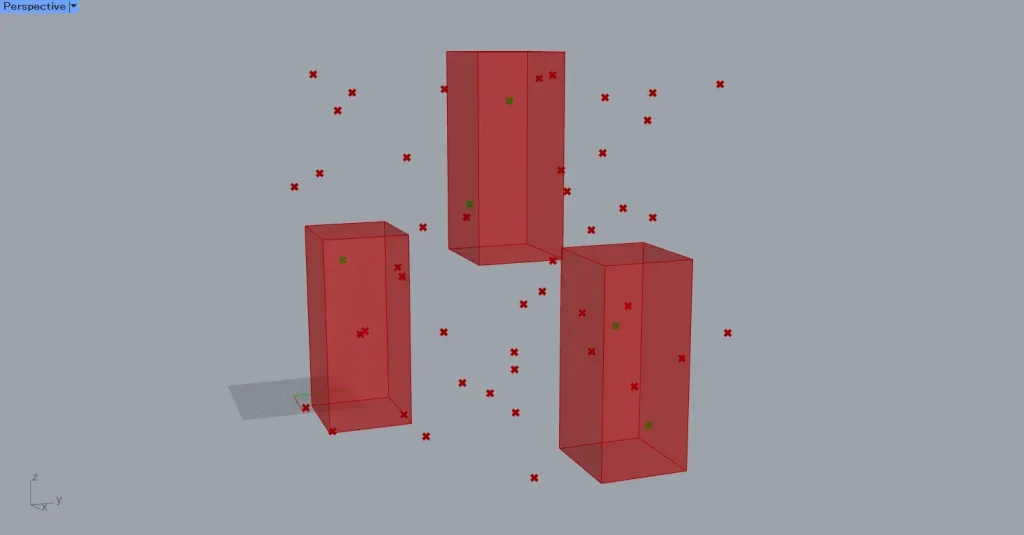
The image above shows the point data output from the Dispatch(A).
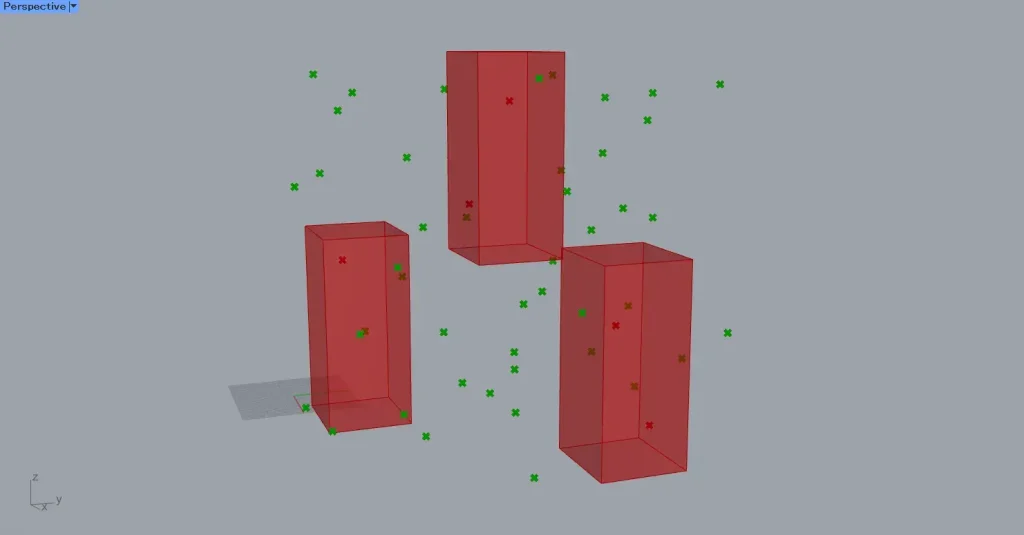
The image above shows the point data output from the Dispatch(B).
Shape in Brep
Finally, we’ll explain Shape in Brep.
Shape in Brep can determine whether various model types are inside, intersecting, or outside a single Brep model.
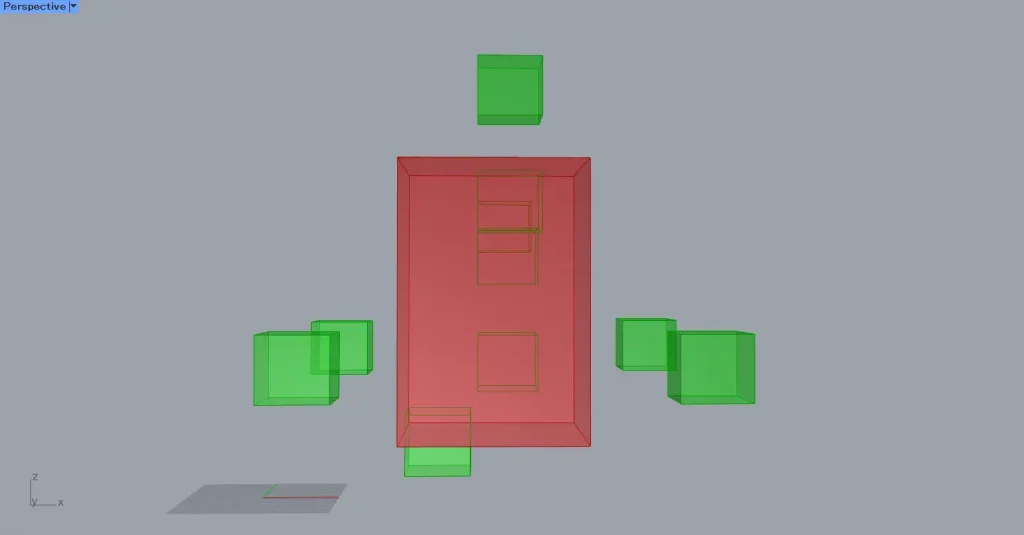
As a first example, we will use the Brep model of the multiple small cubes and the large cube shown in the image above.
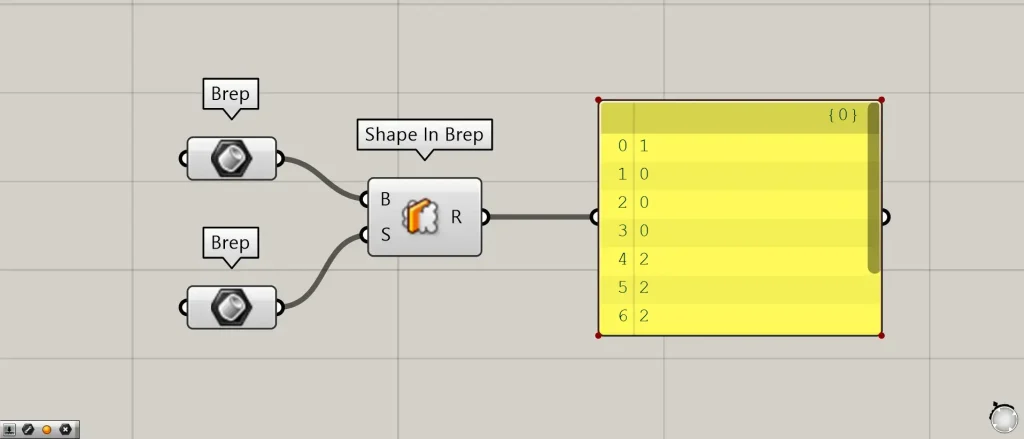
Components used: ①Brep ②Shape In Brep
Connect one Brep model to the Shape in Brep(B).
This time, we are connecting Brep models set in Brep.
Additionally, connect any type of model data you wish to examine—whether interior, intersection, or exterior—to the Shape in Brep(S).
This time, we are connecting multiple small cubes set in Brep.
Then, Shape In Brep outputs one of the values 0, 1, or 2.
A value of 0 indicates that the model is inside the Brep model.
A value of 1 indicates that the model intersects with the Brep model.
A value of 2 indicates that the model is located outside the Brep model.
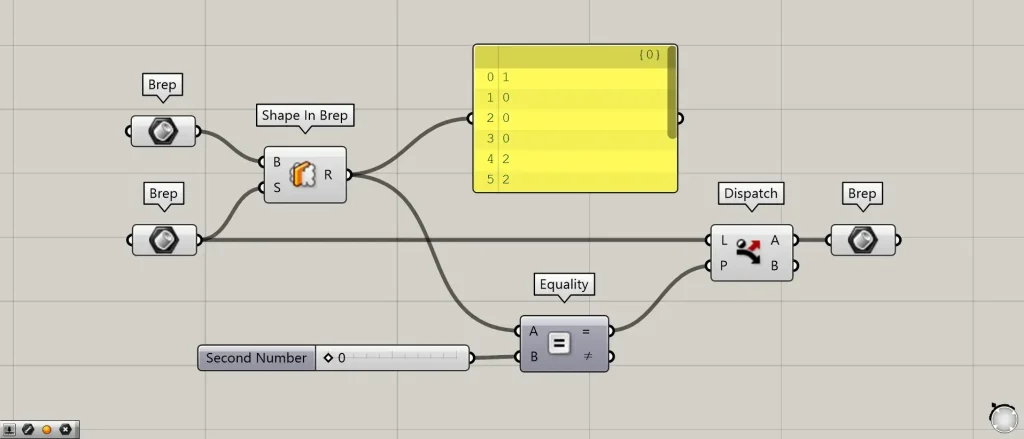
Additional Components: ① Equality ② Dispatch
Let’s actually retrieve the models located inside, at the intersection, and outside.
Connect the Shape in Brep(R) to the Equality(A).
Furthermore, when acquiring the inner model, connect the value 0 to the Equality(B).
To obtain the model intersecting with the Brep model, connect the value 1 to the Equality(B).
To obtain the outer model, connect the value of 2 to the Equality(B).
Then, the Equality(=) outputs True if the values match, and False if they do not match.
Next, connect the Equality(=) to the Dispatch(P).
Next, connect the model you wish to examine—whether inside, cross, or outside—to the Dispatch(L).
This time, we are connecting the Brep model connected to the Shape in Brep(S).
Then, models located inside, at the intersection, and outside will be output from Dispatch(A).
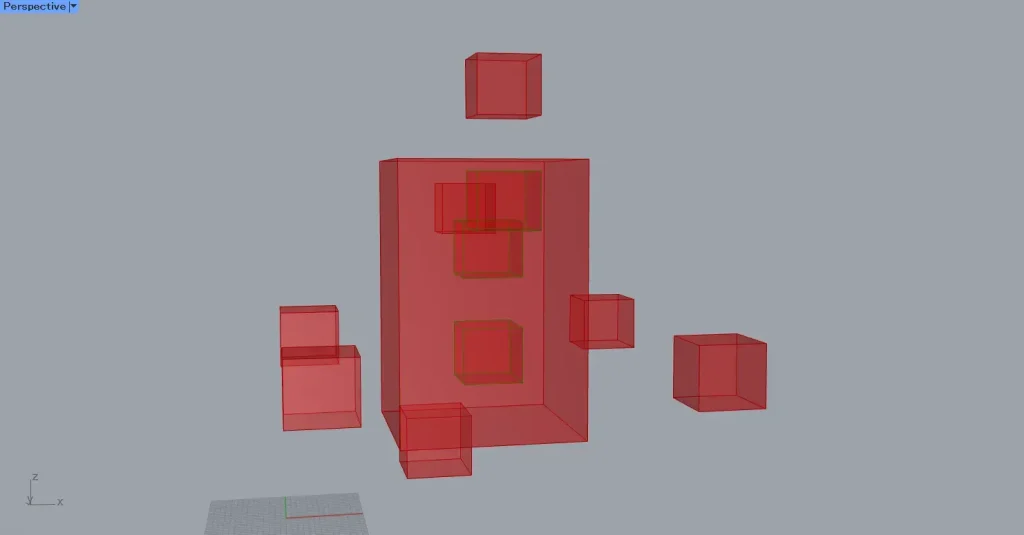
The image above shows the result when entering the value 0 into the Equality(B).
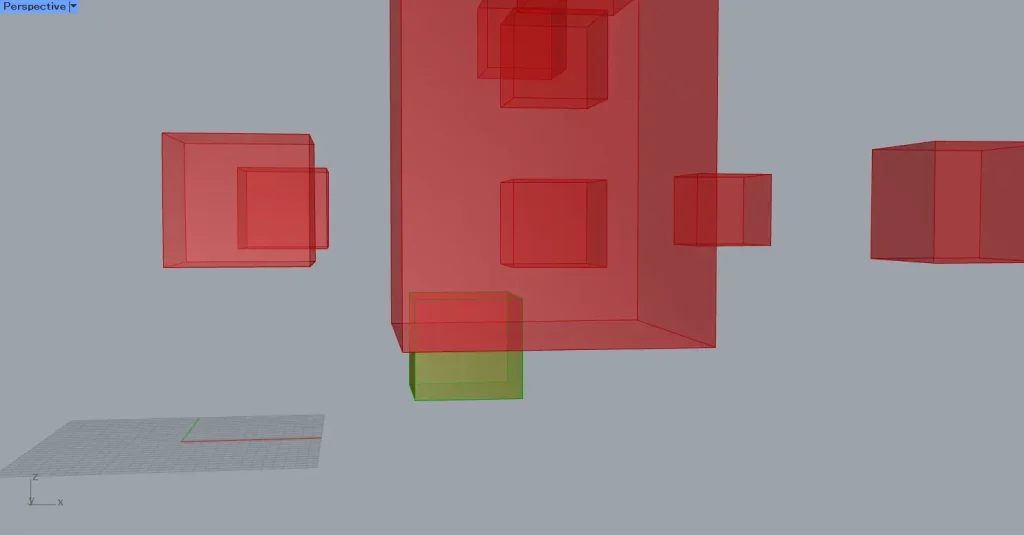
The image above shows the result when the value 1 is entered into the Equality(B).
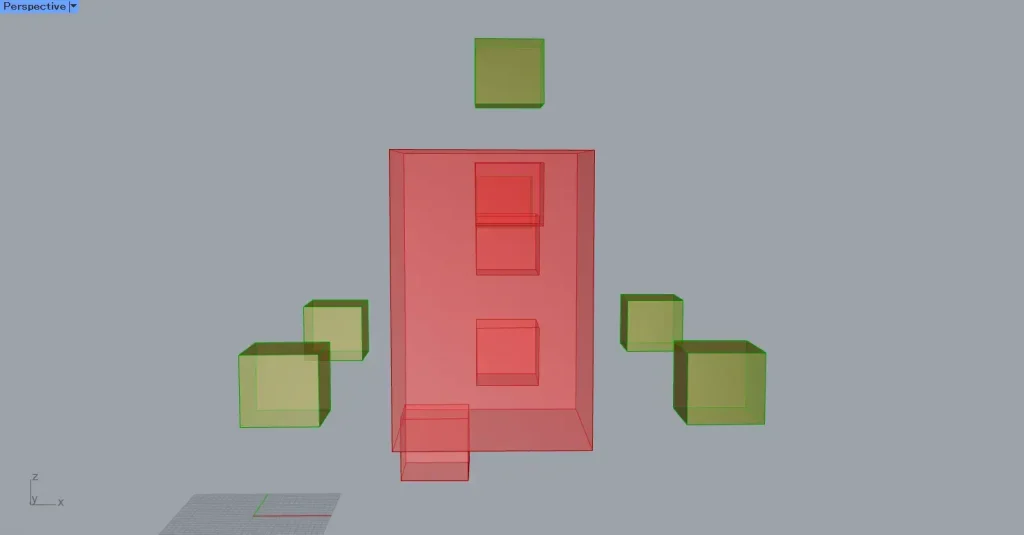
The image above shows the result when the value 2 is entered into the Equality(B).
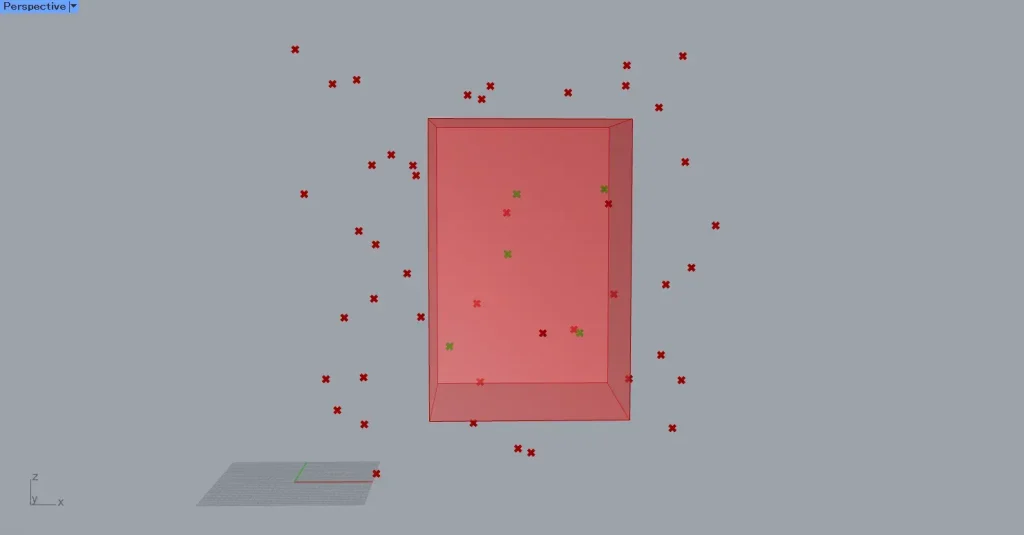
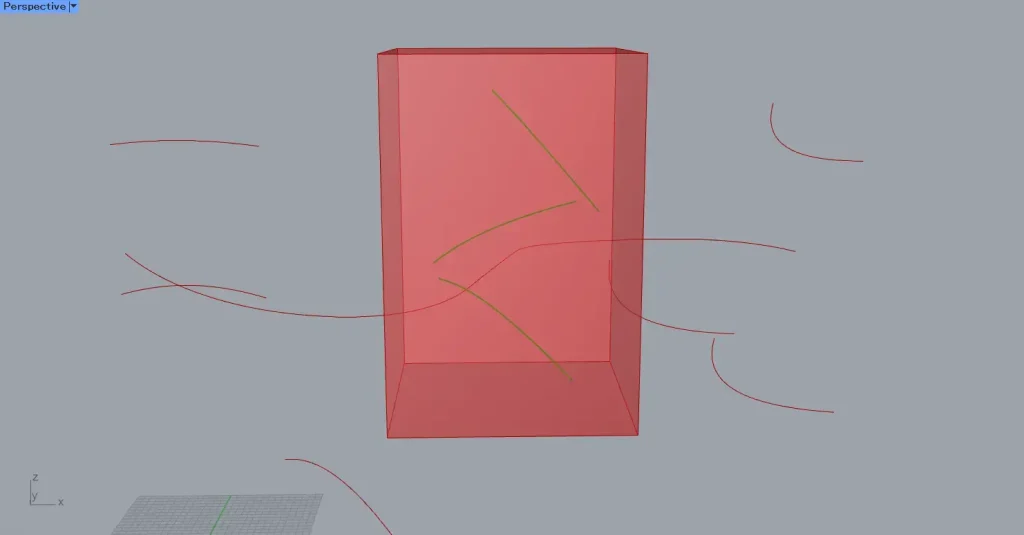
Shape in Brep can determine whether a part is inside or outside, even with various model data.
The two images above show the results of determining inside/outside using point data and line data.
List of Grasshopper articles using Point In Curve component↓
List of Grasshopper articles using Point in Curves component↓
List of Grasshopper articles using Point In Brep component↓
List of Grasshopper articles using Point In Breps component↓
List of Grasshopper articles using Shape In Brep component↓




Comment