
![[Grasshopper] How to use Fillet Edge to round corners and edges in models](https://iarchway.com/wp-content/uploads/2026/01/eyecatch-23.png)
This article explains how to use Fillet Edge to round corners and edges in models.
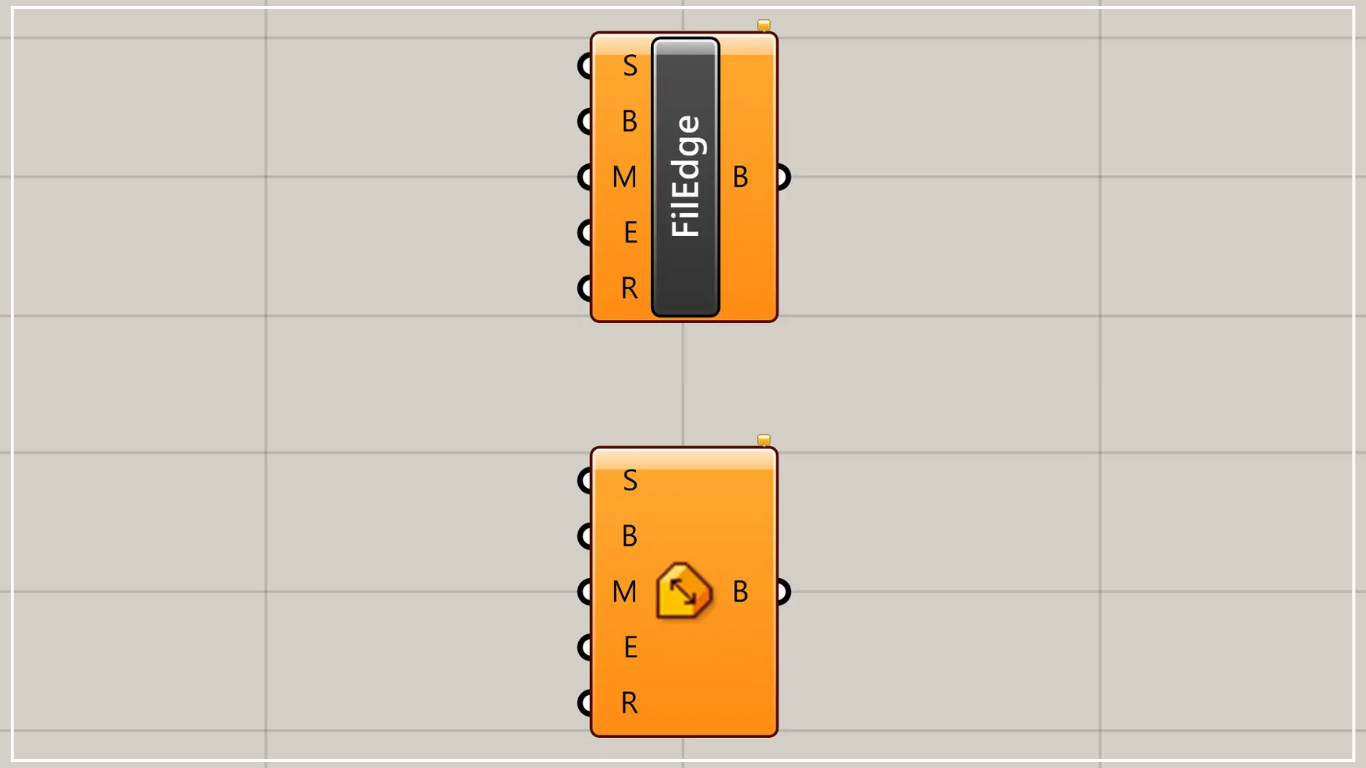
On the Grasshopper, it is represented by either of the two above.
Round edges on a model
Using Fillet Edge allows you to round or chamfer the edges and corners of your model.
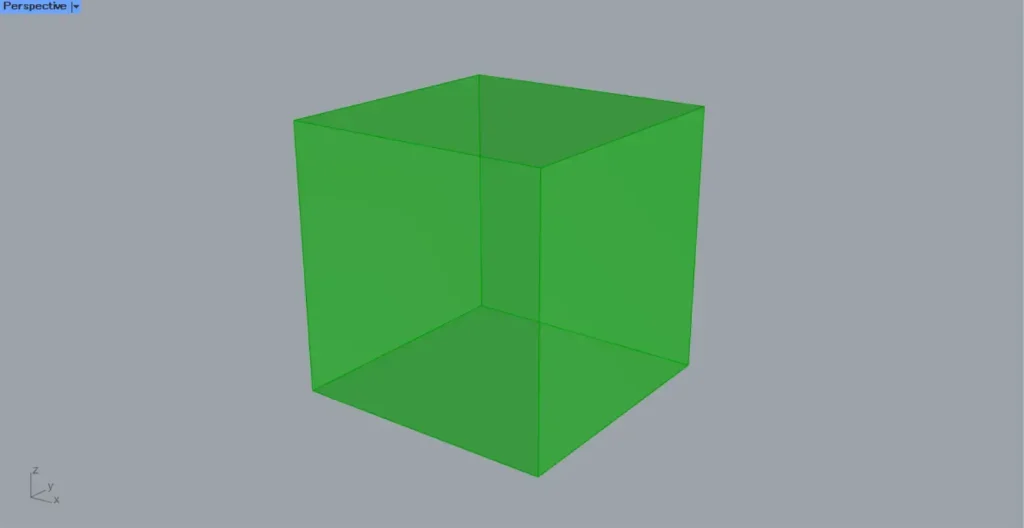
This time, we’ll use the cube in the image above for our explanation.
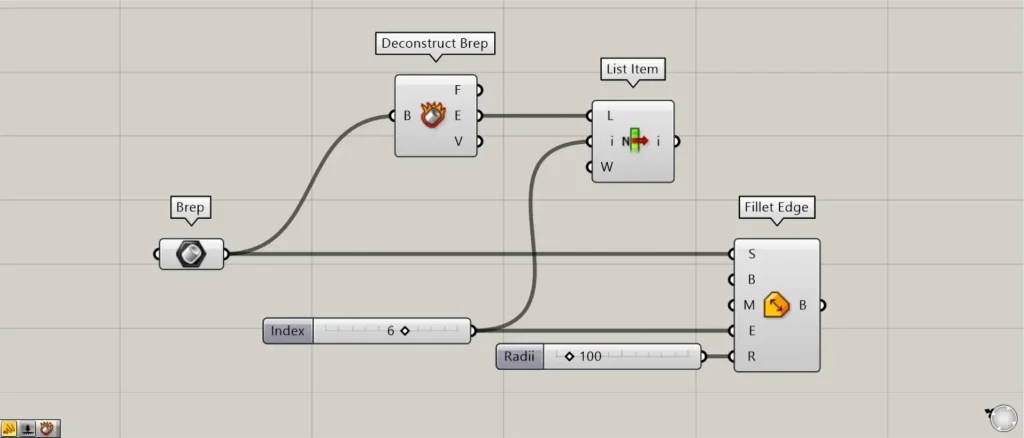
Components used: ①Brep ②Deconstruct Brep ③List Item ④Fillet Edge
This time, we are setting the cube on Rhino in Brep.
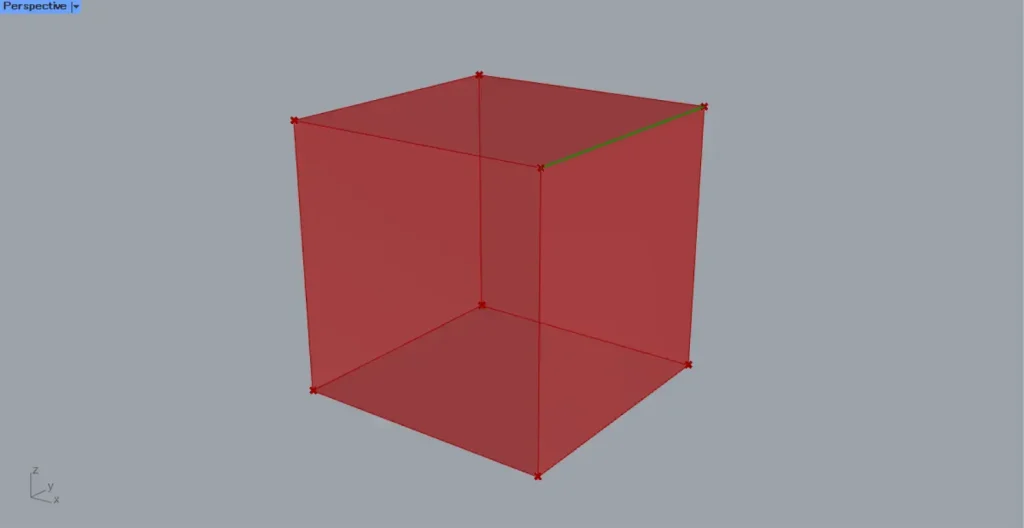
Connect the Brep to the Deconstruct Brep.
Then, you can decompose the model.
Next, connect the Deconstruct Brep(E), which outputs edge line data, to the List Item(L).
Furthermore, connect the index number to be obtained arbitrarily to List Item(i).
This time, we’re connecting six.
Then, as shown in the image above, we were able to obtain the line data for the sixth edge.
The value used for List Item(i) corresponds to the index number of the edge specified by the Fillet Edge.
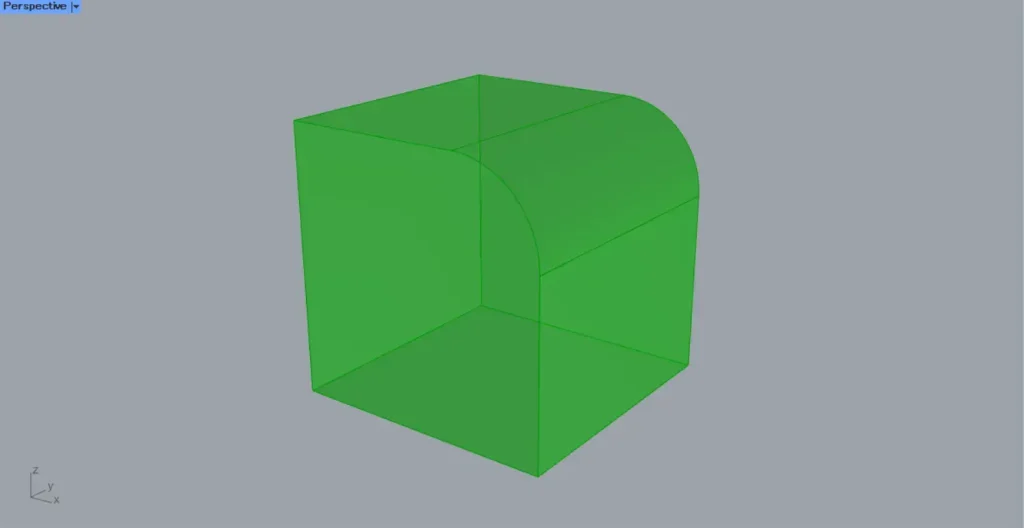
Connect the Brep to the Fillet Edge(S).
Furthermore, connect the numerical value linked to the previous List Item(i) to the Fillet Edge(E).
This time, we’re connecting the previous 6.
Additionally, connect the radius or distance value to the Fillet Edge(R).
This time, we’re connecting 100.
Then, as shown in the image above, we were able to round the edges of the model with a fillet.
Fillet Edge(B)
On the left side, the Fillet Edge(B) allows you to change the type of edge modification.
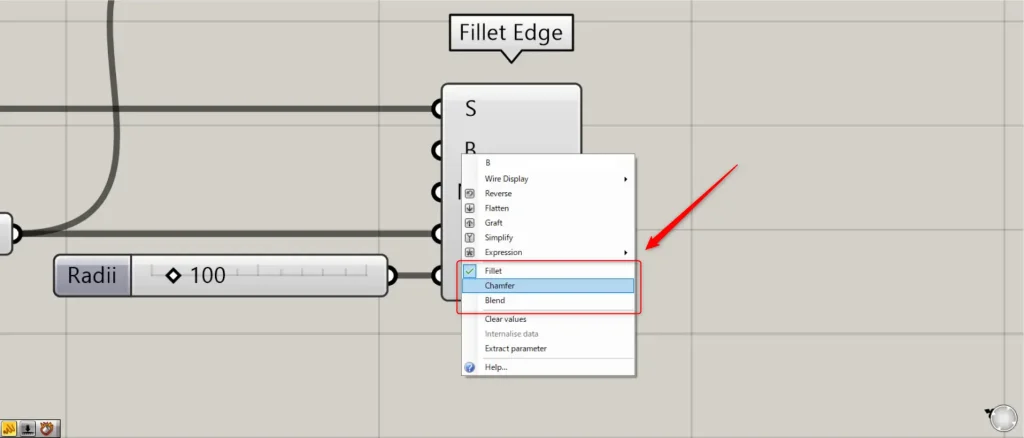
Right-click the Fillet Edge(B) on the left.
Then, as shown in the image above, you can set it to one of three options: Fillet, Chamfer, or Blend.
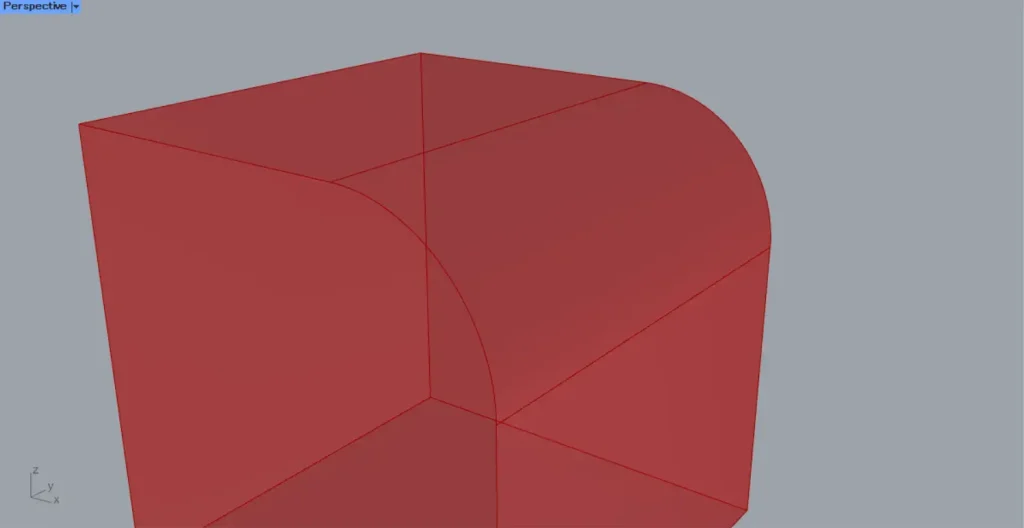
The image above shows the Fillet.
For fillets, the shape is modified using the form of an arc.
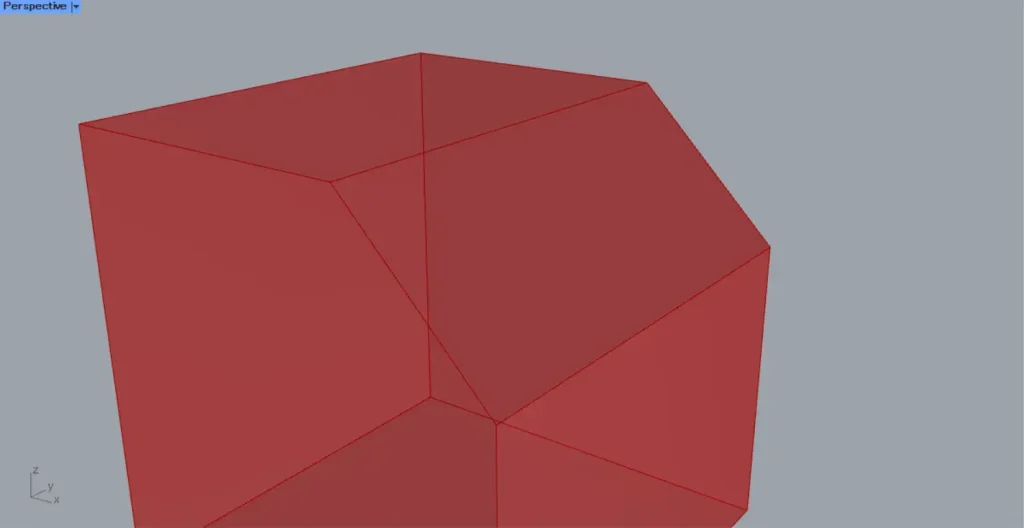
The image above shows the chamfer.
In the case of chamfering, the edge is beveled to alter its shape.
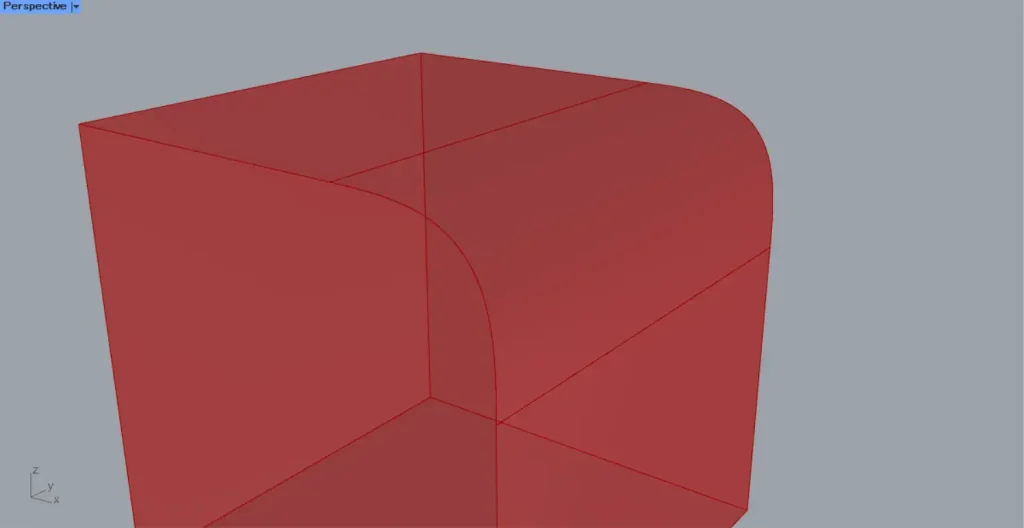
The image above shows Blend in action.
In the case of Blend, it changes shape while maintaining continuity.
For more information on continuity, click here.
Fillet Edge(M)
In Fillet Edge(M), you can change the type of distance specified.
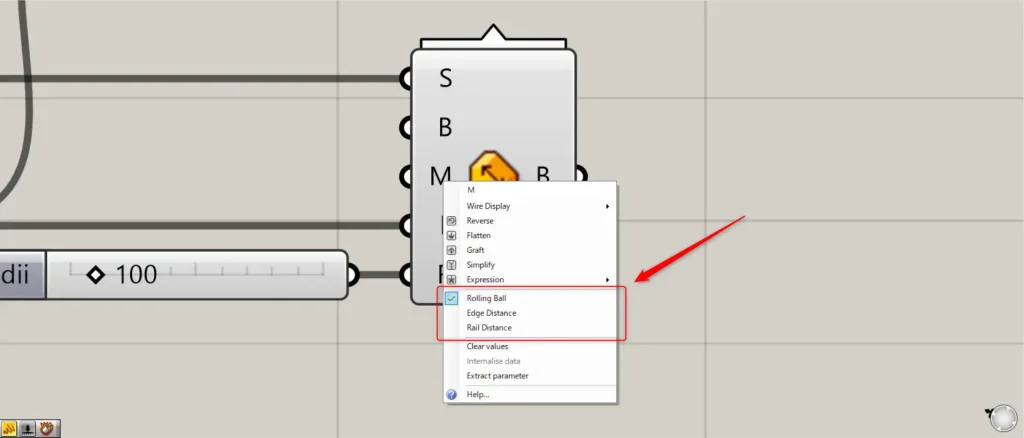
Right-clicking Fillet Edge(M) allows you to set three options: Rolling Ball, Edge Distance, and Rail Distance.
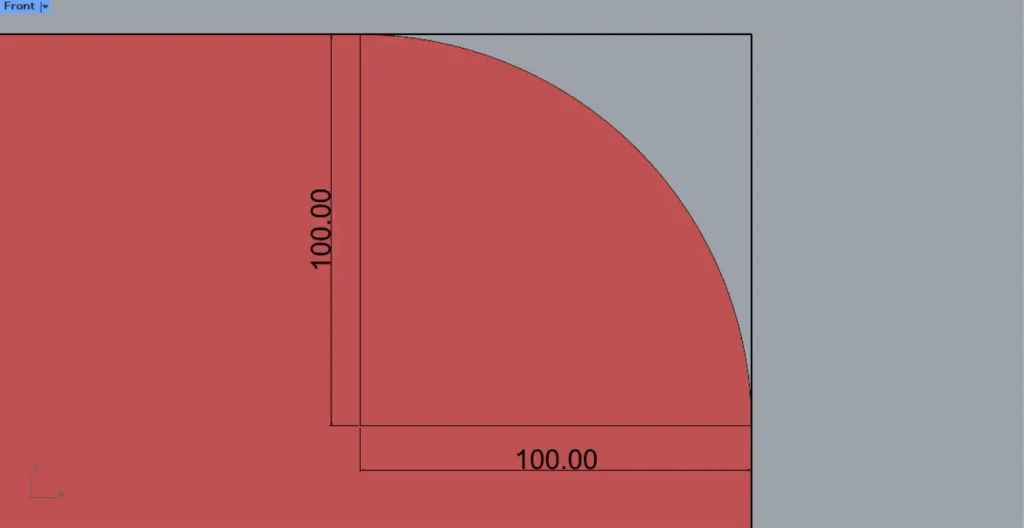
In the case of Rolling Ball, it changes shape at the distance of the arc’s radius, as shown in the image above.
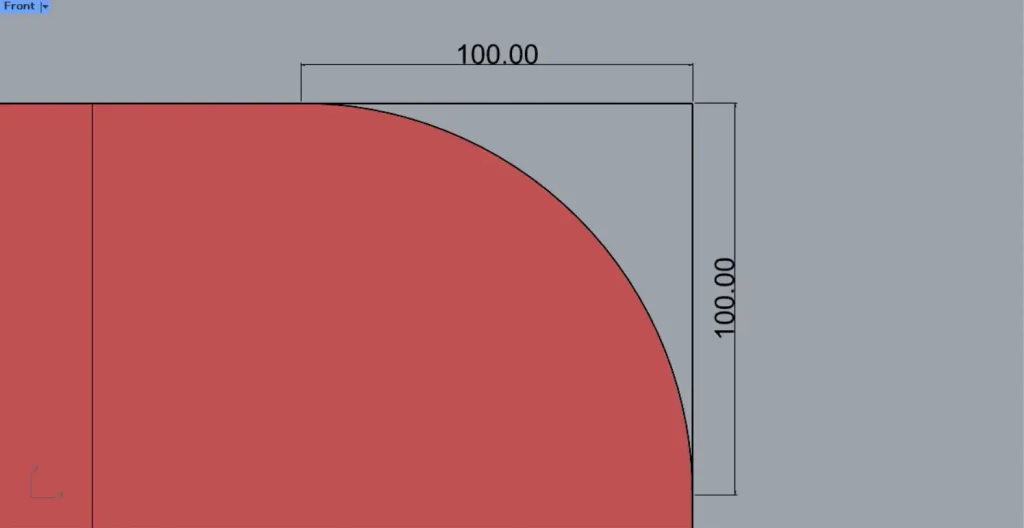
For Edge Distance, the shape changes based on the distance from the edge, as shown in the image above.
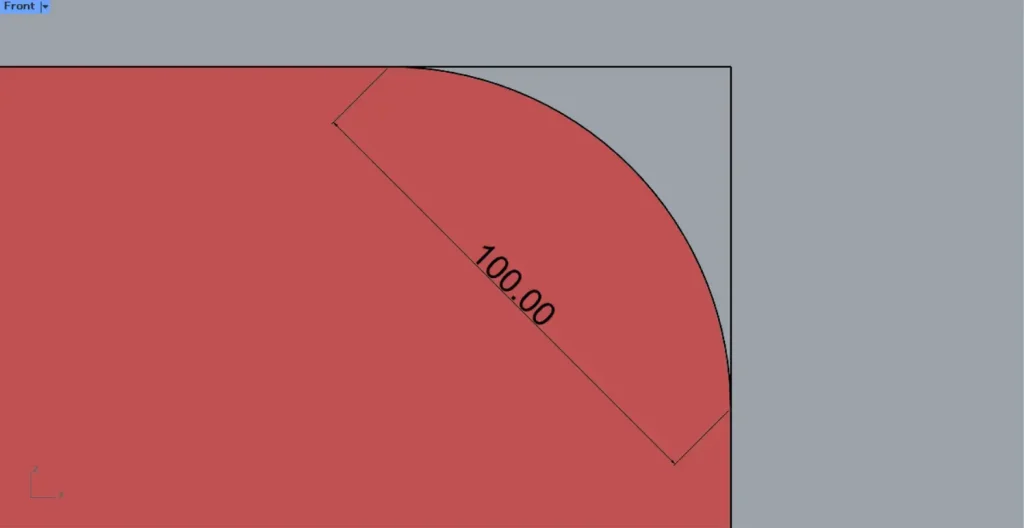
For Rail Distance, the shape changes based on the distance between rails, as shown in the image above.
List of Grasshopper articles using Fillet Edge component↓




Comment