
![[Grasshopper] How to use Divide Distance to place and split points along a curve at specified intervals](https://iarchway.com/wp-content/uploads/2026/01/eyecatch-34.png)
This article explains how to use Divide Distance to place and split points along a curve at specified intervals.
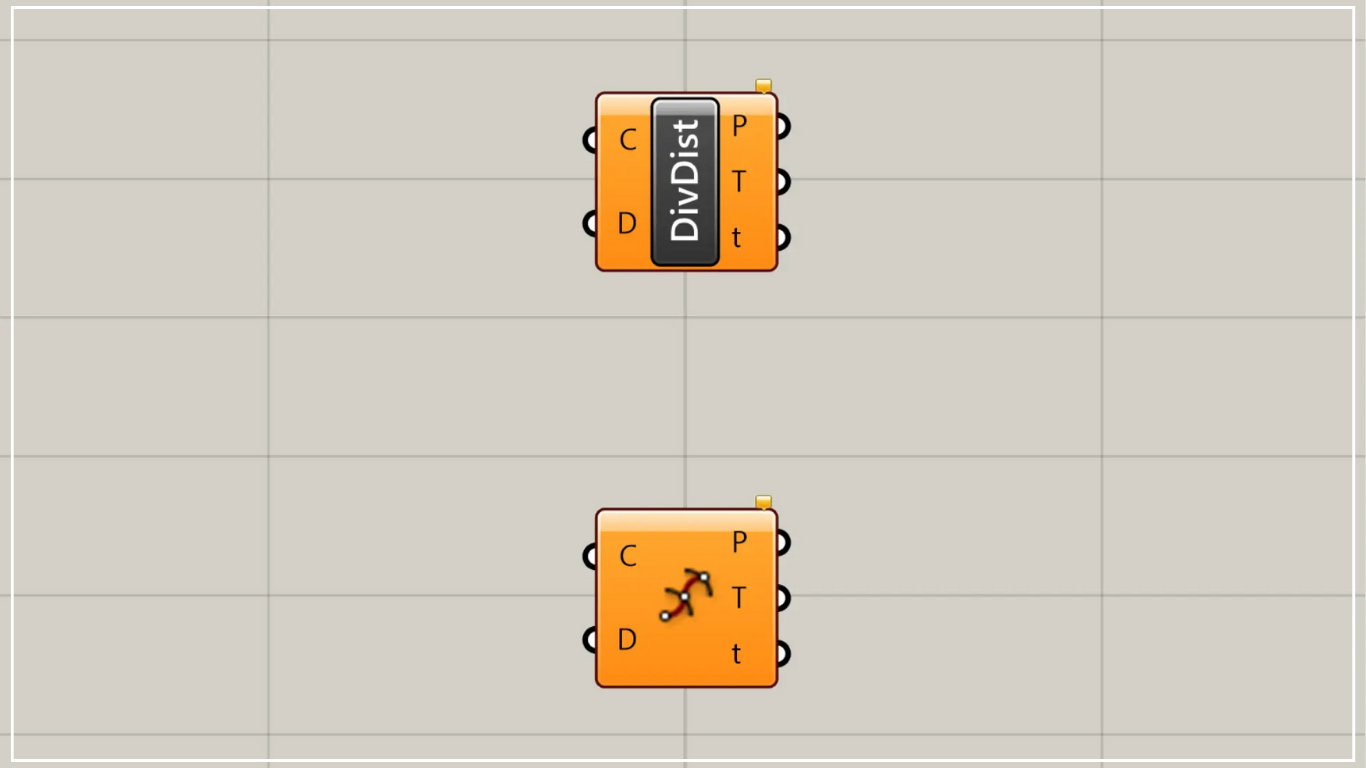
On the Grasshopper, it is represented by either of the two above.
Place points at specified intervals along a curve
Using Divide Distance, you can place points along a curve at specified intervals and divide the curve accordingly.
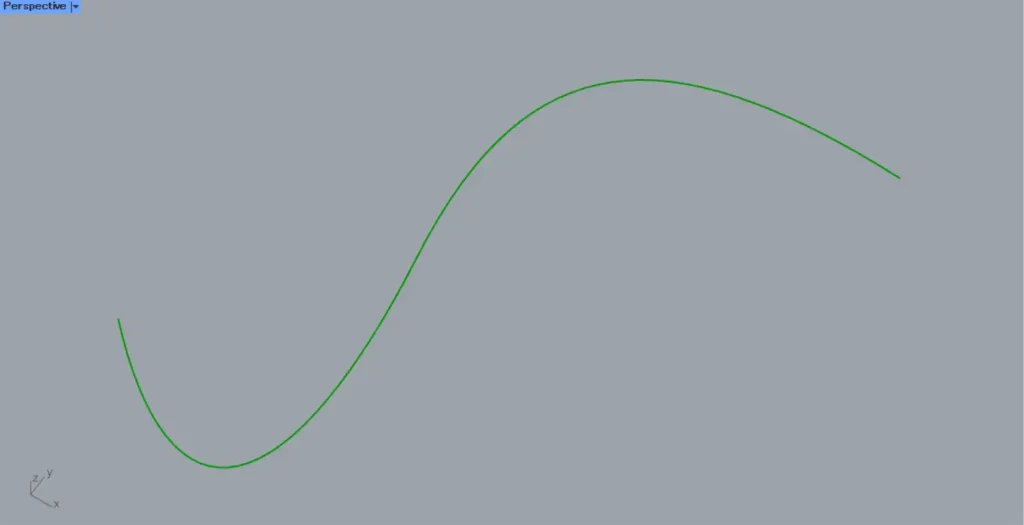
For this example, we will use the curve in the image above.
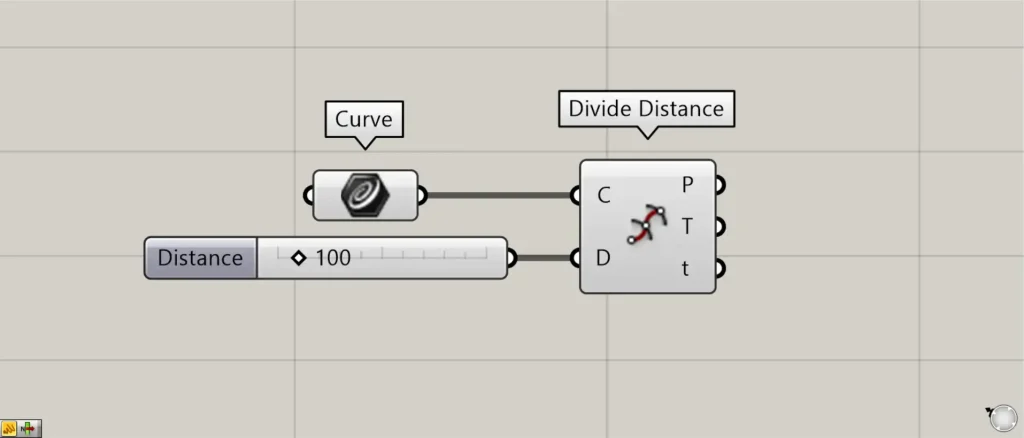
Components used: ① Curve ② Divide Distance
This time, we are setting the curve on Rhino in Curve.
Connect the Curve containing the curve data to Divide Distance(C).
Next, connect the numerical value for the distance at any interval to Divide Distance(D).
This time, we’re connecting 100.
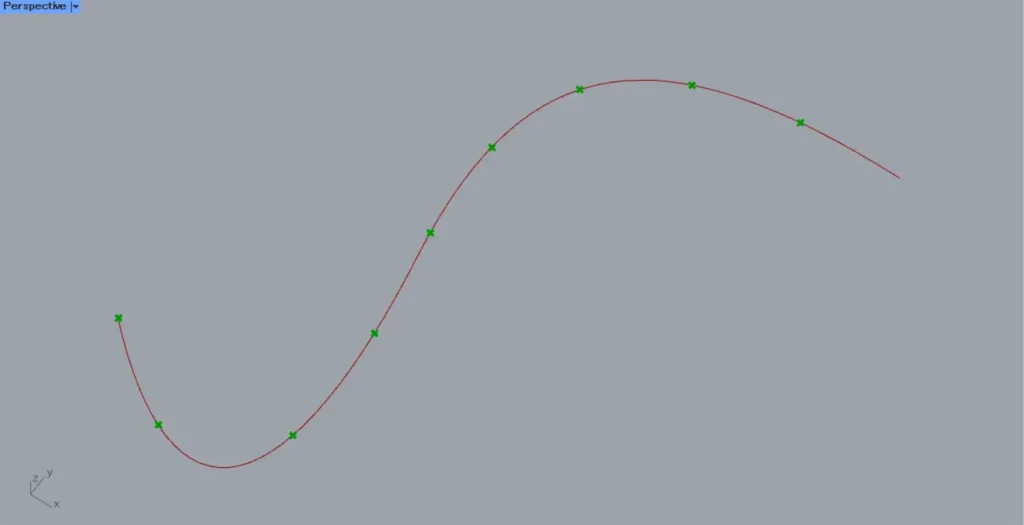
Then, as shown in the image above, points were created along the curve such that the spacing between them is 100.
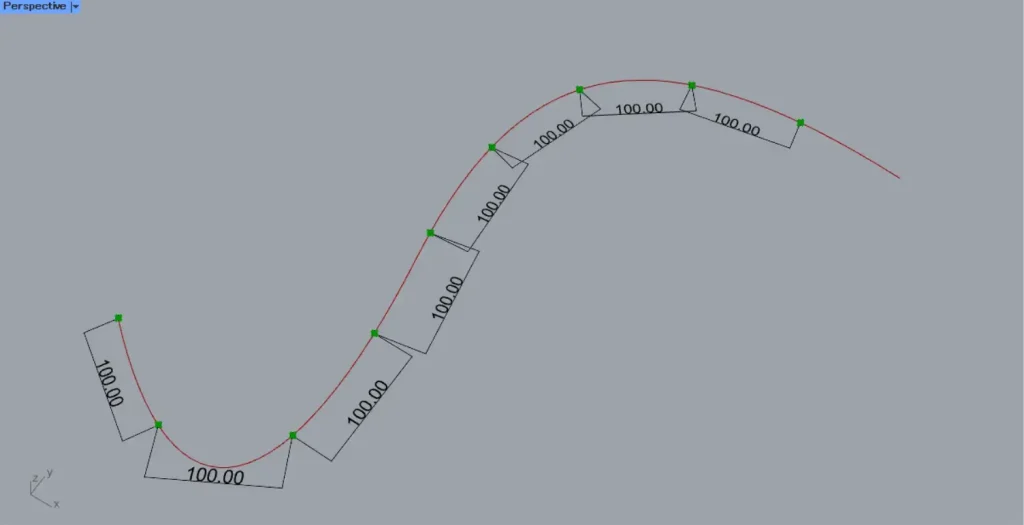
In Divide Distance, you do not specify the length of the curve between points.
The length of the straight line between the points will be the specified distance.
Output data
Let’s take a look at the output data.
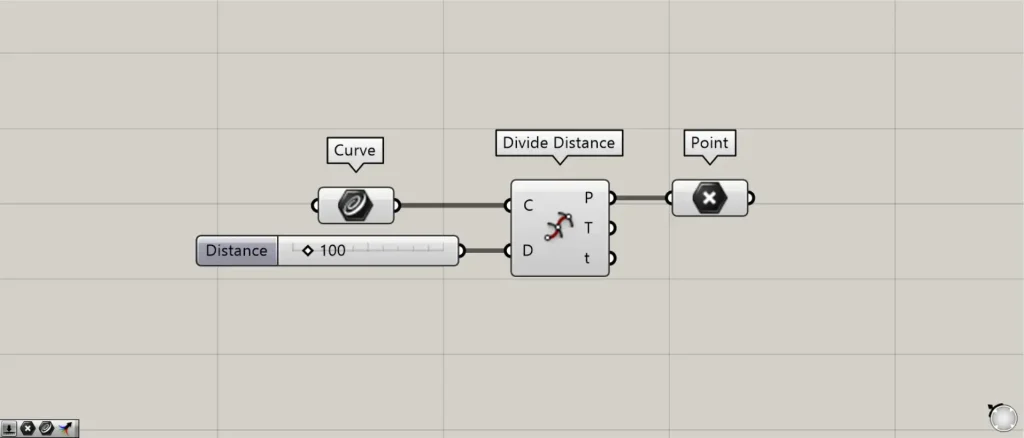
Additional Component: ①Point
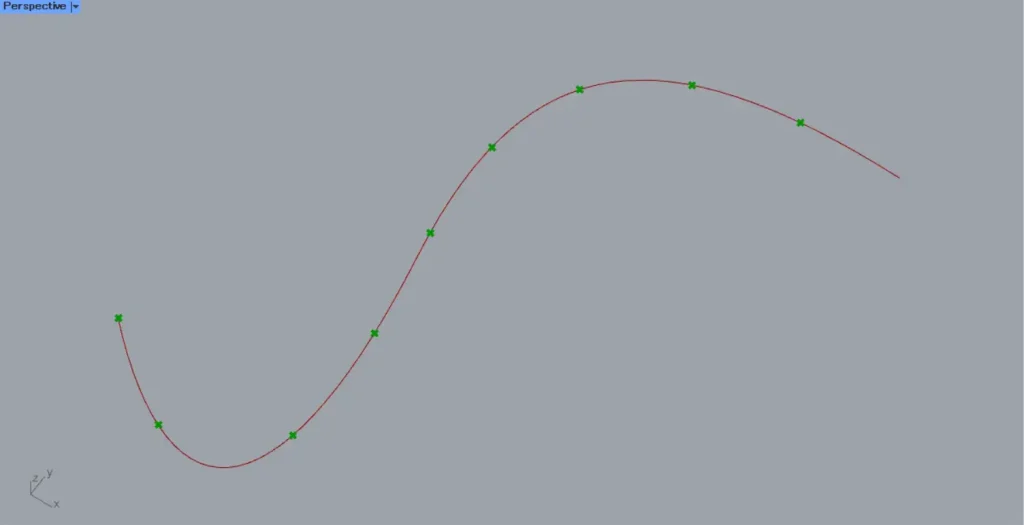
Point data is output from Divide Distance(P).
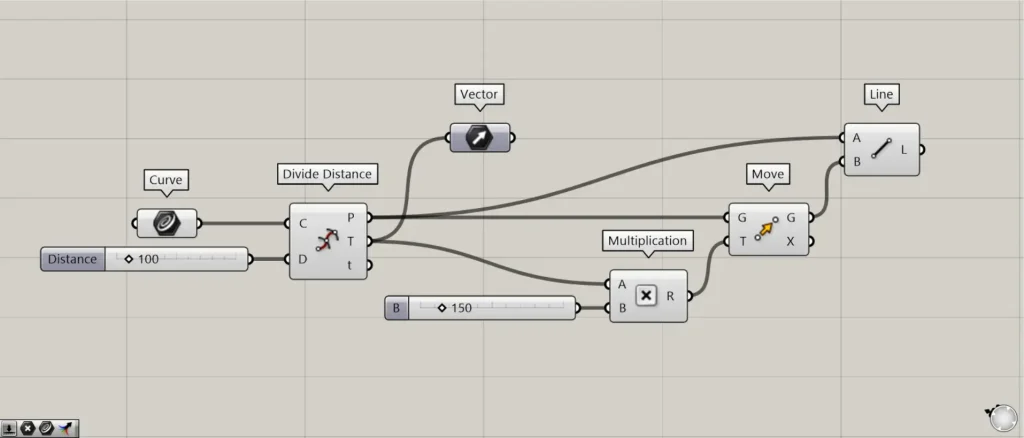
Additional Components: ① Vector ② Multiplication ③ Move ④ Line
Divide Distance(T) outputs the normal vectors at each point along the line.
This time, we used that normal vector to move the points with Move, and then created lines with Line from the points before and after the move.
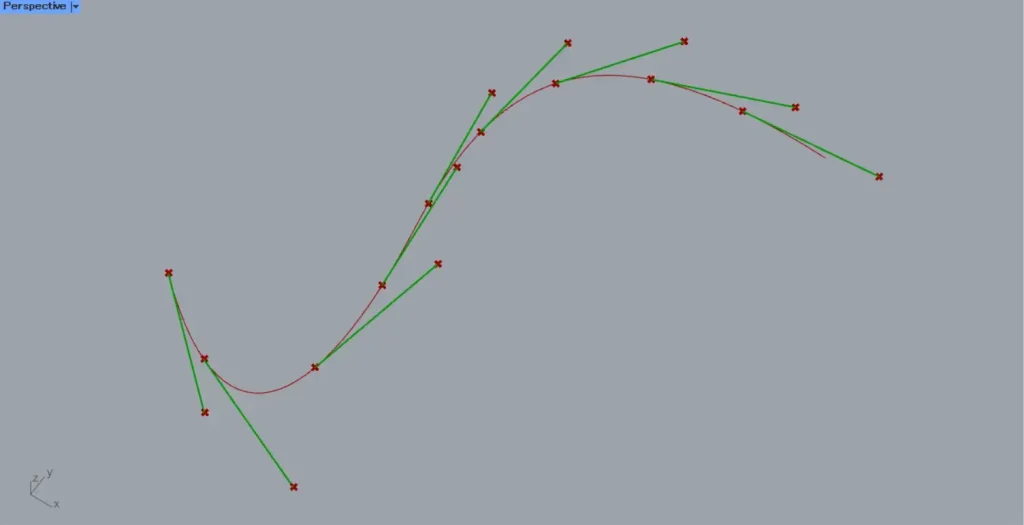
Then, as shown in the image above, we were able to confirm the direction of the normal vector.
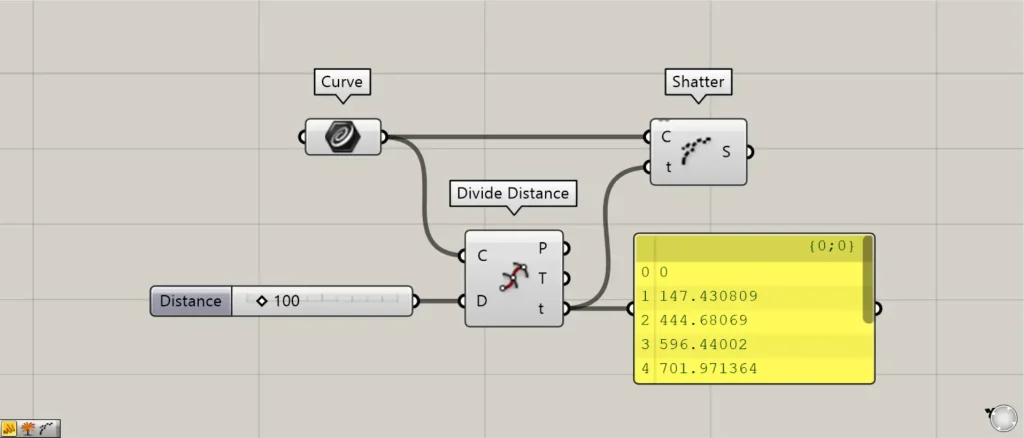
Additional Component: ①Shatter
Divide Distance(t) outputs numerical values representing the position information of points along the curve.
For example, let’s try using Shatter to split the curve.
Connect Divide Distance(t) to Shatter(t).
Furthermore, connect Curve to Shatter(C).
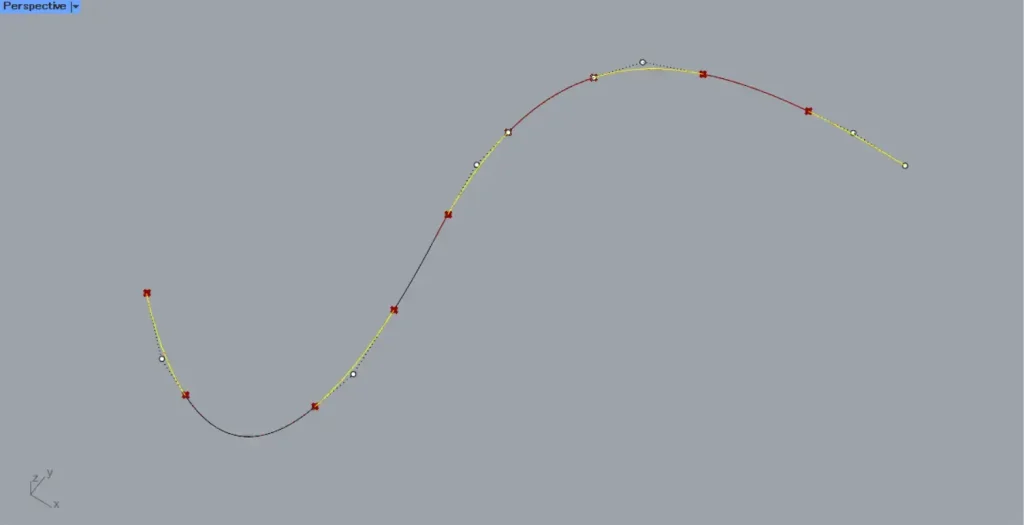
Then, as shown in the image above, the curve was split at the point’s position.
In this way, Divide Distance(t) outputs numerical values representing the position information of points along the curve.
List of Grasshopper articles using Divide Distance component↓





Comment