
![[Grasshopper] How to use Explode to break down curves at joints](https://iarchway.com/wp-content/uploads/2026/01/Explode.png)
This article explains how to use Explode to break down curves at joints.
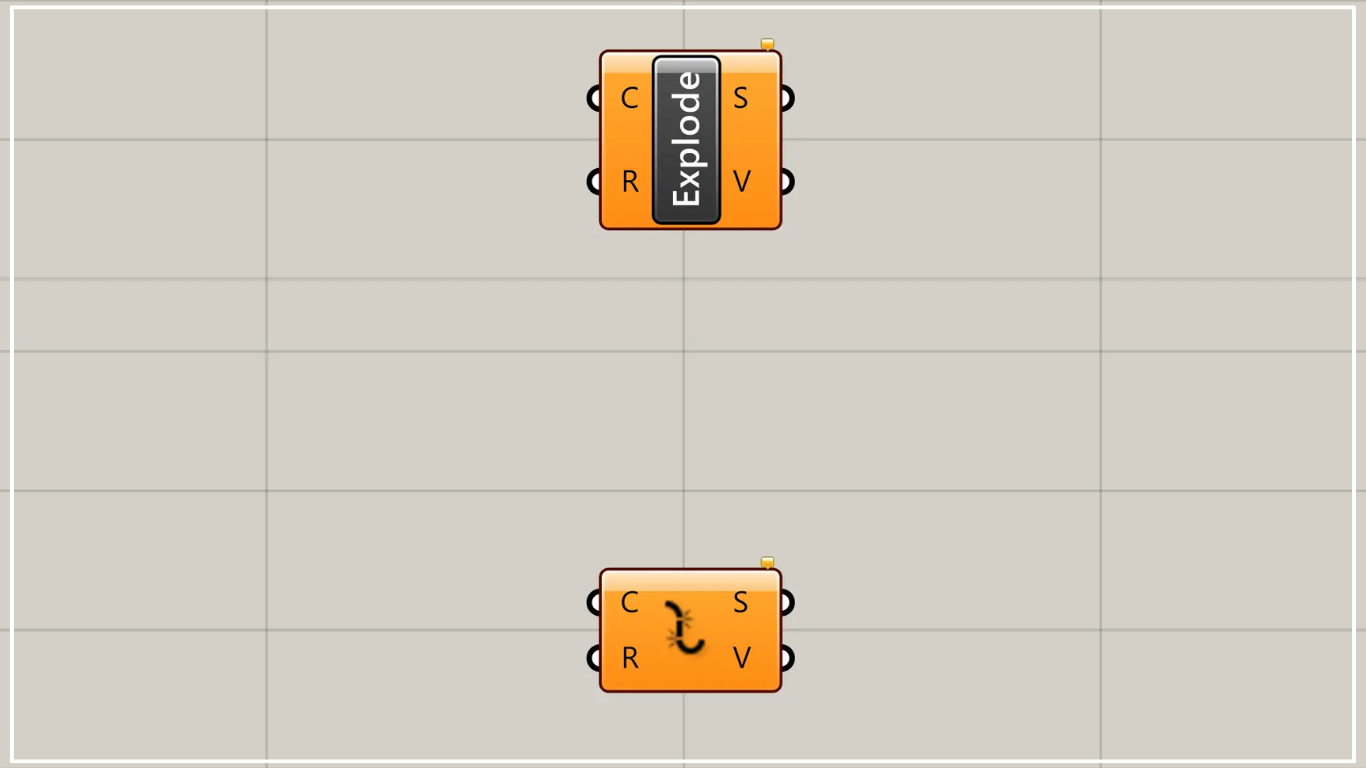
In Grasshopper, it is represented by one of the two above.
Break down curves at joints
Using Explode allows you to break down curves at their joints.
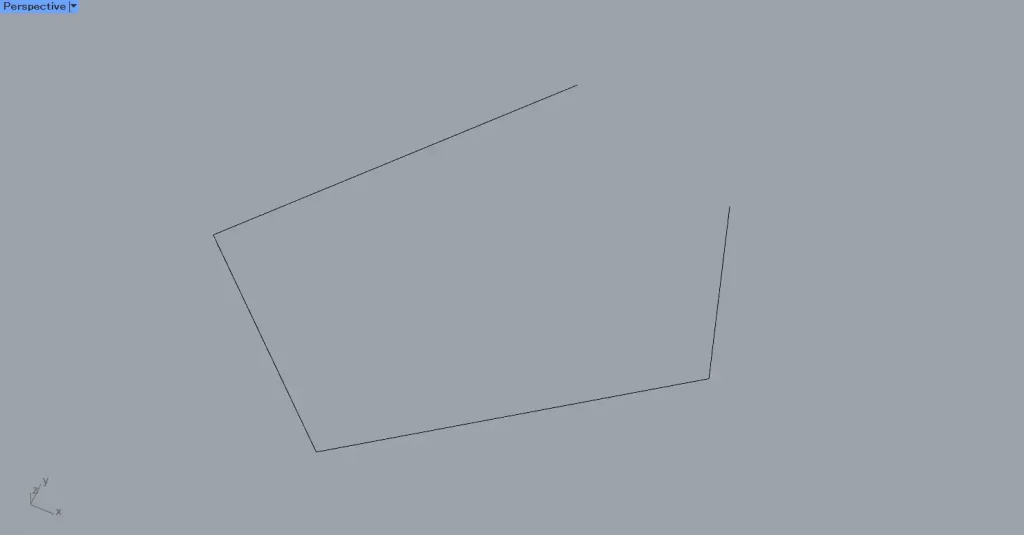
First, we’ll break down the curve on Rhino in the image above.
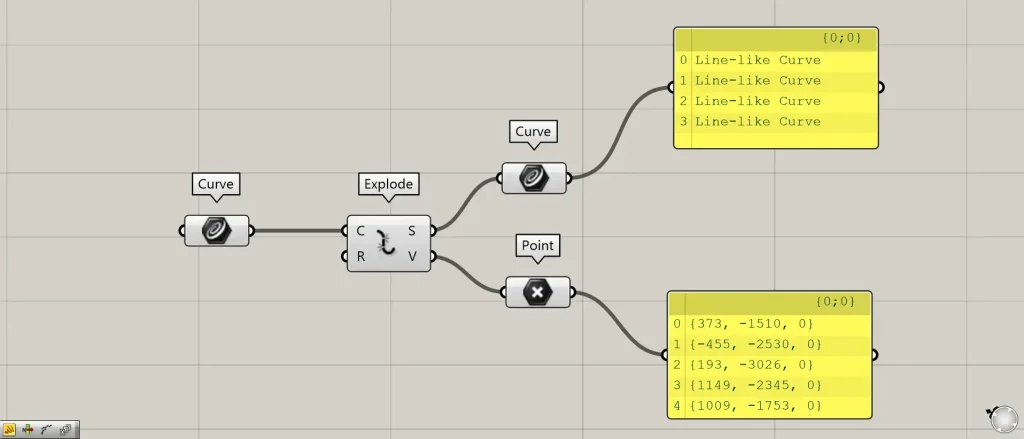
Components used: ①Curve ②Explode ③Point
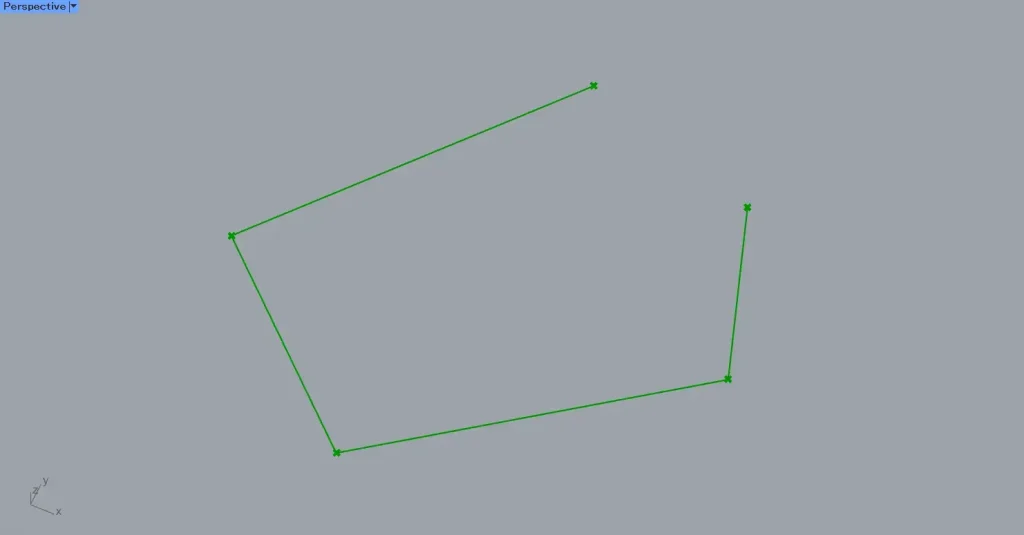
First, set the curve on Rhino in Curve.
Then connect the Curve to the Explode(C).
Then, as shown in the image above, the curve will be split at the junction.
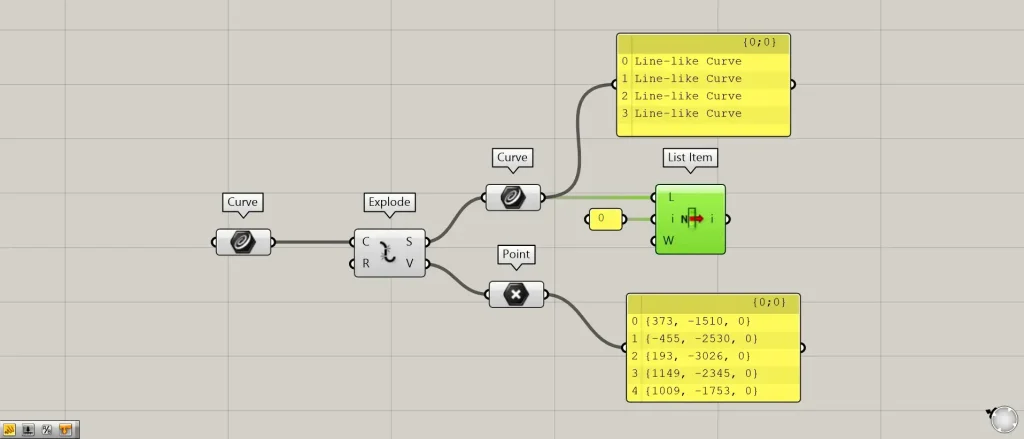
Additional Component: ①List Item
Let’s take a look at the output data.
The Explode(S) outputs data from the decomposed curves.
In this case, four curves of data are being output.
Point data for the decomposed locations is output from the Explode(V).
In this case, five point data points are being output.
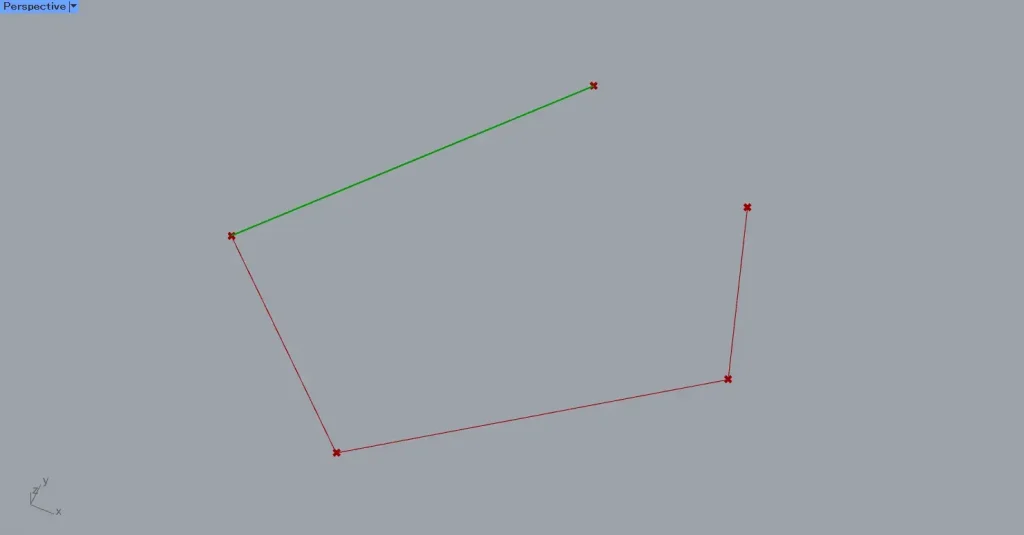
To retrieve arbitrary decomposed curve data, etc., using List item is convenient.
Connect Curve to the list item(L).
This time, to obtain the first curve data, we are inputting the value 0 into the List item(i).
Then, as shown in the image above, only the first curve data was successfully retrieved.
Break down into curve data before joining
You can also decompose the curve data before it is combined using the Explode(R).
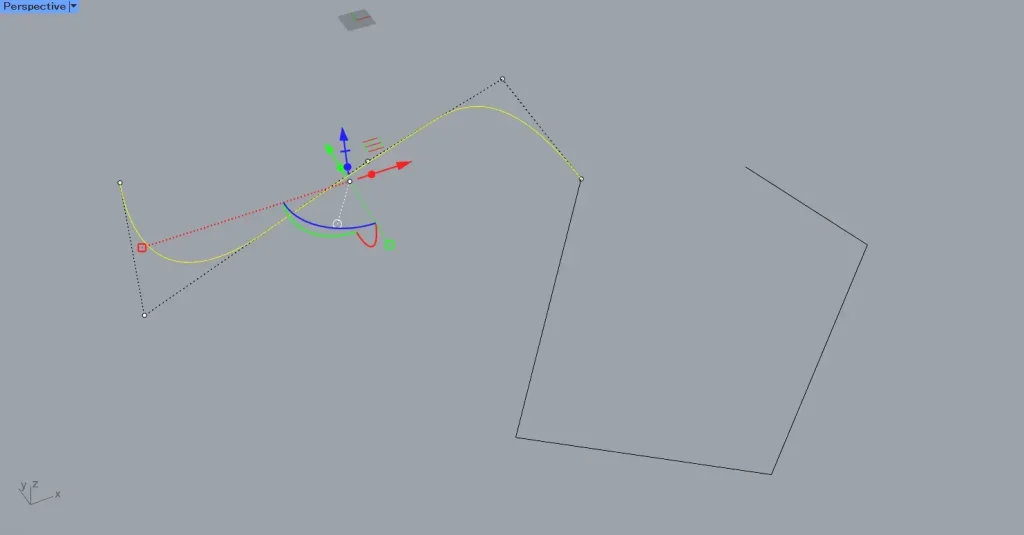
This time, we will use the two curves on Rhino in the image above.
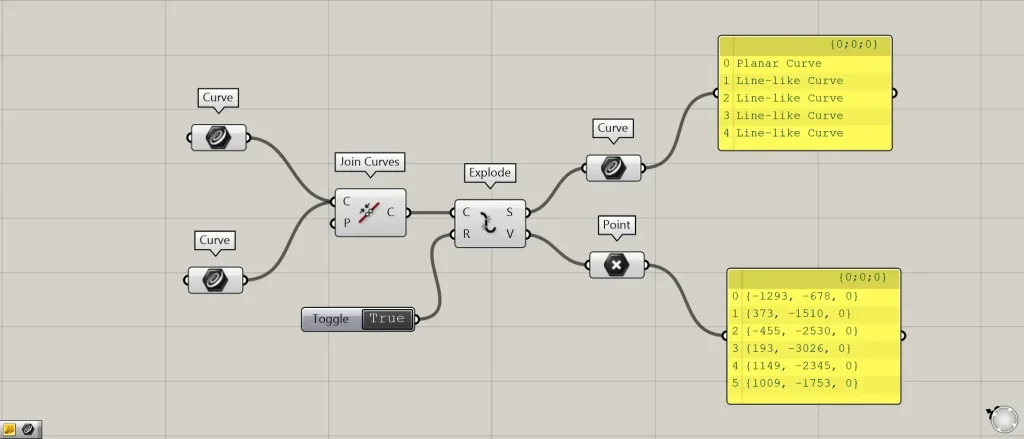
Additional Components: ① Join Curves ② Boolean Toggle
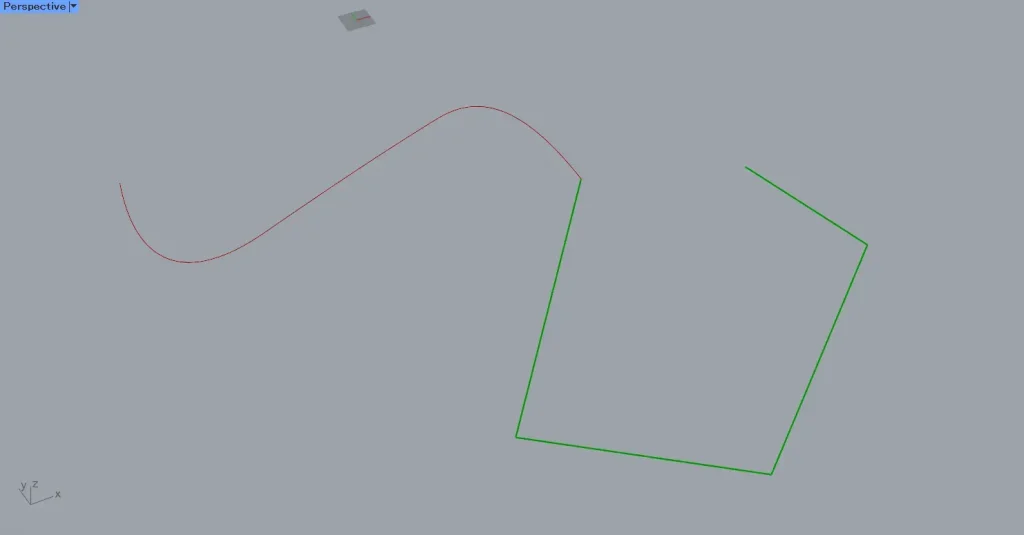
First, set two curves on two Rhino in Curve respectively.
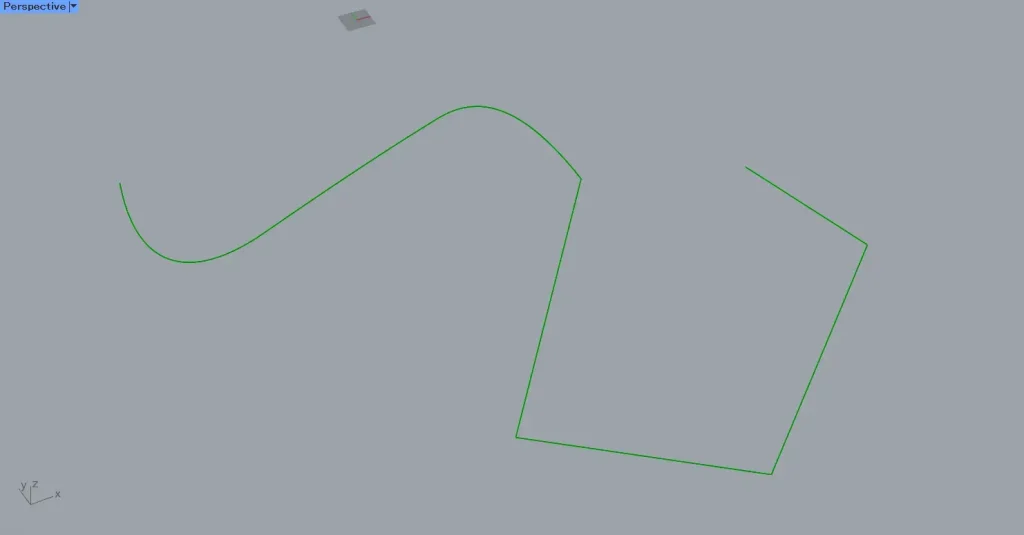
Then connect the two Curve to the Join Curves(C).
Then, as shown in the image above, the two curves were joined together.
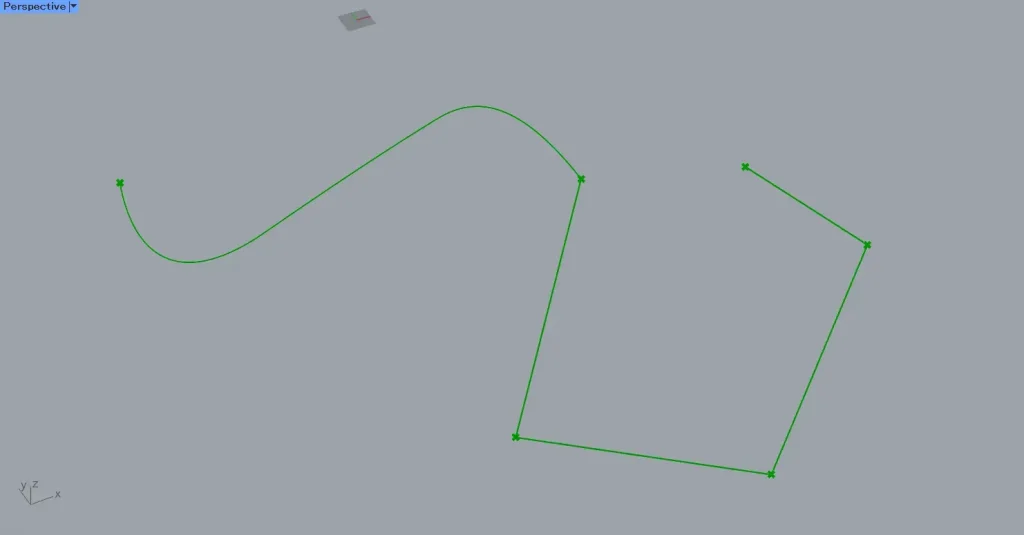
Then connect Join Curves to the Explode(C).
Then, just as before, the curve will be decomposed.
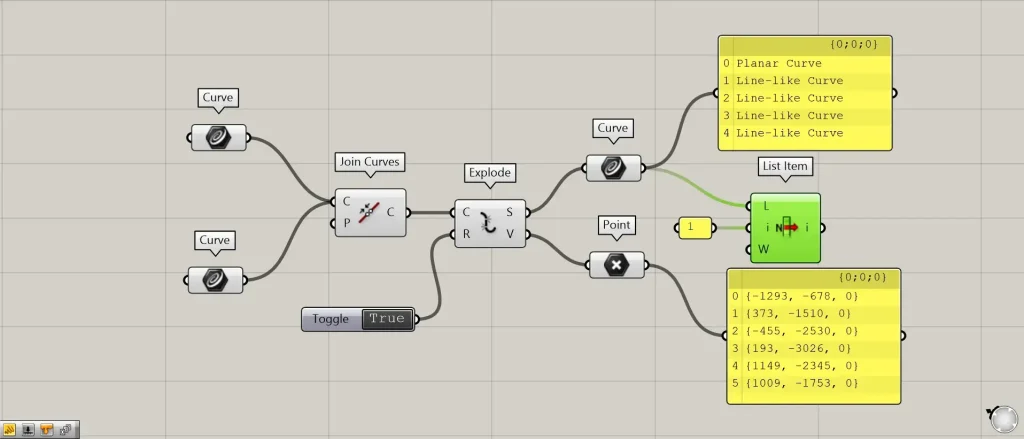
Input True or False information to the Explode(R).
This time, we will input True or False information using a Boolean Toggle.
If you leave the Boolean Toggle blank, it will behave the same as if you had entered True.
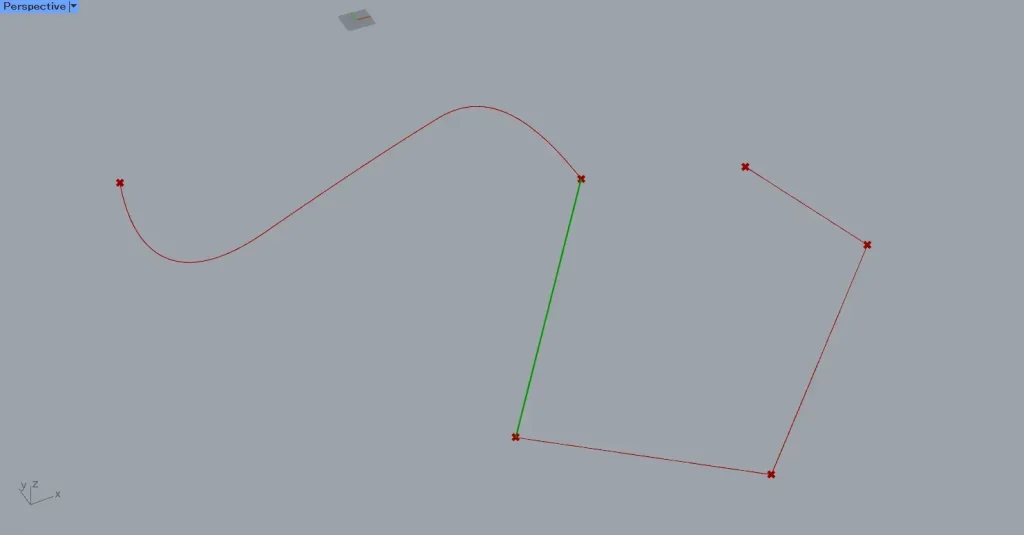
The image above shows the result of entering “True” and obtaining a single curve in List Item.
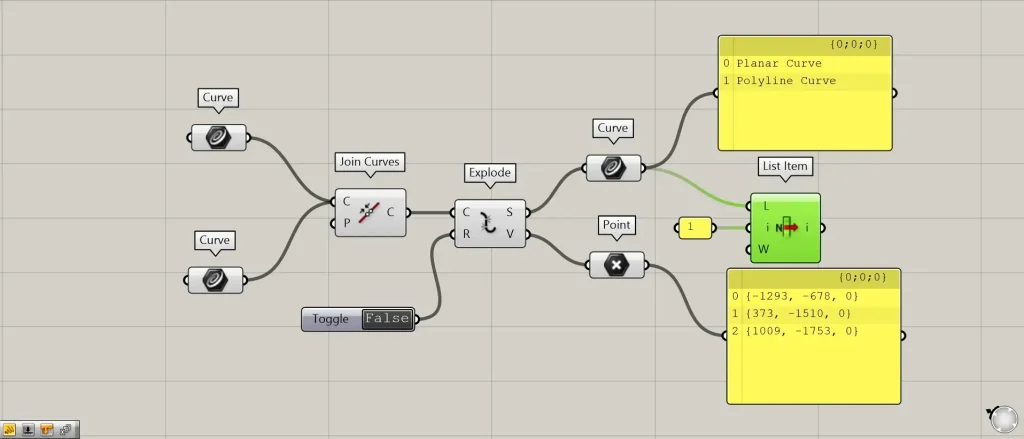
Next, let’s connect the False signal to the Explode(R).
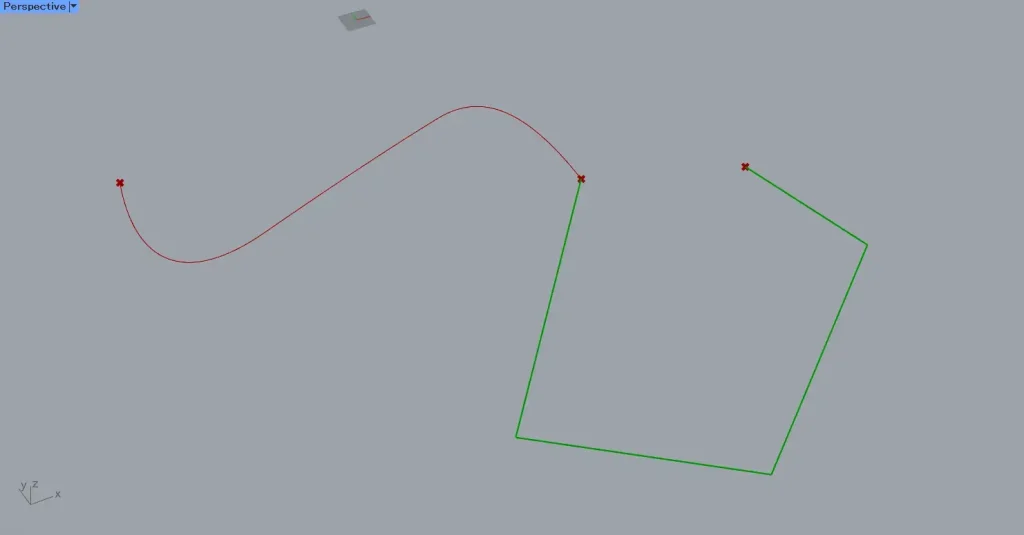
If False, it decomposes into the original two curves and does not decompose at the corners of the curves.
In this way, you can specify that the Explode(R) decomposes the curve data into its original components before they are combined.
List of Grasshopper articles using Explode component↓





Comment