
![[Grasshopper] How to use Explode Tree to break down branches](https://iarchway.com/wp-content/uploads/2026/01/Explode-Tree.png)
This article explains how to use Explode Tree to break down branches.
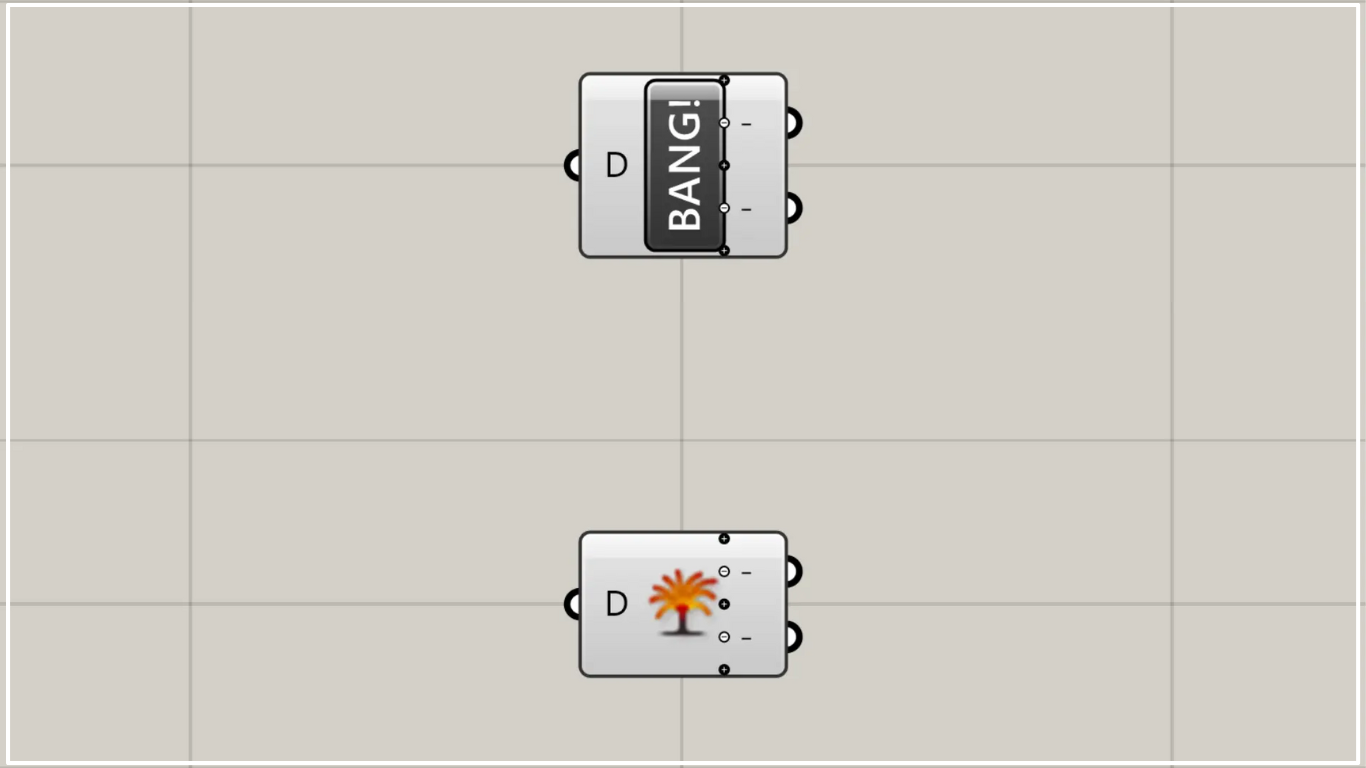
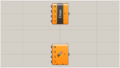
On the Grasshopper, it is represented by either of the two above.
Break down branches
Using the Explode Tree allows you to break down branches.
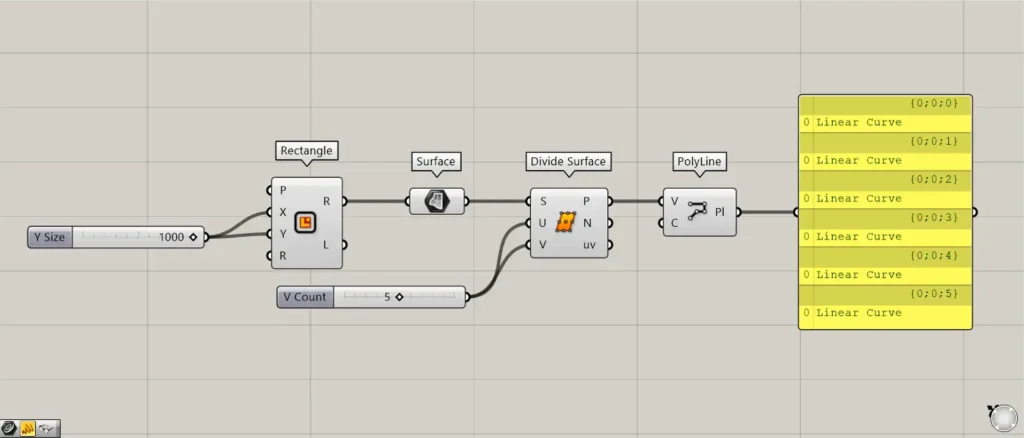
Components used: ① Rectangle ② Surface ③ Divide Surface ④ Polyline
This time, we’ll use six line data points divided into six branches as an example for explanation.
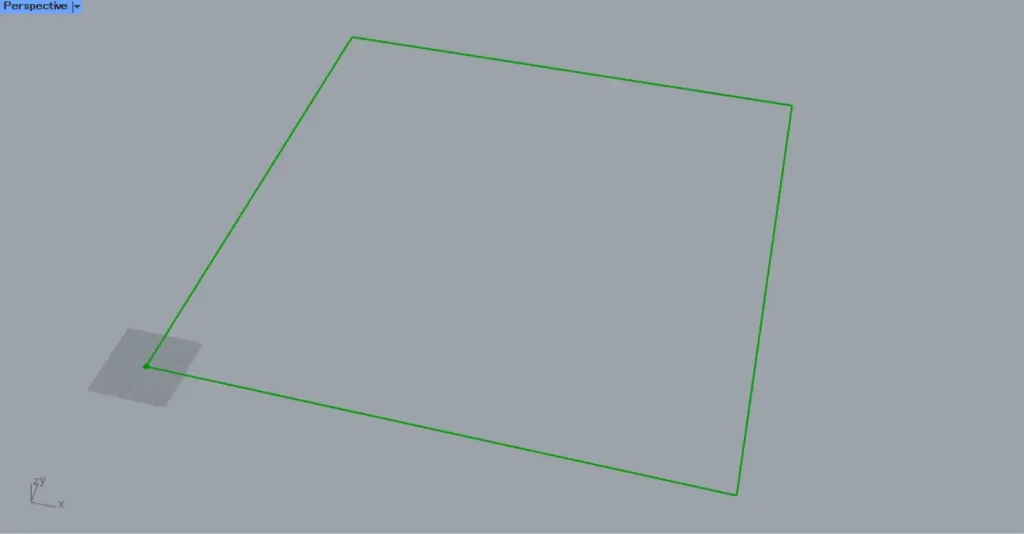
Enter the numerical value for the length of one side into the Rectangle(X and Y).
This time, since 1000 was entered, a square line data set of 1000×1000 was created.
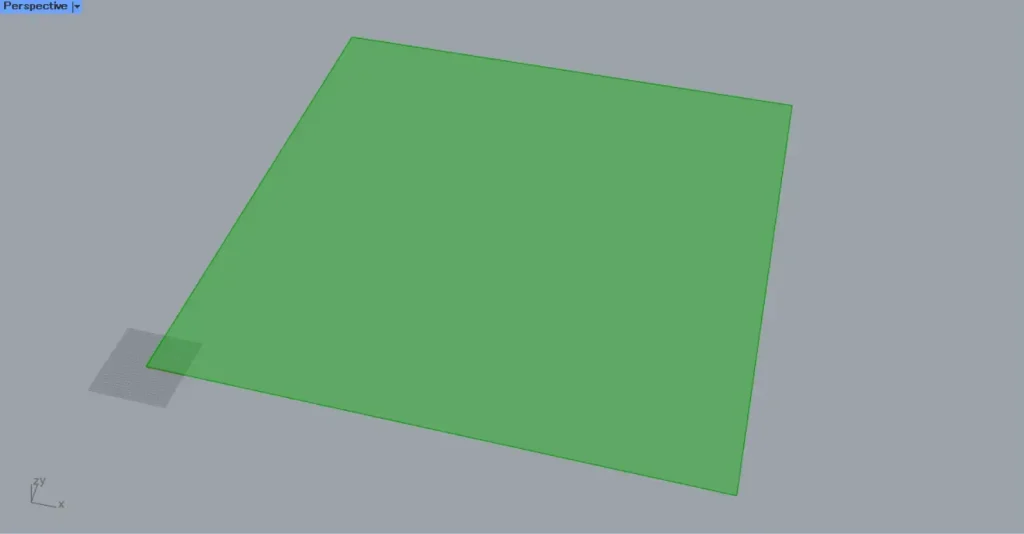
Next, connect the Rectangle(R) to the Surface.
Then, the line data was converted to surface data.
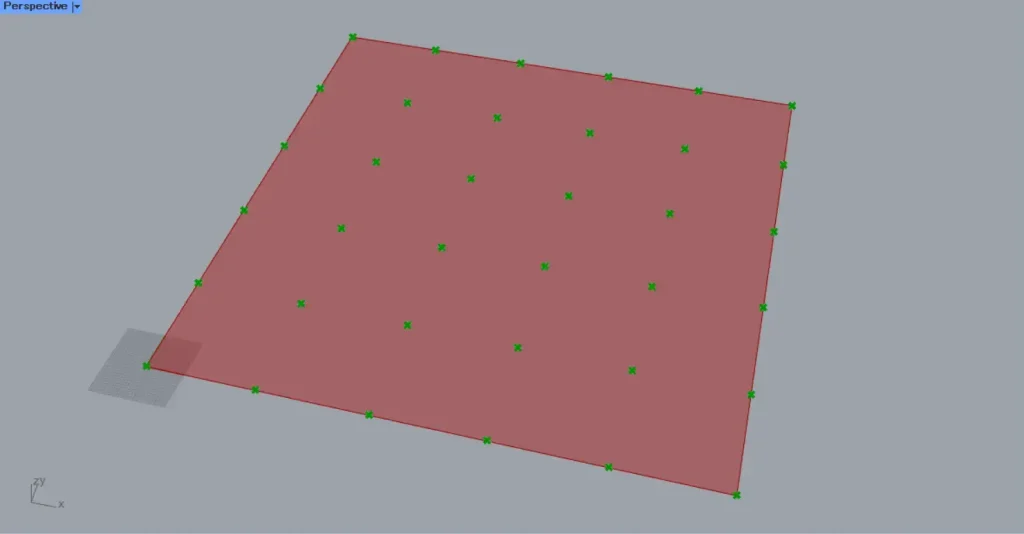
Then connect the Surface to the Divide Surface(S).
Additionally, enter the number of divisions into the Divide Surface(U and V).
Since 5 is entered for both this time, points will be created at positions that divide the surface into 5×5 sections.
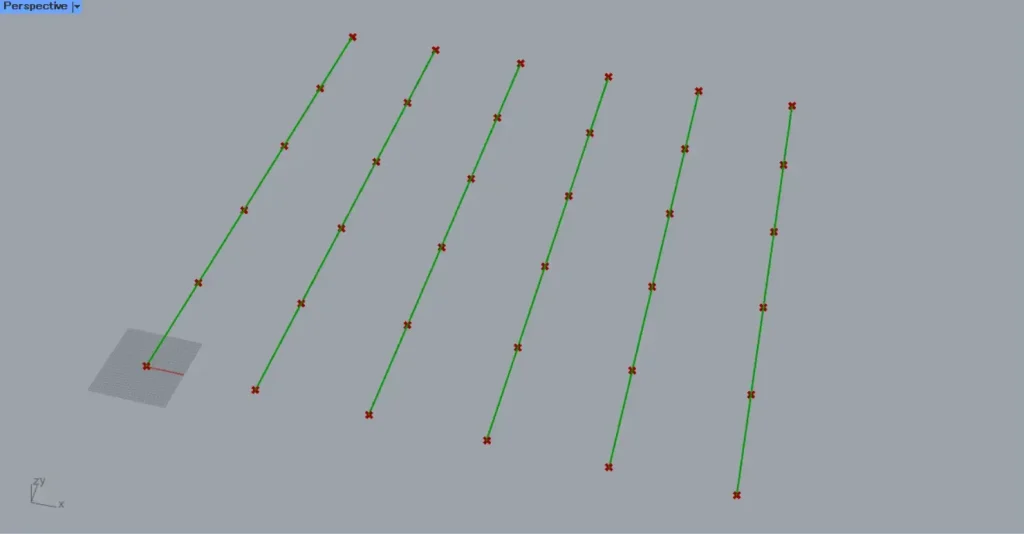
Next, connect the Divide Surface to the PolyLine(V).
Then, six lines were created by connecting the points.
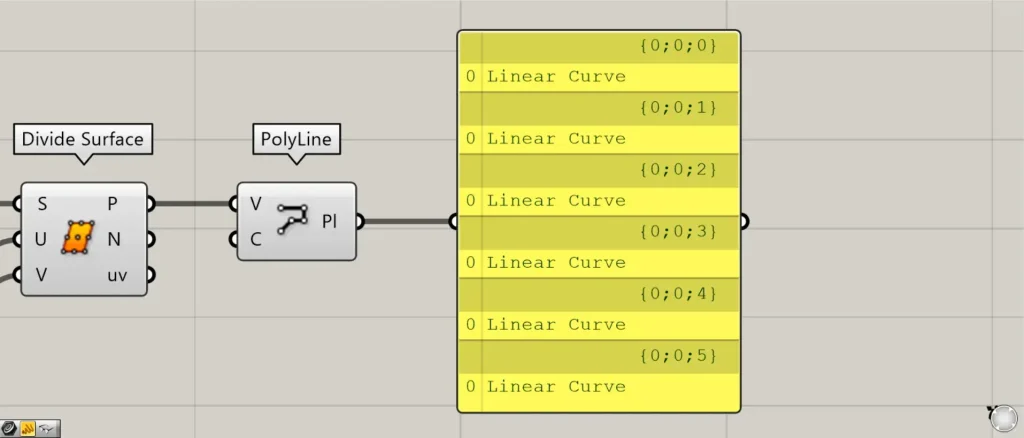
Let’s take a look at the PolyLine branch data.
Then, we can see that there is one line data point in each of the six branches {0;0;0} to {0;0;5}.
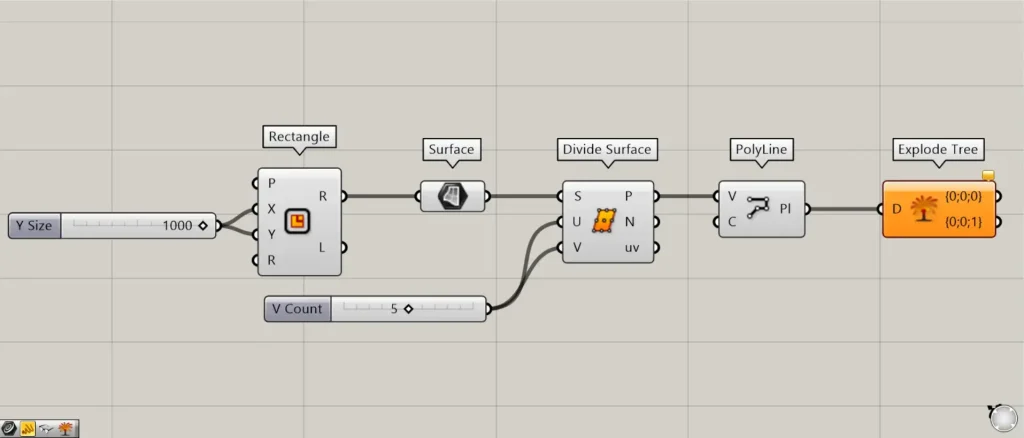
Additional Components: ①Explode Tree
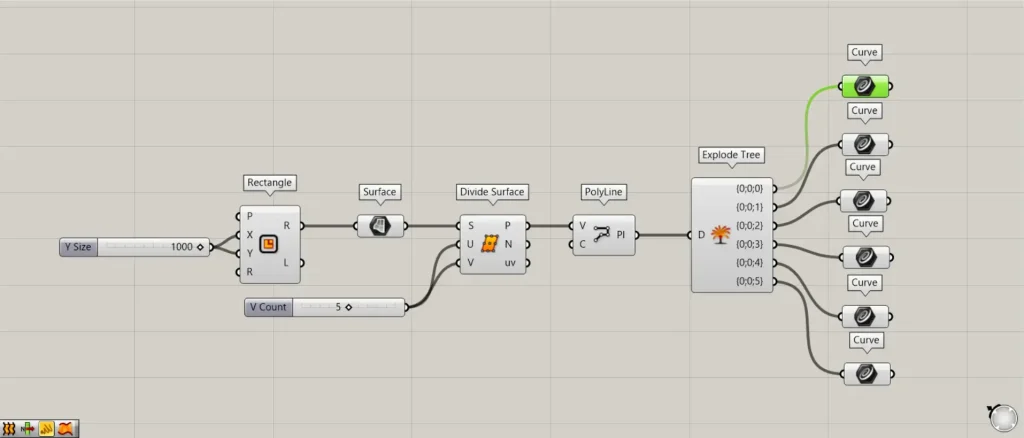
Let’s connect the PolyLine to the Explode Tree.
However, an error occurs because the number of branch data in PolyLine differs from the number of terminals on the right side of the Explode Tree.
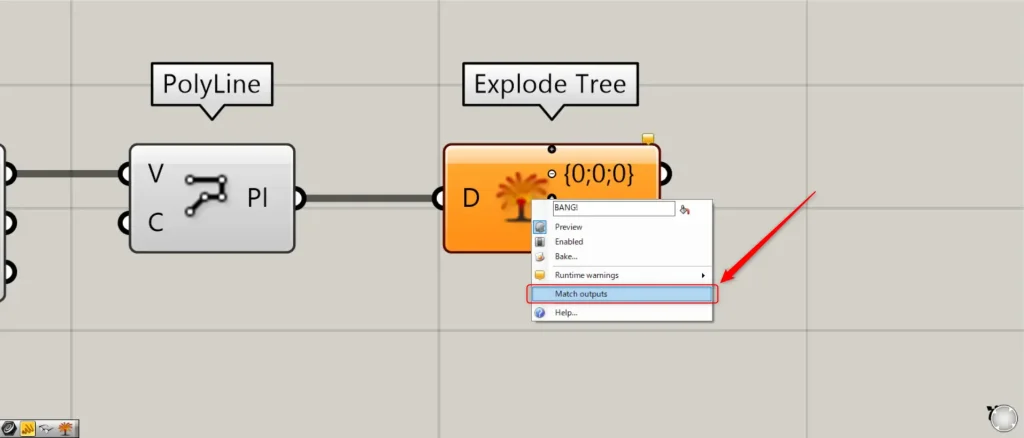
In that case, right-click the Explode Tree and select “Match outputs”.
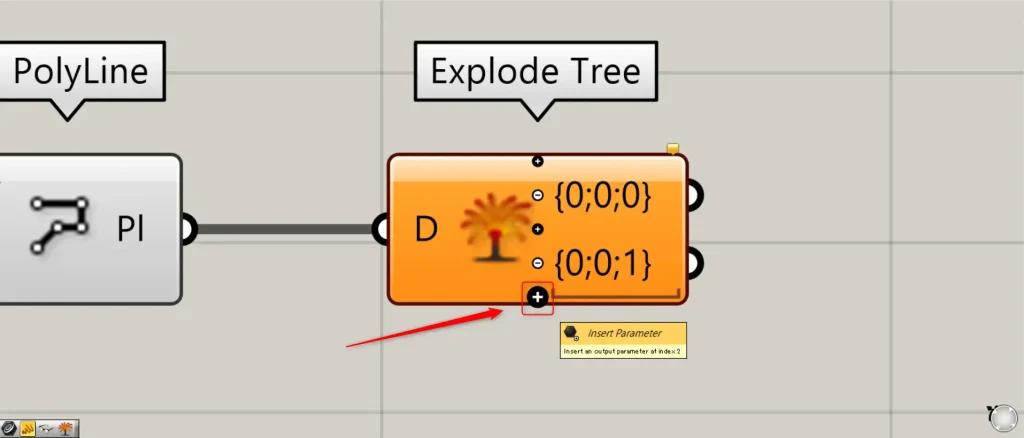
Alternatively, click the + icon displayed when zoomed in to add terminals equal to the number of branch levels.
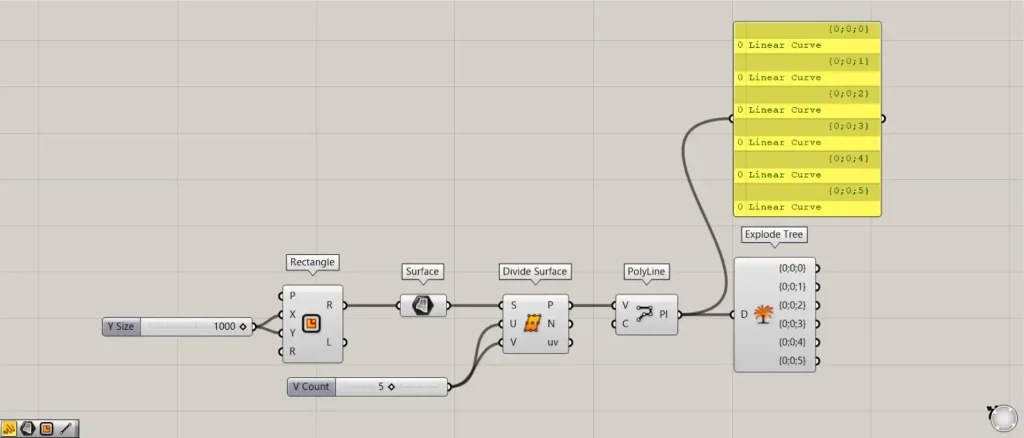
Then, since the number of levels in PolyLine and the number of terminals on the right side of the Explode Tree became the same, the error disappeared.
Additional Components: ①Curve
Let’s examine the data output from the right-hand terminal of the Explode Tree.
This time, we’ll look at the {0;0;0} terminal.

Then, only one line is obtained like this.
In this way, the branches have been decomposed, and we are able to obtain data consisting solely of {0;0;0}.
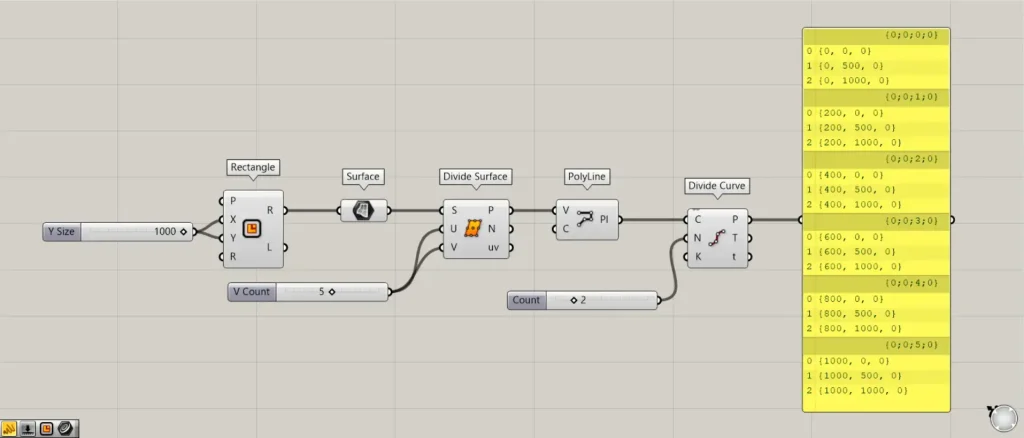
Additional Component: ① Divide Curve
Let’s also consider cases where multiple data points exist within a single branch.
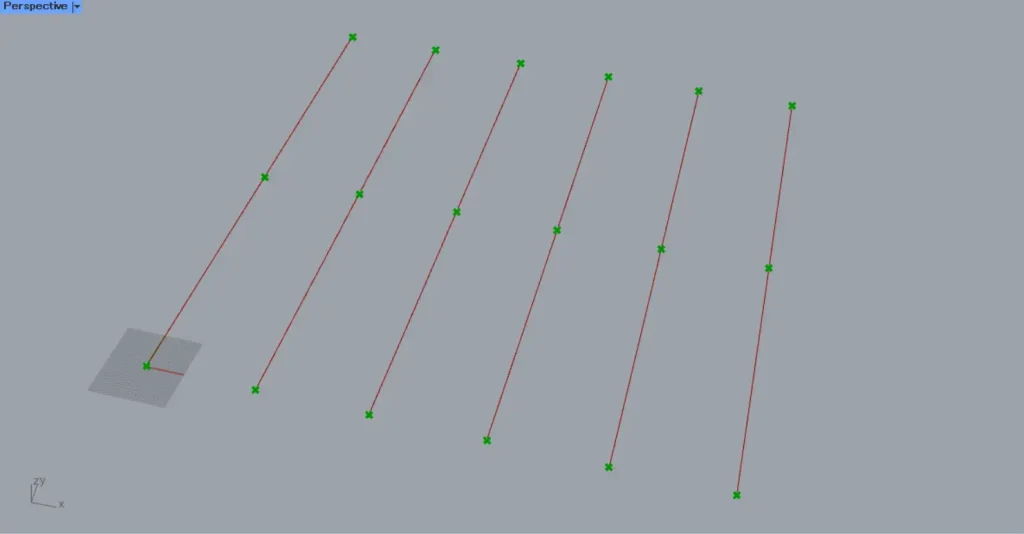
Connect the PolyLine to the Divide Curve(C).
Enter the number of line segments into the Divide Curve(N).
Since you entered 2 this time, a point will be created at the position where the line splits into two.
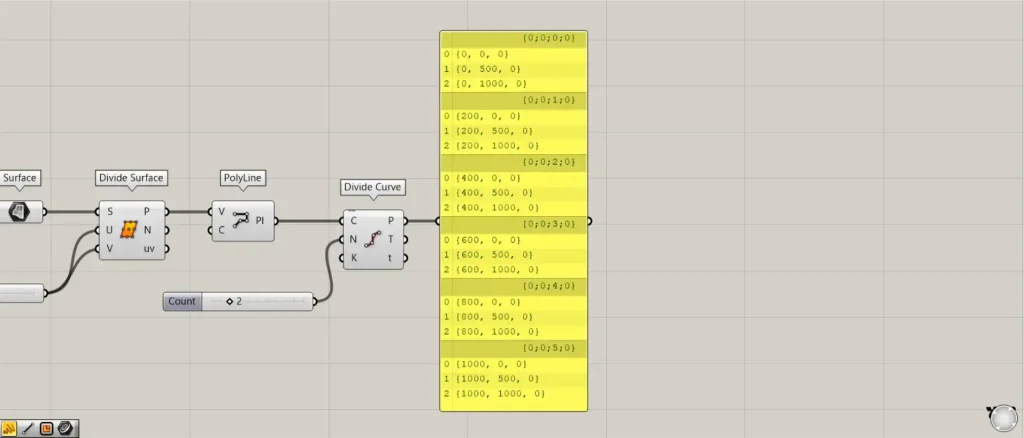
Then, within a single branch, there are multiple data points.
In this case, three points are contained within a single branch.
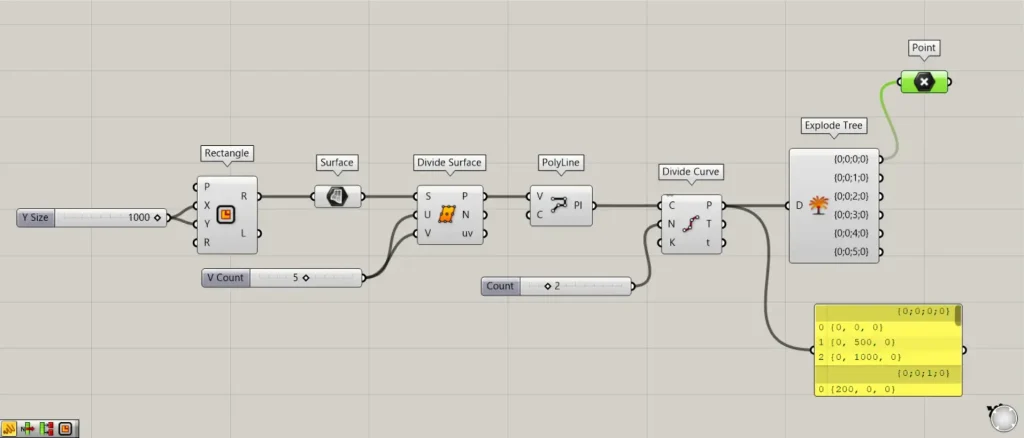
Let’s connect the Divide Curve(P) to the Explode Tree.
This time, we’ll look at the data in the {0;0;0;0} branch.
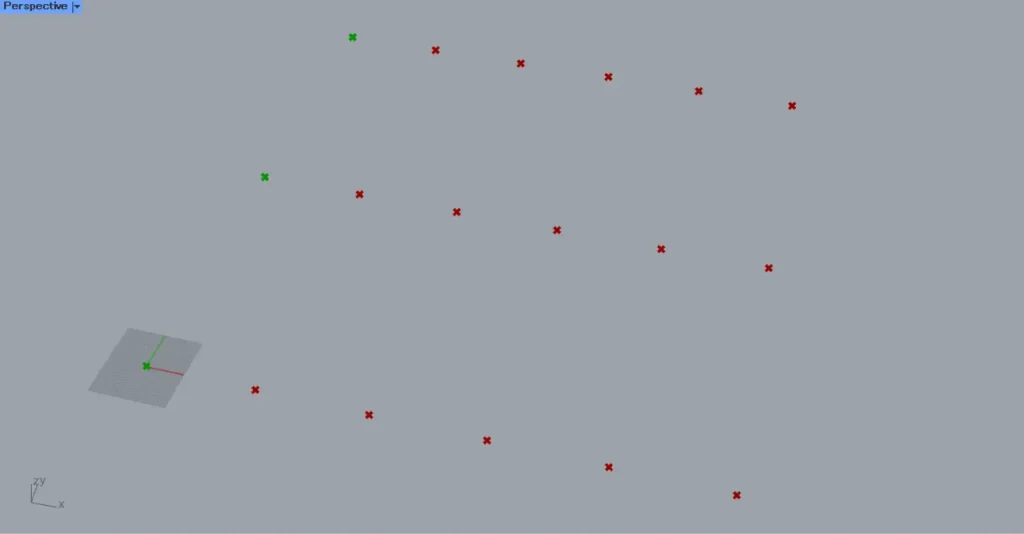
Then, only the three points within {0;0;0;0} were obtained.
List of Grasshopper articles using Explode Tree component↓





Comment