
You’ll often find yourself wanting to create a curve, a line, or a surface from points in Grasshopper.
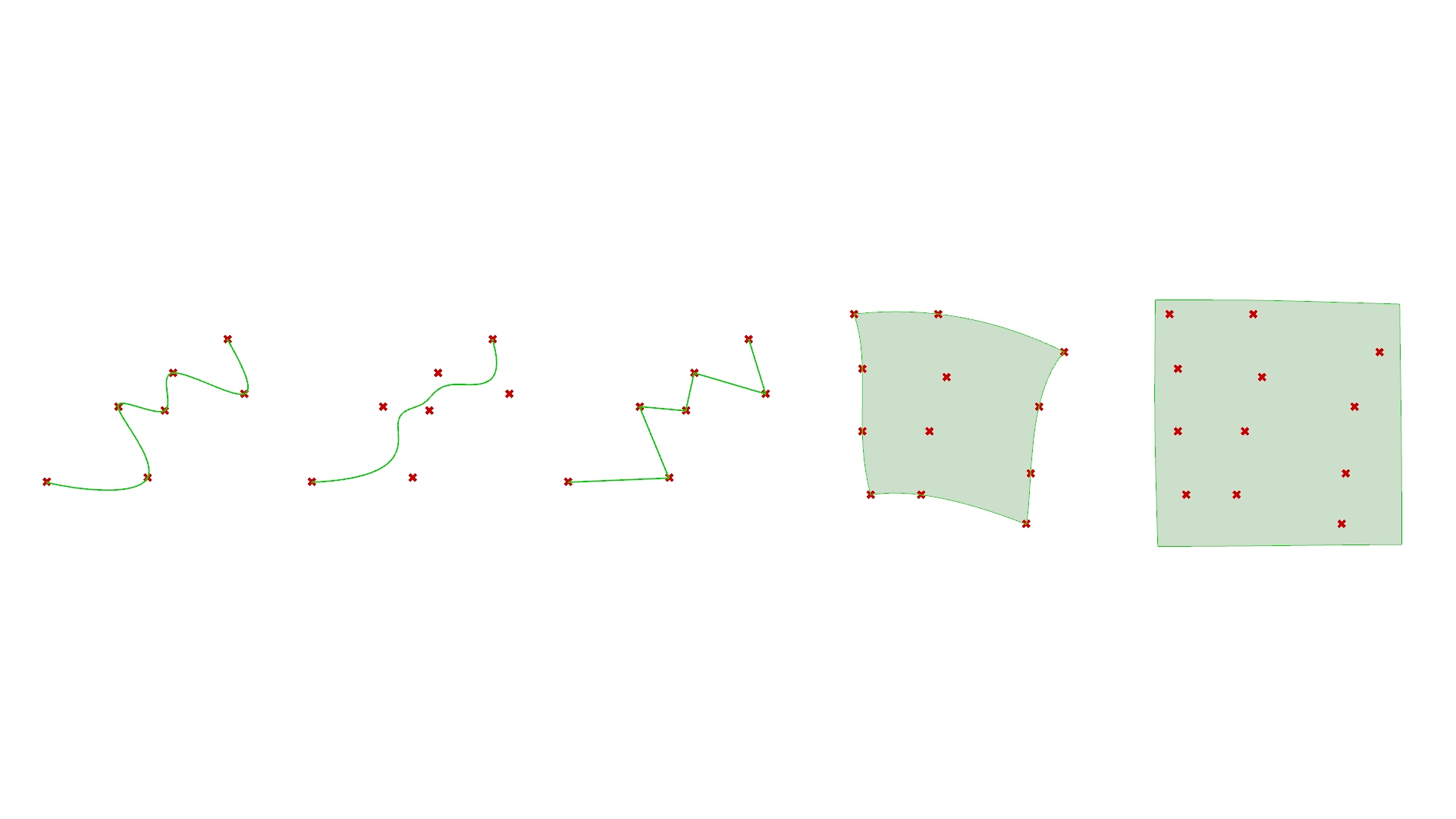
This time, we’ll explain a total of five methods: three ways to create curves and two ways to create surfaces from points.
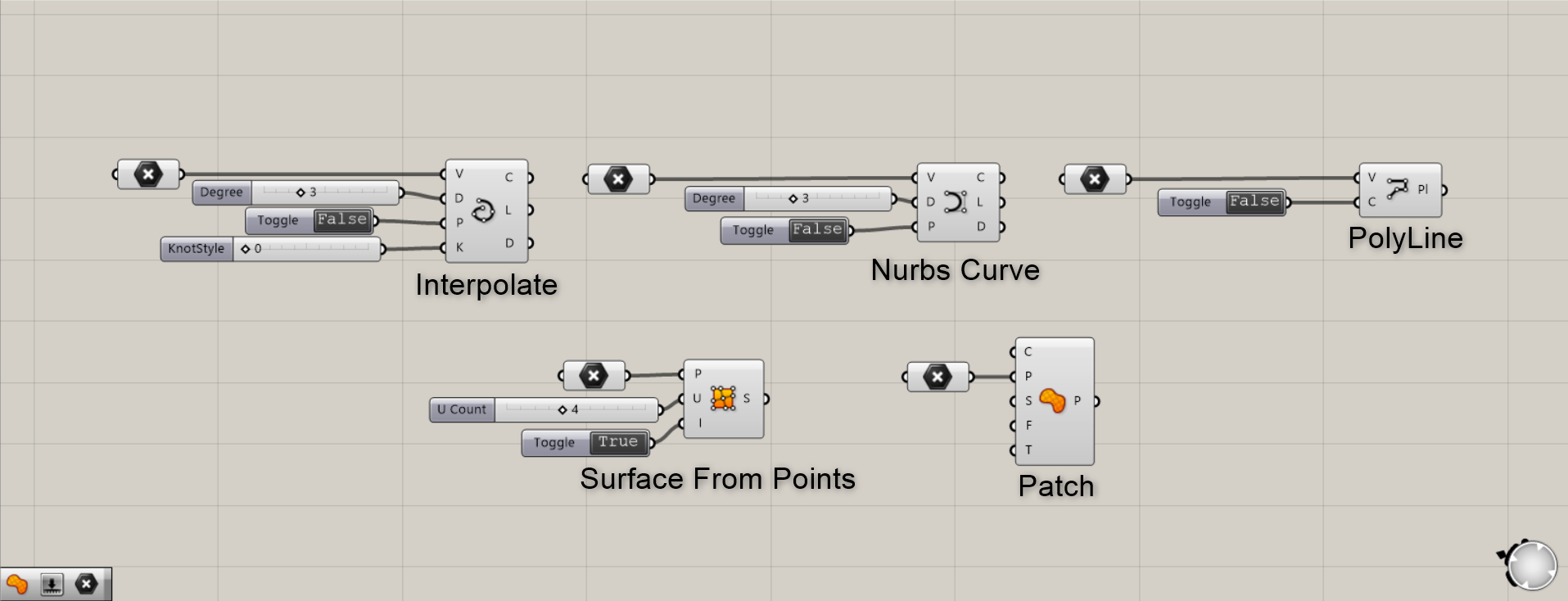
In conclusion, we will use the five components: Interpolate, NURBS Curve, PolyLine, Surface from Points, and Patch.
The Grasshopper and Rhino data for this session can be downloaded from the link below, so please feel free to use it.
Download Grasshopper and Rhino data here
For information regarding the use of downloadable data, please refer to the Terms of Use.
Vdeo
How to create curve from multiple points
Points to note when creating curves
Before explaining how to create curves, we will explain what you must be careful about.
It’s important to pay attention to the order in which you select multiple points on in Grasshopper.
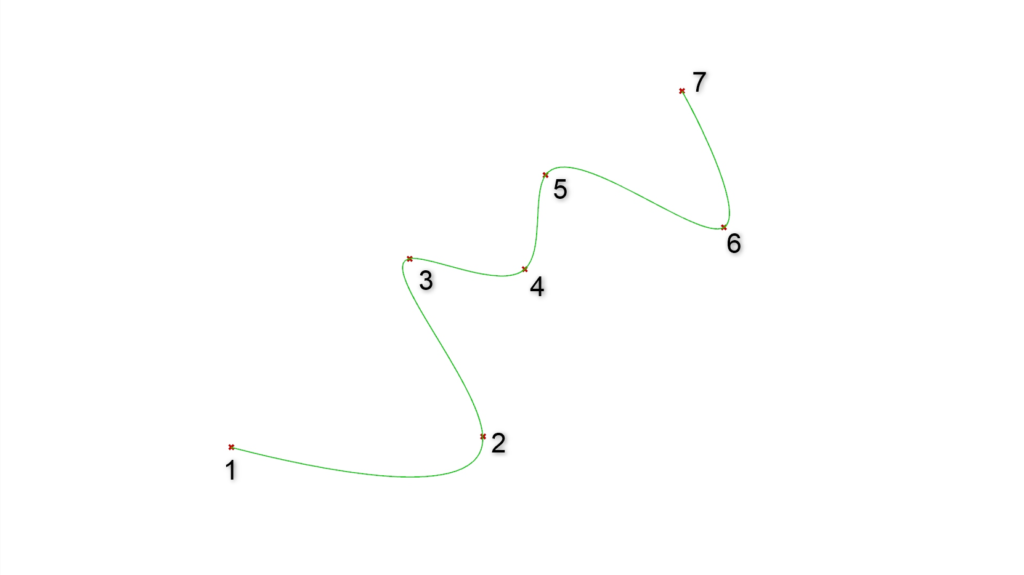
To create a curve like the one above, select the points in the order the curve passes through them, as shown in steps 1 through 7.
If you don’t select them in order, the curve will pass through the points haphazardly, resulting in a tangled mess.
If you want to create such tangled curves, that’s fine, but for regular untangled curves, be mindful of the order of the points.
Interpolate Component
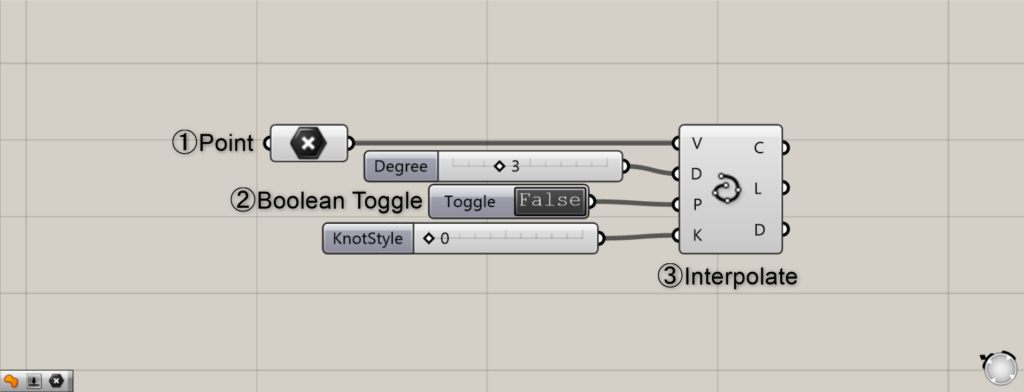
Components used: ① Point ② Boolean Toggle ③ Interpolate
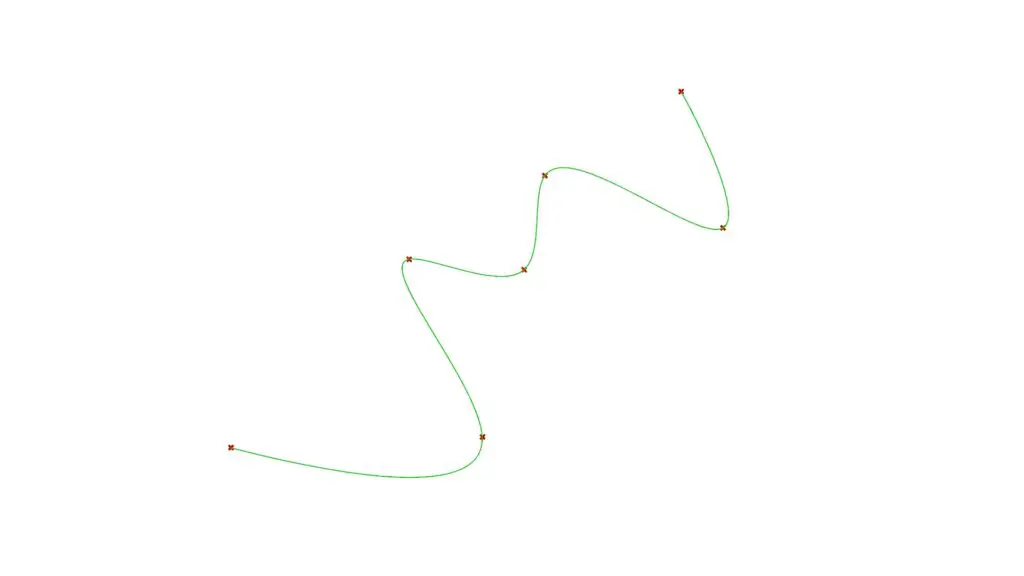
Interpolate creates a curve that passes through multiple points, as shown in the image above.
Remember that a single Point component can store multiple points.
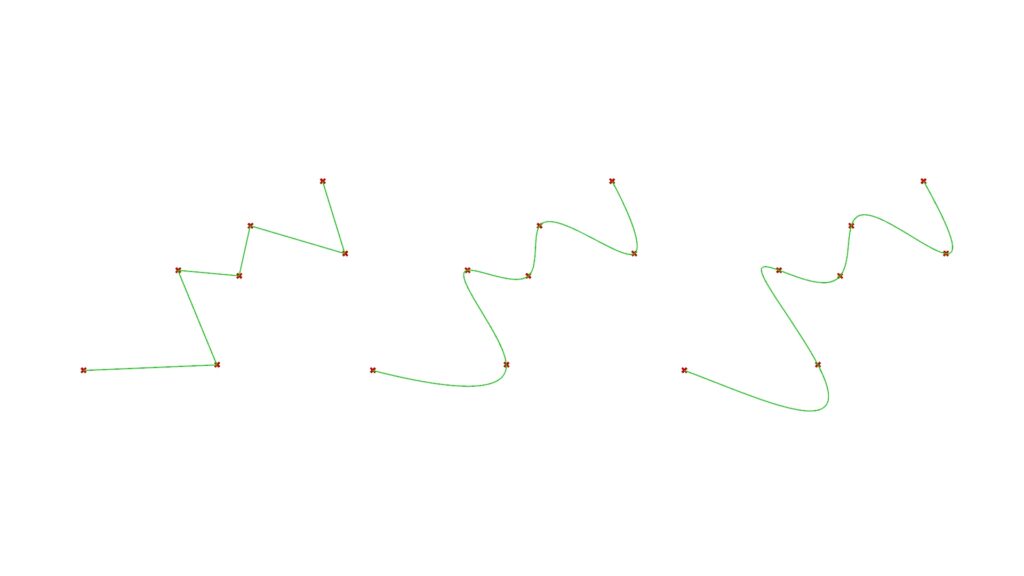
By changing the Interpolate(D) (Degree) value, you can adjust the number of characters in the curve and modify its curvature.
In the image above, the number of characters from left to right is 1, 3, and 5.
By default, the value is set to 3.
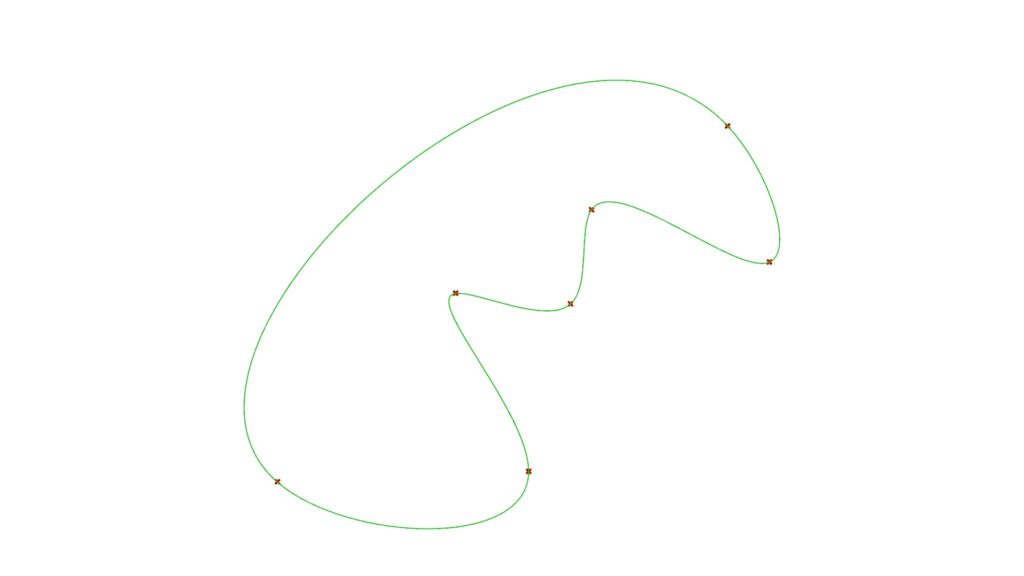
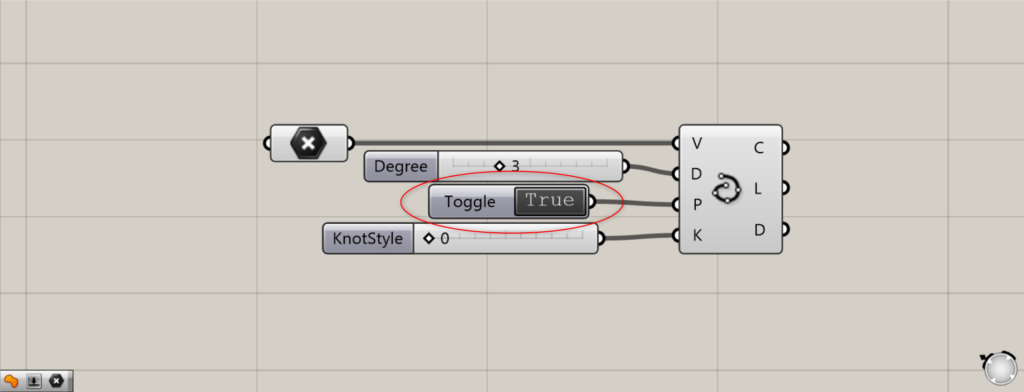
Changing the Periodic setting on the Interpolate(P) from False to True using a Boolean Toggle will connect the first and last points.
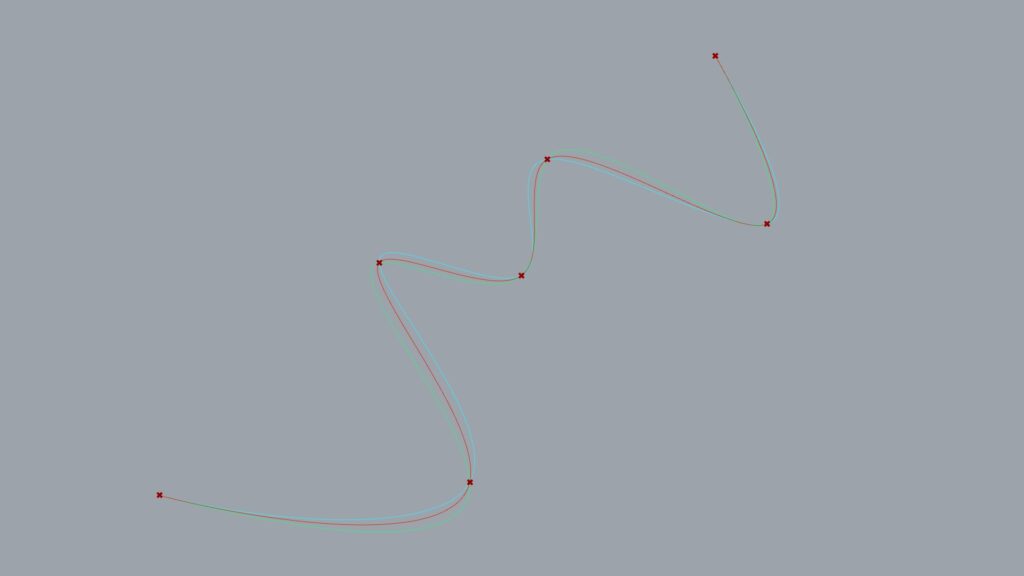
Specifying the KnotStyle value for the Interpolate(K) between 0 and 2 allows you to define how the curve behaves when passing through points.
0 (blue) is uniform mode, 1 (green) is chord mode, and 2 (red) is sqrtchord mode.
List of Grasshopper articles using Interpolate component↓
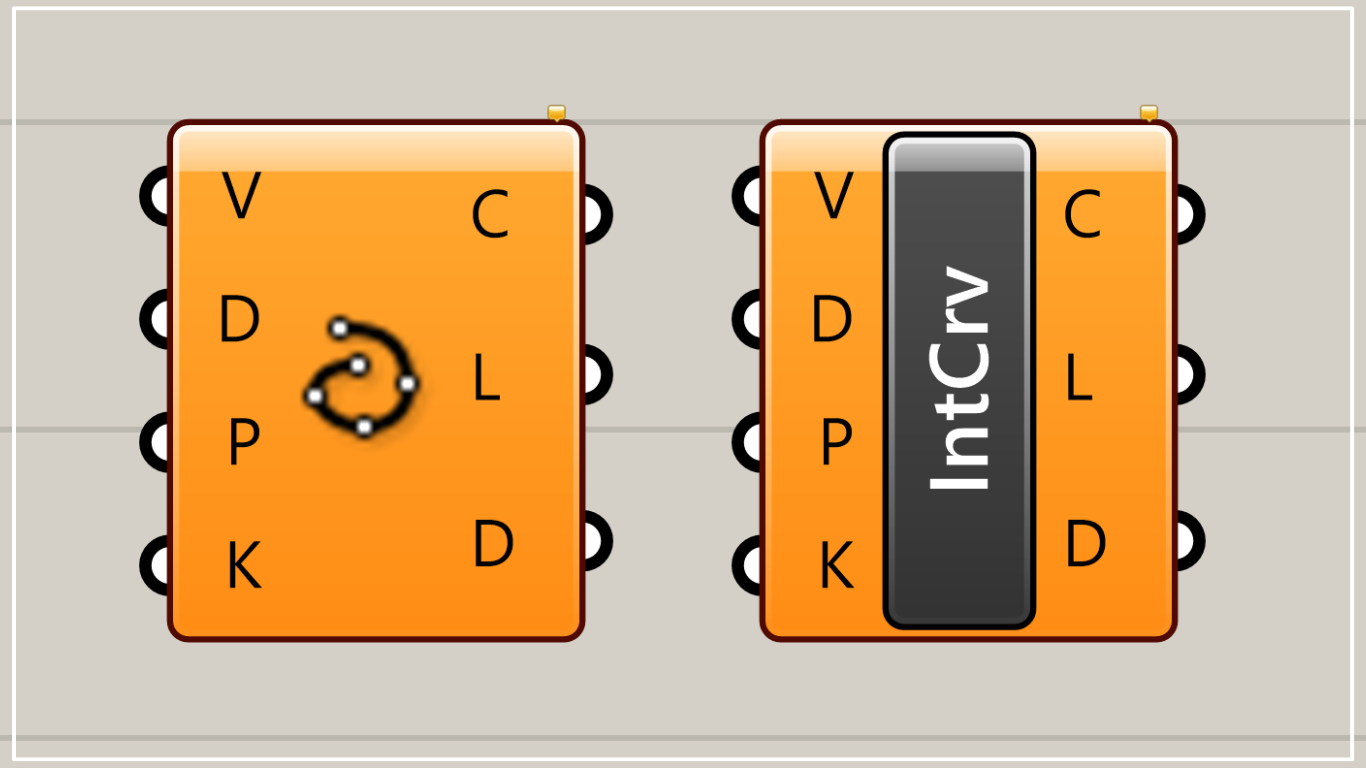

Nurbs Curve Component
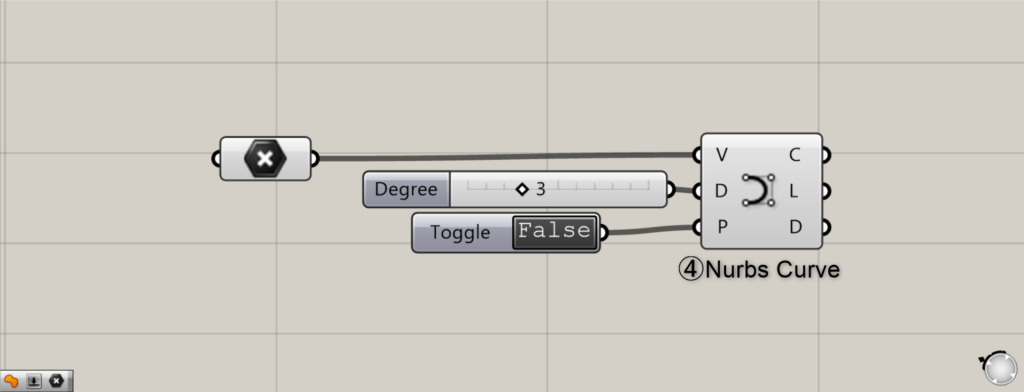
Used Component: ④ Nurbs Curve
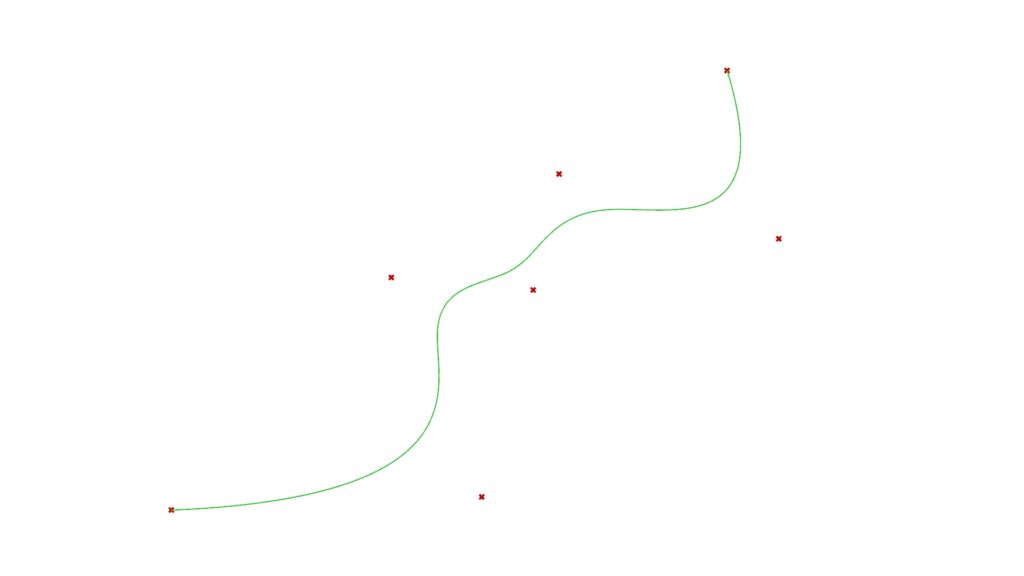
Nurves Curve creates curves using multiple points as control points.
While the previous Interpolate passes through the points, this one does not.
Similarly, you can adjust the curve’s sharpness by changing the Nurbs Curve(D) (Degree) value.
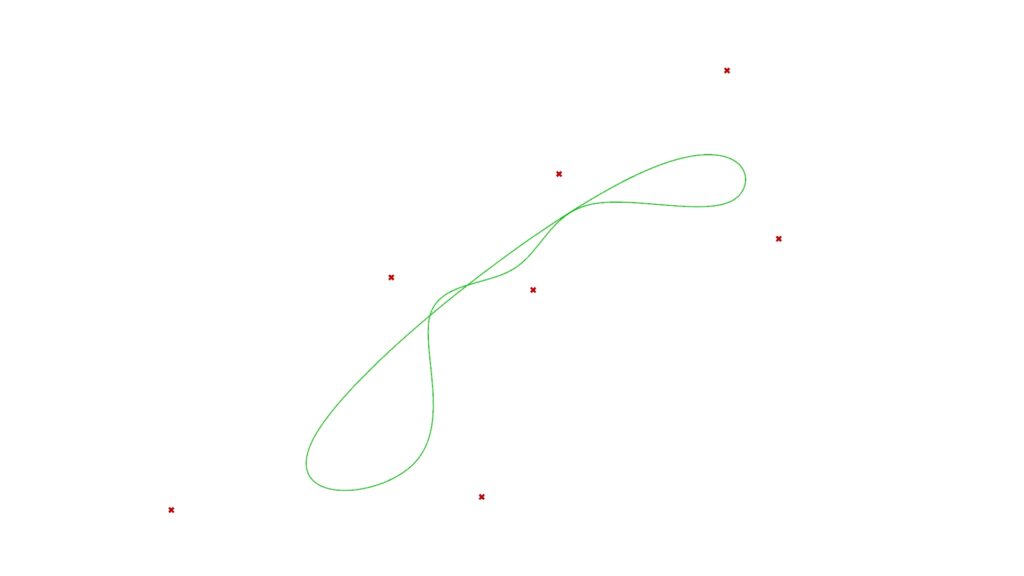
When the Nurbs Curve(P) (Periodic) is set to True and the first and last points are connected, it looks like this.
List of Grasshopper articles using Nurbs Curve component↓
PolyLine Component
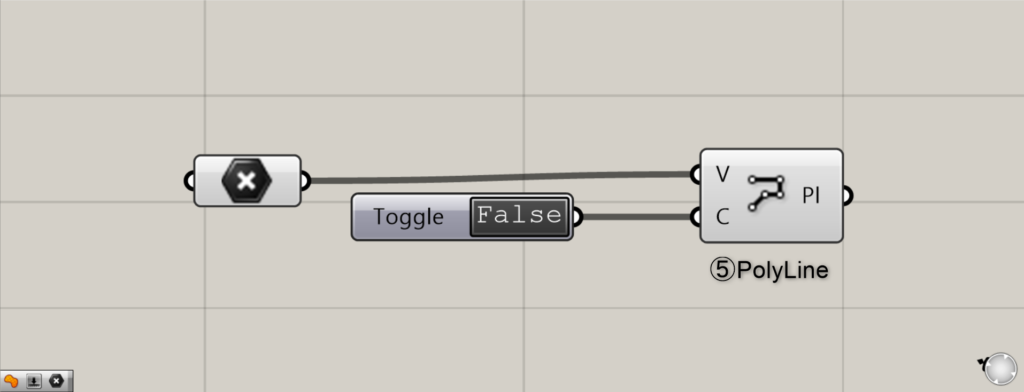
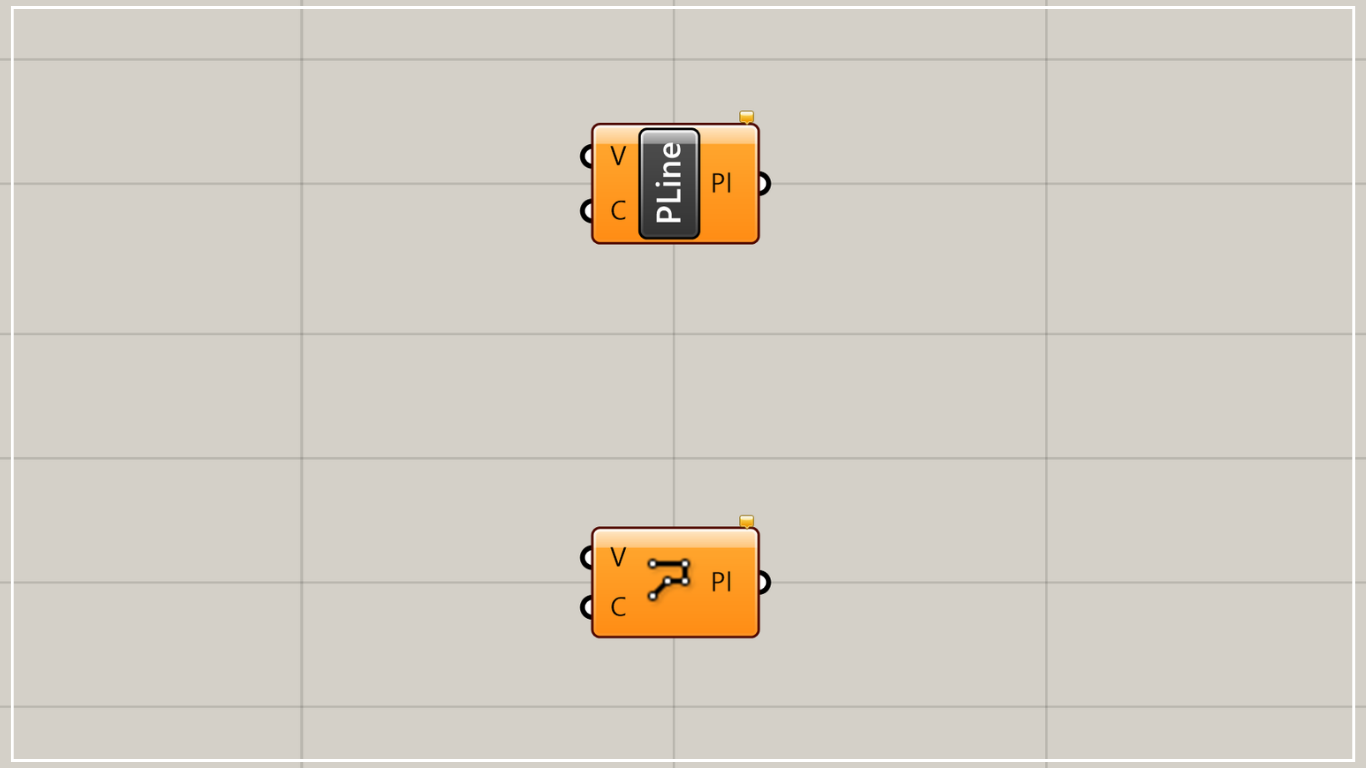
Component Used: ⑤ PolyLine
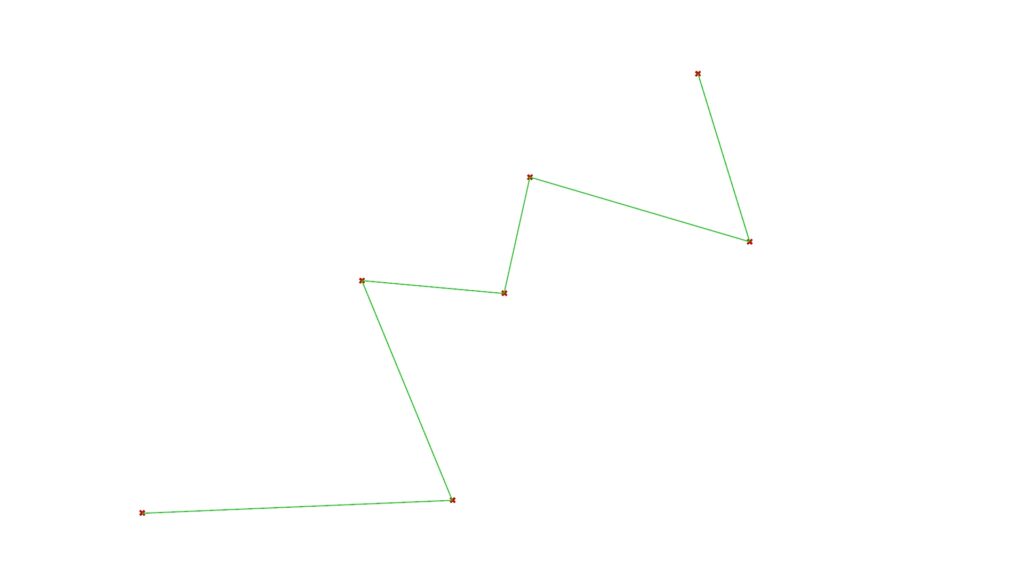
PolyLine creates a straight line by connecting multiple points.
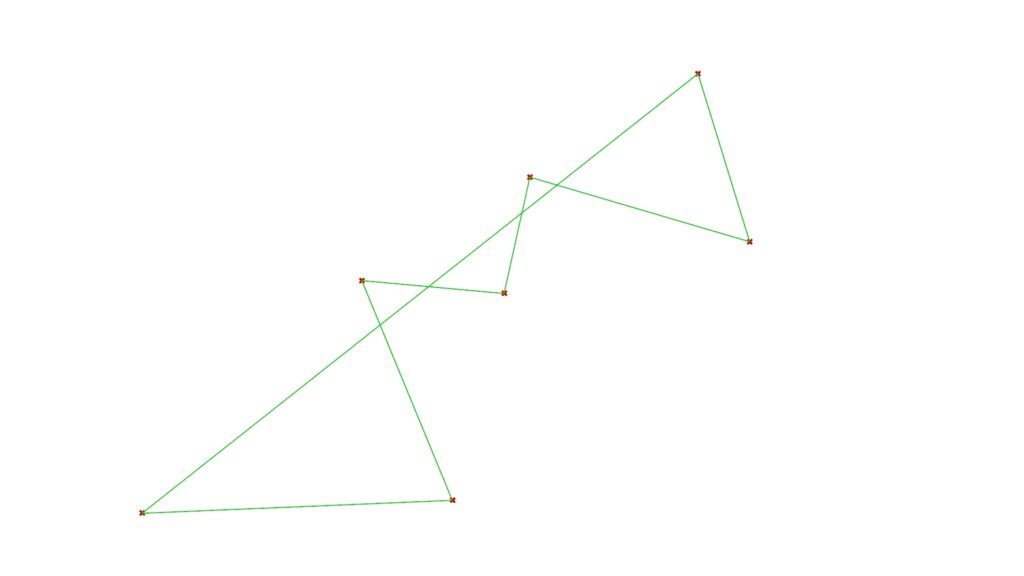
Similarly, you can set the PolyLine(P) (Periodic) to True to connect the first and last points.
List of Grasshopper articles using PolyLine component↓
Methods for Creating Surfaces from multiple Poins
Surface From Points Component
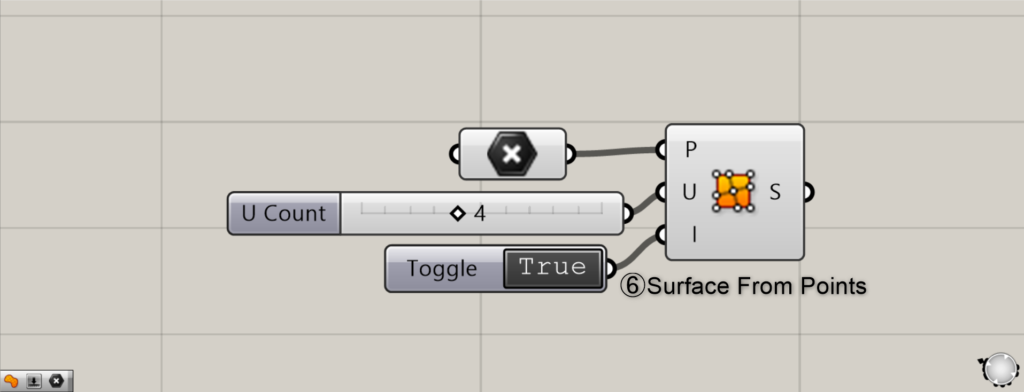
Component Used: ⑥ Surface From Points
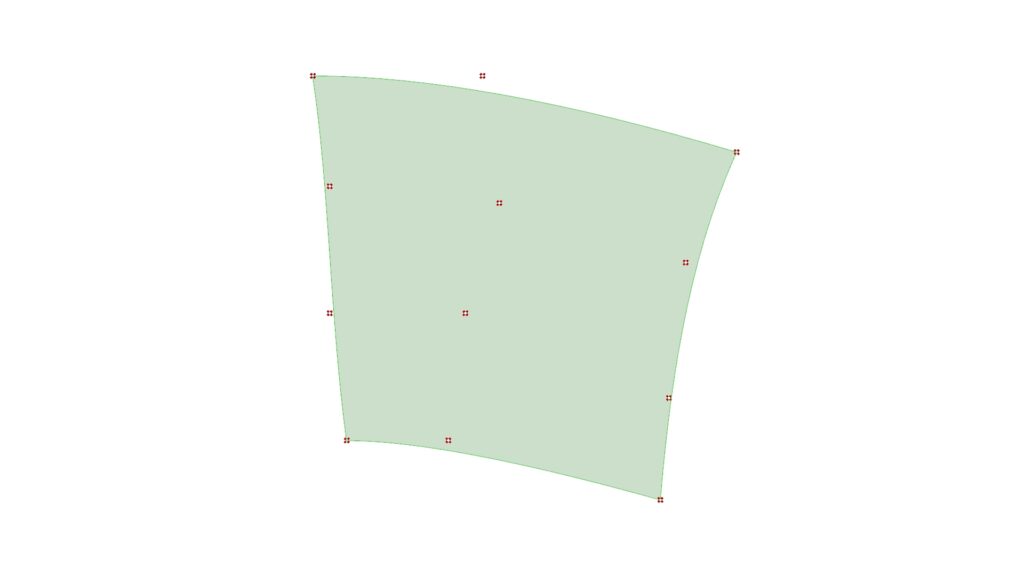
Surface From Points creates a surface from multiple points.
However, in this case too, the order in which points are selected becomes extremely important.
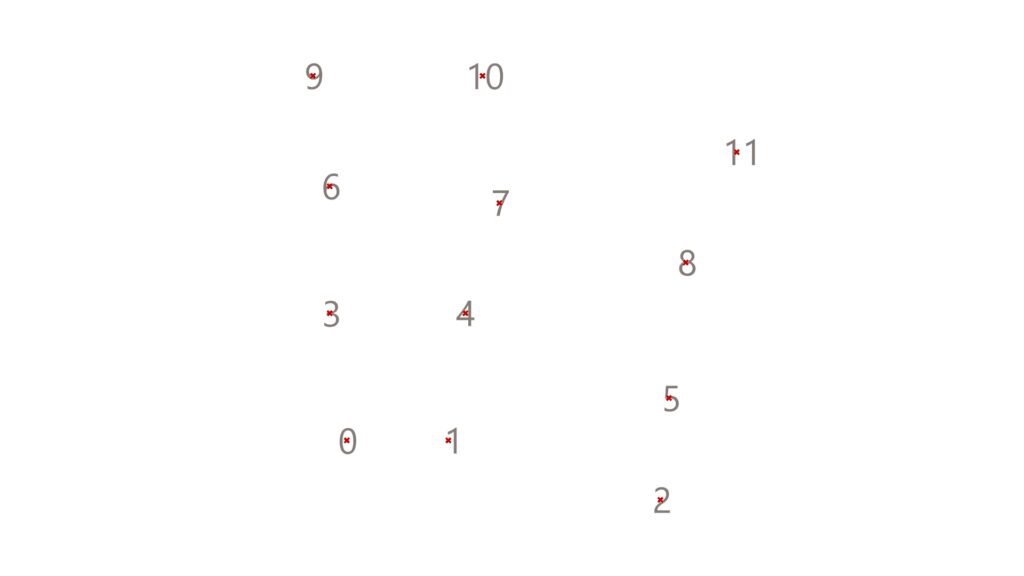
In this case, select points on the rhino in the order 0 to 11.
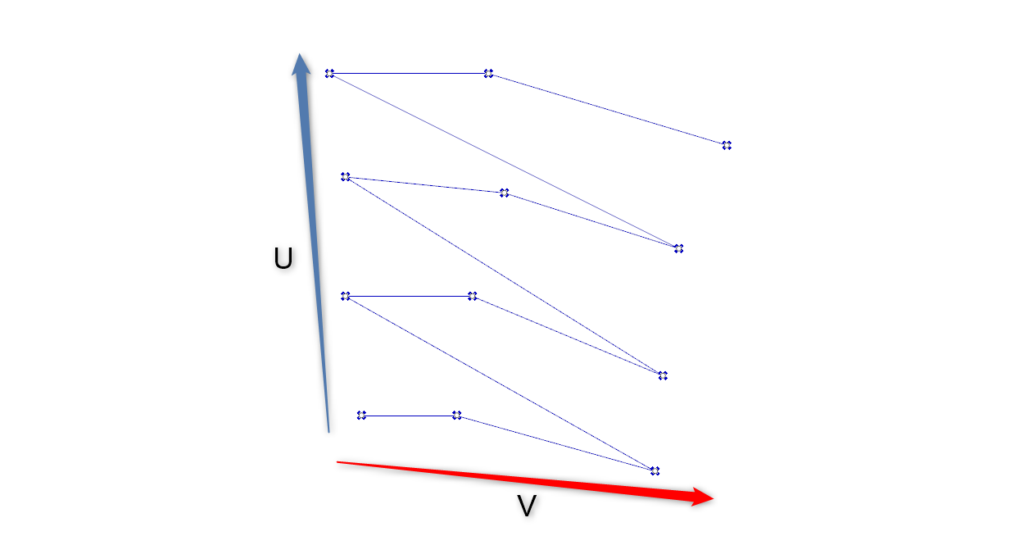
If we represent the order of selection with lines, it would look like this.
Also, in this case, the direction of the sequence 0,1,2… is called the V-direction, and the direction of the sequence 0,3,6… is called the U-direction.
Please remember that you will need to enter the numerical value for the point in the U direction later.
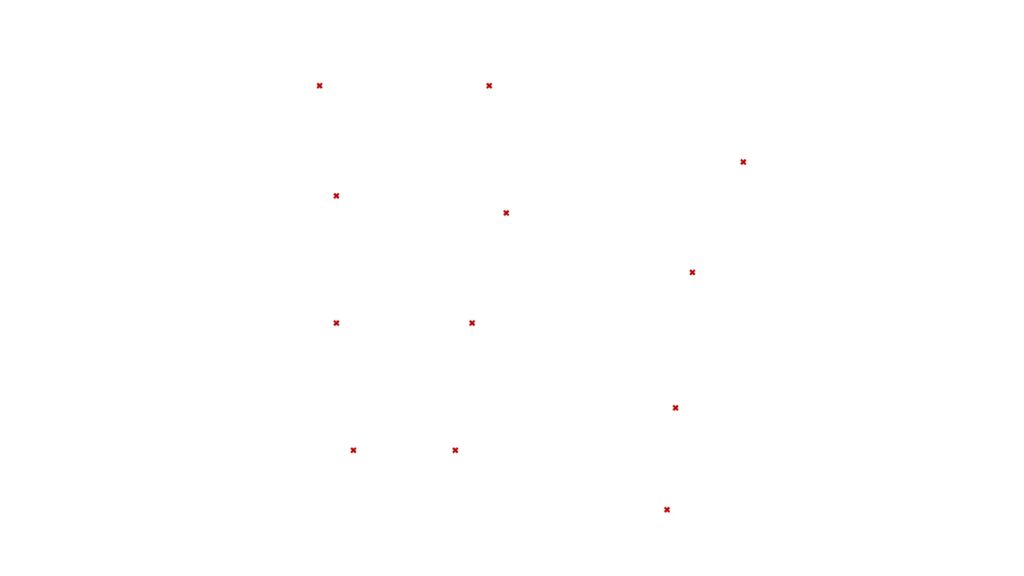
After selecting the points, connect them to Surface From Points(P).
Then enter the number of points in the U direction into the Surface From Points(U) (U Count).
This time, there are four points, so we will enter 4.
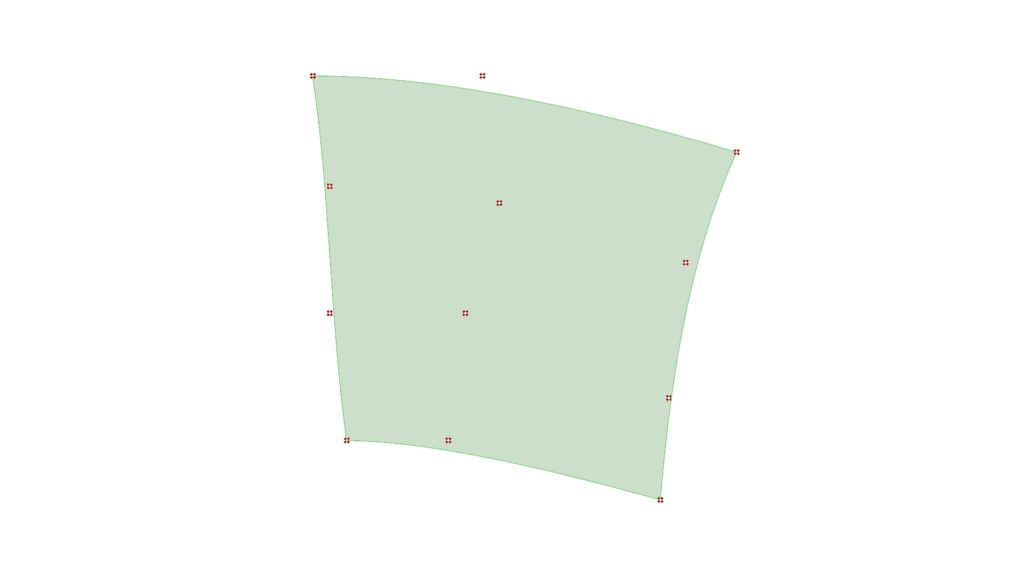
Then the surface was completed like this.
However, in this case, there is no surface on the points.
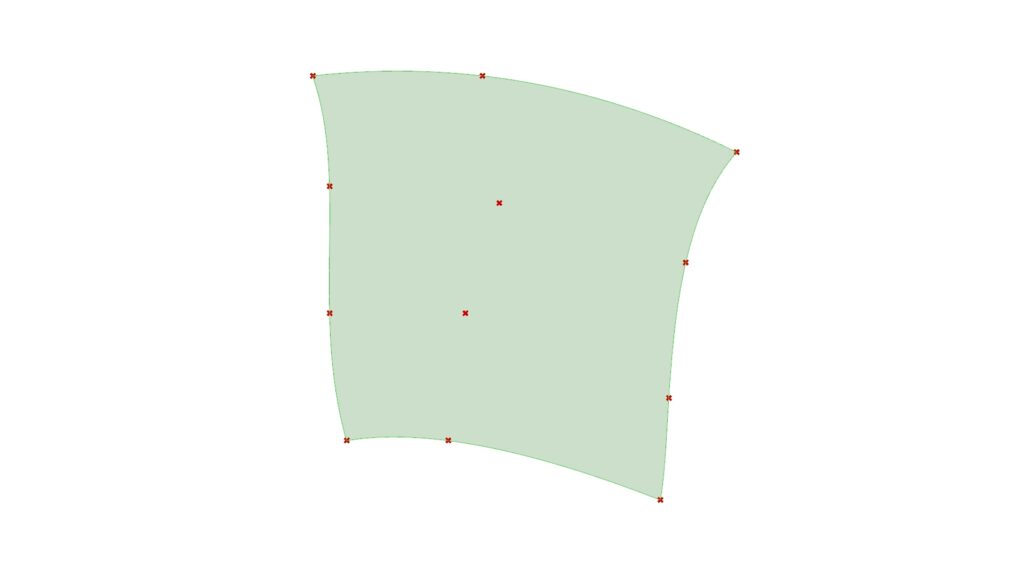
To create a surface on points, set the Surface From Points(I) (Interpolate) to True.
This allows you to create a surface that follows the line.
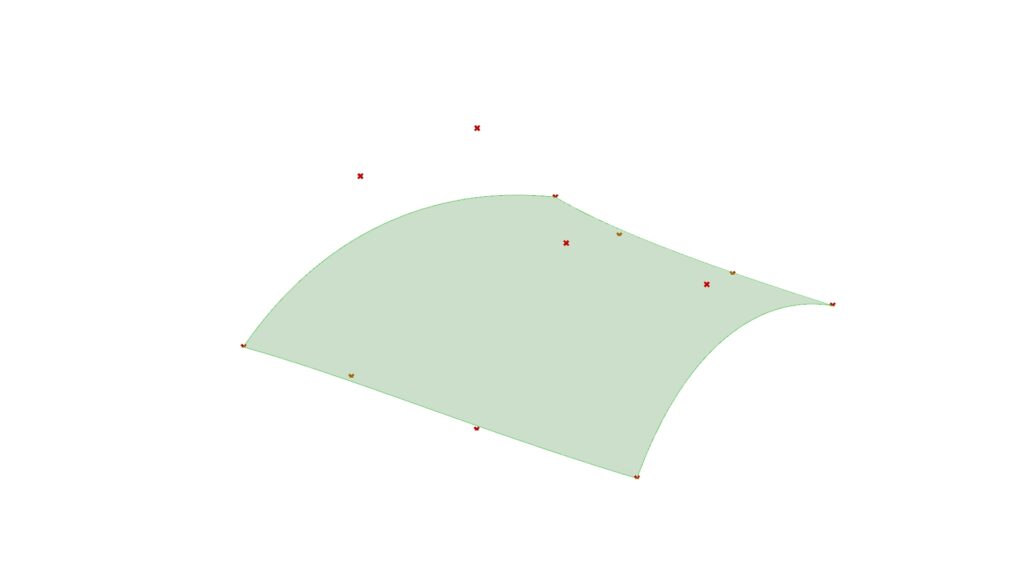
Of course, you can also create it by moving the points on the Rhino in three dimensions.
This is when the I terminal is set to False.
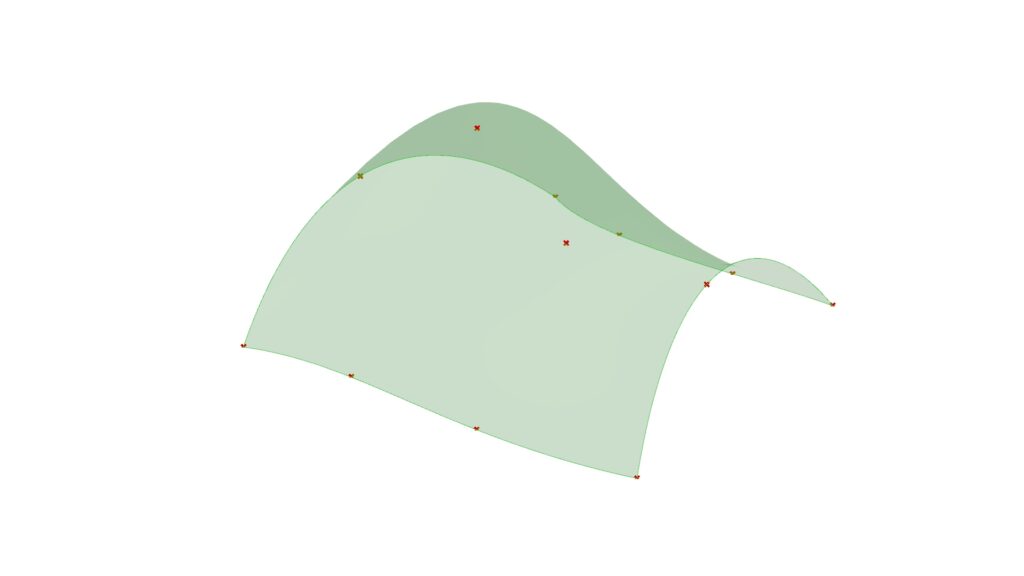
This is the case for True. Choose based on the purpose of the model you are creating.
List of Grasshopper articles using Surface From Points component↓
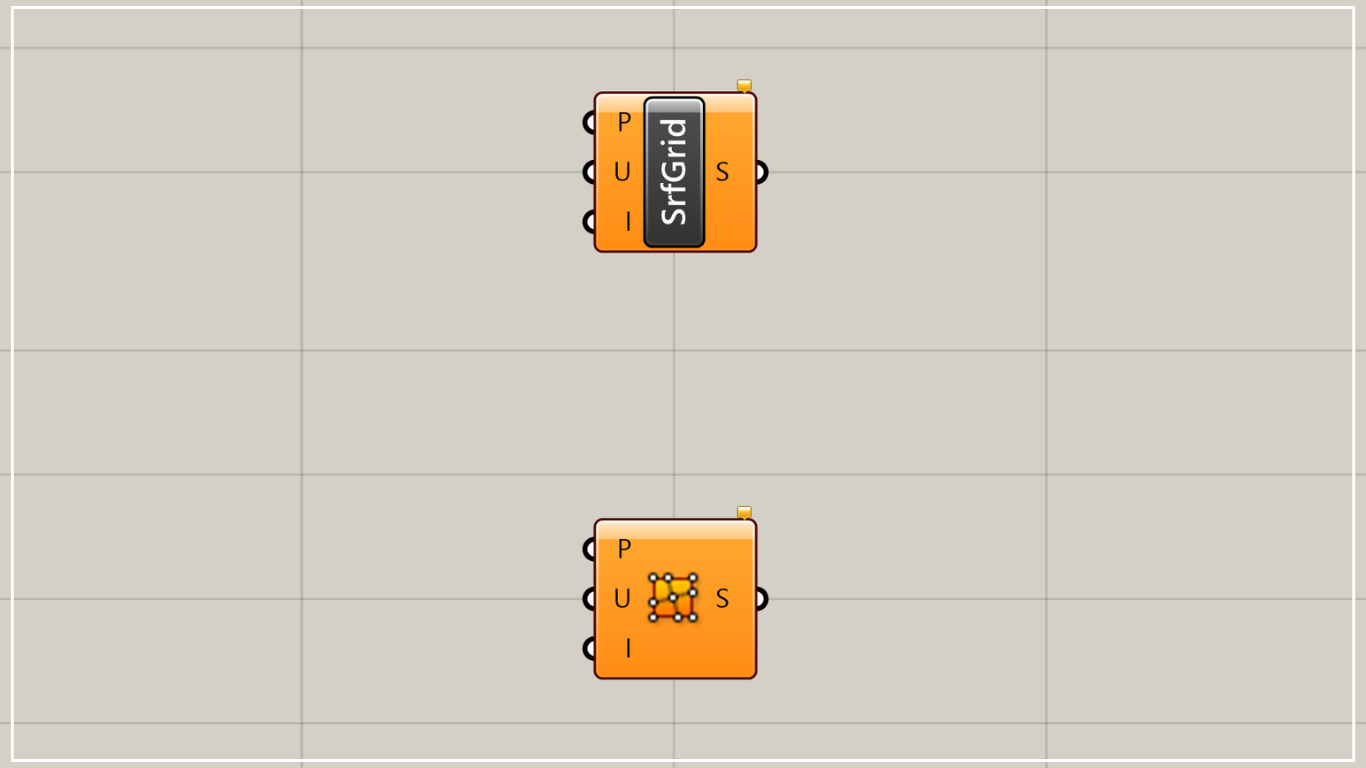
Patch Component
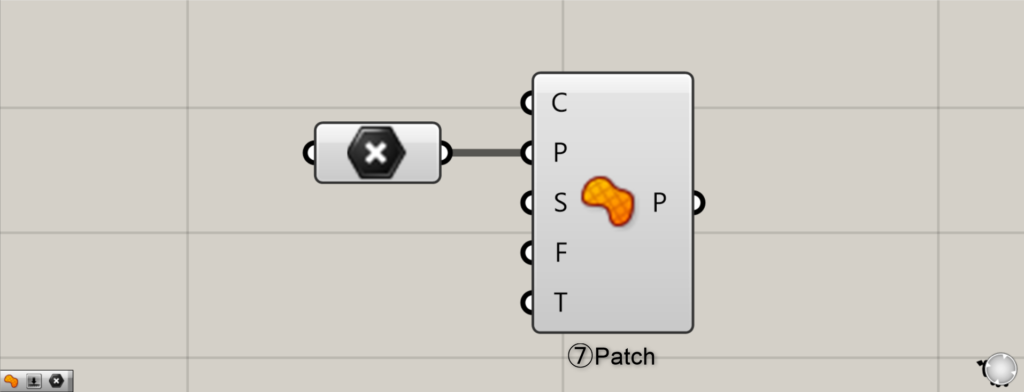
Components Used: ⑦ Patch
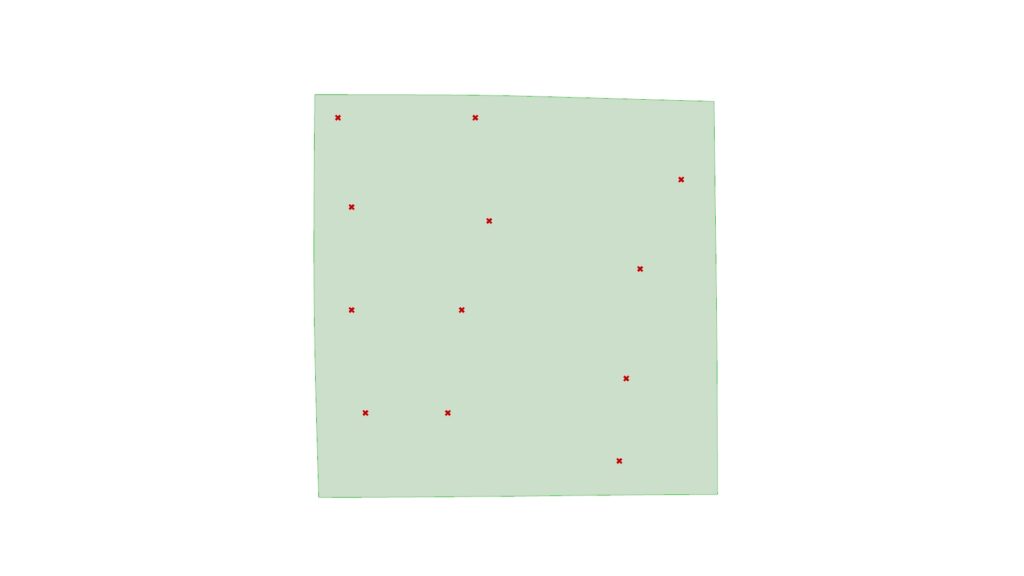
Finally, regarding the patch.
Unlike the previous Surface From Points feature, this allows you to create a surface regardless of the order in which points are selected.
However, this results in the output of a rough surface.
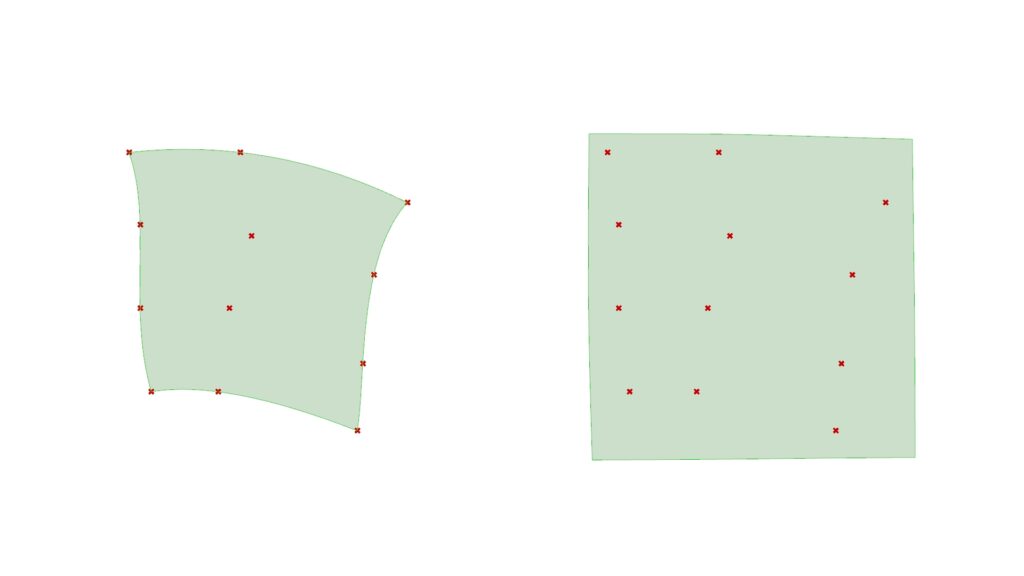
This is a comparison of Surface from Points and Patch.
Clearly, the patch has become a rough surface.
This is recommended when there are simply too many points to choose from.
Conversely, when you want to create an accurate surface with fewer selections, use Surface from Points.
List of Grasshopper articles using Patch component↓




Comment