
![[Grasshopper] How to use Group to group models and data](https://iarchway.com/wp-content/uploads/2026/01/Group.png)
This article explains how to use Group to group models and data.
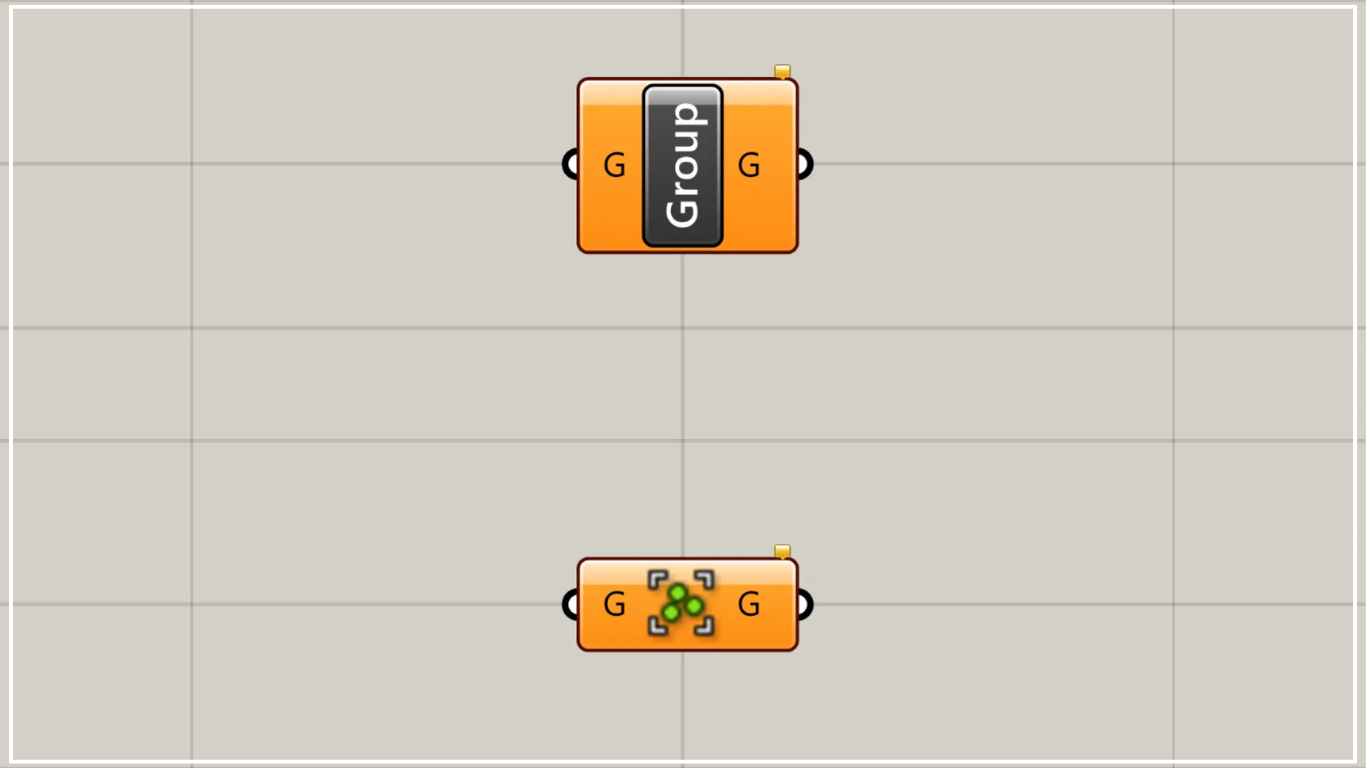
On the Grasshopper, it is represented by either of the two above.
Group models and data
Using Group allows you to group models and data.
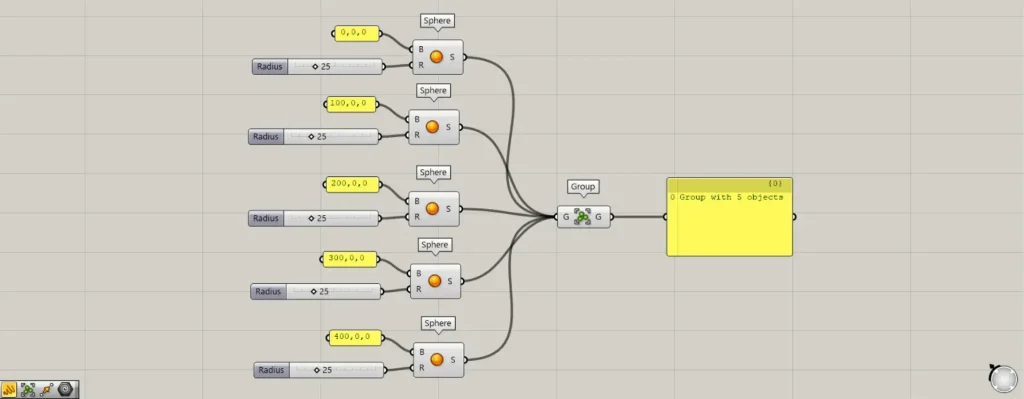
Components used: ① Sphere ② Group
As a first example, let’s group five spheres.
Enter the coordinates (0, 100, 200, 300, 400, and 500), 0, 0 into the five Sphere(B).
Then, enter the value 25 for the radius into each Sphere(R).
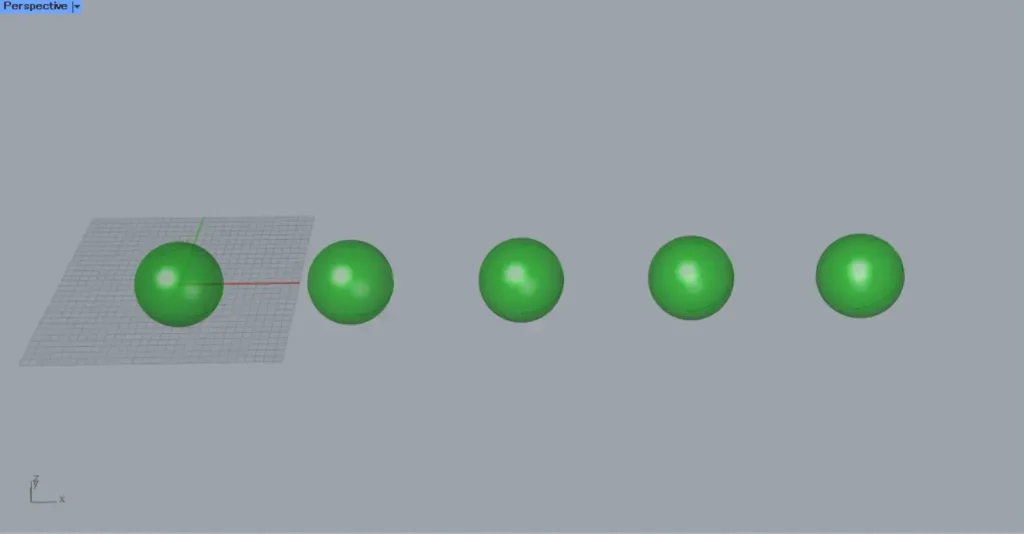
Then, five spheres with a radius of 25 were created at the specified coordinates.
Then, connect all Sphere to the Group.
Then, the five spheres were grouped together.
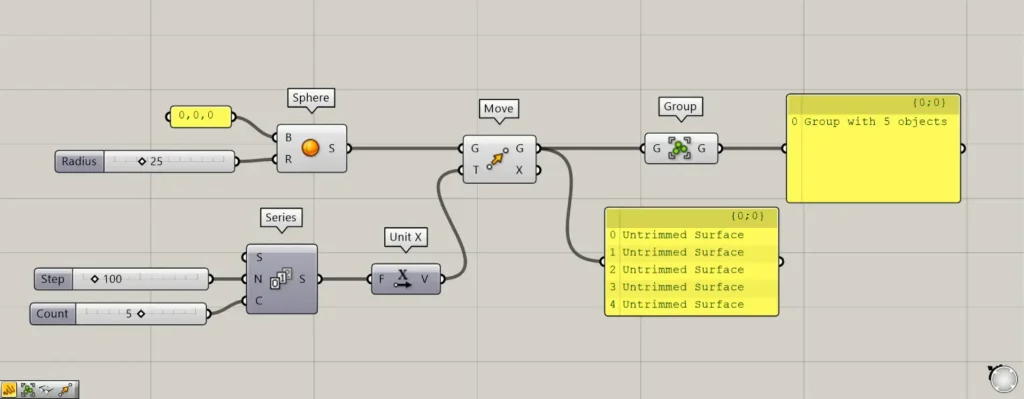
Additional Components: ① Series ② Unit X ③ Move
Even if a single component contains multiple data, you can group them.
The image above shows an example where one sphere has been duplicated five times along the X-axis.
Enter 100 into the Series(N).
Additionally, enter the value 5 into Series(C).
Then, five values are created: 0, 100, 200, 300, and 400.
Then connect the Series to Unit X.
Additionally, connect Unit X to the Move(T) and connect Sphere to the Move(G).
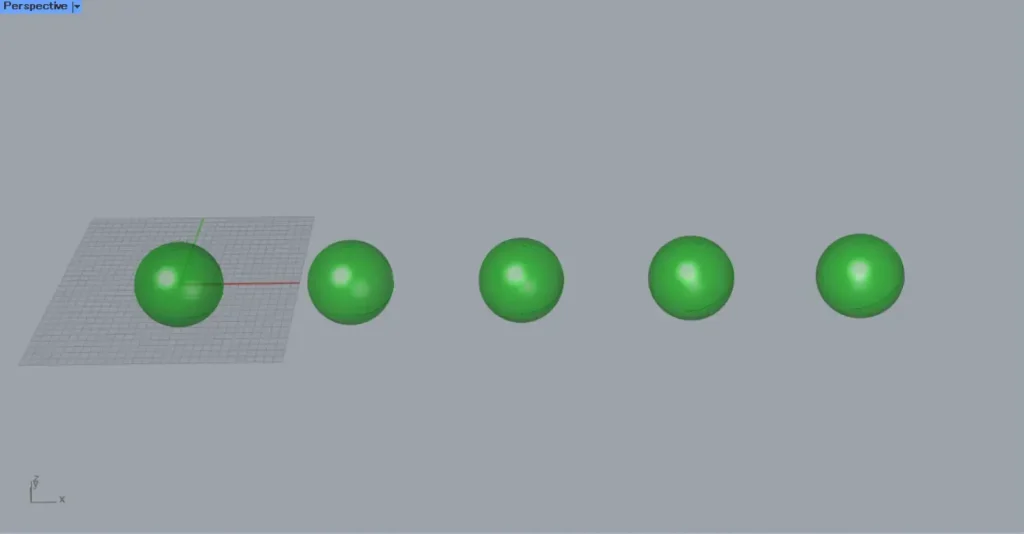
Then, five spheres were copied and arranged in the X direction.
In this case, Move contains data for five spheres.
Next, connect the Move(G) to the Group.
Then, even when a single data point contained multiple data points, it was possible to group them.
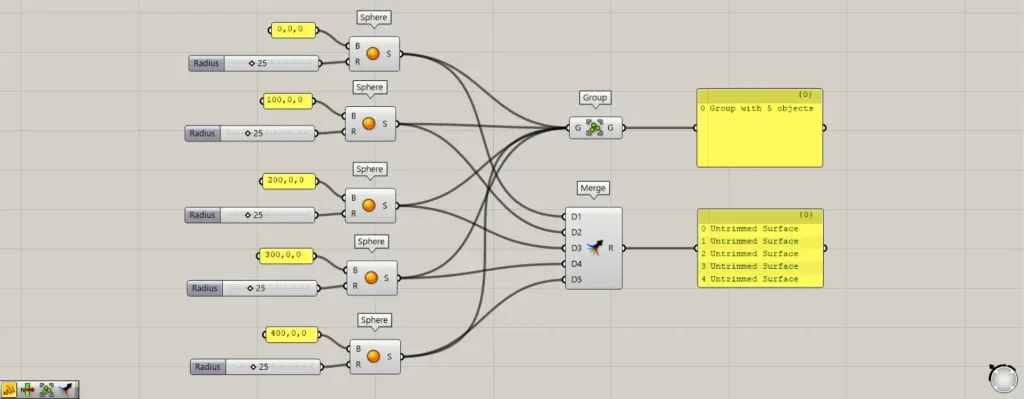
Additional Components: ①Merge
Let’s compare it to Merge, which is used in the same way as Group.
For Group, multiple entered data points will be output as a single group data.
When using Merge, the multiple data you input will retain the original data.
And while a Group becomes a single data point, the number of inputs you enter will be consolidated into multiple data.
Looking at the image above, the data for the five spheres entered into Merge has been consolidated.
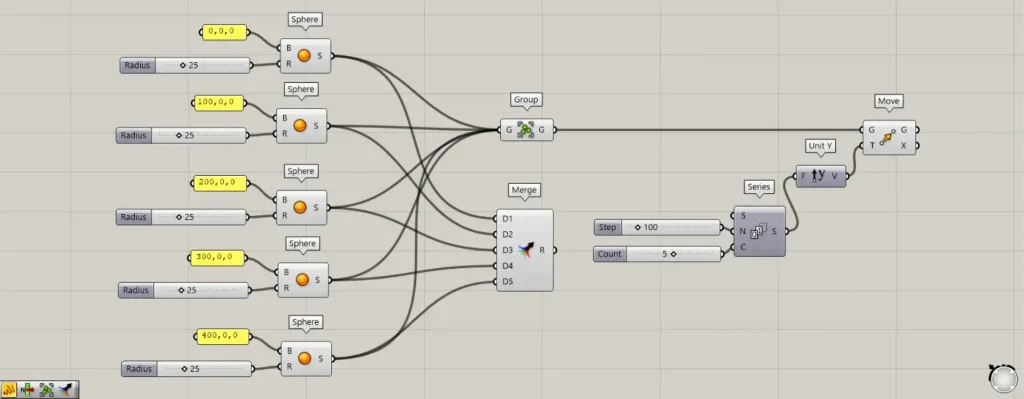
Additional Component: ①Unit Y
As a first example, let’s try copying the Group array in the Y direction.
Enter 100 into the Series(N).
Additionally, enter the value 5 into the Series(C).
Then, five values are created: 0, 100, 200, 300, and 400.
Then connect the Series to Unit Y.
Additionally, connect Unit Y to the Move(T) and connect Group to the Move(G).
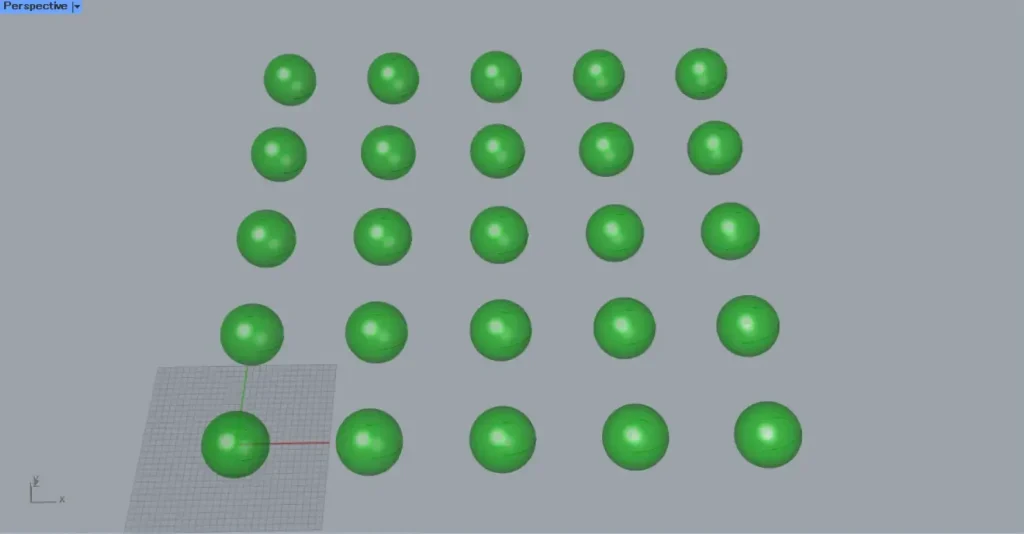
Then, the entire line was copied as an array.
This is because five spheres are grouped together.
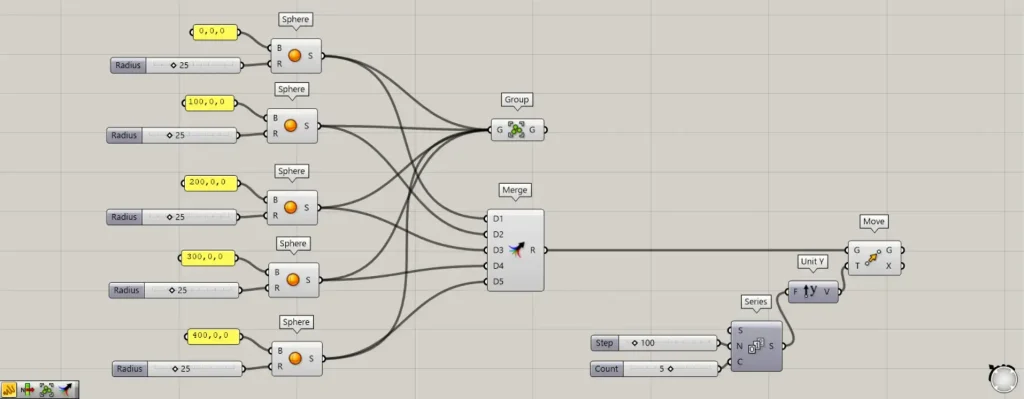
The same process is also performed in Merge.
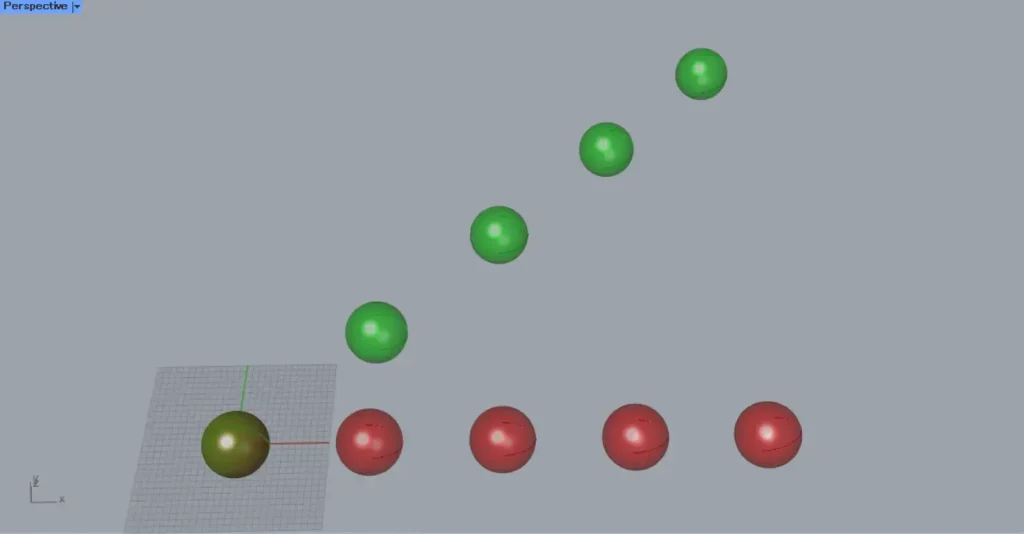
In this case, each sphere moved separately.
In this way, with Merge, each individual piece of data remains intact.
Therefore, the values 0, 100, 200, 300, and 400—representing the distance traveled in the Y direction—are assigned individually to each sphere.
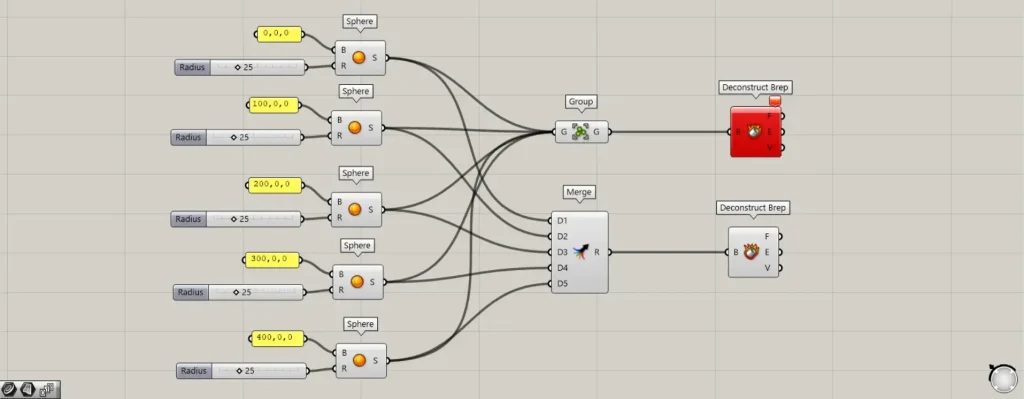
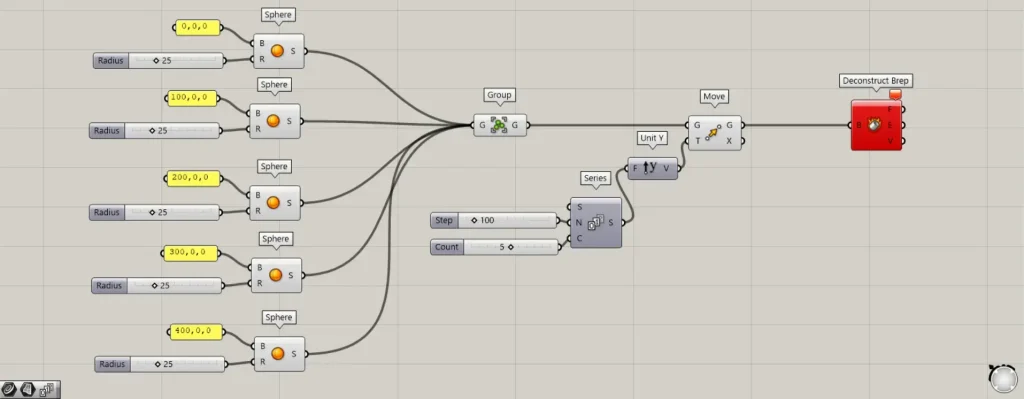
Additional Components: ① Deconstruct Brep
The image above shows the process of attempting to deconstruct the model using Deconstruct Brep.
For groups, you can move them, but you cannot alter their original shape.
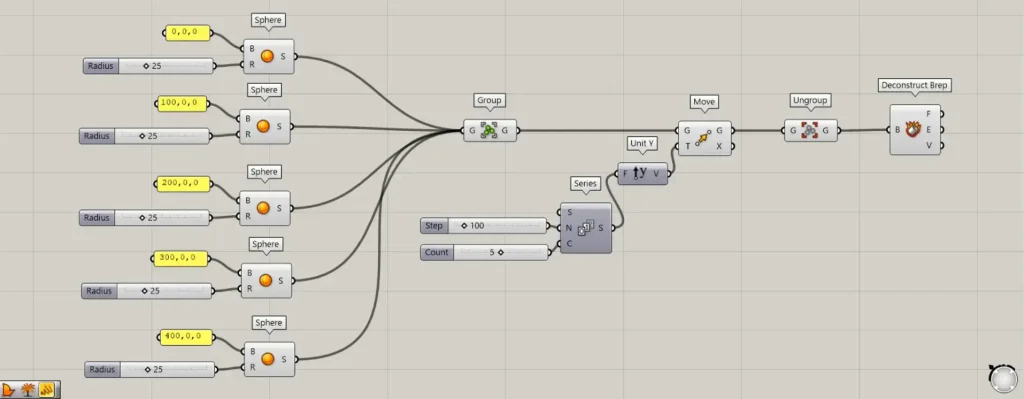
Additional Component: ① Ungroup
If you want to re-edit after grouping, use Ungroup.
Using Ungroup allows you to ungroup elements.
List of Grasshopper articles using Group component↓





Comment