
![[Grasshopper] How to use Leader to set leader line](https://iarchway.com/wp-content/uploads/2026/01/Leader.png)
This article explains how to use Leader to set leader line.
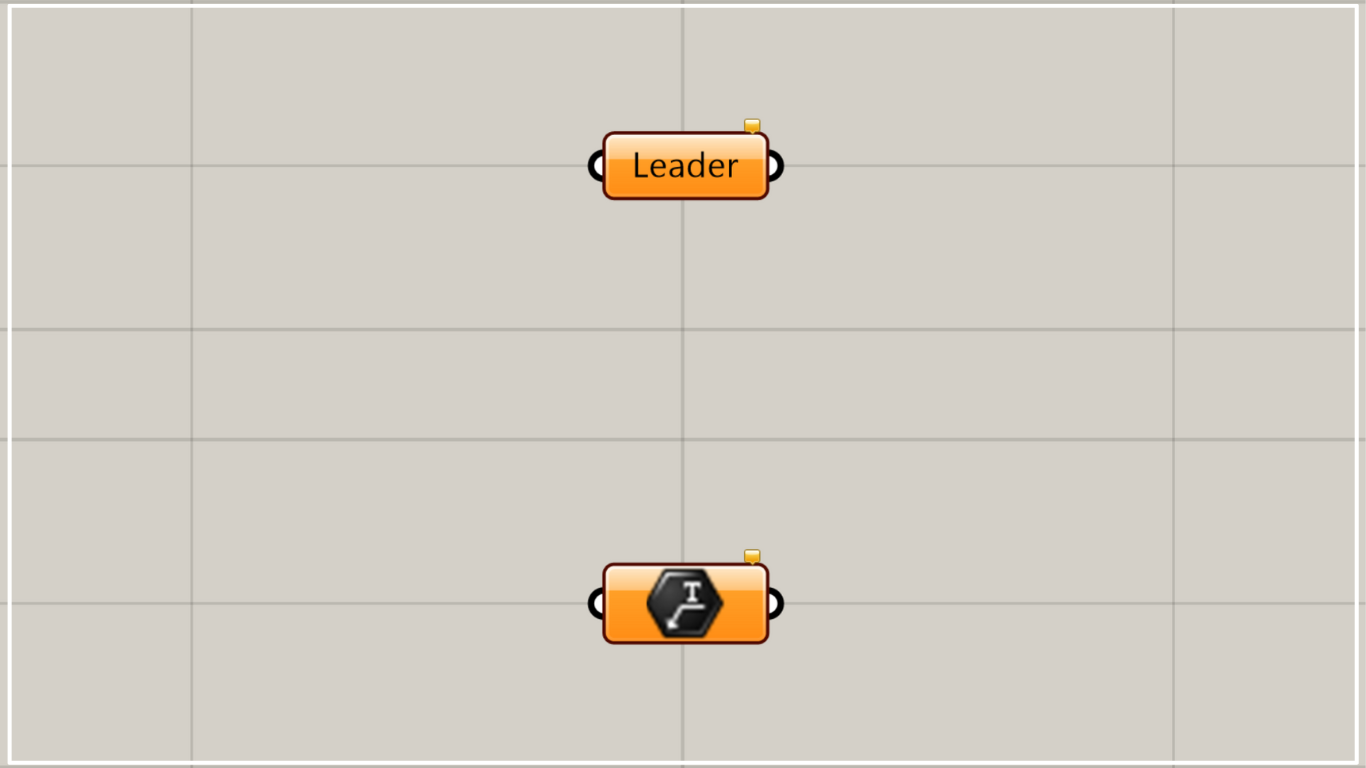
On the Grasshopper, it is represented by either of the two above.
Set leader lines
Using Leader allows you to set leader lines.
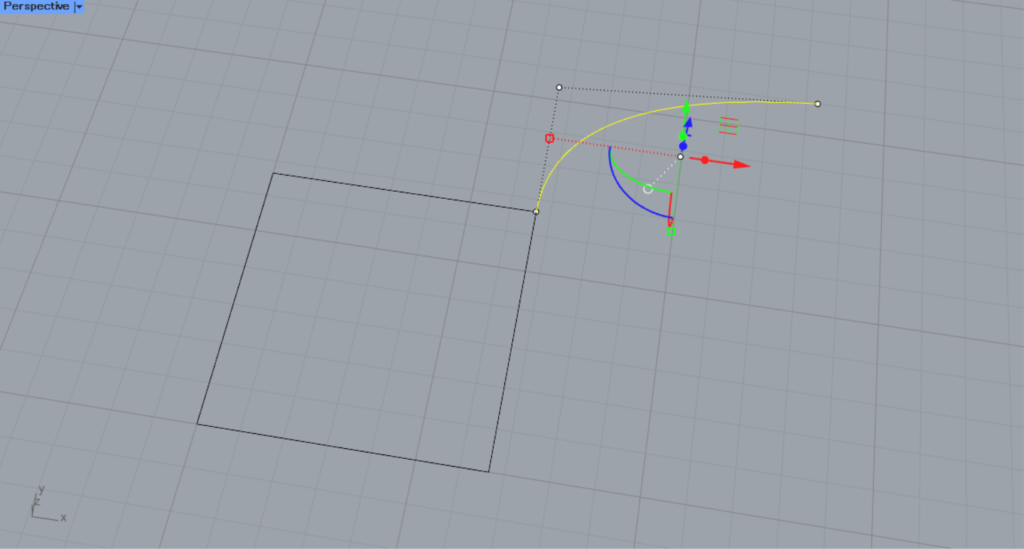
For example, let’s create a leader line from a curve on Rhino and set it.
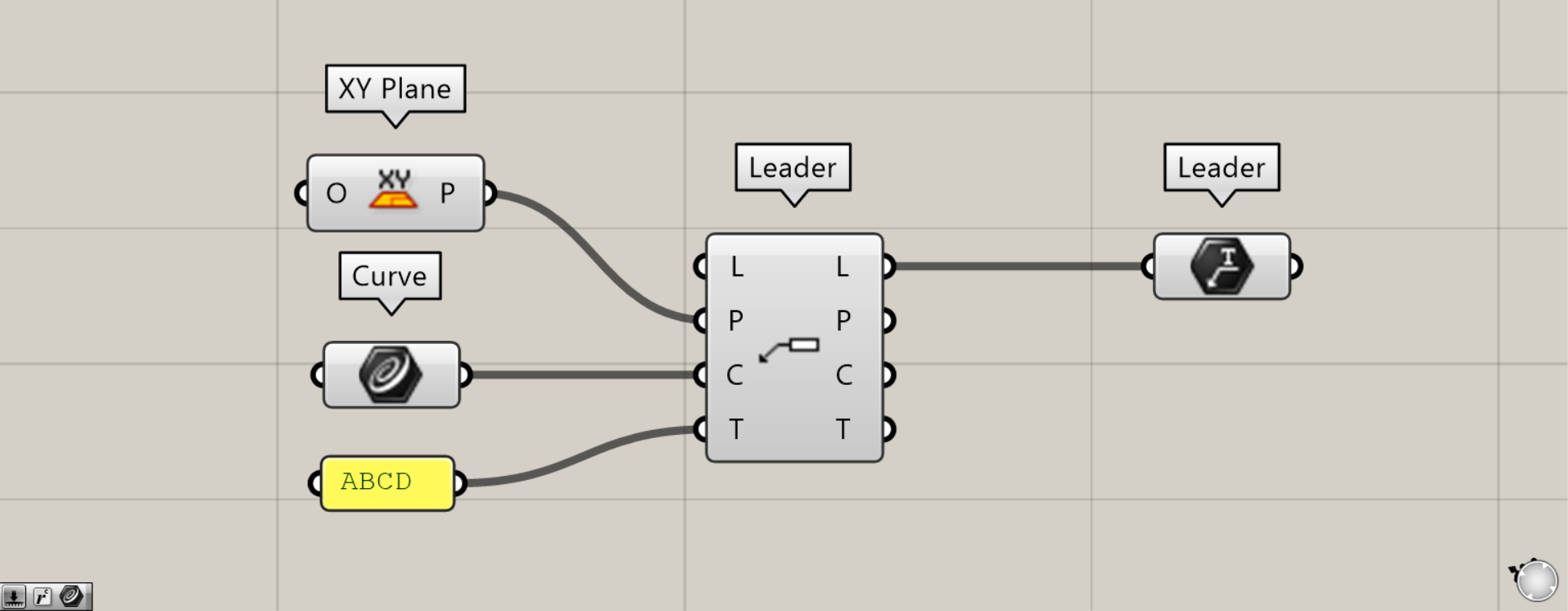
Components used: ① XY Plane ② Curve ③ Leader ④ Leader
Please note that there is another component with the same name.
The other Leader will be the component that creates leader lines.
This time, we’ll use two Leaders as an example for explanation.
First, connect the XY Plane to the other Leader(P).
This will cause the lead lines to be created on the XY plane.
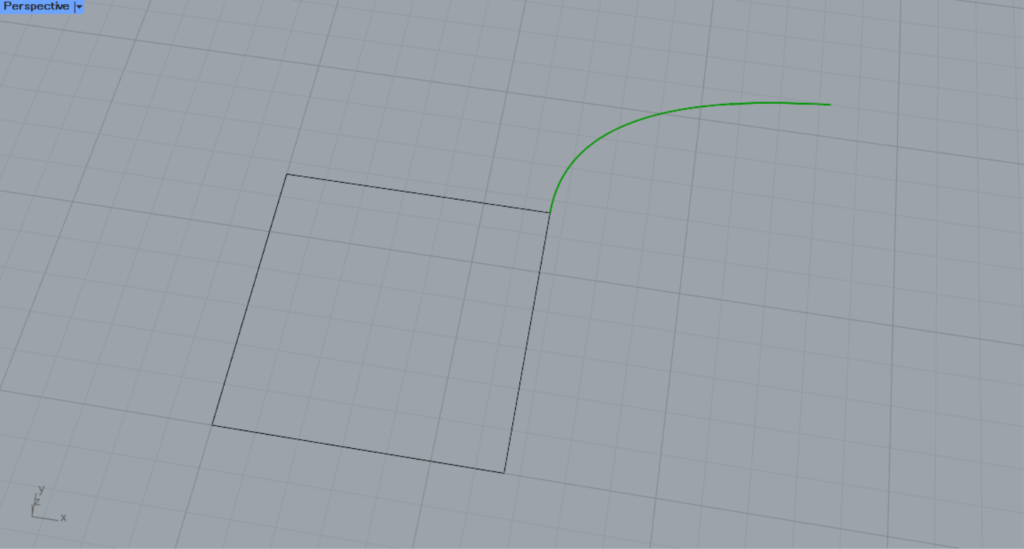
Set the curve on Rhino in the Curve.
Next, connect Curve to the other Leader(C).
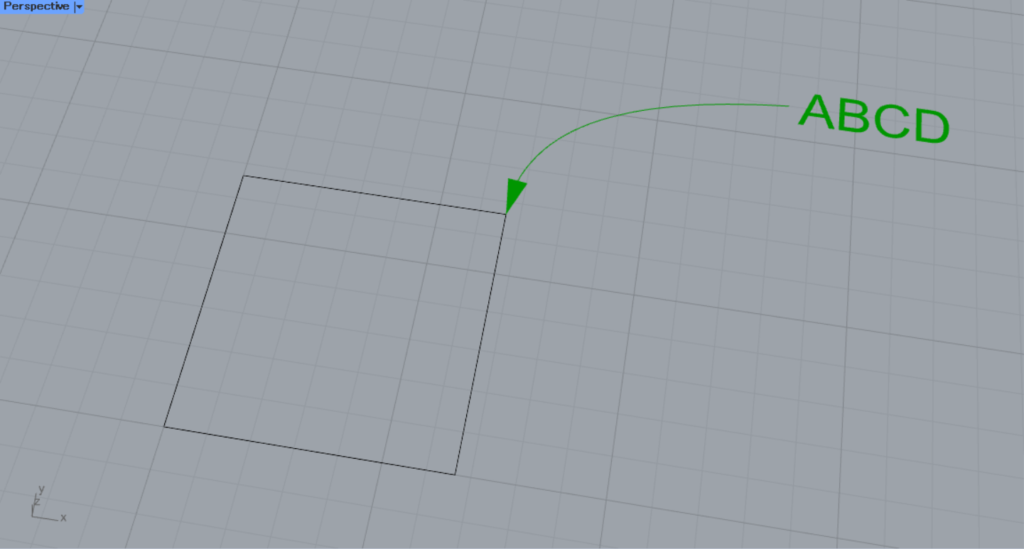
Next, enter any text into the other Leader(T).
This time, we entered ABCD.
Then, as shown in the image above, the leader line was created.
Then, connect the the other Leader(L) to this Leader.
Then, the created leader line was set in this Leader.
Set leader lines on Rhino
You can set leader lines directly on Rhino.
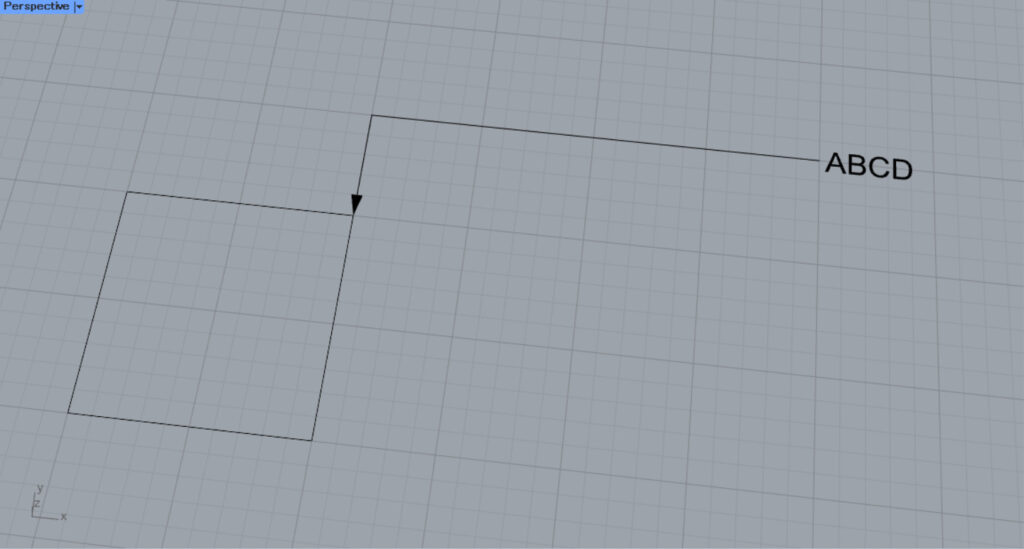
First, let’s try setting one leader line on Rhino.
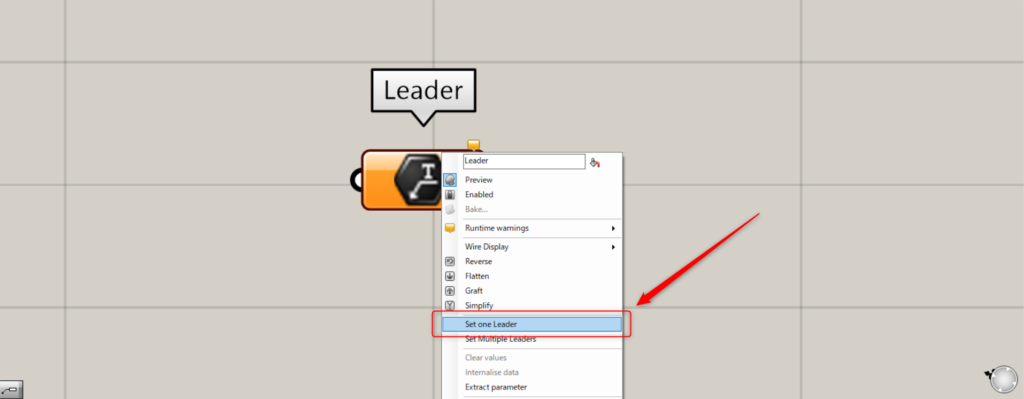
In one case, right-click the Leader and select “Set one Leader”.
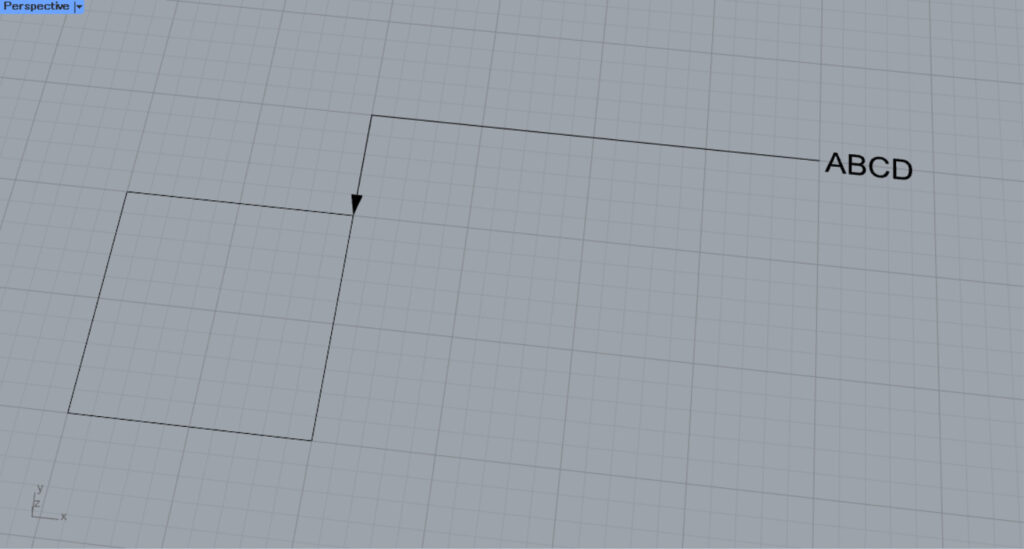
Then, the screen will switch to Rhino.
Select the desired leader line to set.
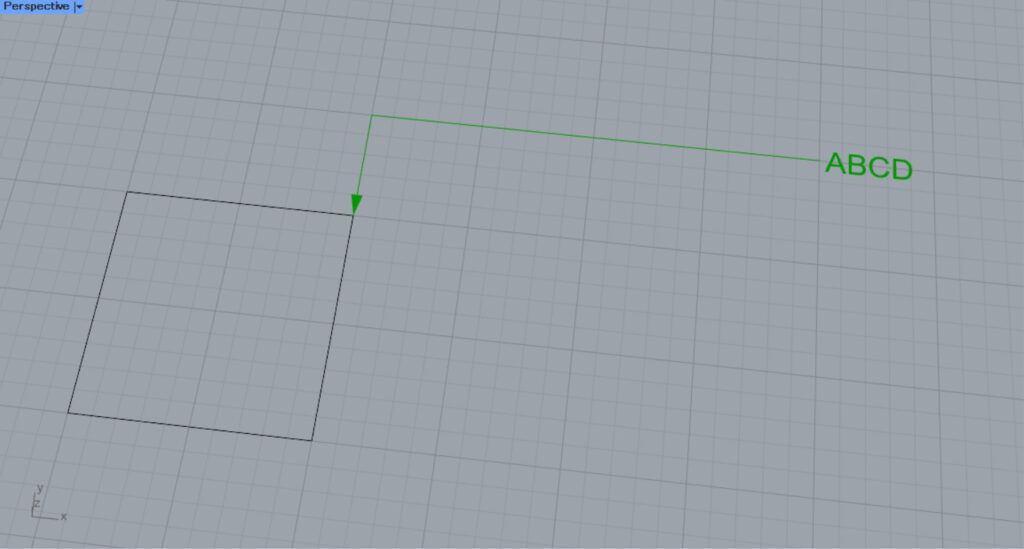
Then, the leader line on Rhino was set.
This is the result on Rhino.
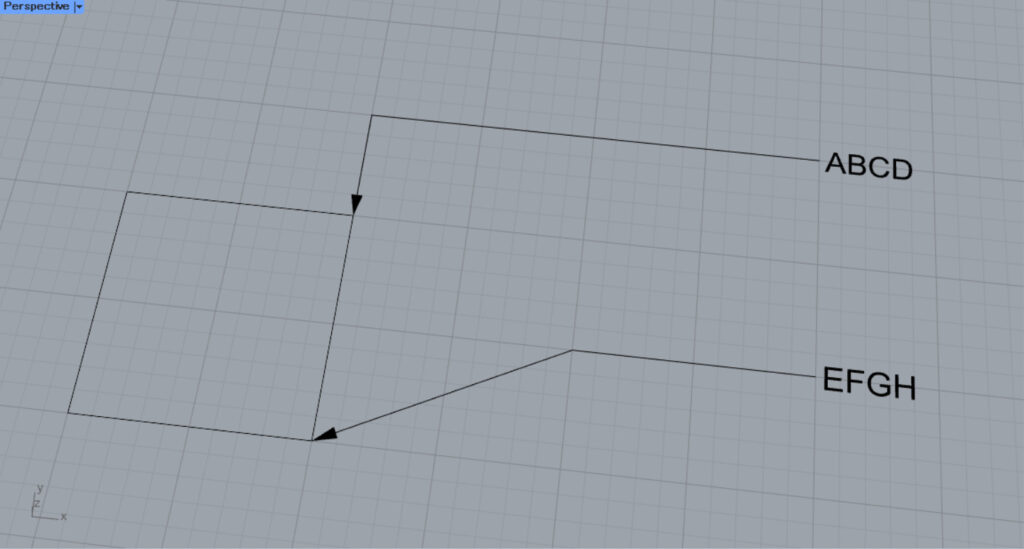
Next, let’s try setting multiple leader lines on Rhino.
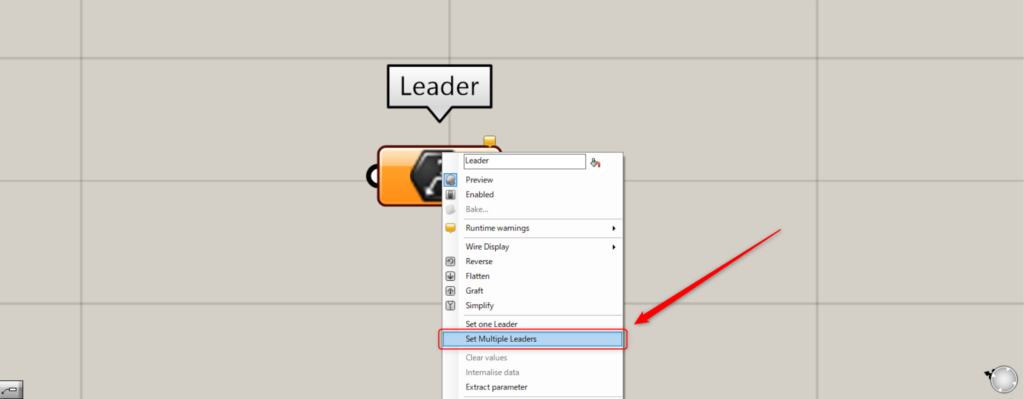
For multiple cases, right-click the Leader and select “Set Multiple Leaders”.
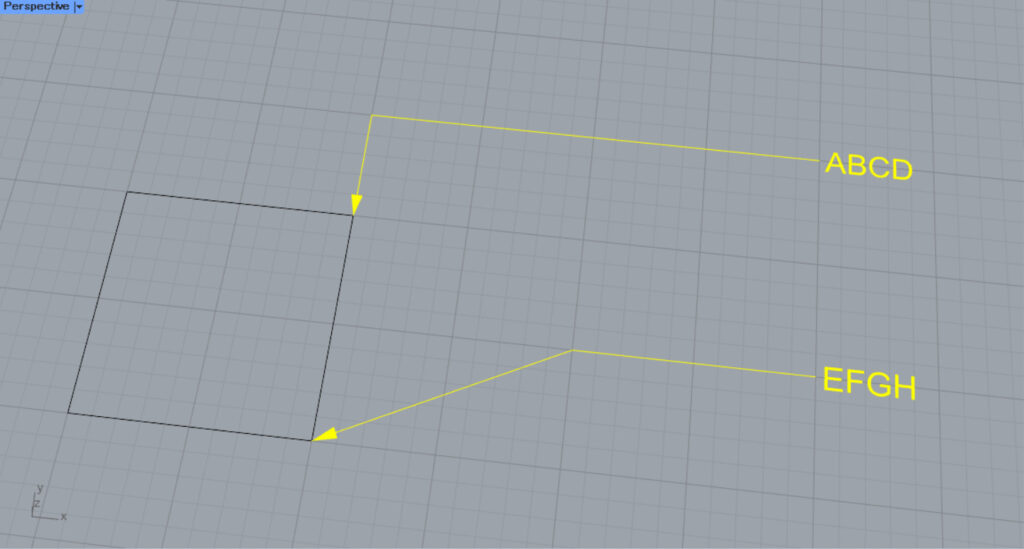
Then, select multiple leader lines on Rhino.
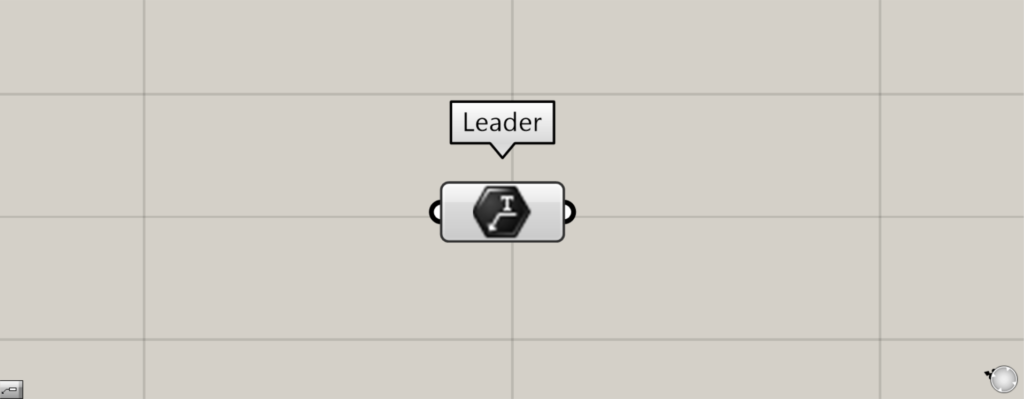
Then, multiple leader lines on Rhino were set.
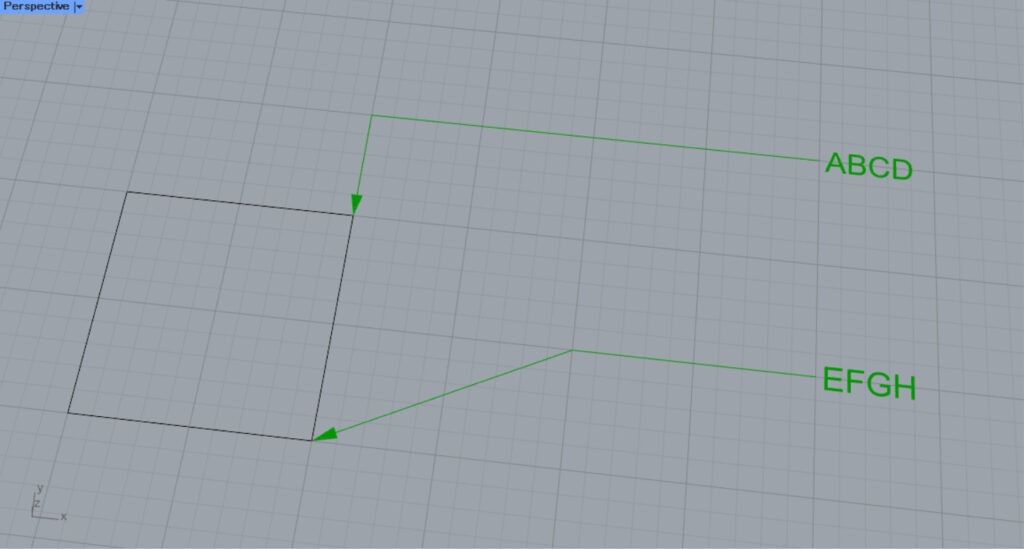
This is the result on Rhino.
List of Grasshopper articles using Leader component↓





Comment