
![[Grasshopper]How to use Model Block Instance to create a block instance](https://iarchway.com/wp-content/uploads/2026/01/Model-Block-Instance.png)
This article explains how to use Model Block Instance to create a block instance.
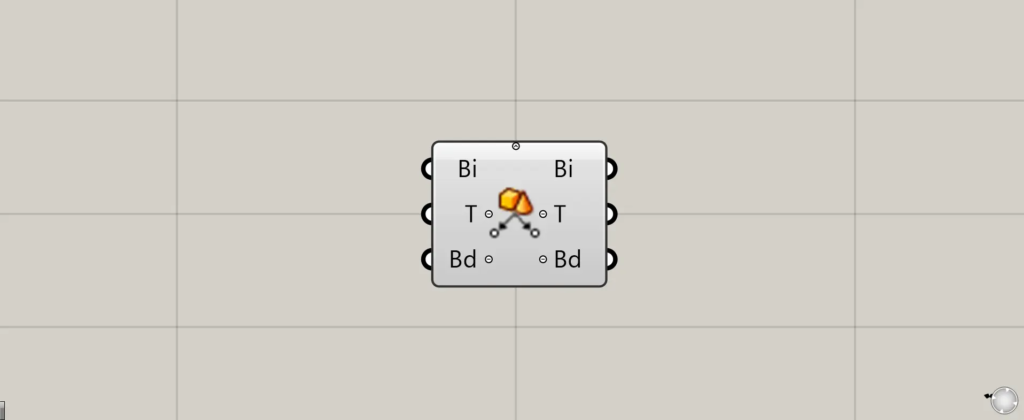
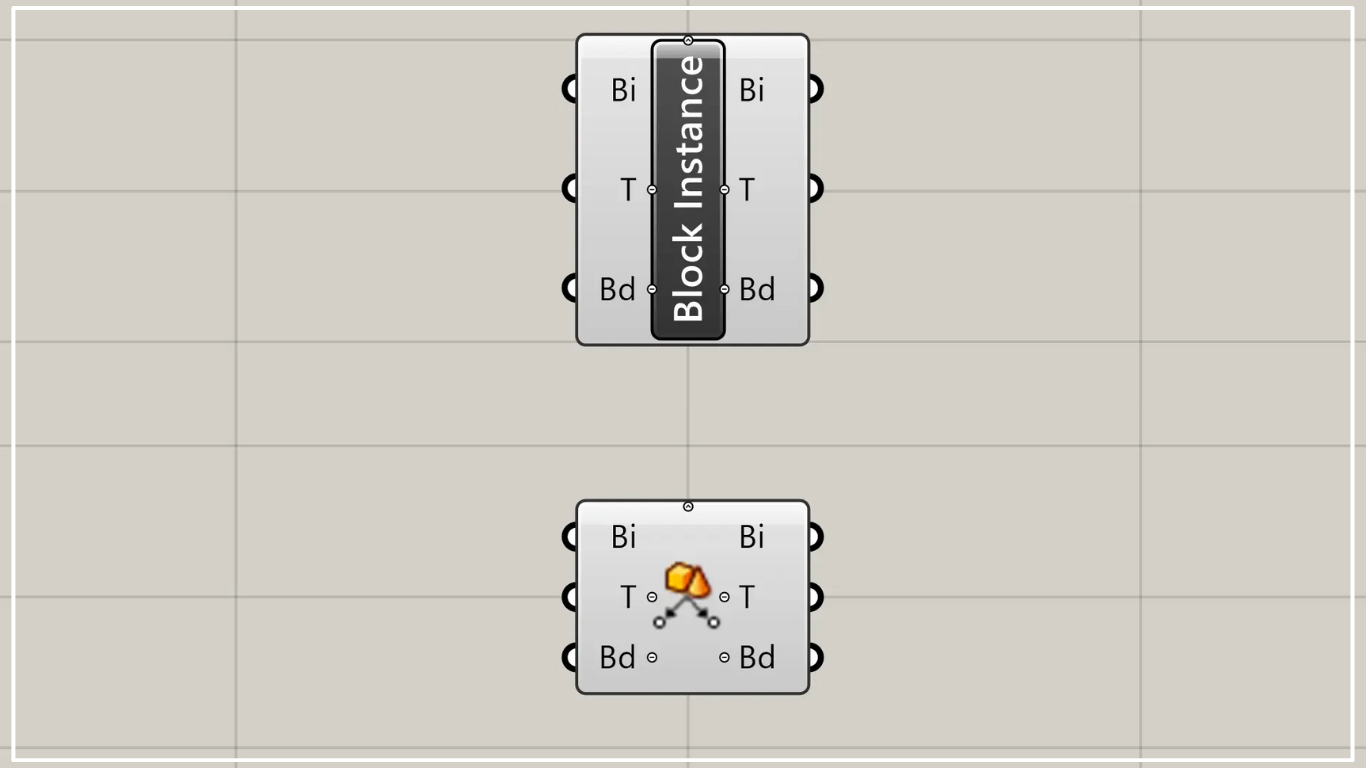
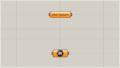
On the Grasshopper, it is represented by either of the two above.
Create a block instance object
Using the Model Block Instance allows you to create block instance objects.
A block instance object is an object whose shape has already been defined.
Therefore, while you can change the position, rotate, or scale it, you cannot alter its shape.
In exchange, it has the characteristics of being very lightweight and displaying faster than regular objects.
Learn more about block instance objects here
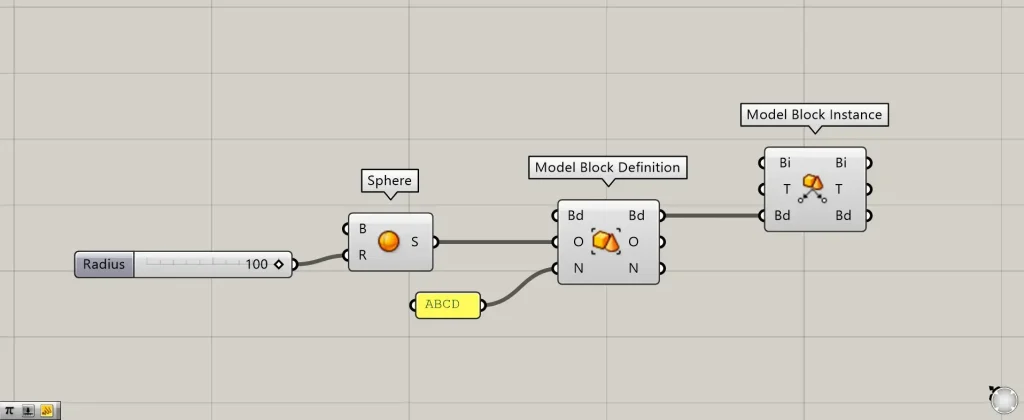
Components used: ① Sphere ② Model Block Definition ③ Model Block Instance
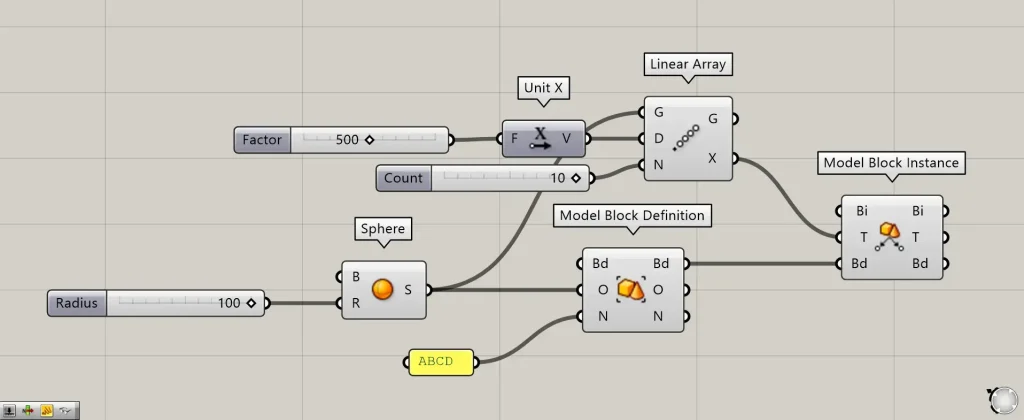
This time, we define the sphere as a block and create a block instance object.
First, enter the radius value into the Sphere(R) to create a sphere.
This time, since 100 was entered, a sphere with a radius of 100 has been created.
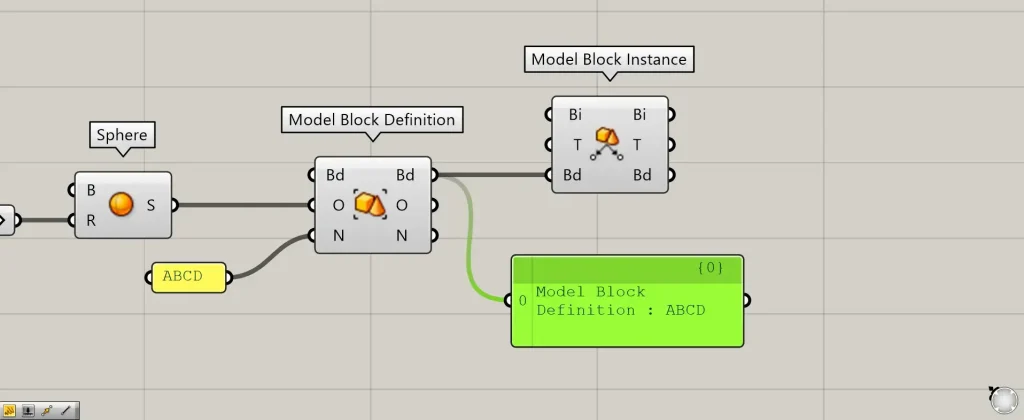
Then, connect Sphere to the Model Block Definition(O).
Then, enter any definition name for the Model Block Definition(N).
This time, we entered ABCD.
Then, the sphere was defined as a block named ABCD.
To use a Model Block Instance, you need block-defined data.
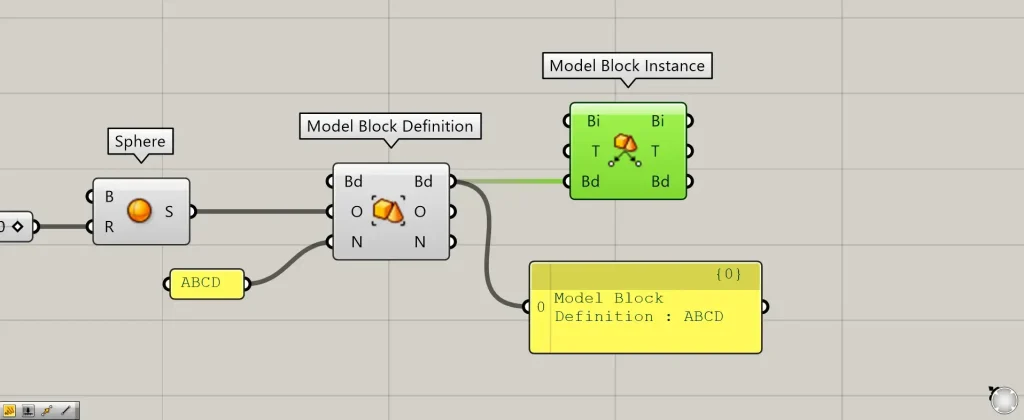
Next, connect the Model Block Definition(Bd) on the right side to the Model Block Instance(Bd).
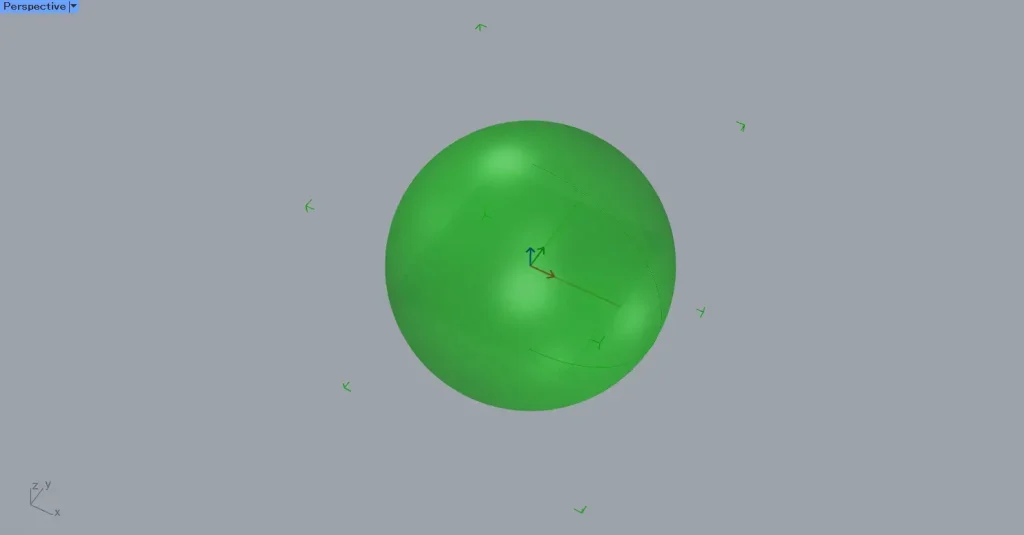
Then, a block instance object is created on Grasshopper.
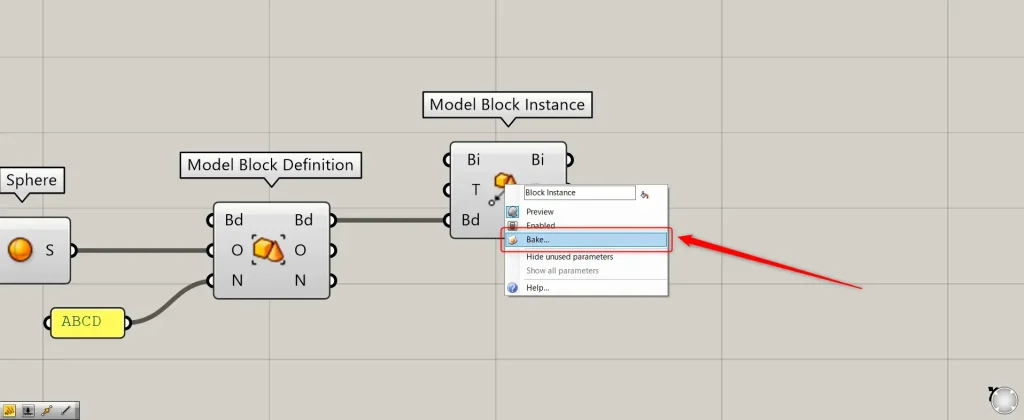
Let’s export the created block instance object onto Rhino.
Right-click the Model Block Instance and select Bake.
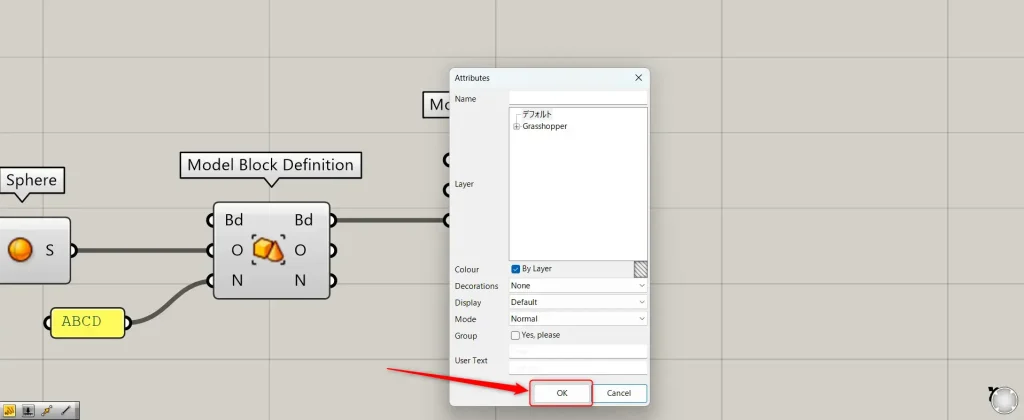
Then, this settings screen will appear, so select OK.
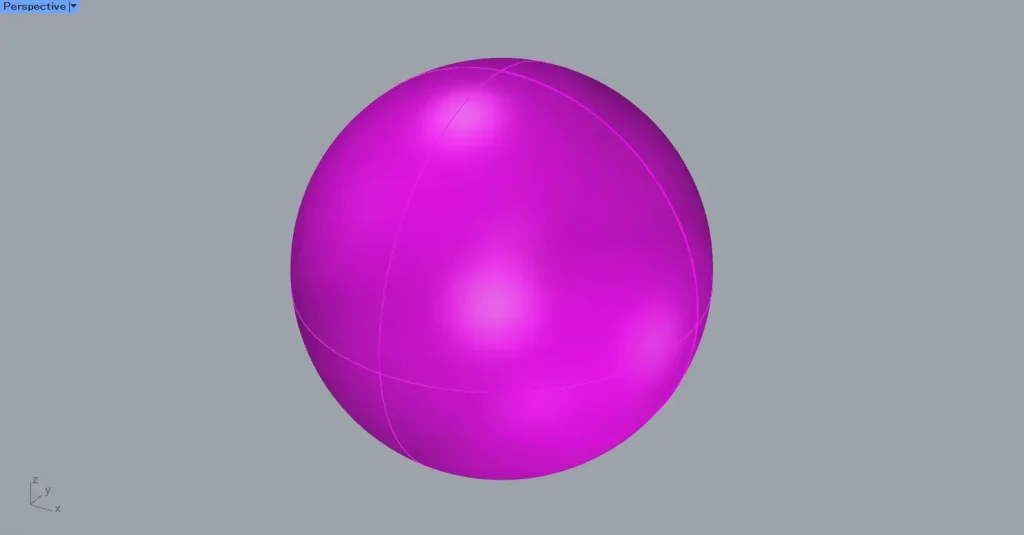
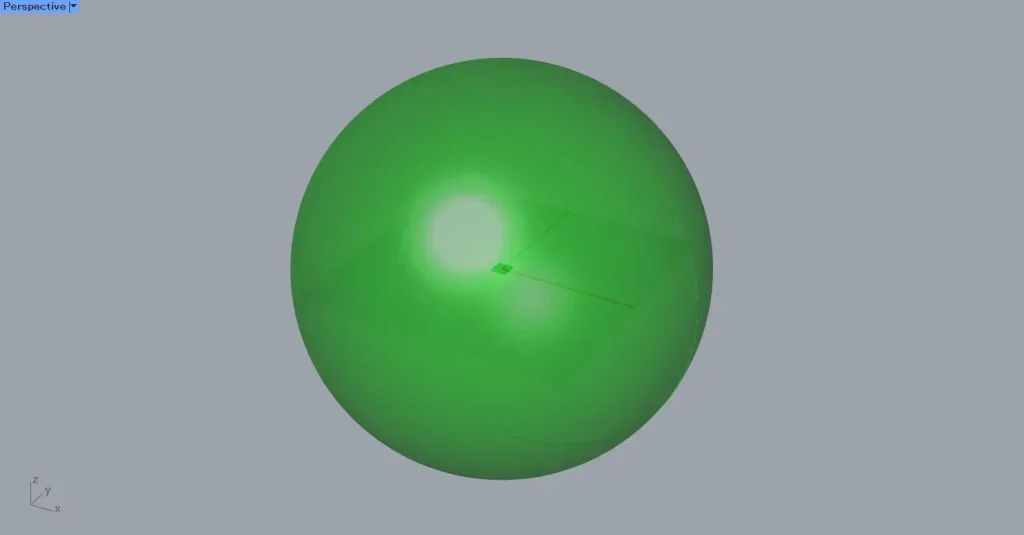
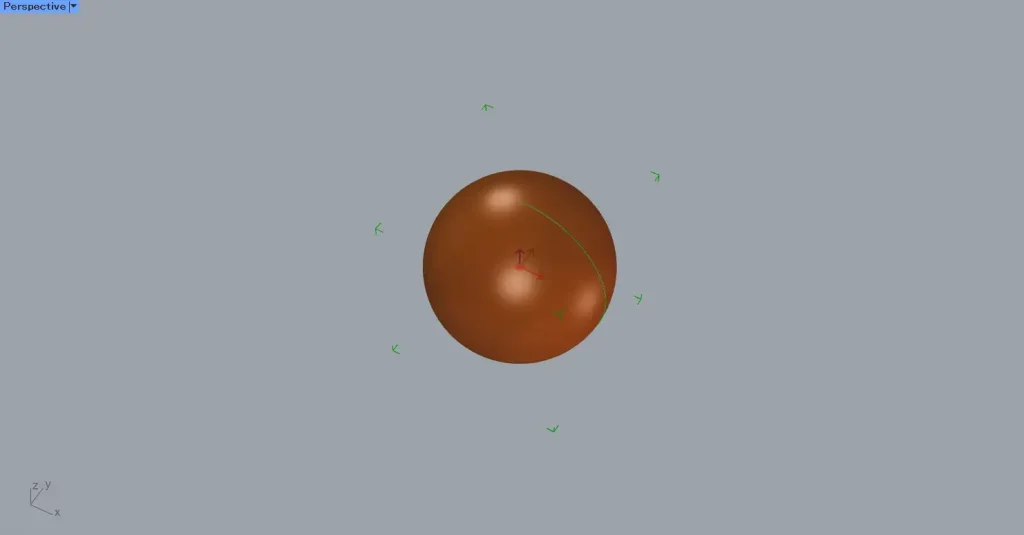
Then, we were able to output it to Rhino like this.
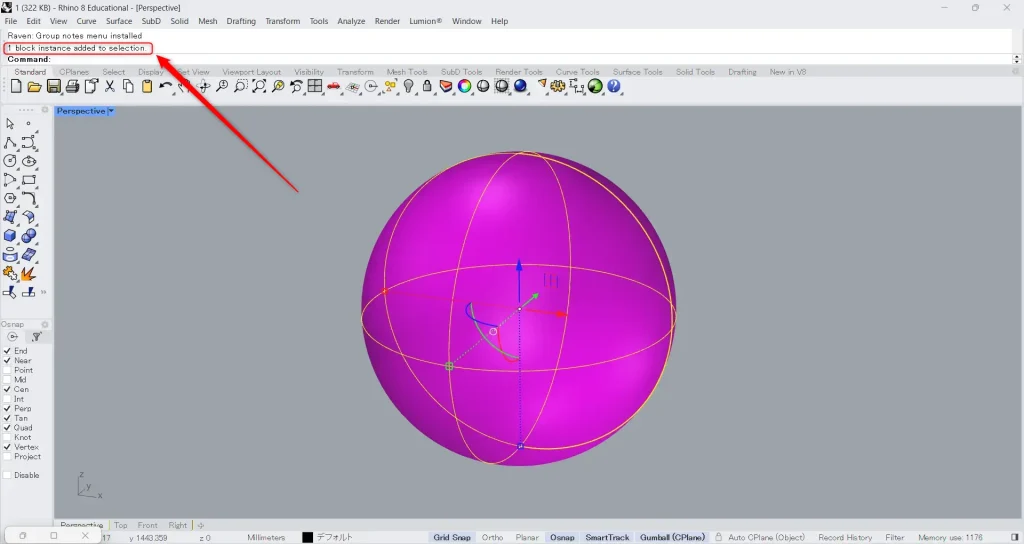
When you select it, the command displays “block instance,” confirming that it is a block instance object.
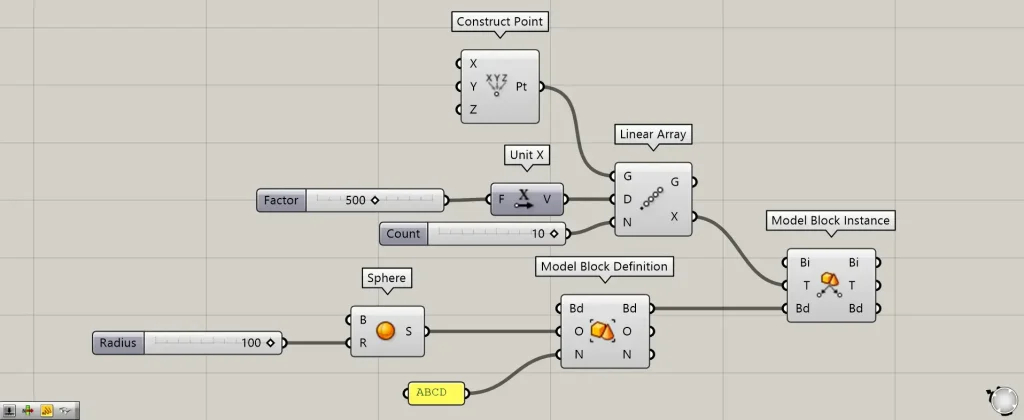
Additional Components: ①Construct Point ②Unit X ③Linear Array
The T terminal can accept input of Transform data, points, and plane data.
By using Transform data, you can also reflect the information used for the movement and transformation applied to it in the Model Block Instance.
For points or planes, you can place the same block instance object at that location.
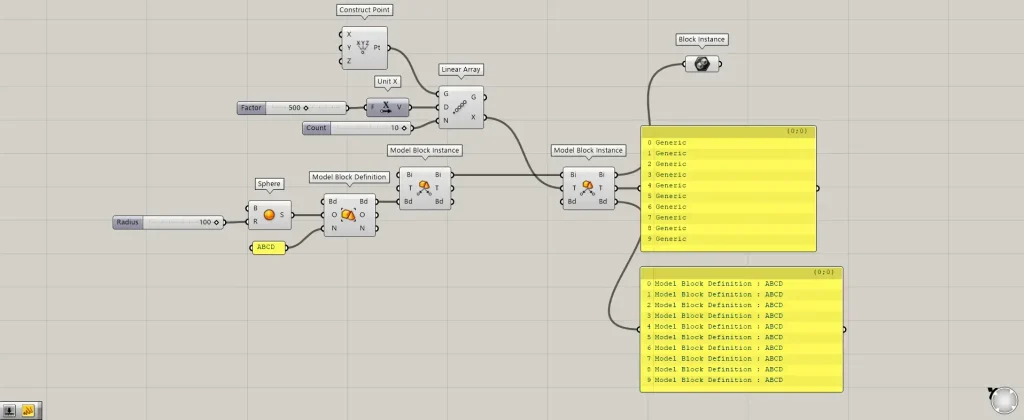
In this example, we copy a single point multiple times along the X-axis and place block instance objects at the copy locations.
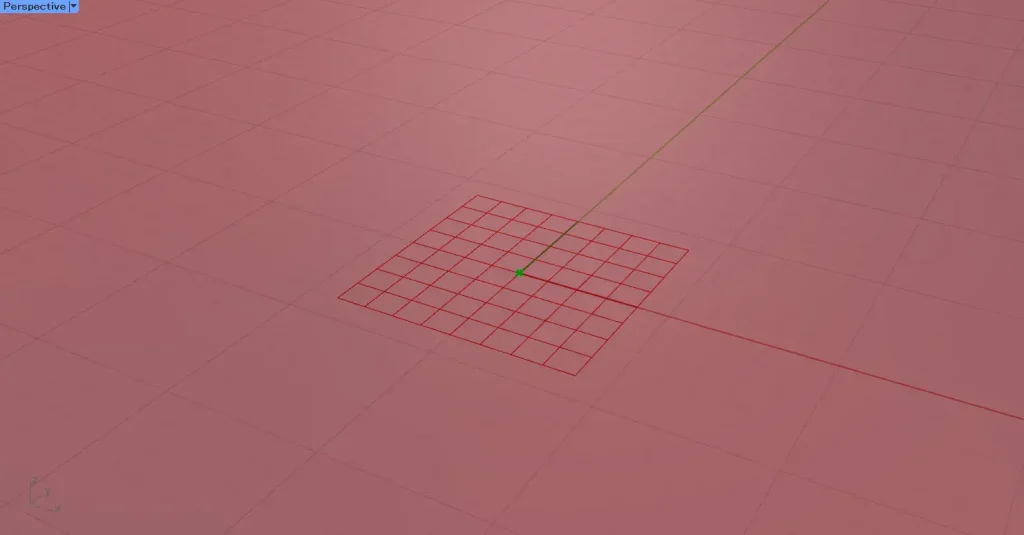
Placing a Construct Point creates a point at the origin.
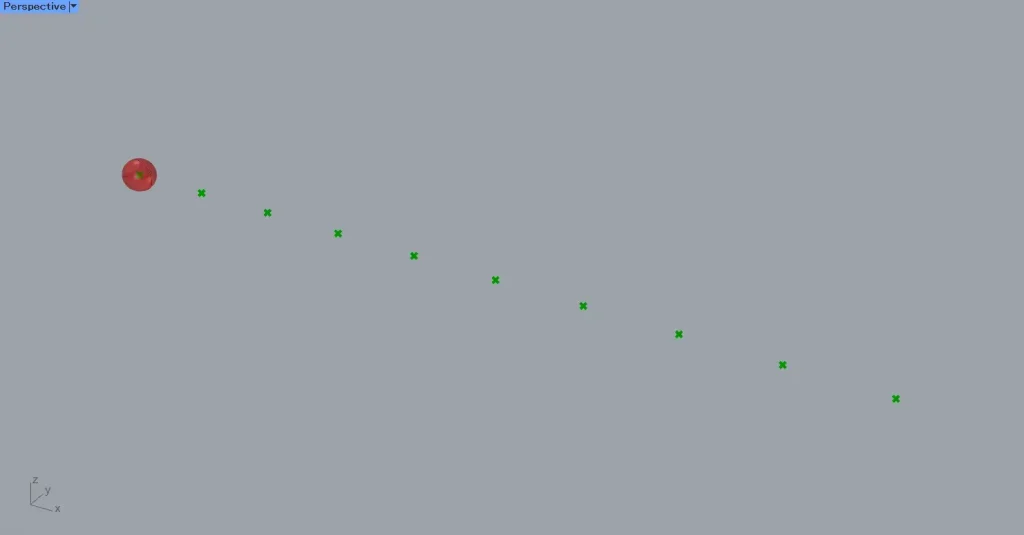
Then, connect the Construct Point to the Linear Array(G).
Additionally, enter the value 500 into Unit X.
Then connect Unit X to the Linear Array(D).
Also, enter the number of units into the Linear Array(N).
This time, we entered 10.
Then, 10 points were created at 500-unit intervals along the X-axis.
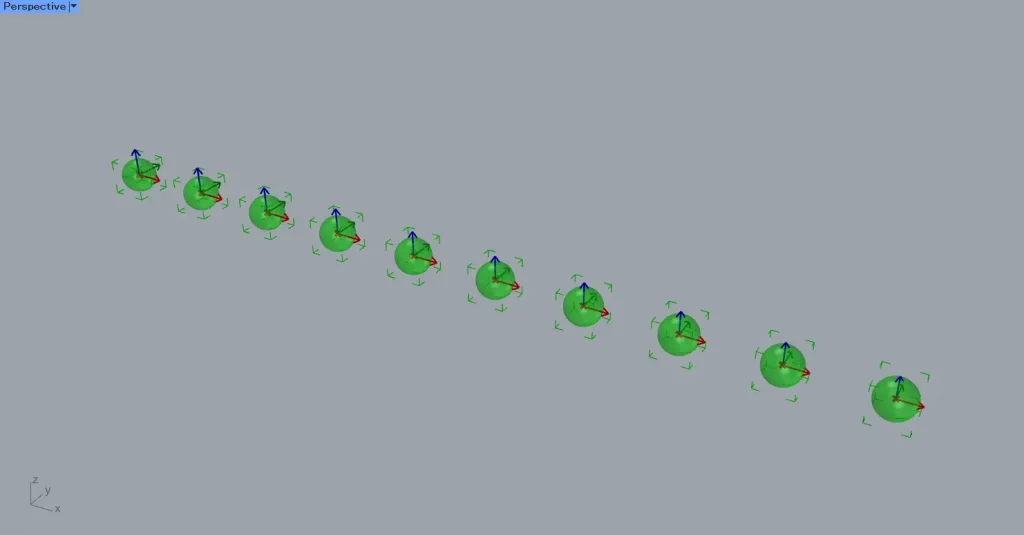
Next, connect the Linear Array(X) to the Model Block Instance(T).
Transform data is output from the Linear Array(X).
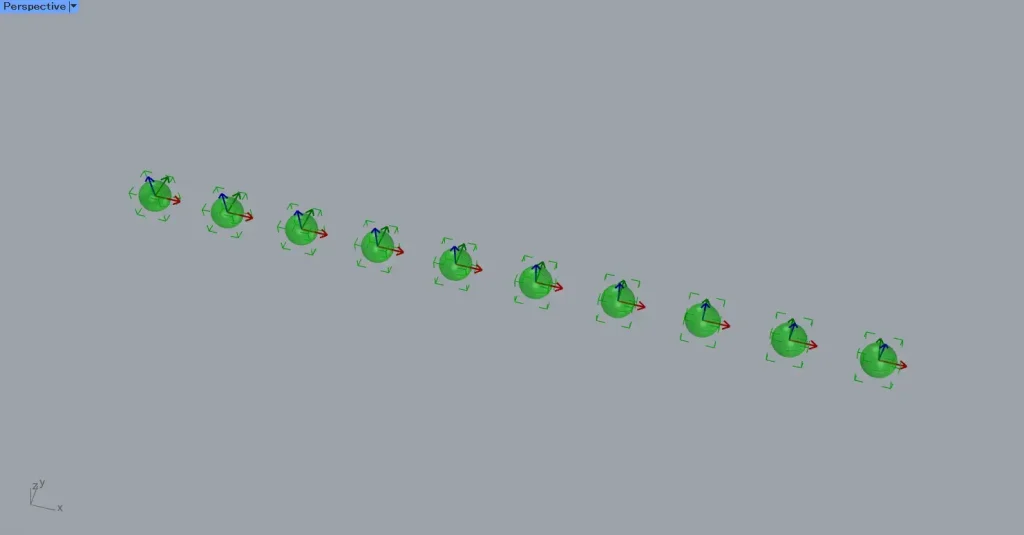
Then, as shown in the image above, the block instance object was placed at the location where the points were positioned.
We’ll try changing the model to be deployed.
The Transform data can be any kind of information, such as movement, so we’ll change the point back to its original sphere.
Therefore, we will connect the original sphere to the Linear Array(G).
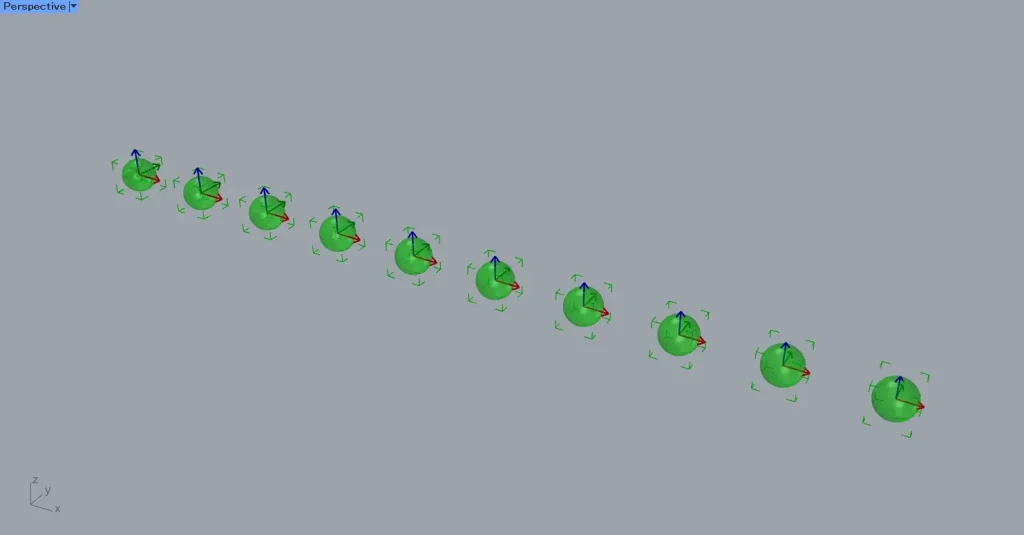
Then, since the point and the movement were the same, the block instance object was placed in the same manner.
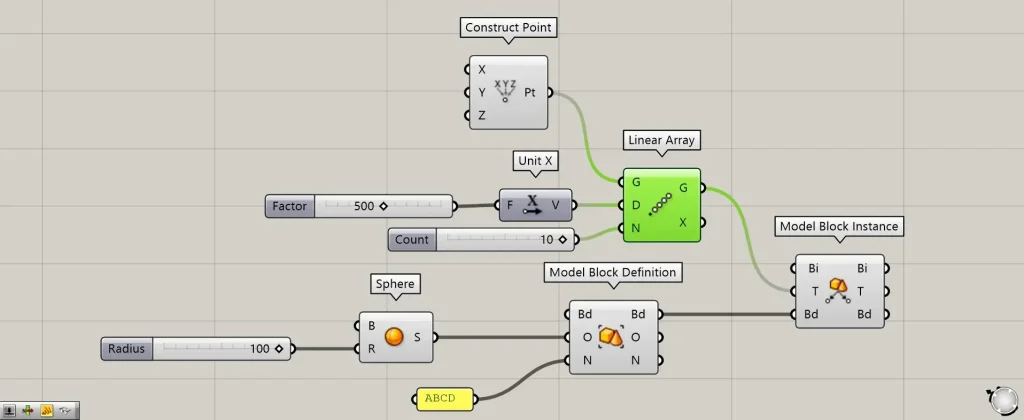
Point data and planes can also be input into the Model Block Instance(T).
This time, we connected the Linear Array(G) to the Model Block Instance(T) when creating a point at the Construct Point mentioned earlier.
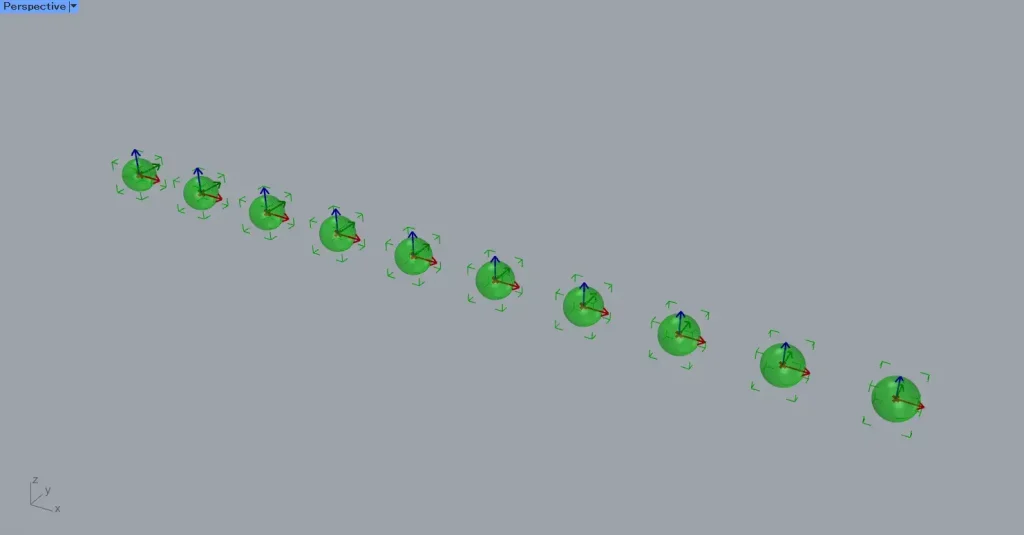
Similarly, for point data, block instance objects were placed at the point locations.
Retrieve and edit elements of a block instance object
You can also retrieve and edit the elements of a block instance object.
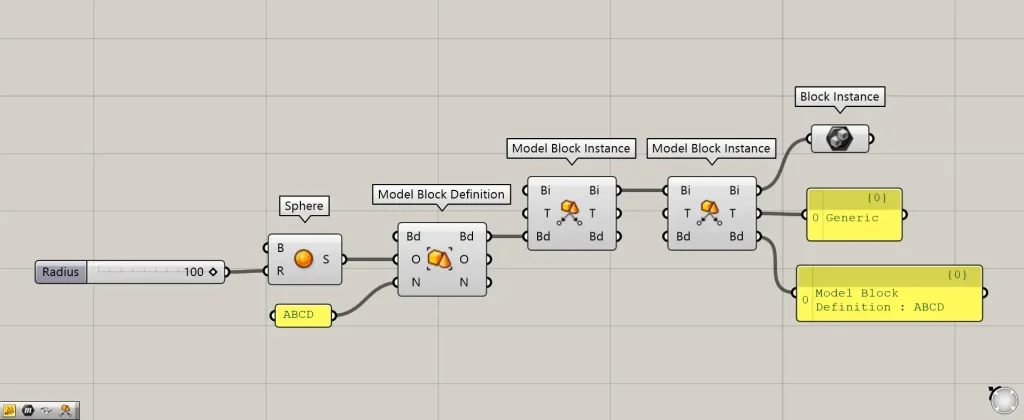
Additional Components: ① Block Instance
Connect the existing block instance object to the Bi terminal of the Model Block Instance.
Then, each element constituting the existing block instance object is output from the right-hand terminal.
You can also edit existing block instance objects.
With the existing block instance object connected to the Bi terminal, the T terminal inputs additional information to the Bd terminal.
This time, we input the Transform data from the X terminal used earlier into the T terminal.
Then, only the information for the T-terminal will be overwritten.
This is how it looked before editing.
After editing, you can see that the content has changed like this.
List of Grasshopper articles using Model Block Instance component↓





Comment