
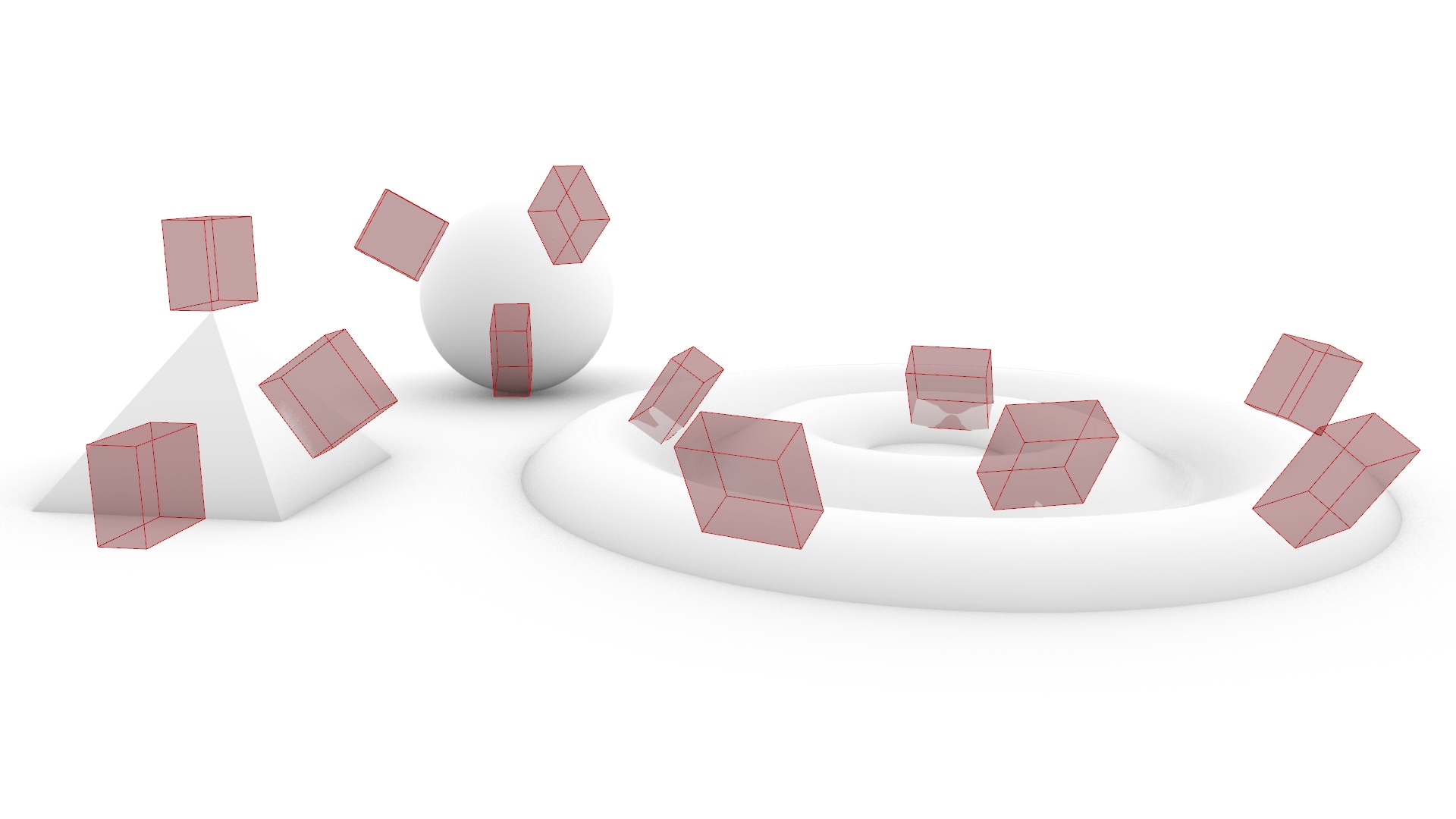
When using Rhino or Grasshopper, you may sometimes want to place objects on on a model.
This time, we’ll explain how to easily and intuitively place objects onto your model in Grasshopper.
In conclusion, the Orient component becomes crucial.
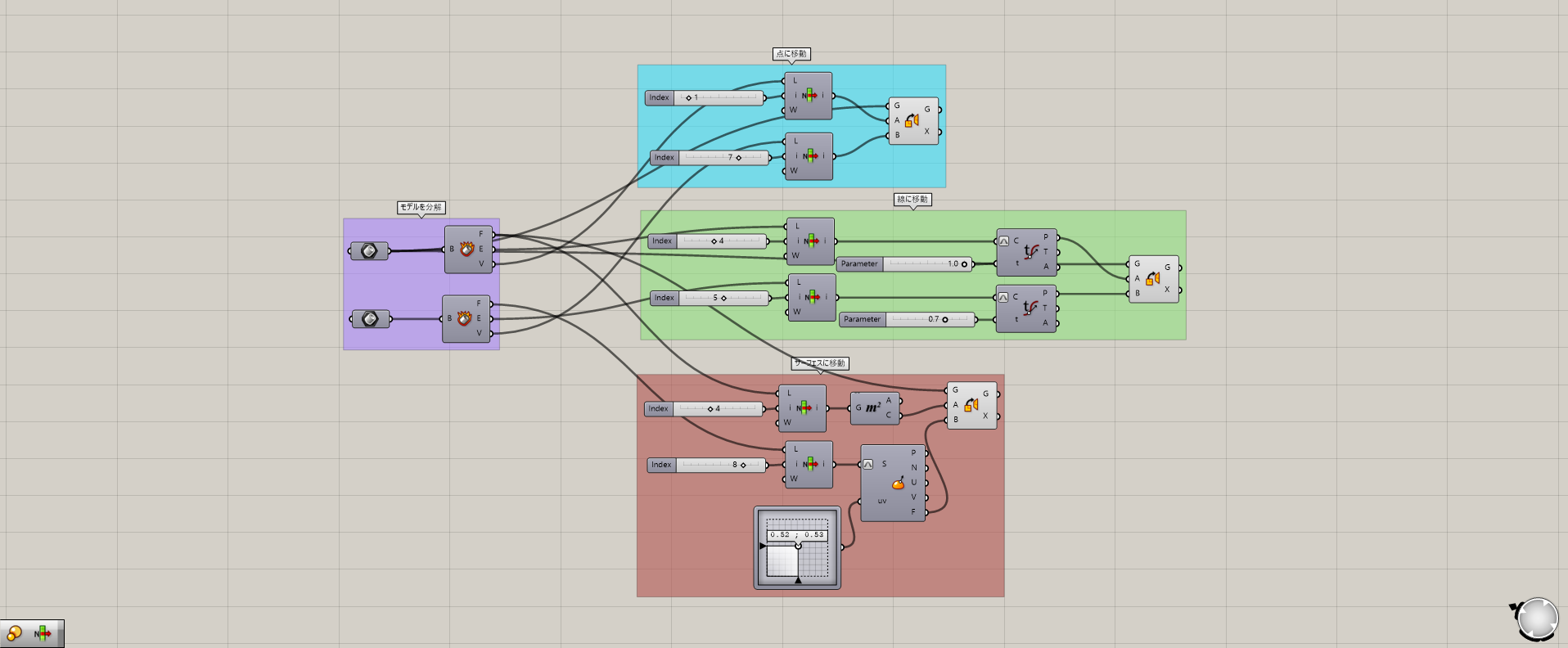
The overall components will look like this.
The Grasshopper and Rhino data for this session can be downloaded from the link below, so please feel free to use it.
Data download for this Grasshopper and Rhino is available here.
For information regarding the use of downloadable data, please refer to the Terms of Use.
Video
Common elements among the three methods
First, we will explain the common elements among the three methods.
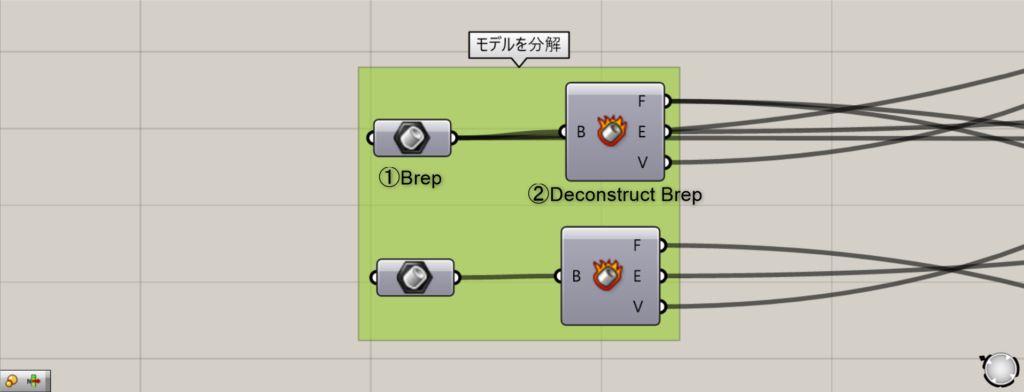
Components used: ① Brep ② Deconstruct Brep
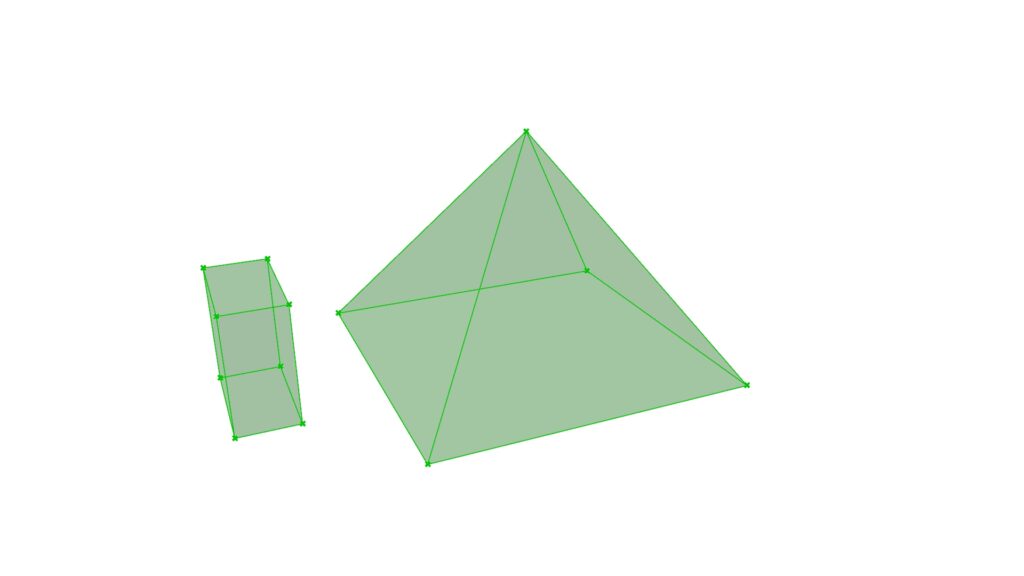
First, store the model you want to place in the Brep component and the model that will be placed.
Then, using Deconstruct Brep, we deconstruct each of the two objects.
This component breaks down into three parts: surfaces, curves, and points.
Surface is output from the F terminal, curve from the E terminal, and point from the V terminal.
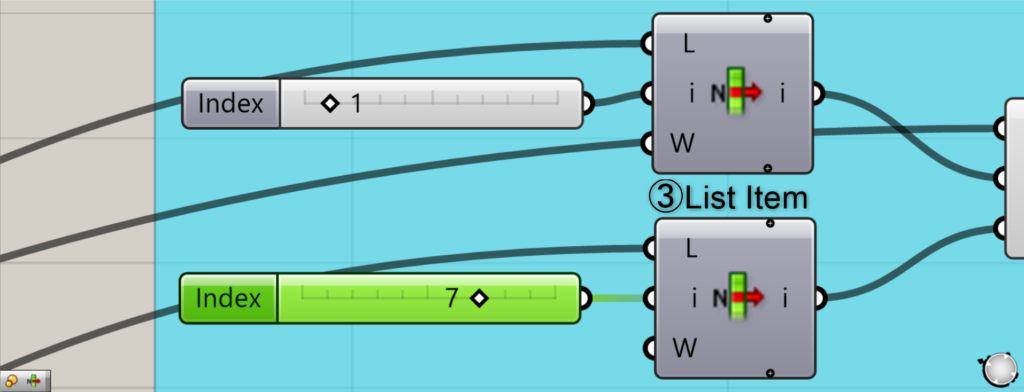
Components Used: ③ List Item
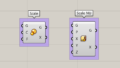
Next, connect a List Item to each of the F, E, and V terminals of the Deconstruct Brep.
By entering any numerical value into the i terminal, List Item can retrieve the data corresponding to the specified index number.
In this case, you can select points, curves, and surfaces one by one in sequence by changing the number.
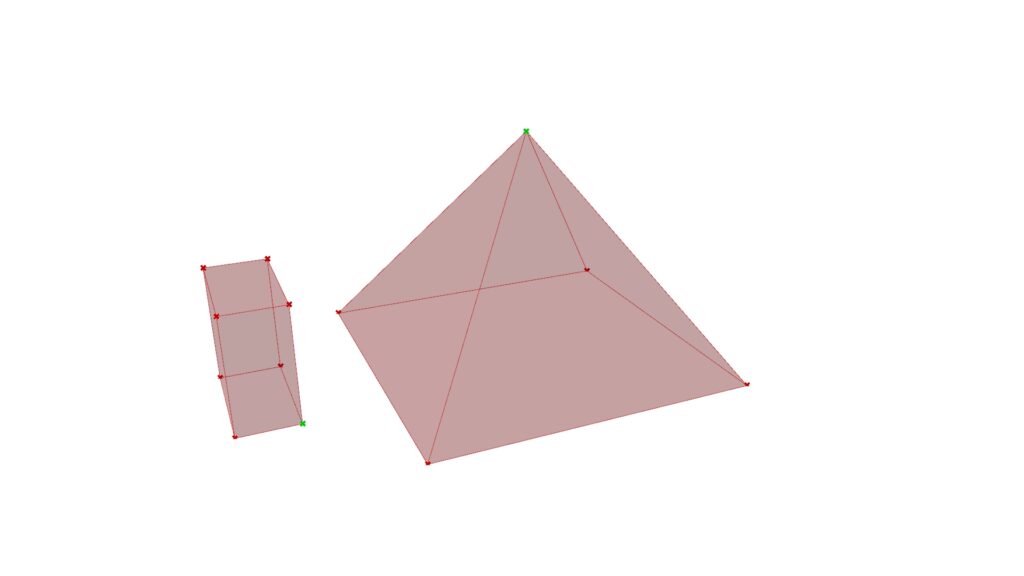
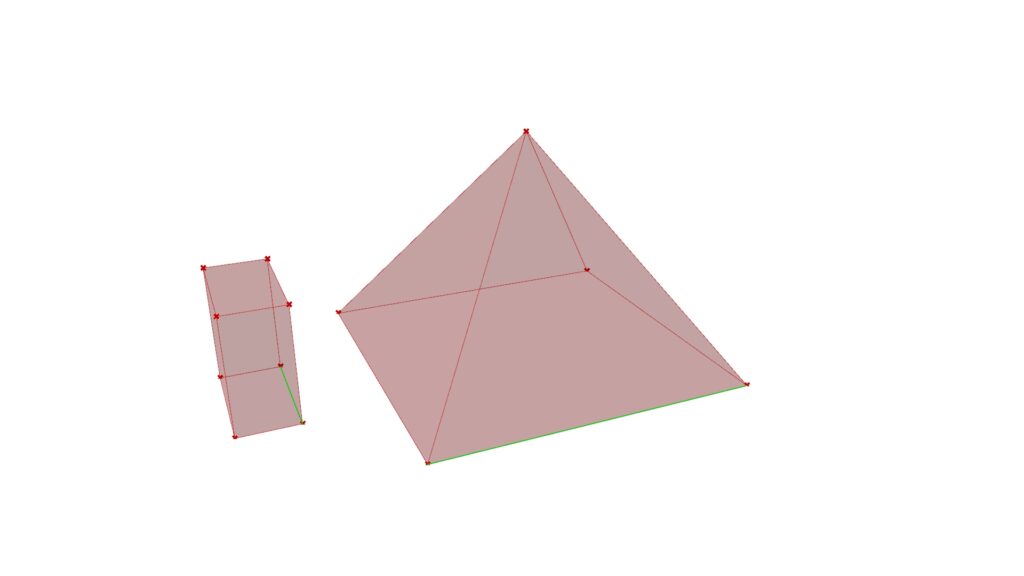
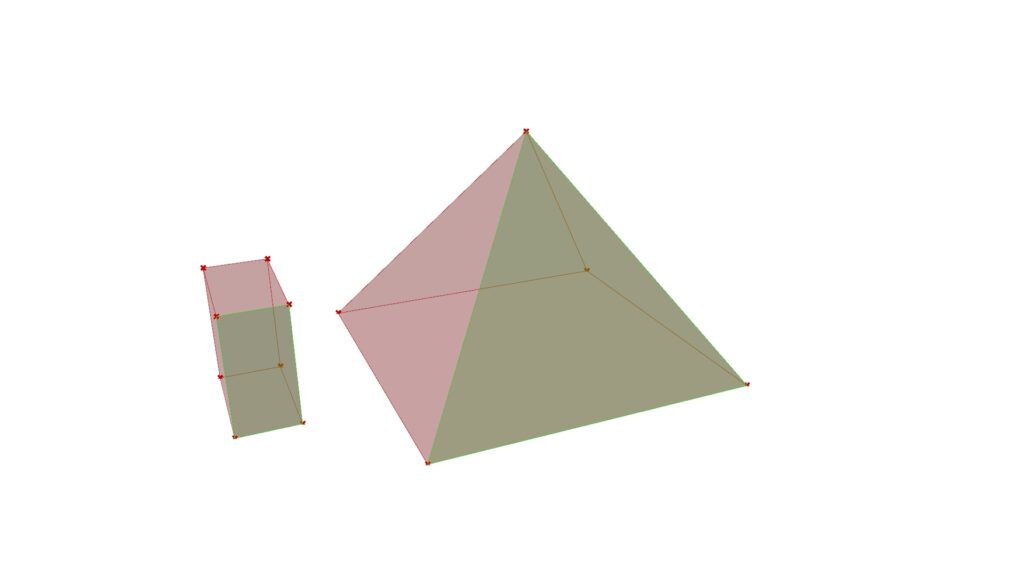
By changing the numbers as shown in the three images above, we are able to extract only one piece of data.
This covers the content applicable to both methods up to this point.
From here, we will explain each of the three methods one by one.
Place on the point
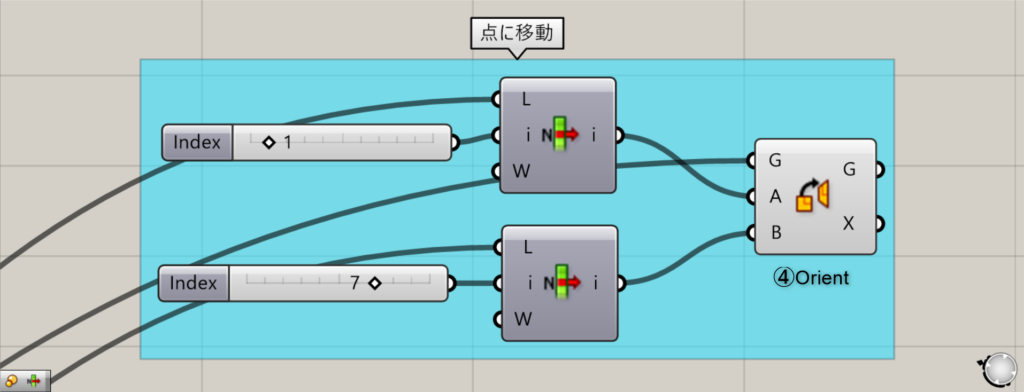
Components Used: ④ Orient
This is a method for placing on points.
Prepare the points extracted from the previous list item.
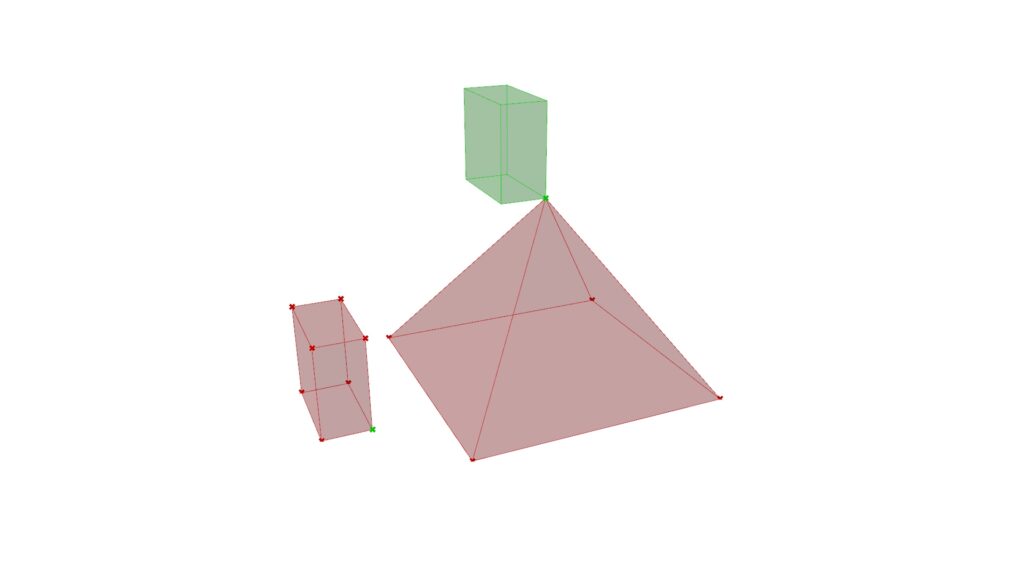
Then connect the point of the model you want to move to Orient(G), the point of the model you want to move to the Orient(A), and the destination point on the Orient(B).
This causes the model to move to the point.
By connecting the curve described later to the Orient(A) and combining it, you can also combine curves at the vertex.
Arrange in a curve
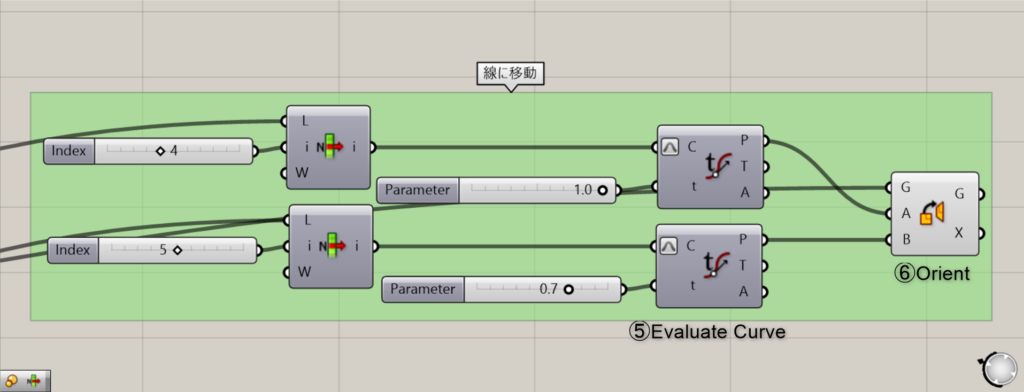
Components Used: ⑤ Evaluate Curve ⑥ Orient
Next is how to arrange them in a curve.
Prepare the curve extracted from the previous List Item.
Then connect it to the Evaluate Curve.
Then connect decimal point 1.0 to the Evaluate Curve(t).
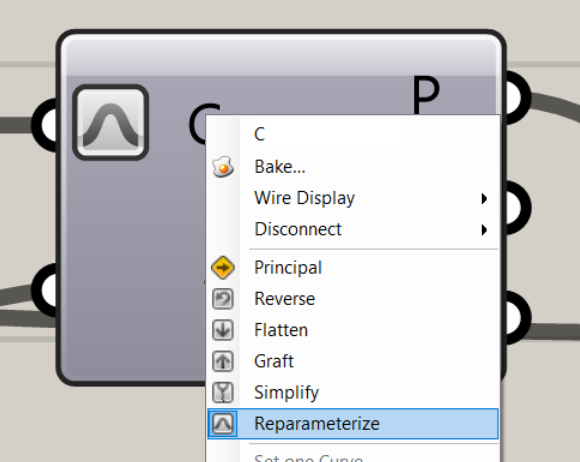
Then right-click the Evaluate Curve(C) and select Reparameterize.
By doing this, you can specify the line’s position using the 0 to 1.0 values you entered earlier.
For example, if the curve length is 10mm, entering 0.1 will allow you to select a position 1mm away.
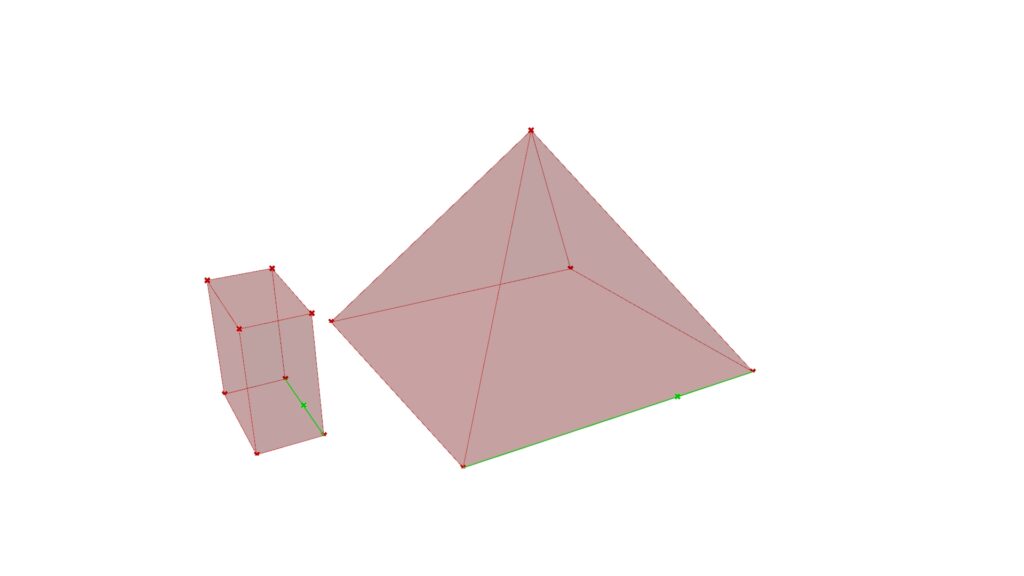
This allows you to move the point corresponding to the value along the curve.
In the image above, the model on the left is inputting 0.5, while the model on the right is likely inputting 0.7.
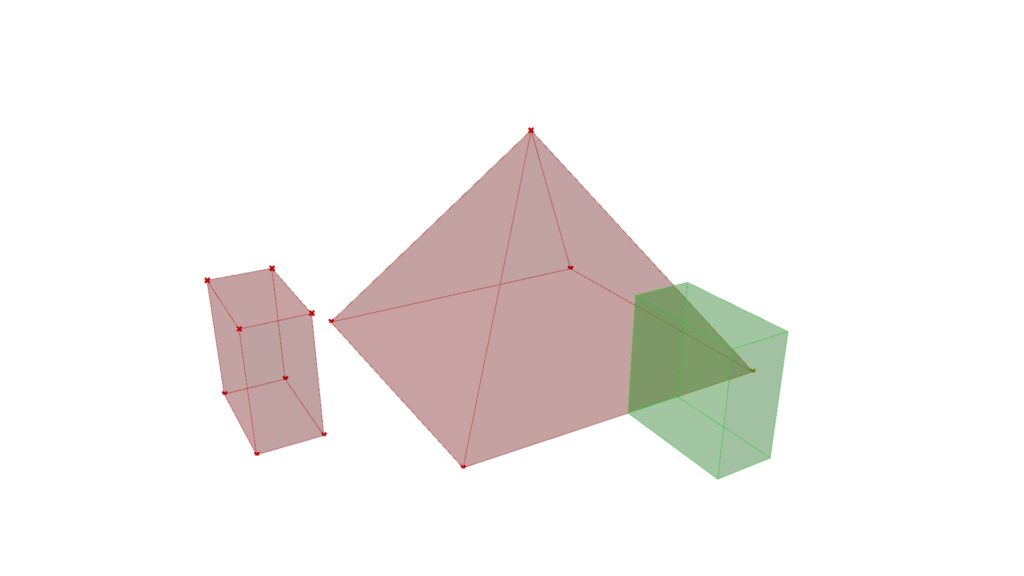
And using Orient, you can place models along a curve.
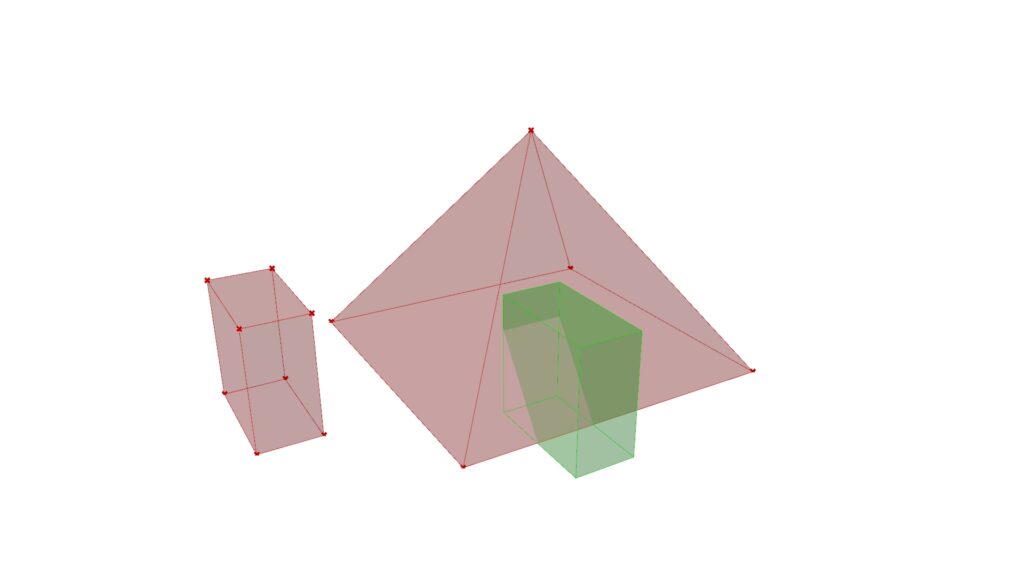
By changing the values, you can make it enter the triangular pyramid or change its position like this.
Place on the surface
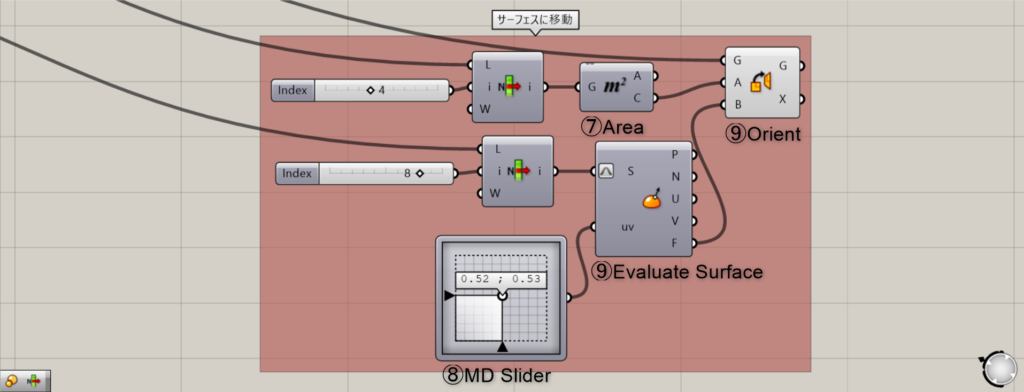
Components Used: ⑦ Area ⑧ MD Slider ⑨ Evaluate Surface ⑩ Orient
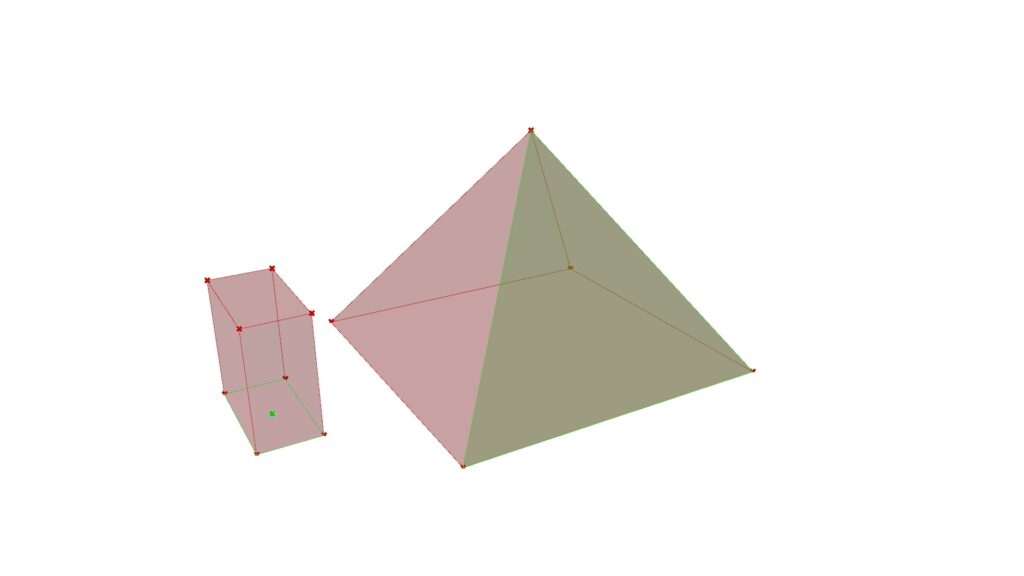
Finally, we’ll explain how to place it on the surface.
Prepare the surfaces extracted in the previous list item.
Use an Area on the model you want to move.
This allows you to obtain the center point of the surface from Area(C).
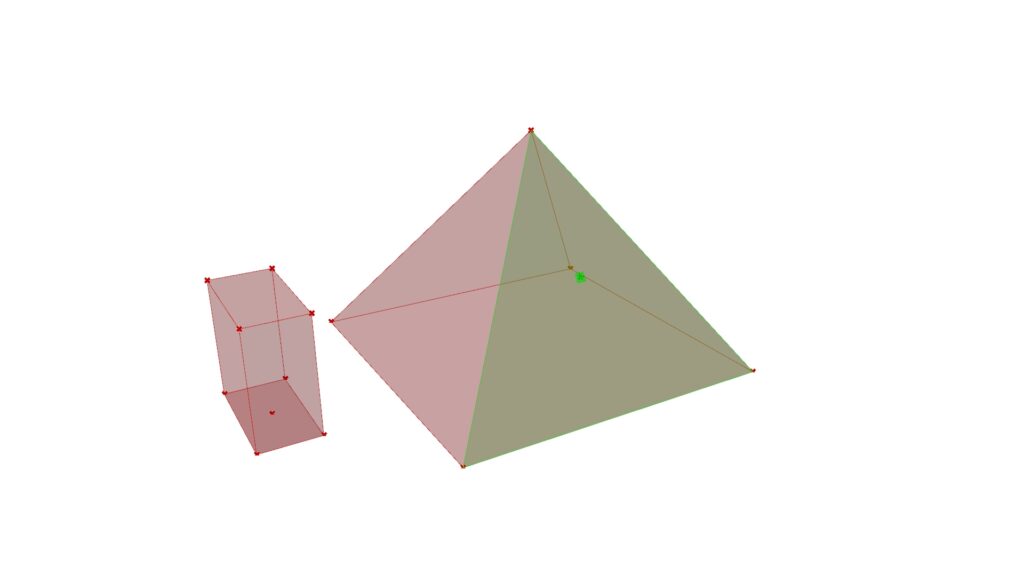
Use Evaluate Surface on the next surface to be placed.
This component helps create a suitable plane on surfaces and modify the selected position.
Similarly to the method for placing objects along a curve, right-click the S terminal and select Reparameterize.
Using the MD Slider allows you to create a graph with maximum values of 1.0 in two directions.
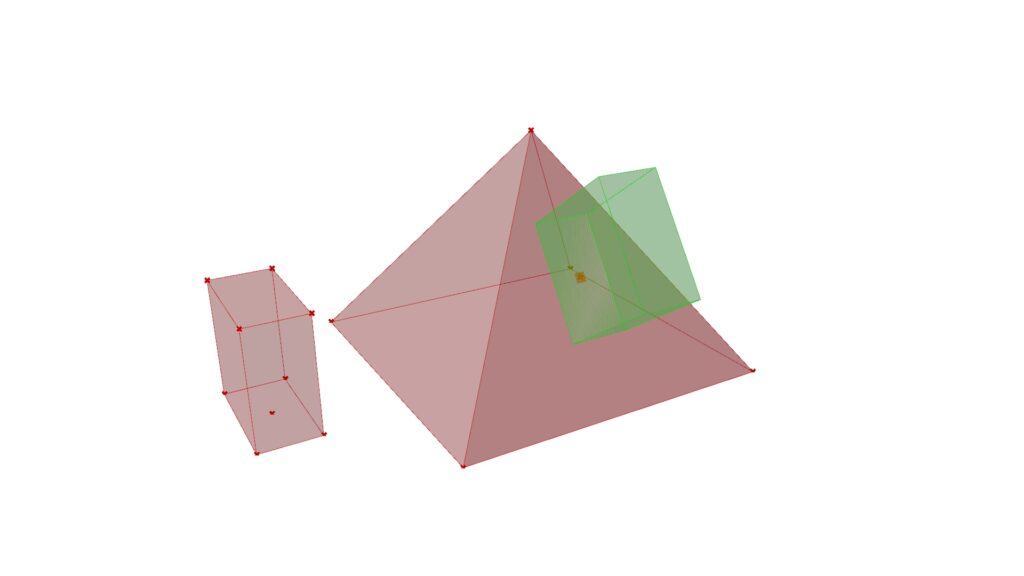
By default, you can place the model at the center of the surface like this.
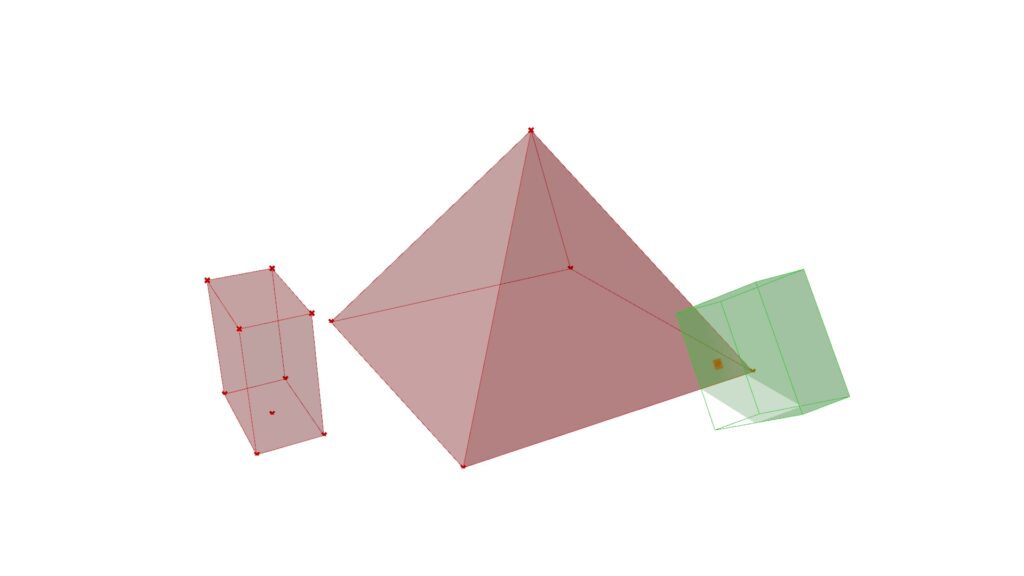
You can move to various locations on the surface by changing the value of the MD Slider.
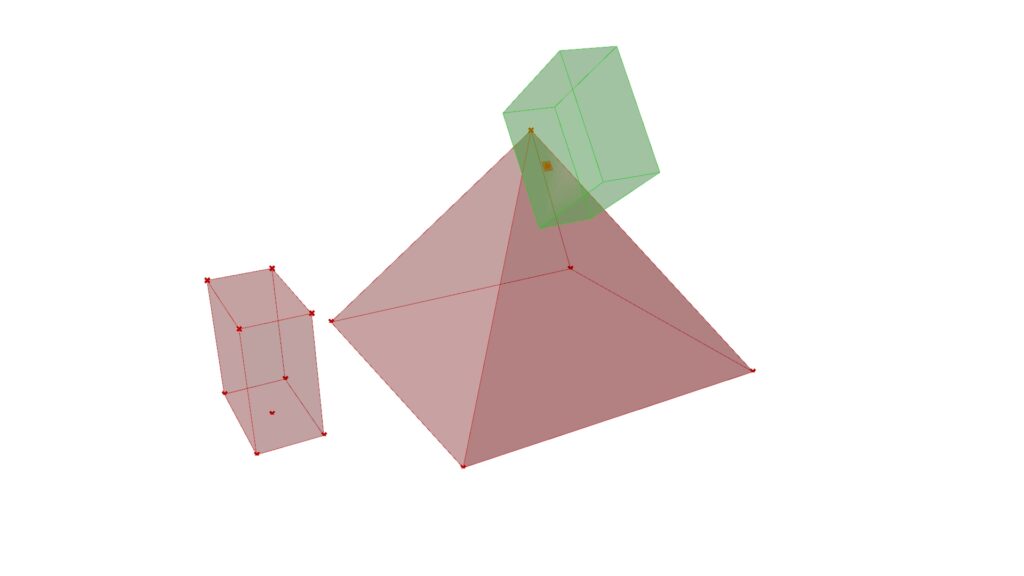
As you can see, it can also move upward like this.
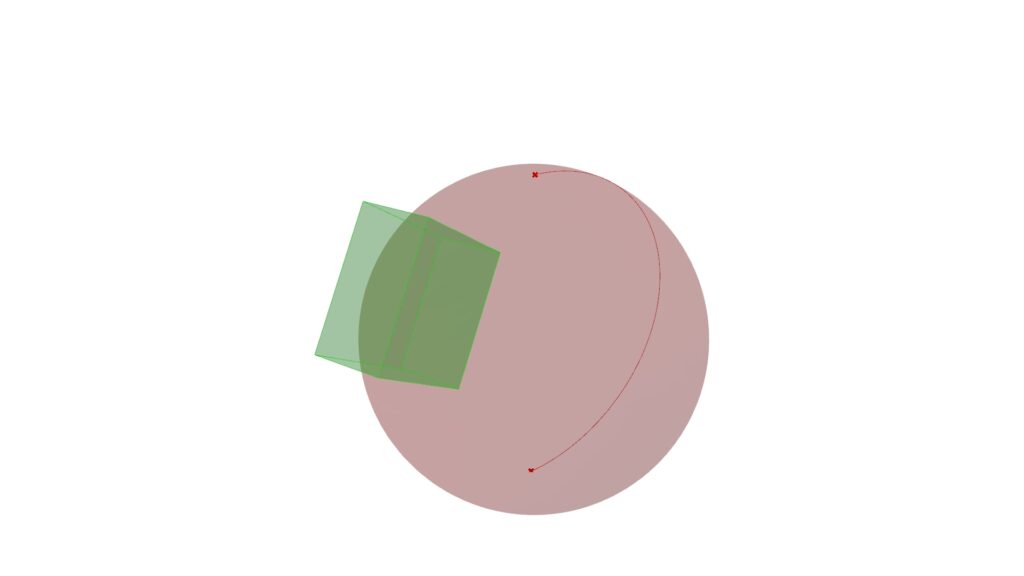
It can also be placed on curved surfaces such as spheres.
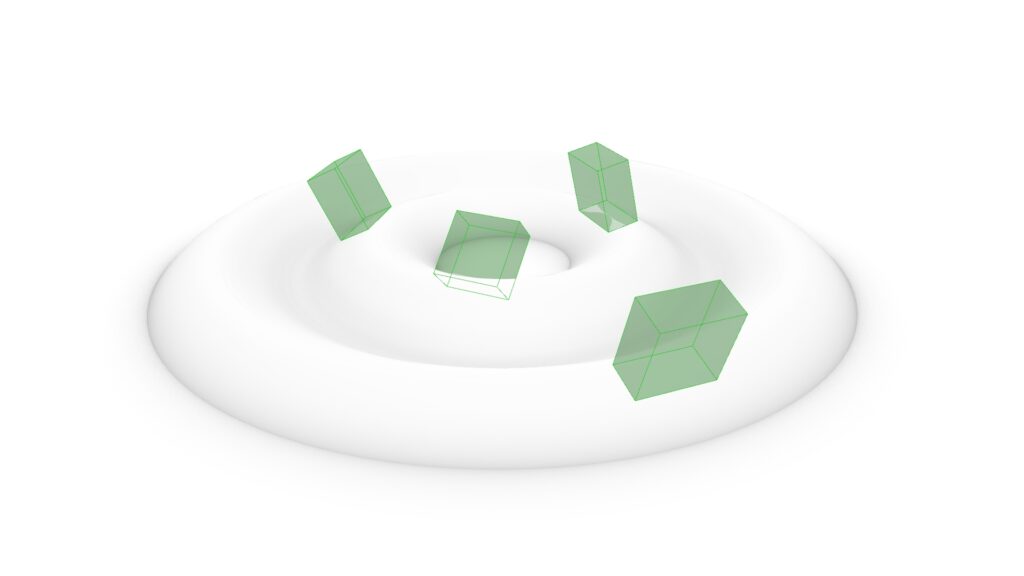
It can be placed on such complex curved surfaces and can accommodate various shapes.
List of Grasshopper articles using Orient component↓






Comment