
![[Grasshopper] How to use Point On Curve to define a point on a curve using values from 0 to 1](https://iarchway.com/wp-content/uploads/2026/01/eyecatch-26.png)
This article explains how to use Point On Curve to define a point on a curve using values from 0 to 1.
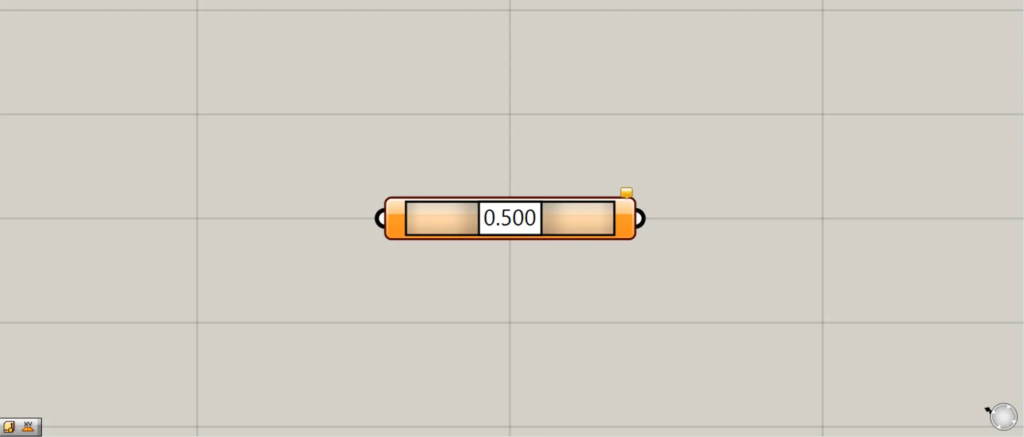
In Grasshopper, it is represented as shown above.
Define a point on a curve using values from 0 to 1
Using Point On Curve, you can define a point on a curve using values from 0 to 1.
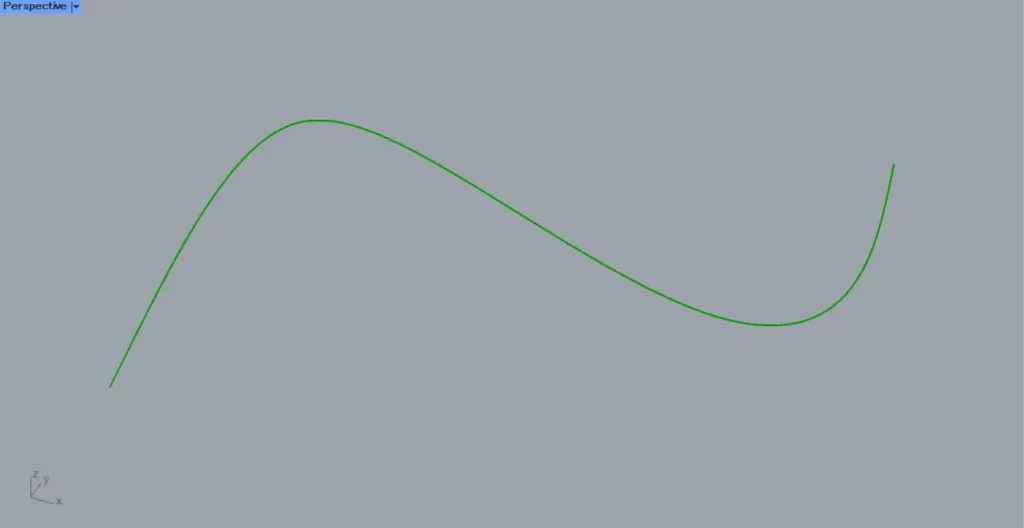
For this example, we’ll use the curve in the image above.
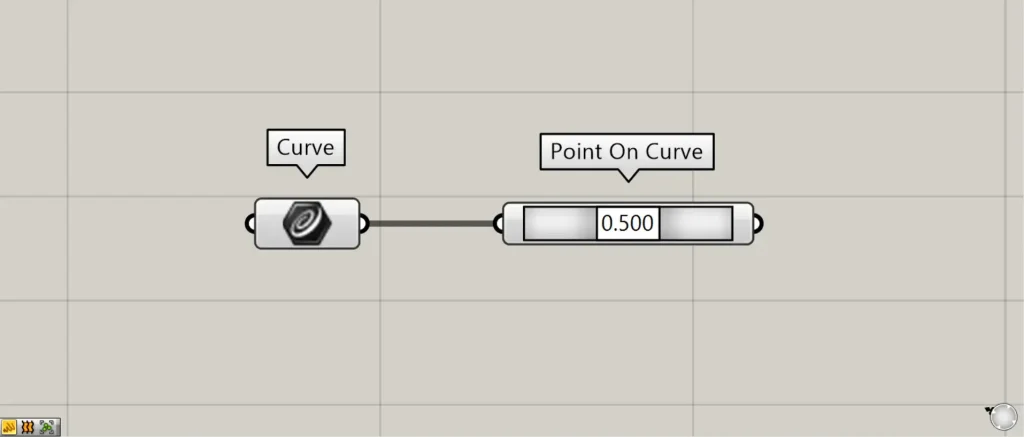
Components used: ①Curve ②Point On Curve
This time, we are setting the curve on Rhino in Curve.
Connect the Curve to the Point On Curve.
After that, adjust the slider displayed in Point On Curve to set any value between 0 and 1.
The default value is 0.500.
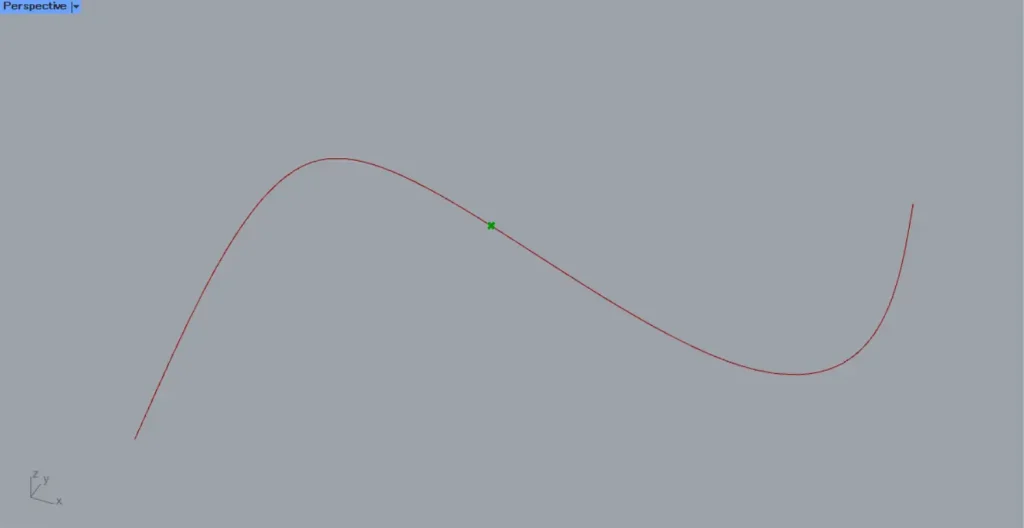
For 0.500, as shown in the image above, it is the midpoint between 0 and 1, so we can obtain the midpoint of the line.
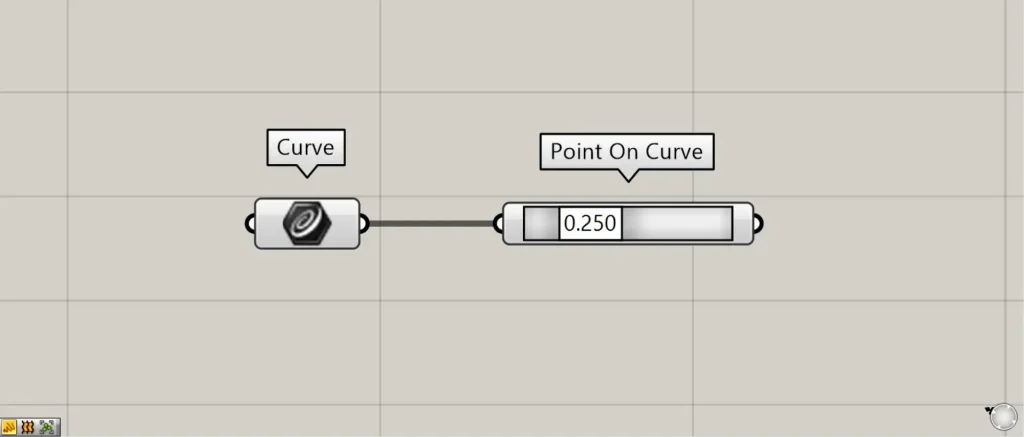
Let’s set the value to 0.250.
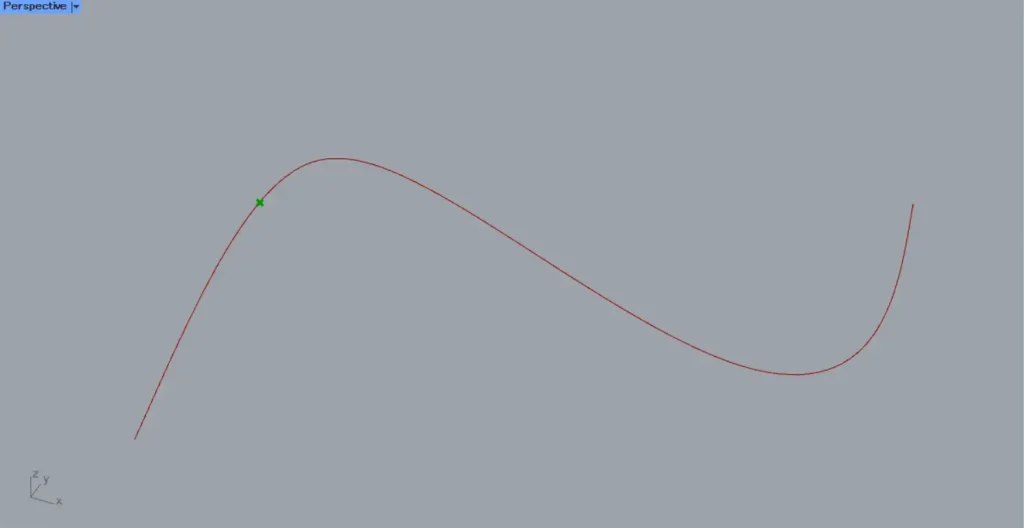
Then, as shown in the image above, a point is created at the 0.250 position when the curve length is set to 1.
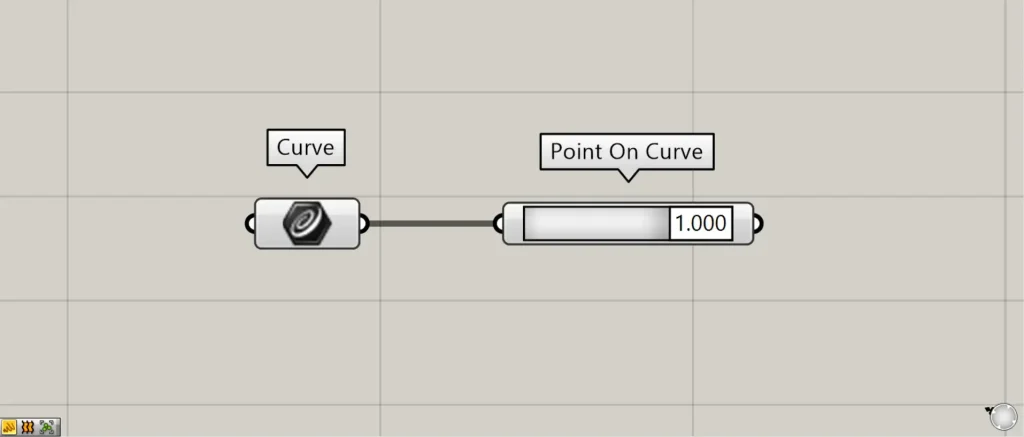
Let’s set the value to 1.000.
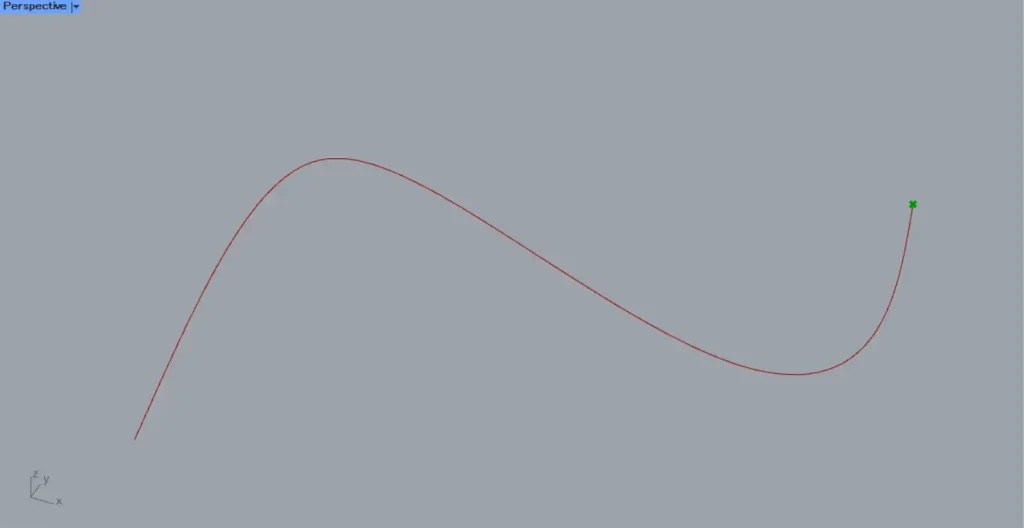
Then, as shown in the image above, a point is created at the 1.000 position when the curve length is set to 1.
As shown here, you can specify a position along the line by providing a value between 0 and 1 to obtain the point.
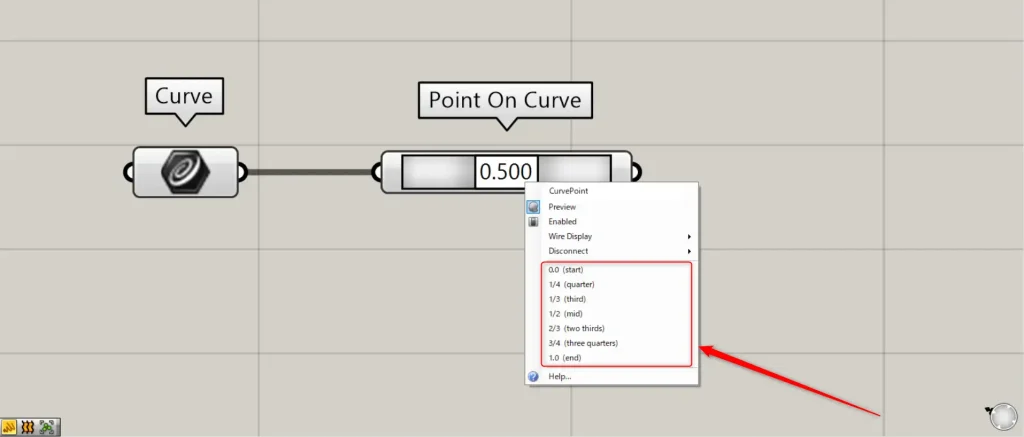
Right-clicking on Point On Curve displays seven options, as shown in the image above.
| 0.0 (Start) | 1/4 (quarter) | 1/3 (third) | 1/2 (mid) | 2/3 (two thirds) | 3/4 (three quarters) | 1.0 (end) |
By setting these, you can also specify the start and end points of the line, as well as positions at 1/4, 1/3, 1/2, 2/3, and 3/4 of the curve.
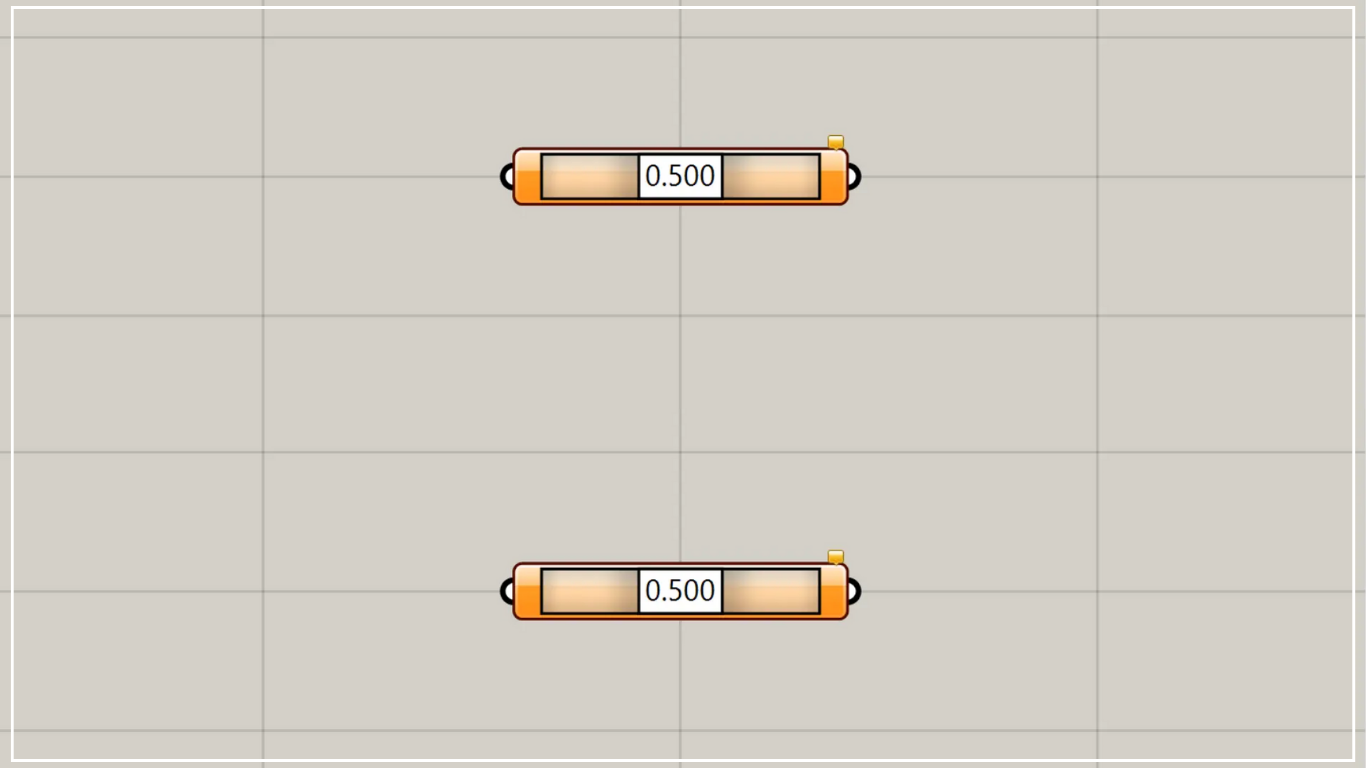
List of Grasshopper articles using Point On Curve component↓





Comment