
![[Grasshopper] How to use Region Difference to subtract difference in area between closed curves or plane surfaces](https://iarchway.com/wp-content/uploads/2026/01/Region-Difference.png)
This article explains how to use Region Difference to subtract difference in area between closed curves or plane surfaces.
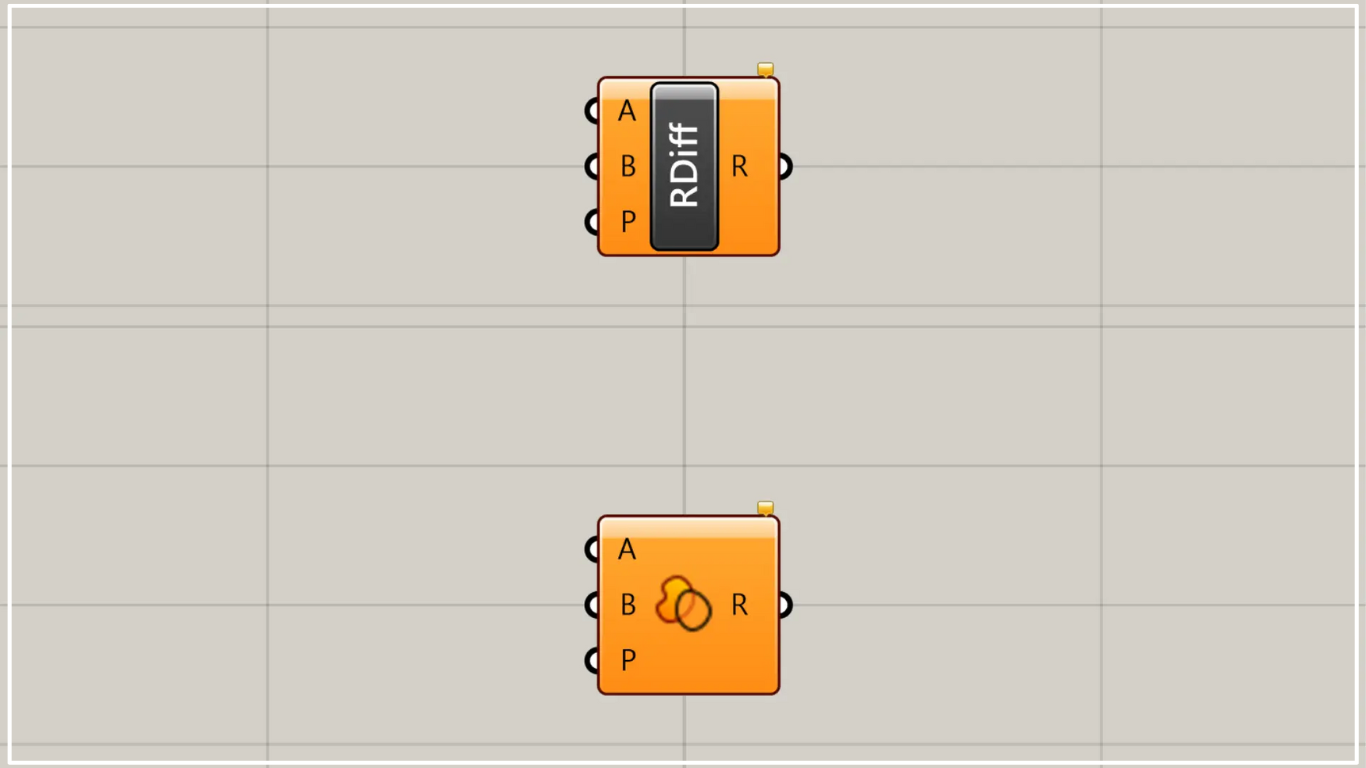
On the Grasshopper, it is represented by either of the two above.
For closed curve or line data
Using Region Difference allows you to perform subtraction through Boolean operations on the difference between closed curves, lines or planar regions.
First, let’s look at the case of closed curve and line data.
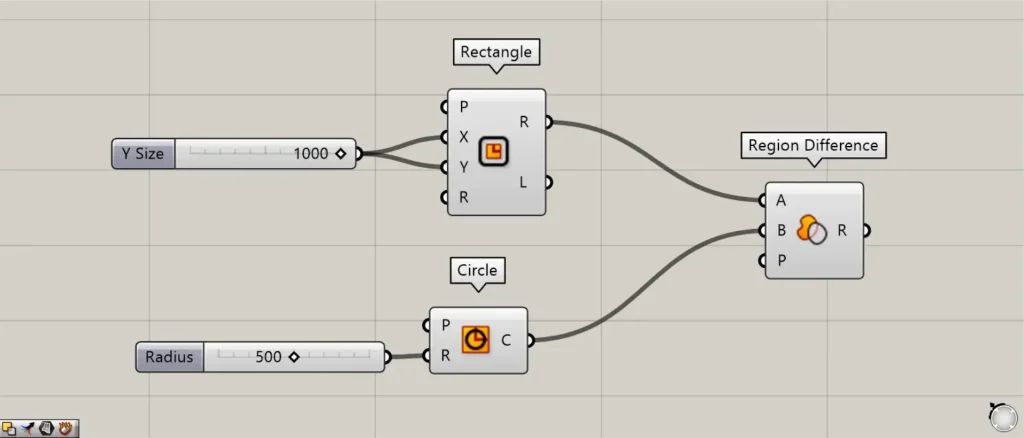
Components used: ① Rectangle ② Circle ③ Region Difference
In the first example, we’ll create curve and line data for a square and a circle and try subtracting them.
Enter the numerical value for the length of one side into the Rectangle(X and Y).
This time, since 1000 was entered, a 1000×1000 square was created.
Additionally, enter the radius value into the Circle(R).
This time, since 500 was entered, a circle with a radius of 500 was created.
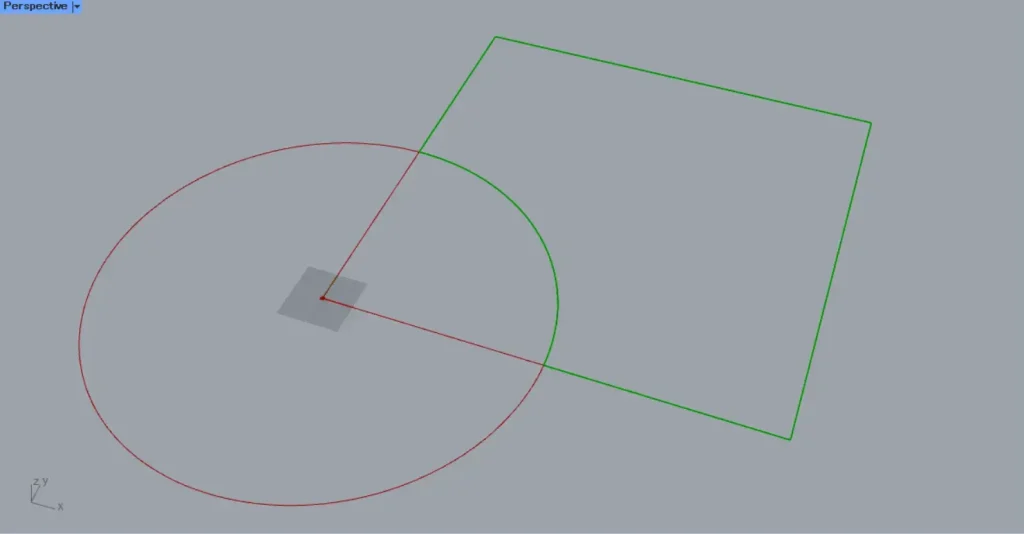
Next, connect the Rectangle(R) to the Region Difference(A).
Next, connect the Circle(C) to the Region Difference(B).
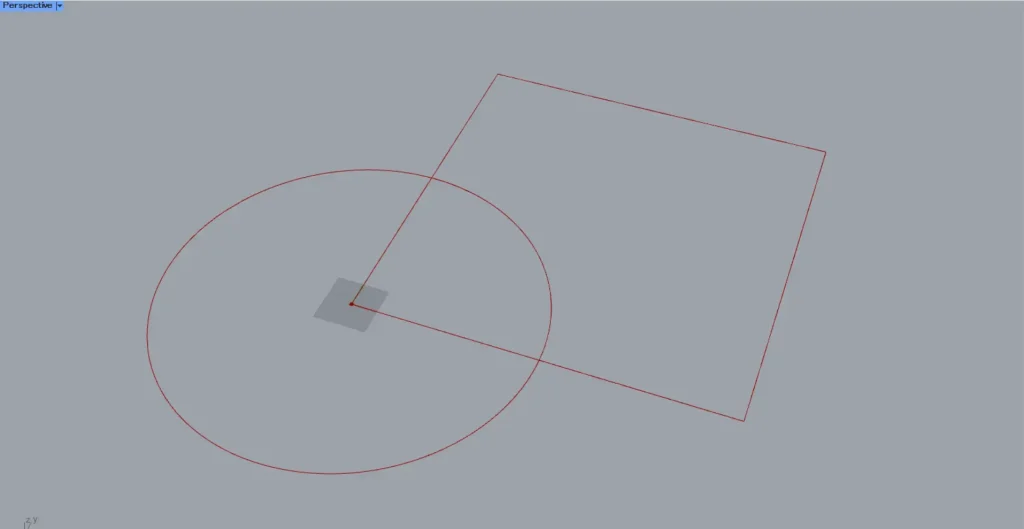
As shown in the image above, only the area where the square was subtracted from the circle was obtained.
In this way, we subtract the data from the Region Difference A terminal from the data from the B terminal.
In the case of surfaces
Next, let’s look at the case of surfaces.
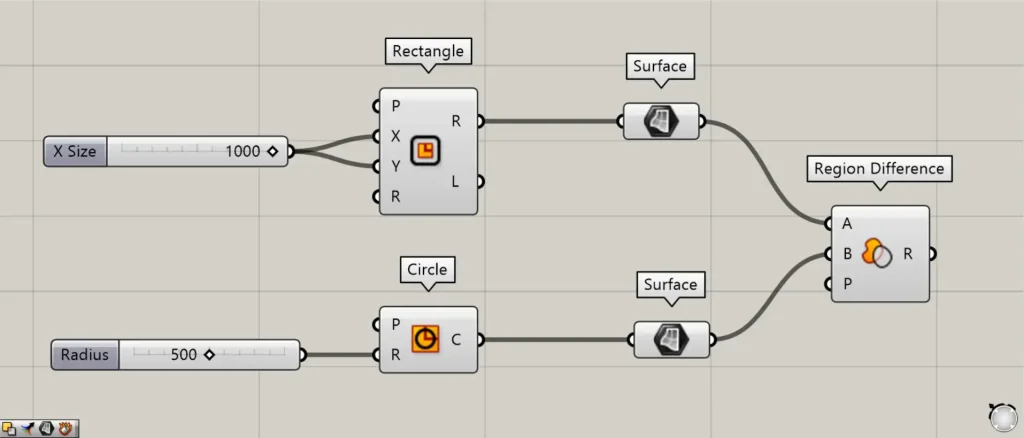
Additional Components: ① Surface
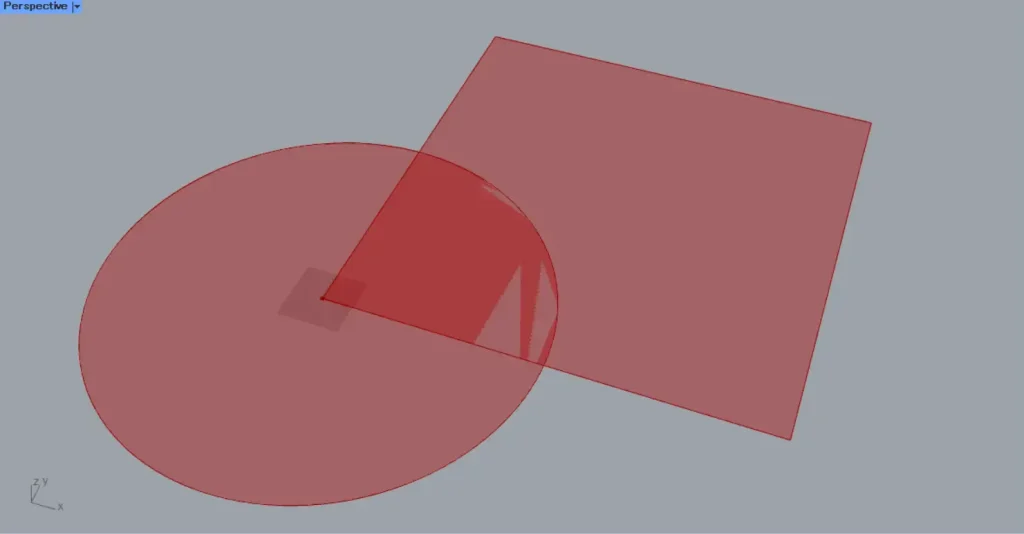
Insert a Surface between the Rectangle and Circle from earlier.
Then it will be converted from a closed line to a surface.
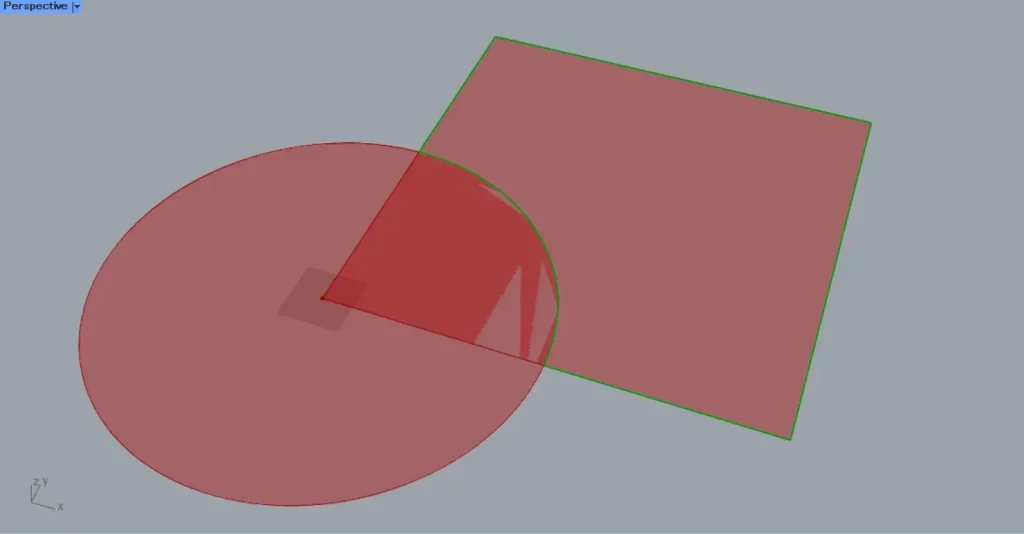
Subtractions could be performed between surfaces.
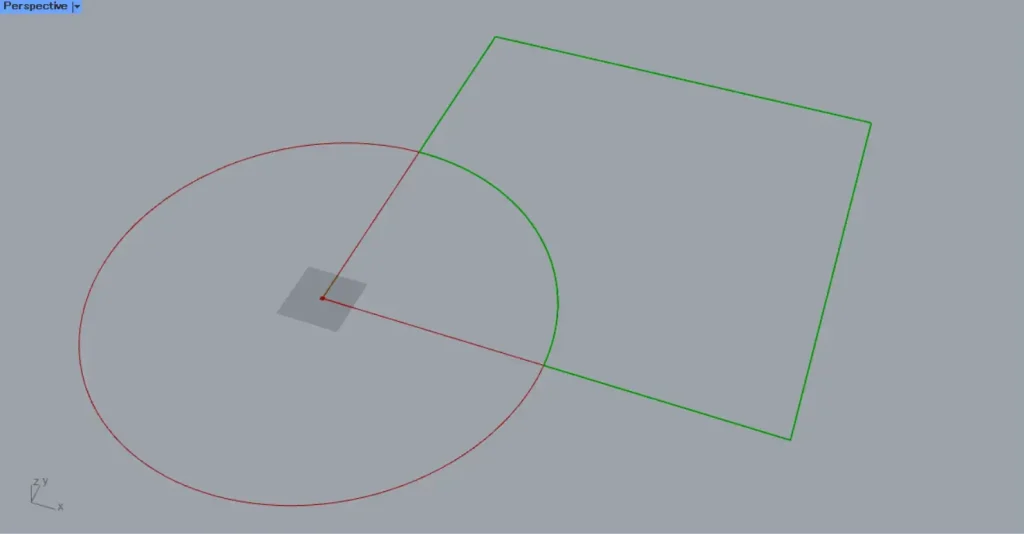
However, in this case, it is output as line data rather than a surface.
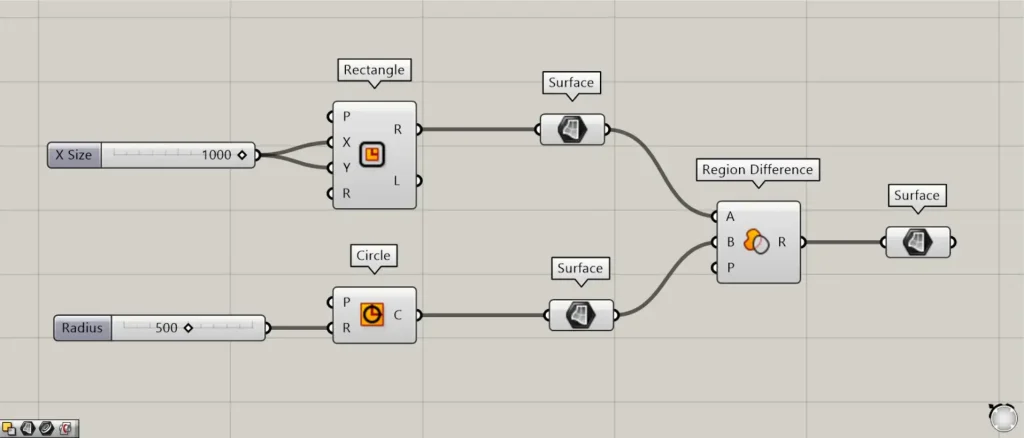
To output as a surface, connect Region Difference to Surface.
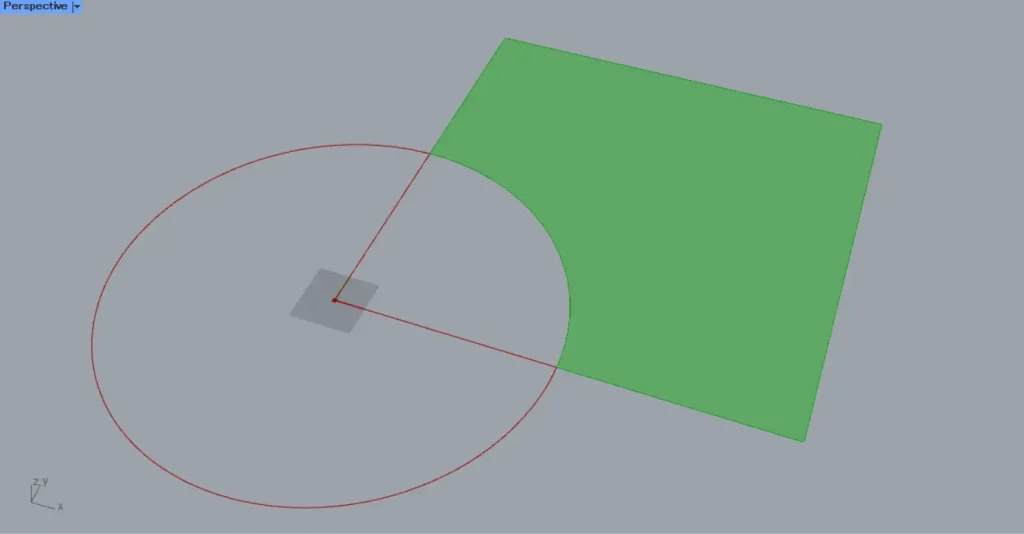
Then, you can output it as a surface like this.
Specify a plane using P terminal
You can also specify a plane for subtraction using the P terminal.
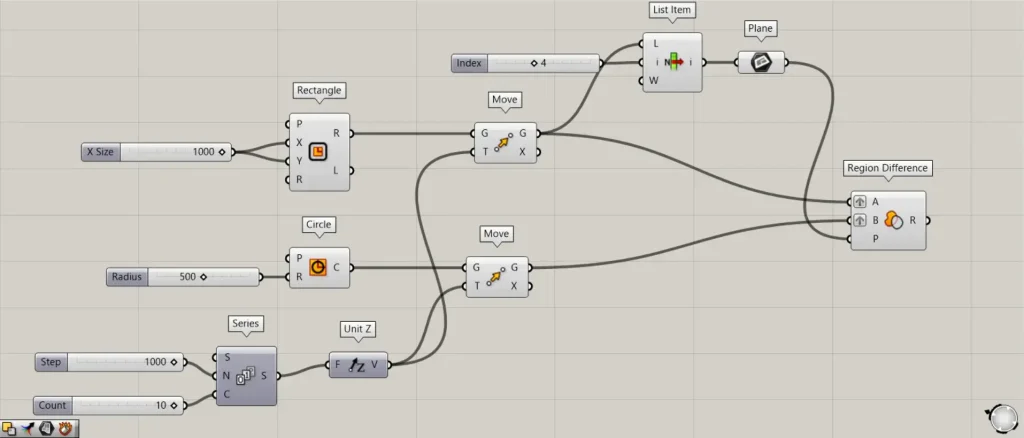
Additional Components: ① Series ② Unit Z ③ Move ④ List item ⑤ Plane
This time, we’ll copy multiple squares and circles directly upward and specify a single work plane.
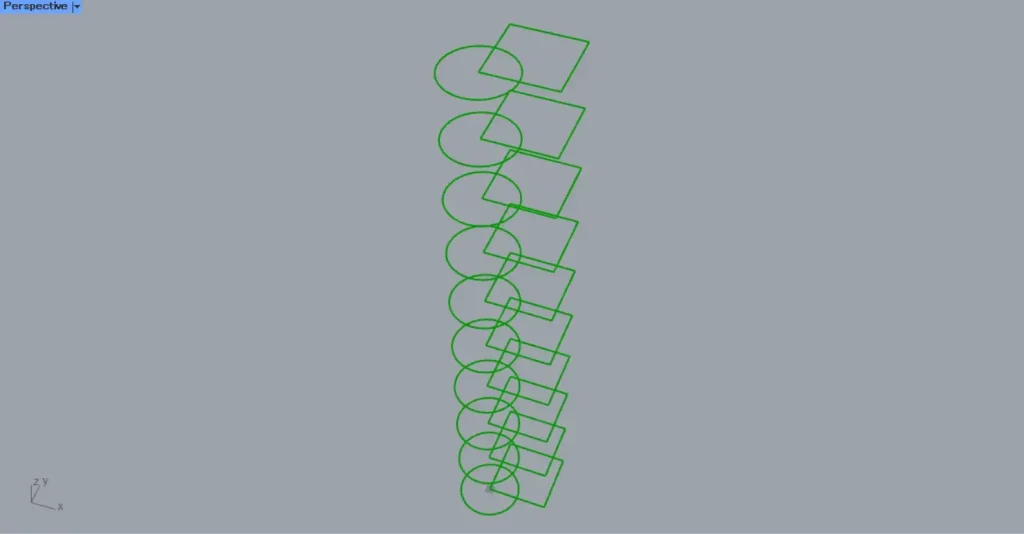
Enter 1000 into the Series(N) and 10 into the Series(C).
Then, ten numbers are generated, increasing by 1000 each time: 0, 1000, 2000, …, 10000.
Then connect the Series to Unit Z.
Additionally, connect Unit Z to the two Move(T).
Also, connect the Rectangle(R) and the Circle to the Move(G), respectively.
Then, a square and a circle were copied directly upward, creating 10 sets.
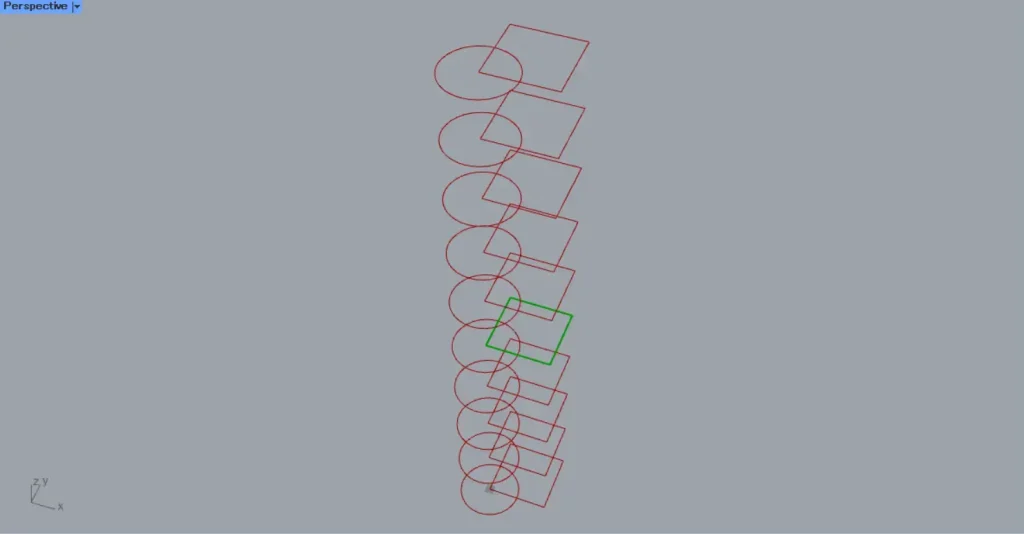
Next, connect the Rectangle‘s Move(G) to the List Item(L).
Then, enter the number 4 into the List Item(i).
Then, you can only obtain the fifth square.
Then, connect the List Item to the Plane.
This allowed us to obtain the plane data for that location.
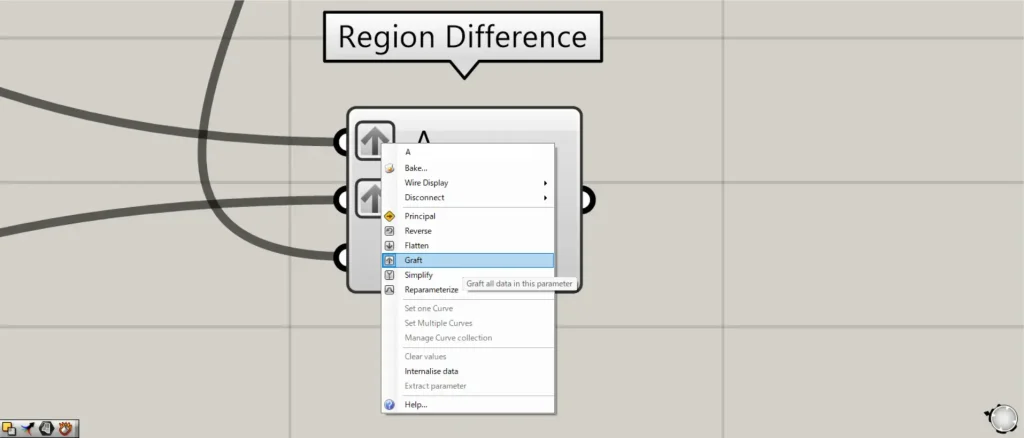
Then connect the Plane to the Region Difference(P).
At this point, right-click the Region Difference A and B terminals and set them to Graft.
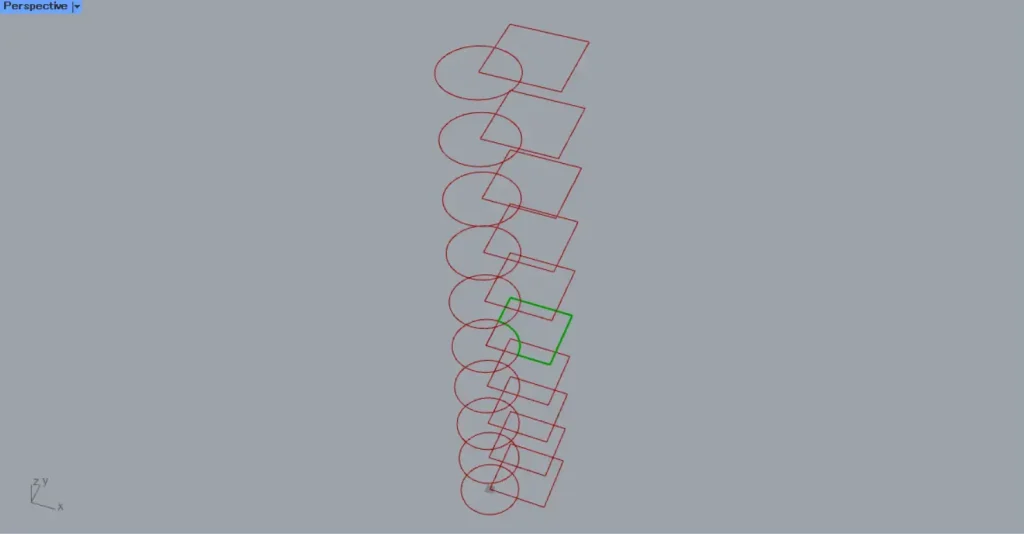
Then, the subtraction was executed only at the position of the specified plane.
List of Grasshopper articles using Region Difference component↓





Comment