
![[Grasshopper] How to use Text Entity to set texts](https://iarchway.com/wp-content/uploads/2026/01/Text-Entity.png)
This article explains how to use Text Entity to set texts.
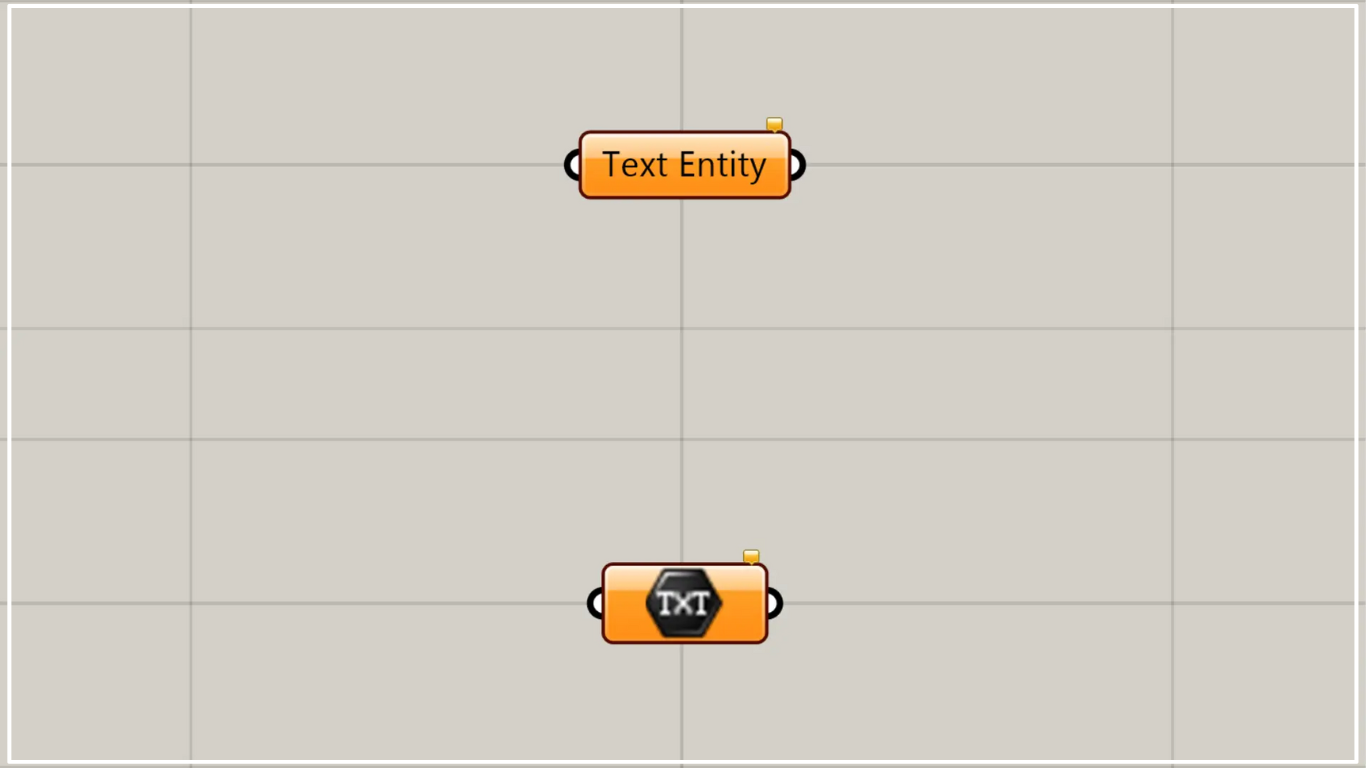
On the Grasshopper, it is represented by either of the two above.
Set text
Using Text Entity allows you to set texts.
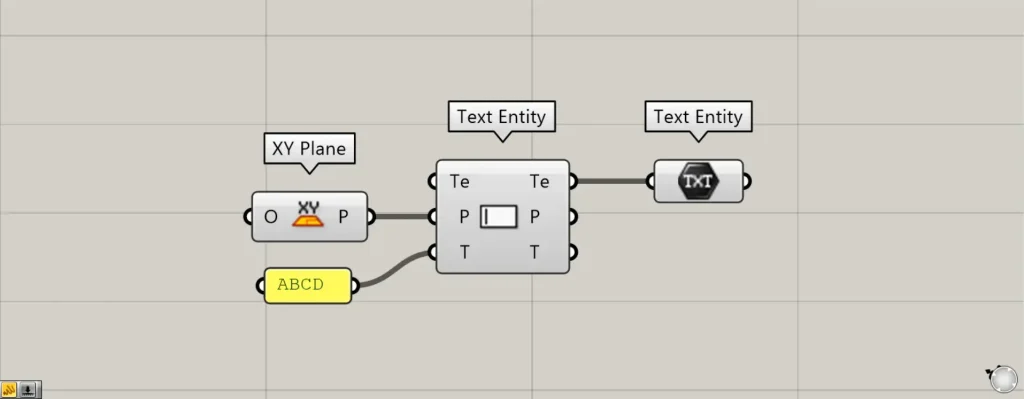
Components used: ① XY Plane ② Text Entity ③ Text Entity
Please note that there is another component with the same name.
The other Text Entity will be the component that creates text.
This time, we’ll use two Text Entities as examples for explanation.
Enter the information for the plane where the text will be created into the other Text Entity(P).
This time, since the XY Plane is being input, the data for the plane created by the X-axis and Y-axis is being connected.
Then, enter any text information into the the other Text Entity(T).
This time, we entered ABCD.
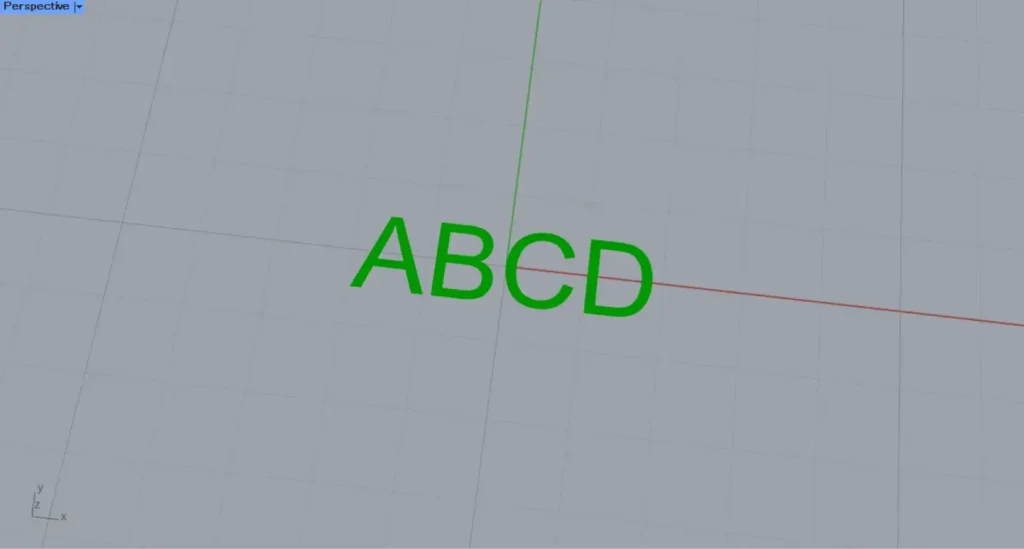
Then, text was generated from the entered text information.
Next, connect the other Text Entity(Te) on the right side to this Text Entity.
Then, the generated text was set in the Text Entity for this instance.
The Difference Between Text Entity and Text
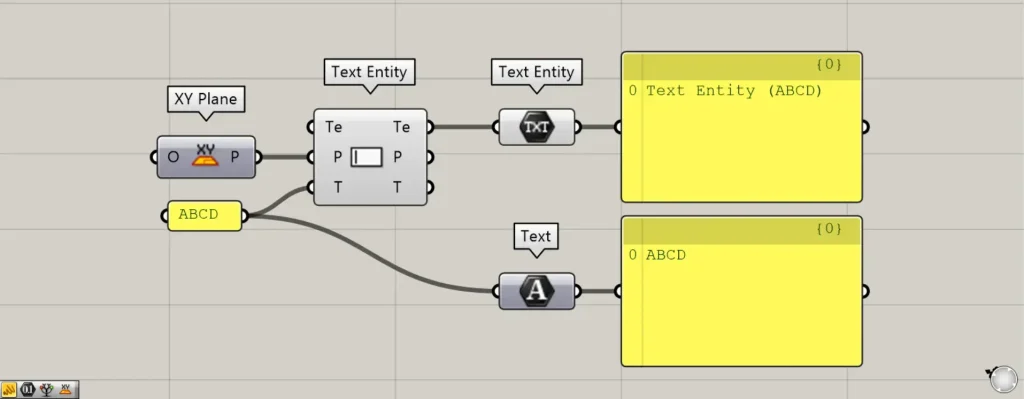
Additional Components: ①Text
As a component similar to Text Entity, there is Text.
In the case of Text Entity, it is text data with a concrete entity.
Text is simply textual information and has no physical form.
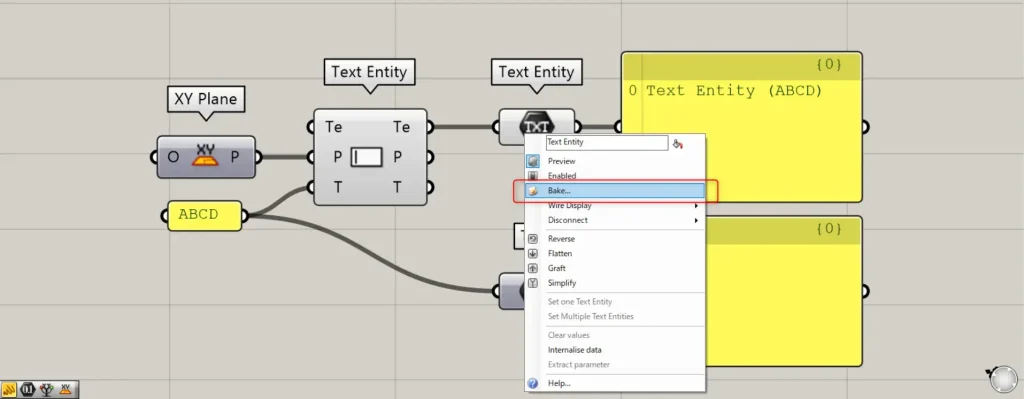
Therefore, since Text Entity can use Bake, it can be exported to Rhino.
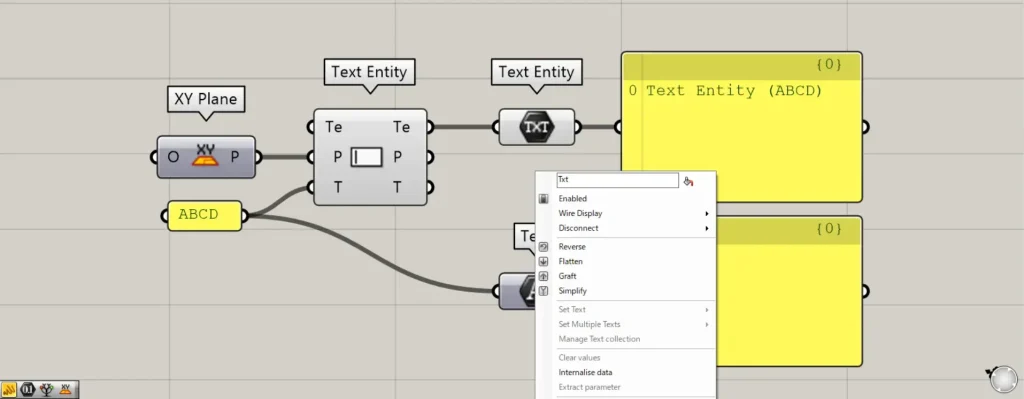
On the other hand, since Text only contains character information, it cannot be exported via Bake onto Rhino.
Set text on Rhino
You can also set text on Rhino.
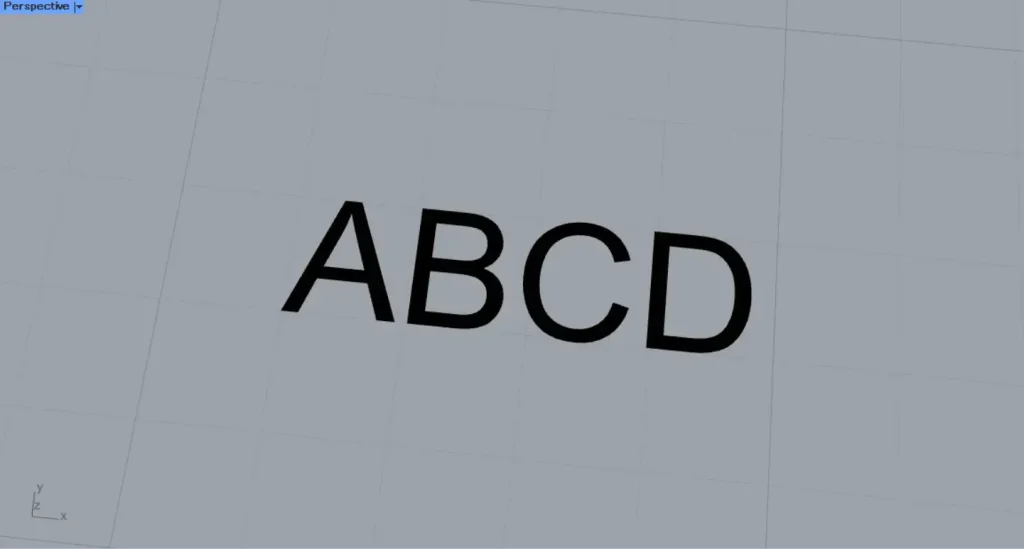
First, let’s try setting a single text on Rhino.
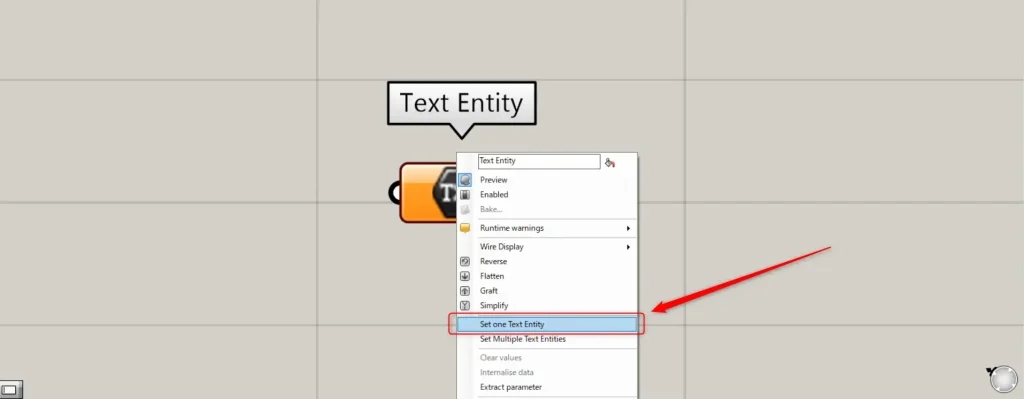
In one case, right-click the Text Entity and select “Set one Text Entity”.
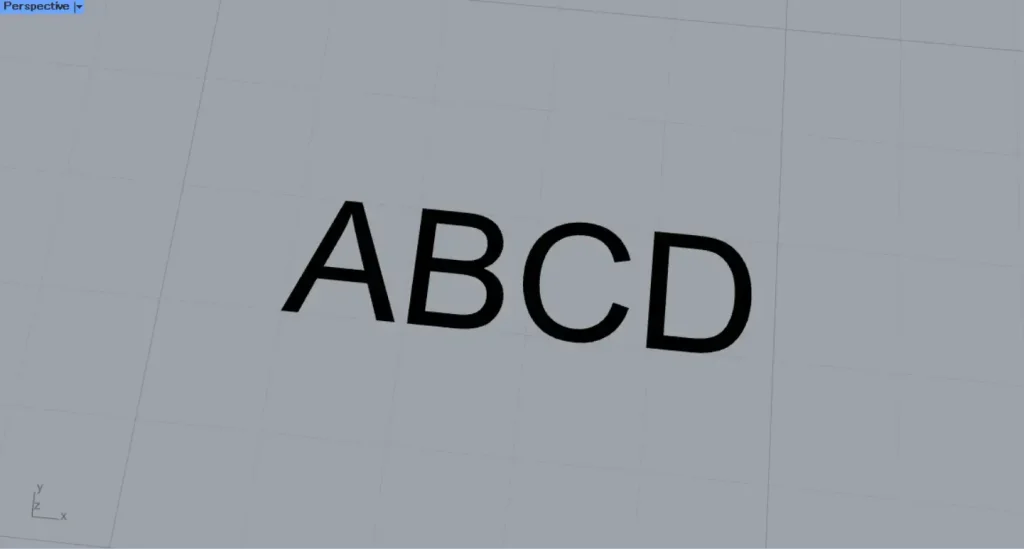
Then, the screen will switch to Rhino.
Then, select the text you want to save.
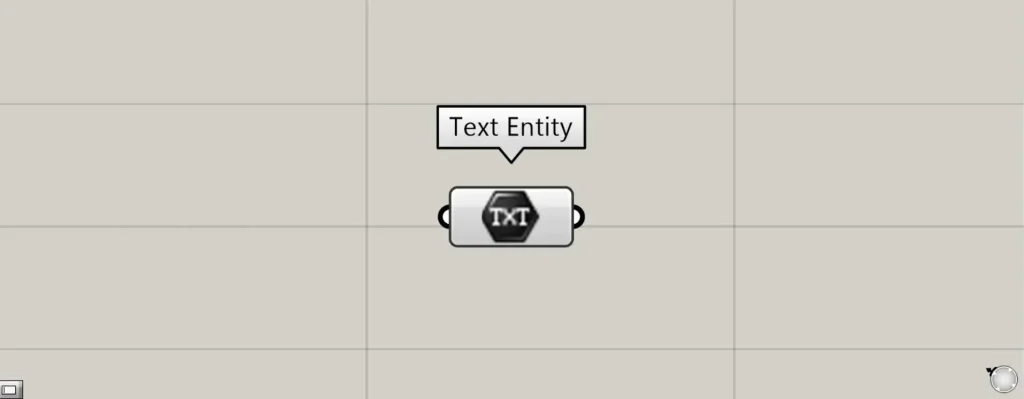
Then, one text on Rhino was set in the Text Entity.
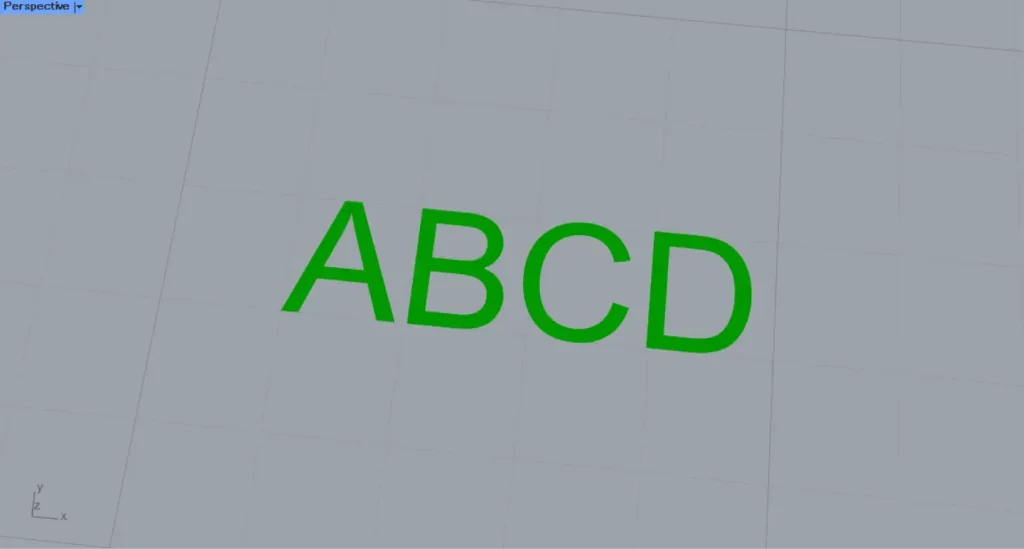
This is the result on Rhino.
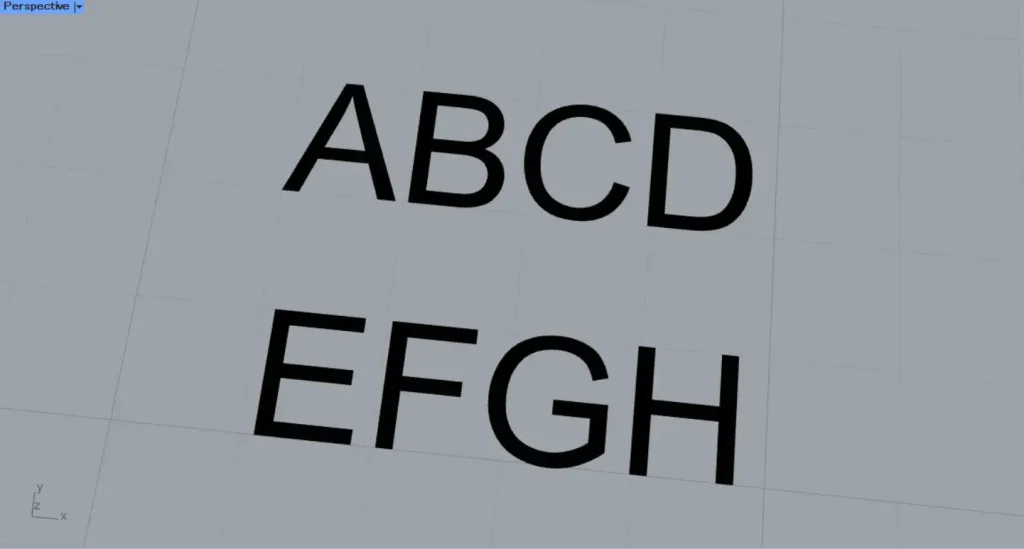
Next, we’ll try setting multiple texts on Rhino.
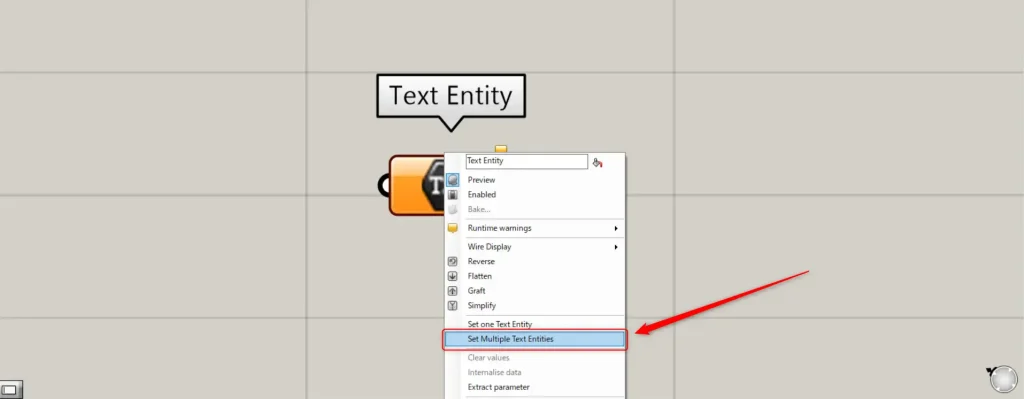
For multiple instances, right-click the Text Entity and select “Set Multiple Text Entities”.
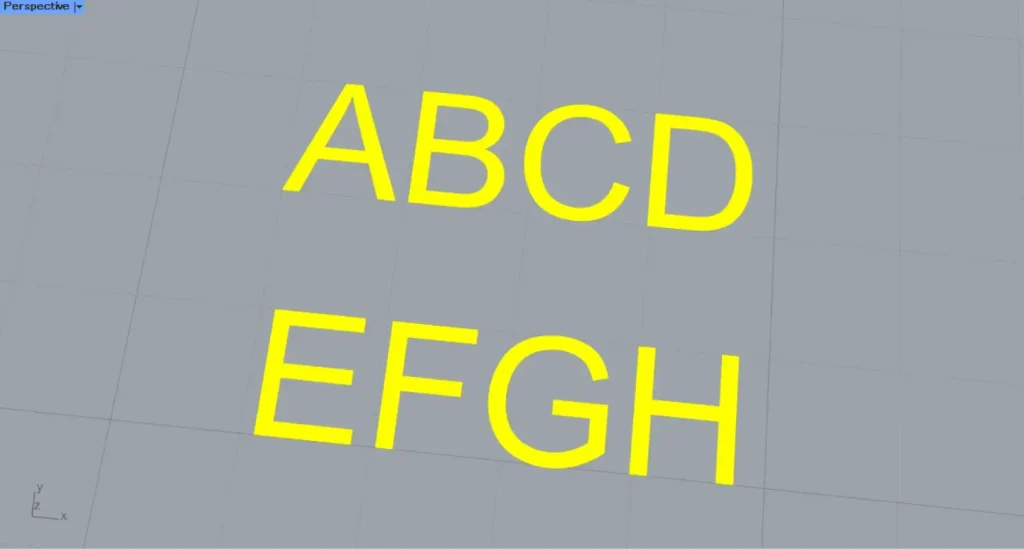
After that, select multiple texts on Rhino.
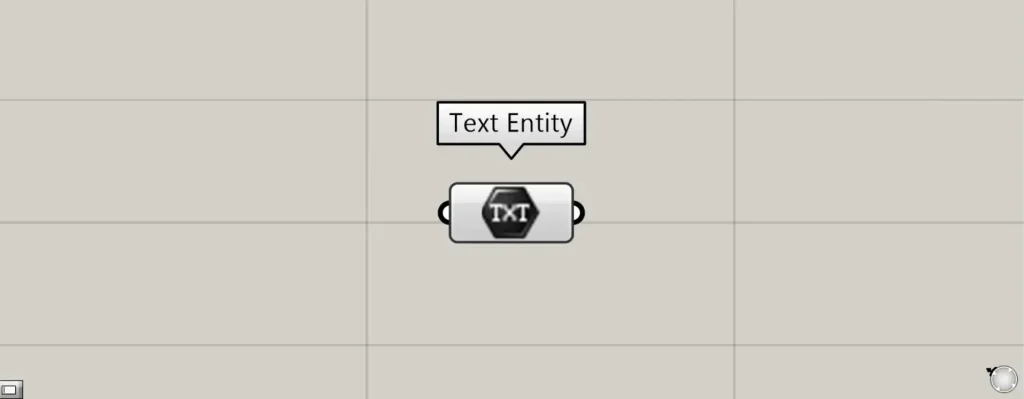
Then, multiple texts on Rhino were set in the Text Entity.
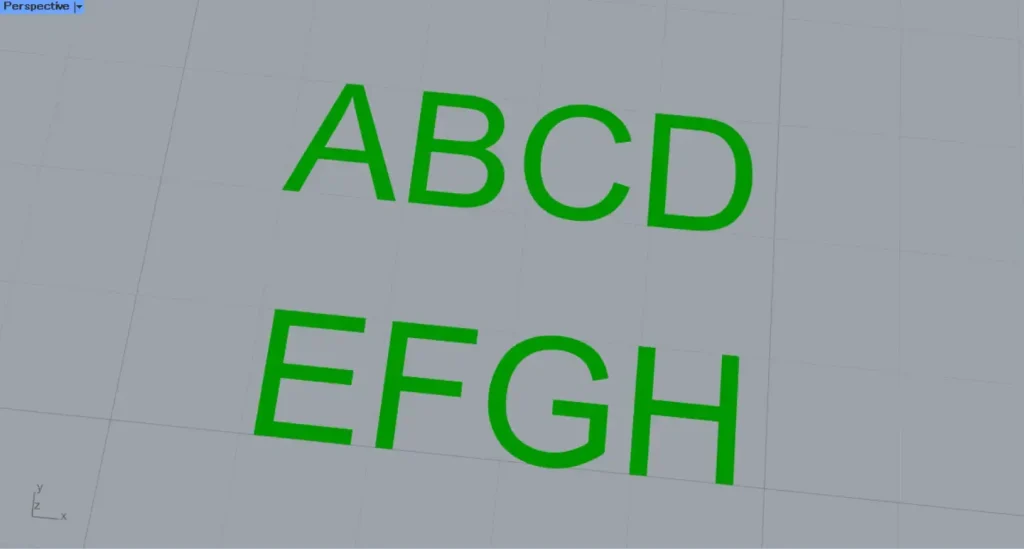
This is the result on Rhino.
List of Grasshopper articles using Text Entity component↓





Comment