
![[Grasshopper] How to Use Twisted Box to Create a Twisted Box from 8 Points](https://iarchway.com/wp-content/uploads/2026/01/Twisted-Box-1.png)
This article explains how to use Twisted Box to create a twisted box from 8 points.
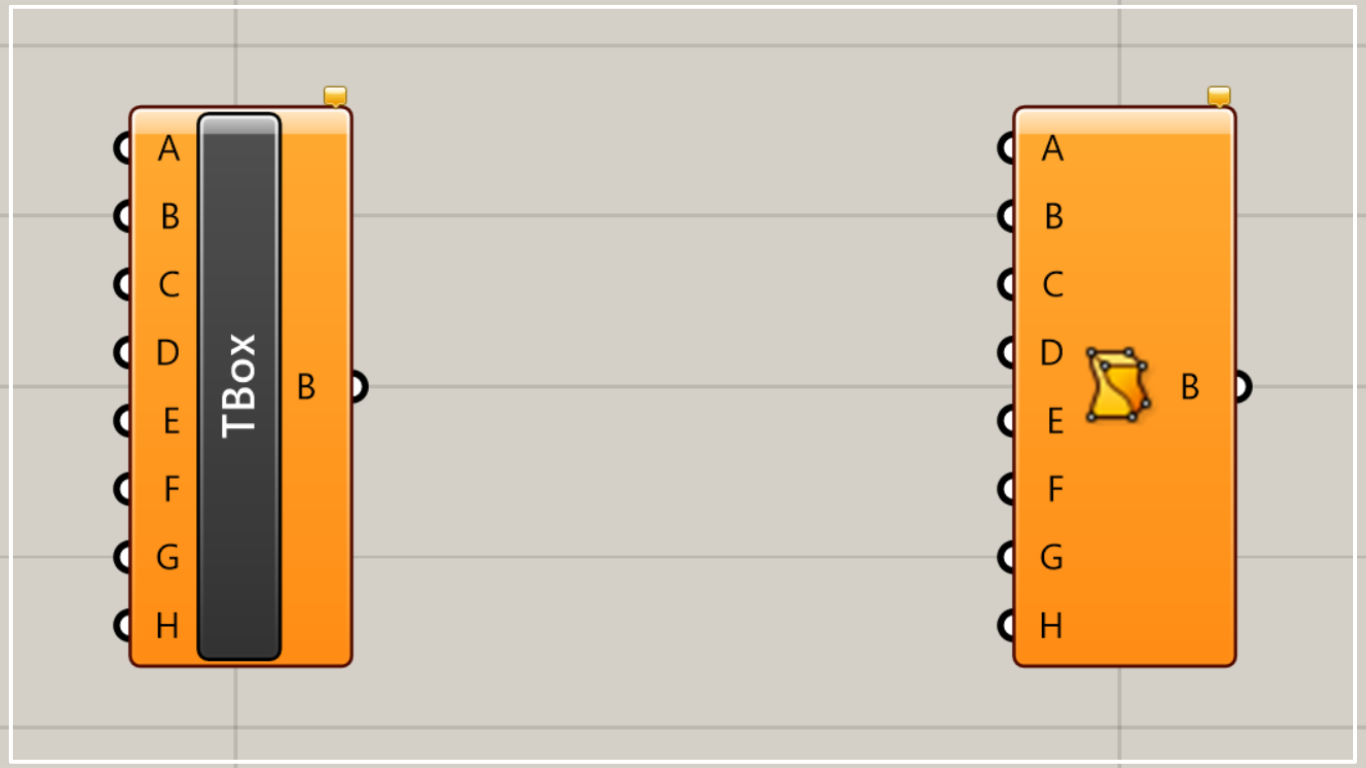
On the Grasshopper, it is represented by either of the two above.
Create a twist box from eight points
Using Twisted Box, you can create a twisted box from eight points.
Vertex information can be specified using coordinates or point data.
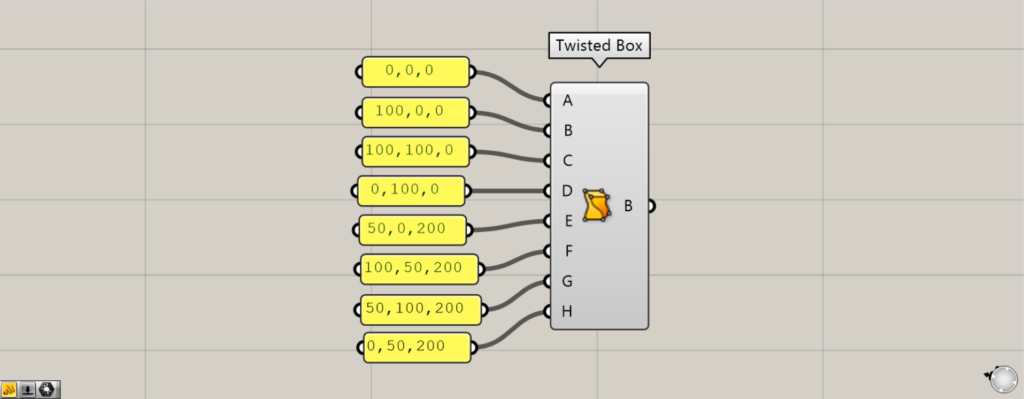
First, we’ll create a twist box by specifying the vertex positions using coordinates.
Enter the coordinate data for the bottom-facing square into terminals A, B, C, and D.
This time, the coordinates entered are 0,0,0, 100,0,0, 100,100,0, and 0,100,0.
Next, input the coordinate data for the four squares on the top surface into terminals E, F, G, and H.
This time, the coordinates entered are 50,0,200; 100,50,200; 50,100,200; 0,50,200.
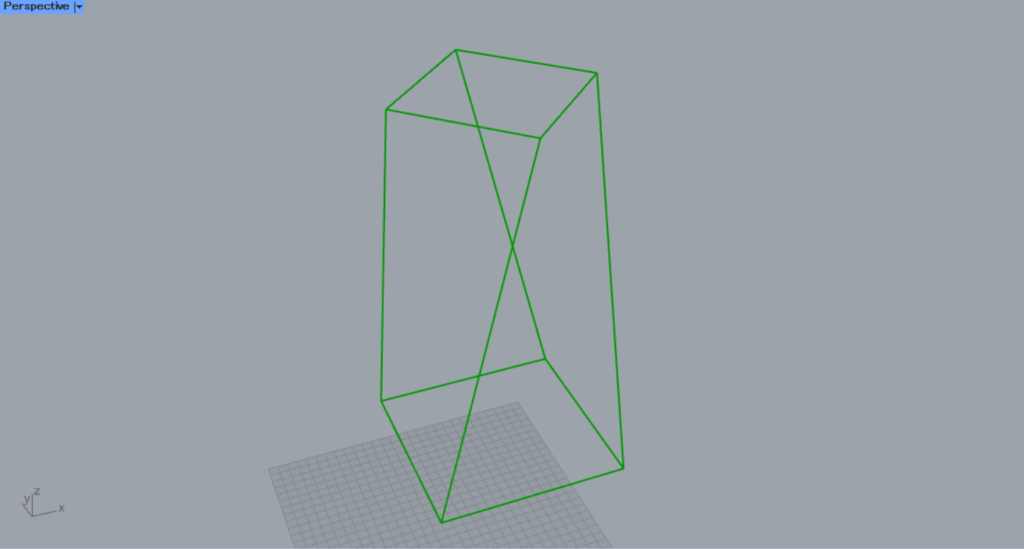
Then, this twist box was created.
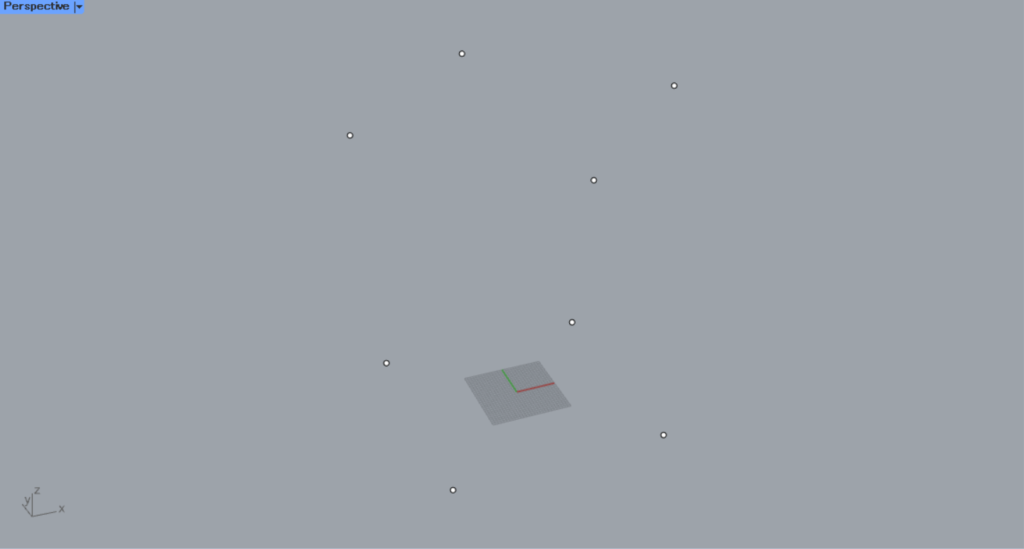
Next, we’ll create a twist box from point data.
This time, we will create it using eight point data on Rhino.
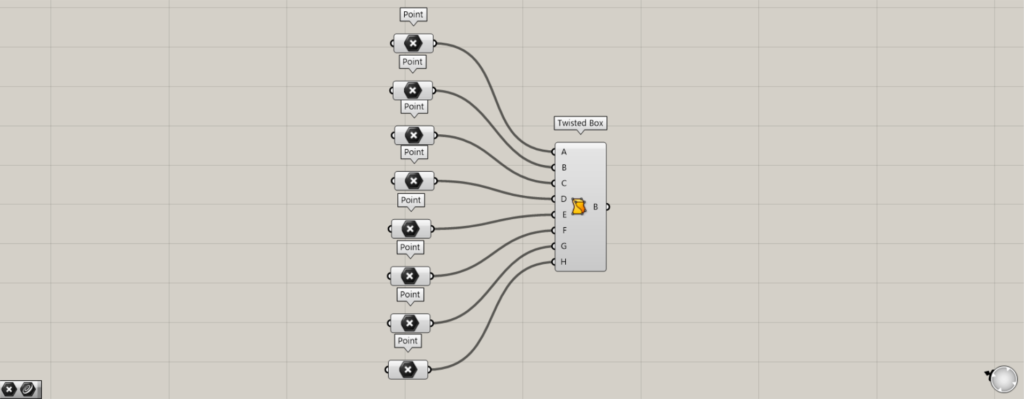
Components used: ①Point ②Twisted Box
Set each point on Rhino on in 8 Point.
After that, input the square point data from the bottom surface into terminals A, B, C, and D.
Additionally, input the square point data from the top surface into terminals E, F, G, and H.
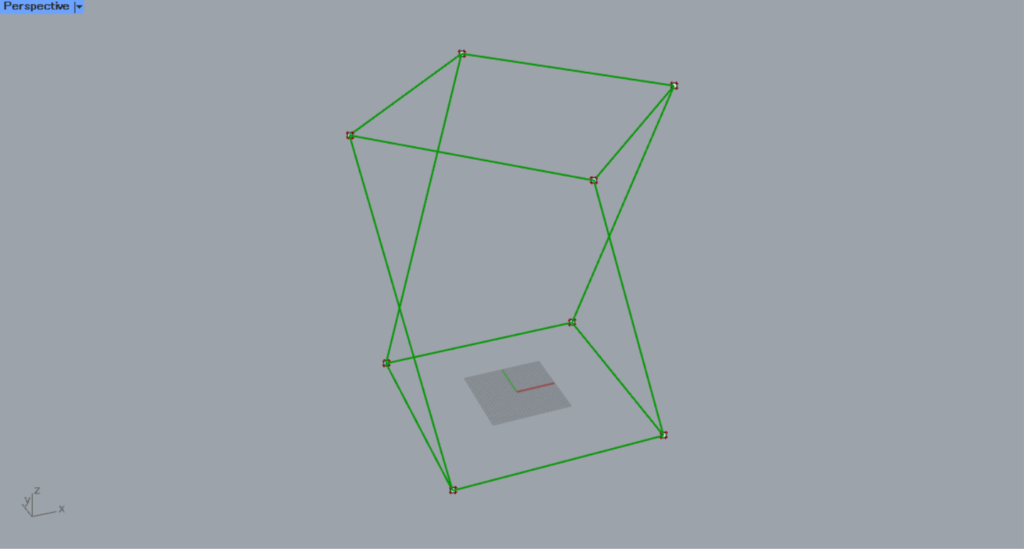
Then, this twist box was created.
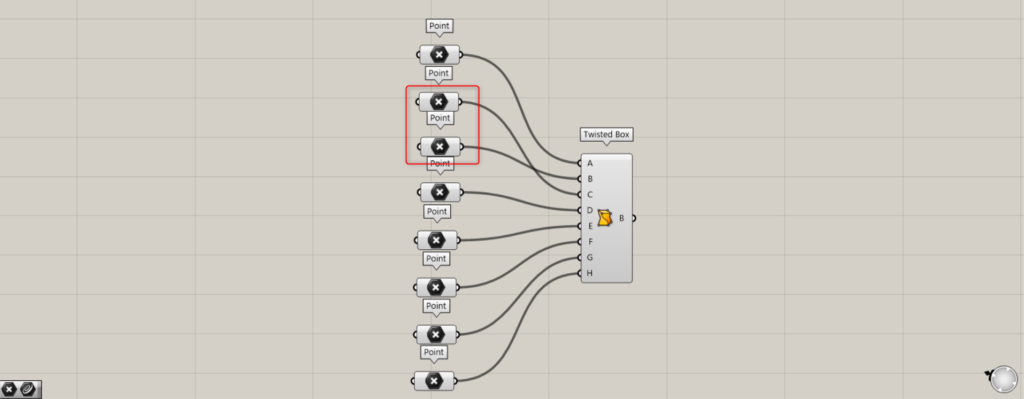
When specifying vertices, pay attention to the order of the points.
Let’s try changing the order of the vertex inputs.
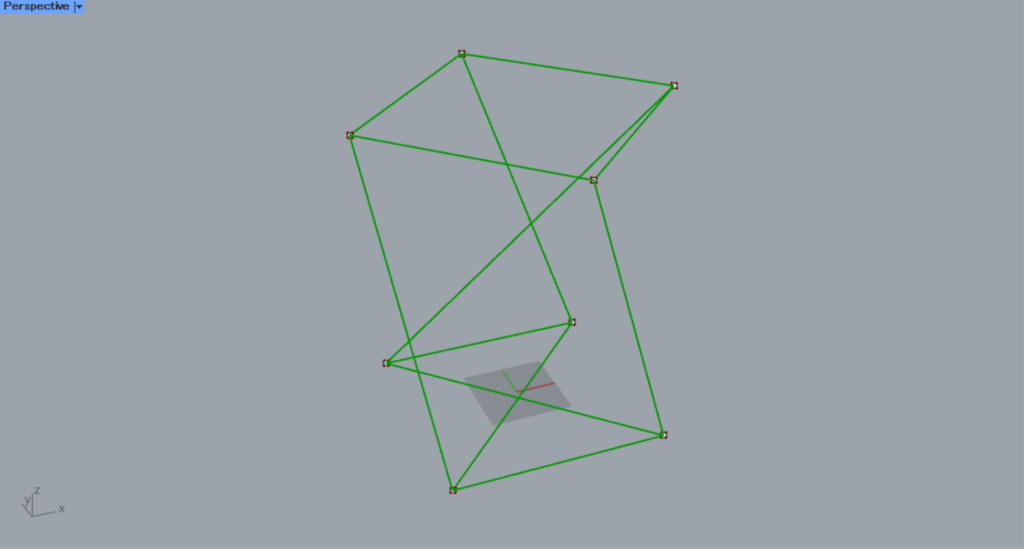
Then, it ended up becoming this oddly shaped twist box.
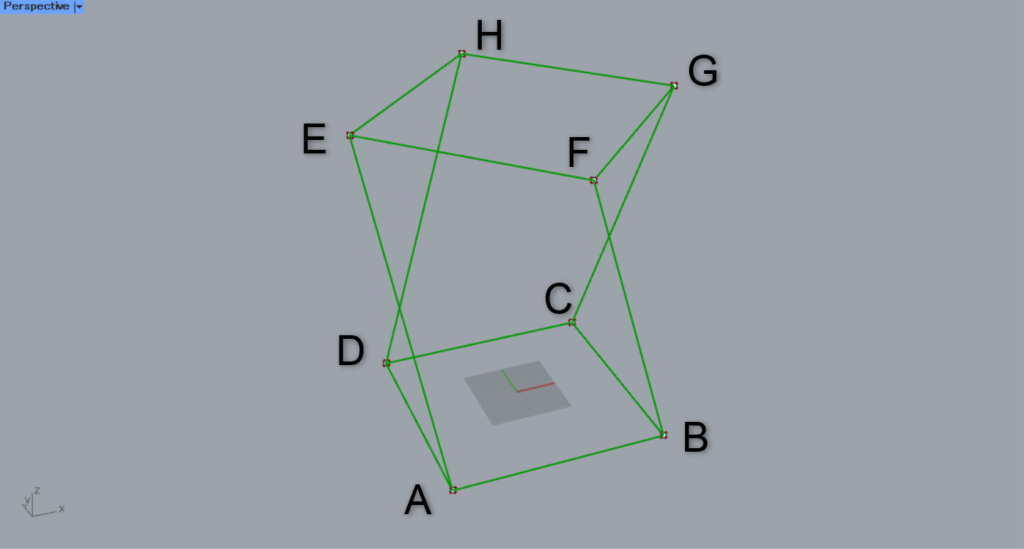
As shown in the image above, it is important to enter the vertices in the correct order for the two rectangles.
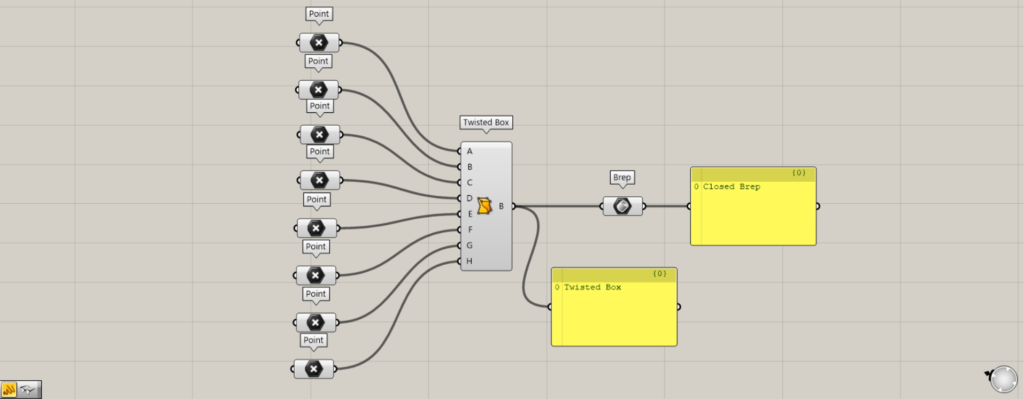
Twisted Box outputs data of the Twisted Box type.
Therefore, when you want to convert it to a Brep object or similar, connect it to the Brep.
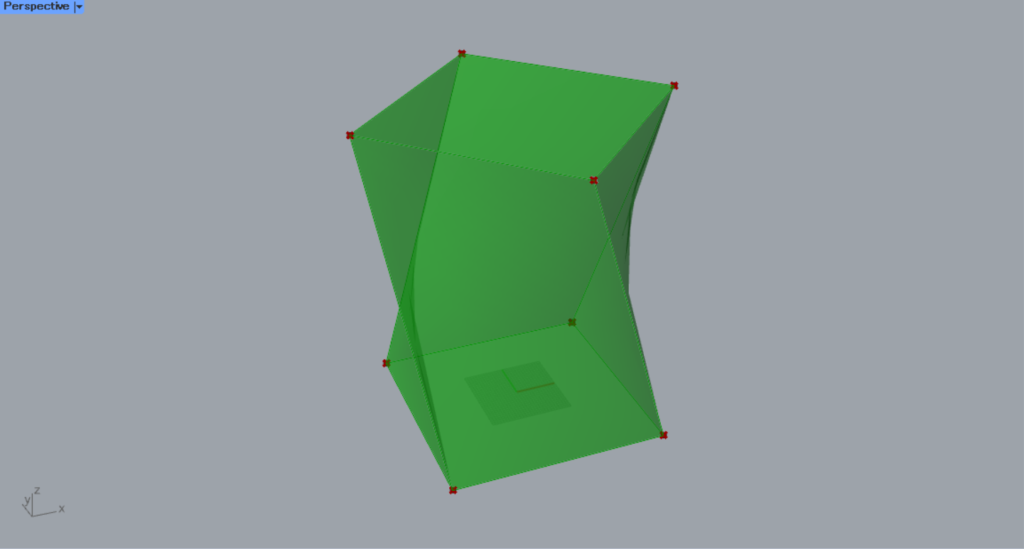
Then it was converted into this Brep object.
List of Grasshopper articles using Twisted Box component↓





Comment