
![[Grasshopper] How to use Ungroup to break up a group](https://iarchway.com/wp-content/uploads/2026/01/Ungroup.png)
This article explains how to use Ungroup to break up a group.
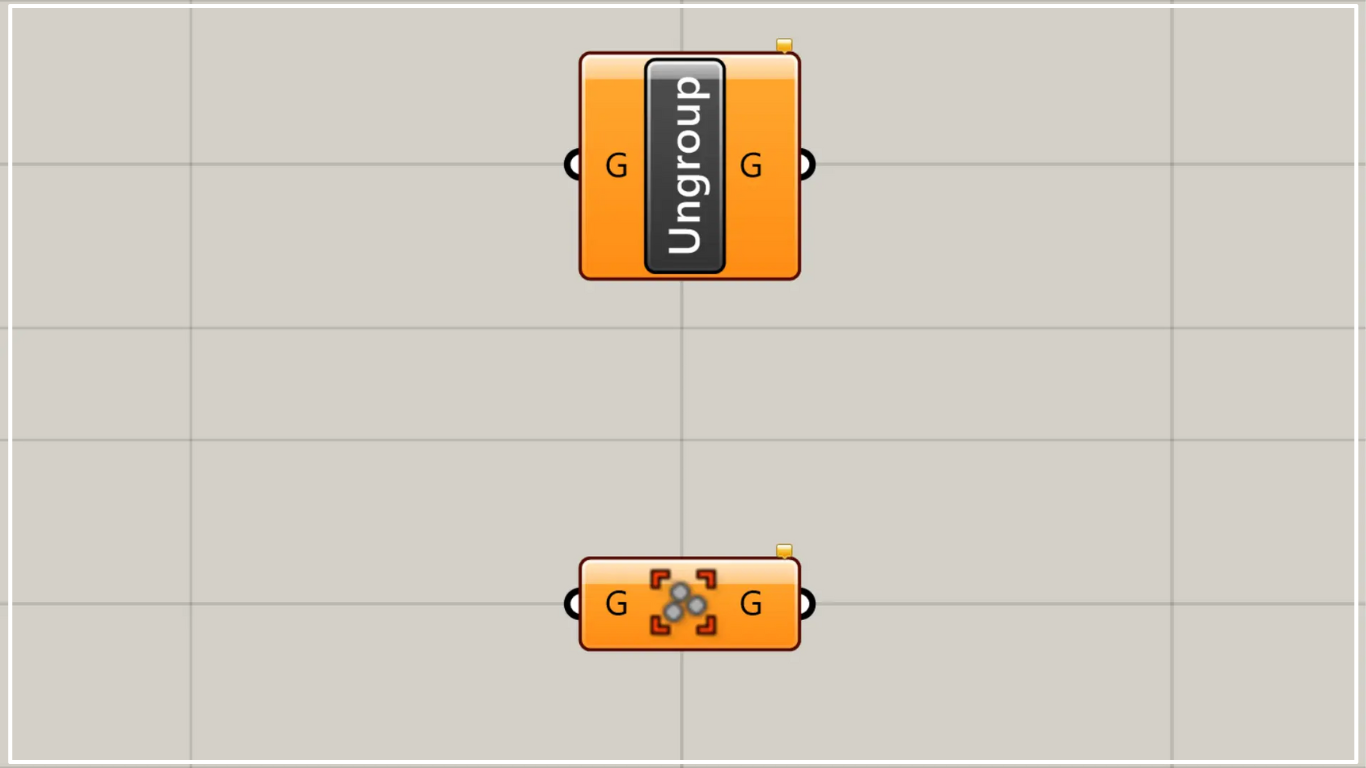
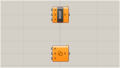
On the Grasshopper, it is represented by either of the two above.
Break up groups
You can break up groups by using Ungroup.
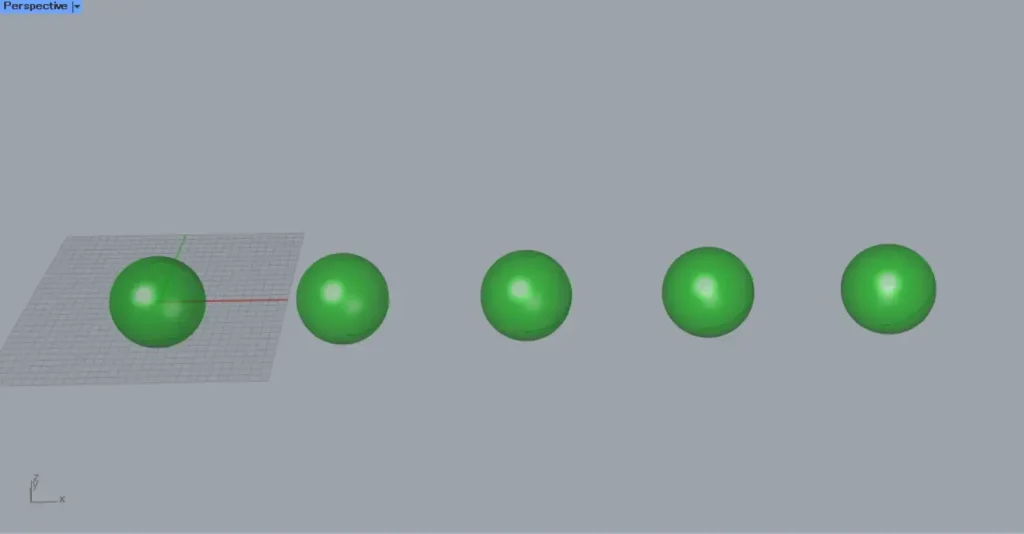
First, as an example, we’ll use the five grouped spheres on the Grasshopper.
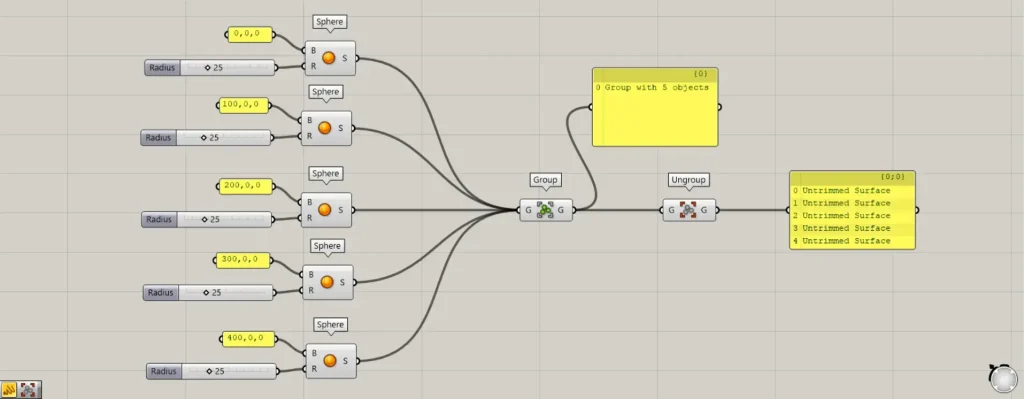
Components used: ① Sphere ② Group ③ Ungroup
Enter the coordinates (0, 100, 200, 300, 400, and 500), 0, 0 into the five Sphere(B).
Then, enter the value 25 for the radius into each Sphere(R).
Then, five spheres with a radius of 25 will be created at the specified coordinates.
Then, connect all Spheres to the Group.
Then, the five spheres were grouped together.
Looking at the data output from the Group, it appears to be a single group data set.
Then connect the Group to Ungroup.
Then, the grouping was removed, and the original five spheres’ data was output from Ungroup.
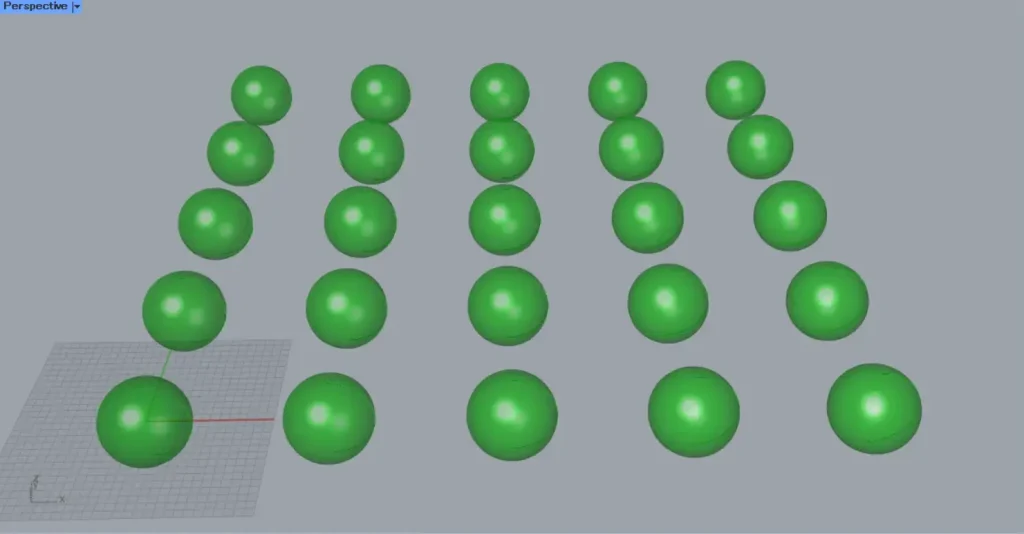
Let’s look at what happens when we copy an array of five grouped spheres.
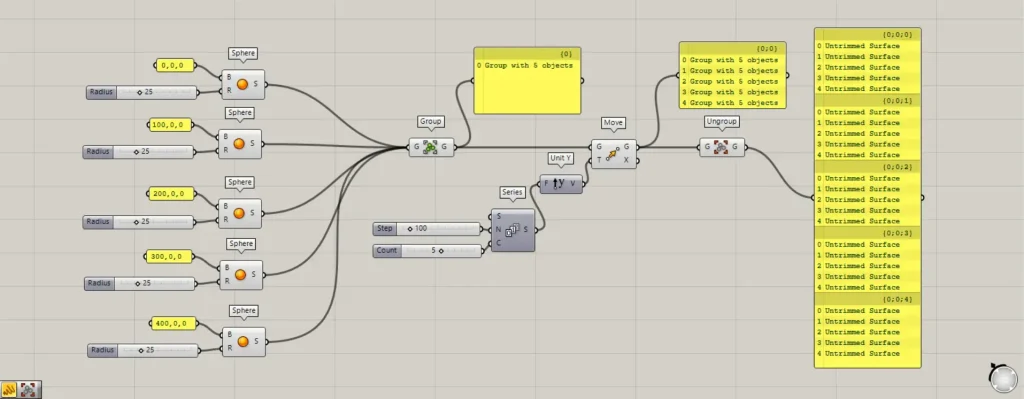
Additional Components: ① Series ② Unit Y ③ Move
Enter 100 into the Series(N), and enter the value 5 into the Series(C).
Then, five values are created: 0, 100, 200, 300, and 400.
Then connect the Series to Unit Y.
Additionally, connect Unit Y to the Move(T) and connect Group to the Move(G).
Then, the entire row was copied and pasted, creating a 5×5 sphere.
In this case, they are grouped in sets of five per line.
Looking at the data output from Move, five groups of data are being output.
After that, connecting Move to Ungroup created five branches.
Each branch contains five spheres.
In this way, when multiple group data exist, Ungroup creates one branch for each group data.
List of Grasshopper articles using Ungroup component↓





Comment