
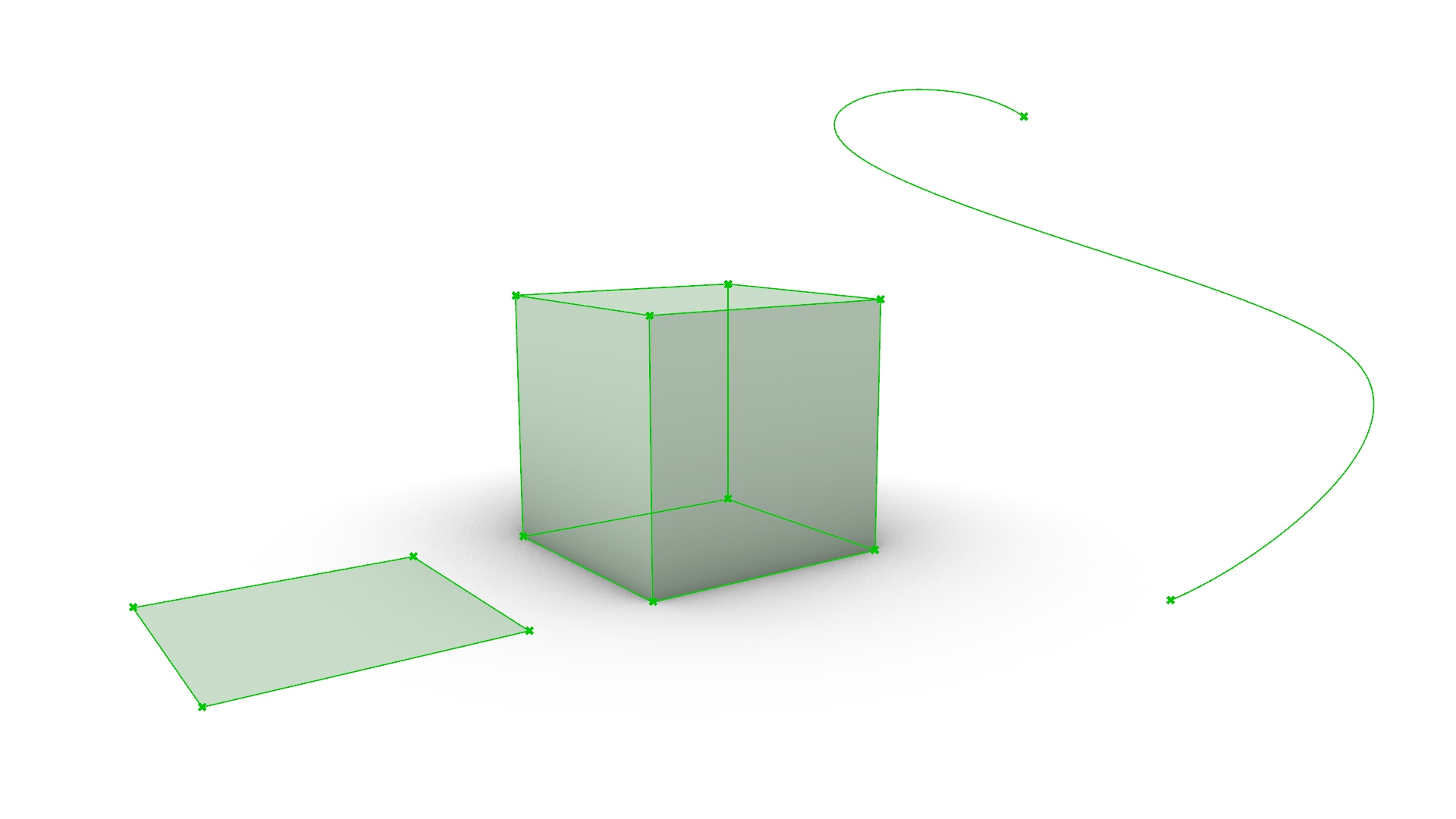
When using Grasshopper, you’ll often find yourself wanting to extract points, curves, and surfaces from your model.
This time, we’ll introduce how to extract the individual components from solids, surfaces, and lines.
In conclusion, for solids and surfaces, use “Deconstruct Brep”; for lines, use “End Points”.
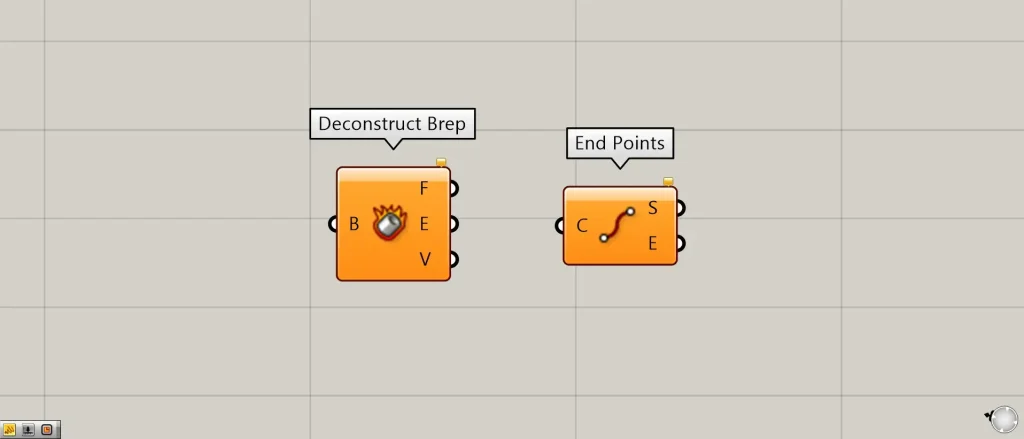
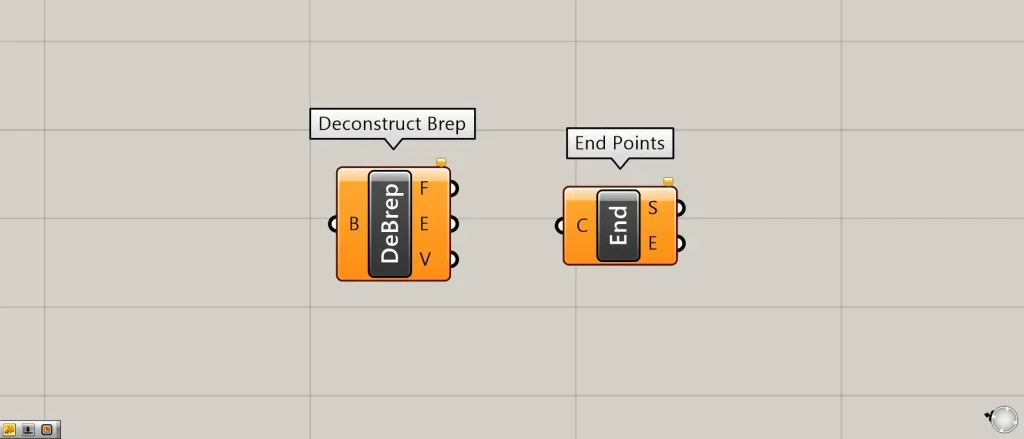
On the Grasshopper, they are represented by either of the two above.
Now, let’s get into the explanation. You can download the Grasshopper and Rhino data for this session from the link below, so please feel free to use it.
Download Grasshopper and Rhino data here
For information regarding the use of downloadable data, please refer to the Terms of Use.
Video
For solids and surfaces
The first component is Deconstruct Brep.
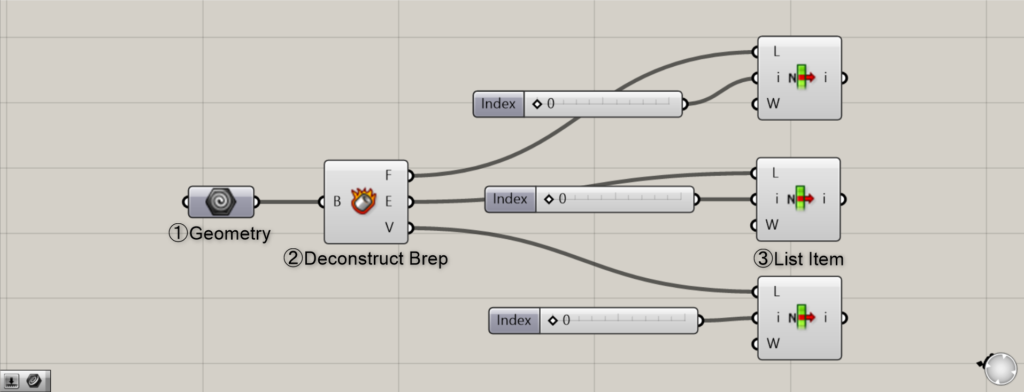
Components used: ① Geometry ② Deconstruct Brep ③ List Item
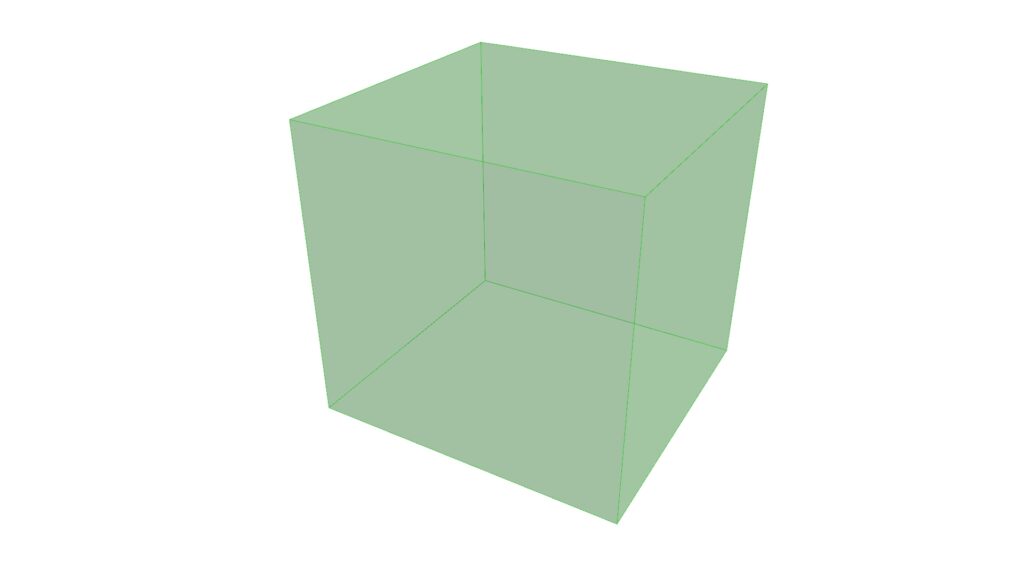
In this case, set the solid or surface you will use into the Geometry.
First, right-click the Geometry component.
Then, selecting “Set One Geometry” allows you to store the model.
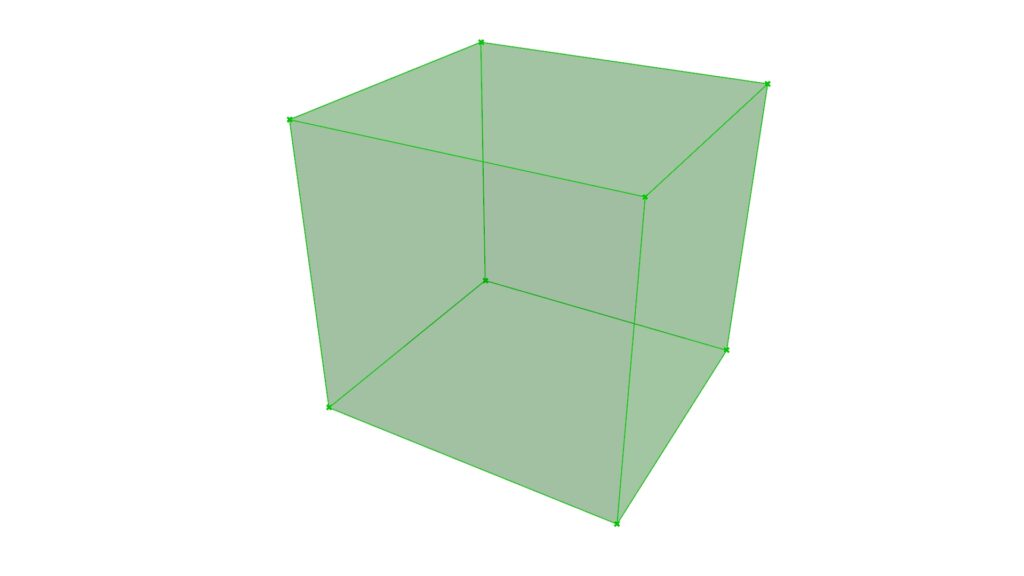
Next, use Deconstruct Brep.
Using this, the current model is decomposed into surfaces, edges, and vertices.
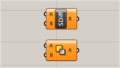
Deconstruct Brep(F) stores surface data, Deconstruct Brep(E) stores curve data, and Deconstruct Brep(V) stores point data.
However, as it stands, it’s merely being broken down, and we haven’t been able to extract the specific part we want.
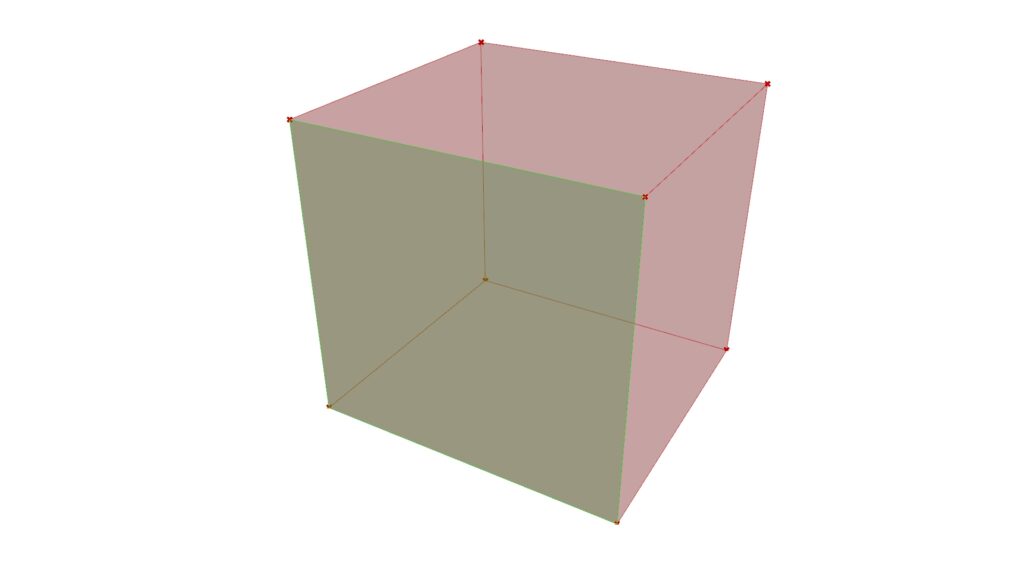
Therefore, we use List Item.
This component can extract data corresponding to the index number by entering a numerical value into the i terminal.
Simply put, when there are six faces, each face is assigned a number, and entering one number from 0 to 5 allows you to extract only one face.
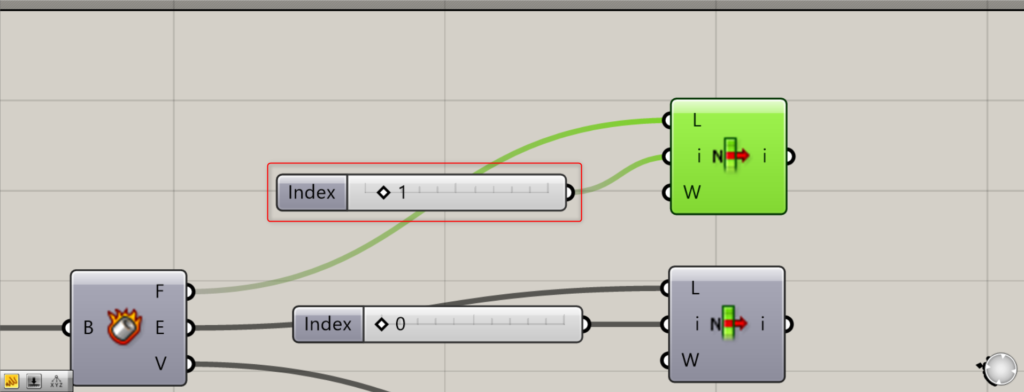
As shown in the photo above, let’s change the value from 0 to 1.
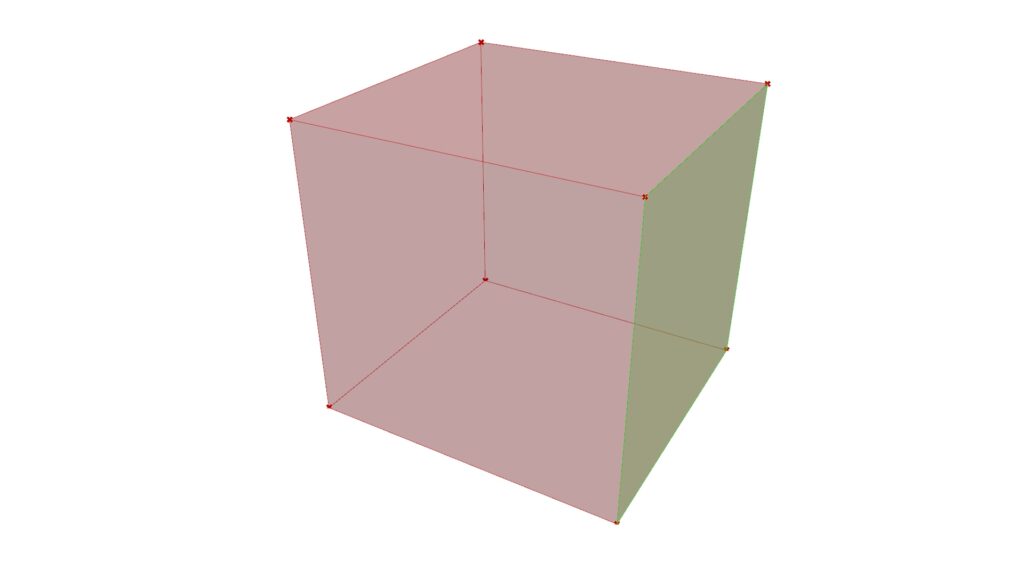
Then, the selected face changed from the front to the right side.
This way, you can extract the specific part you want to obtain.
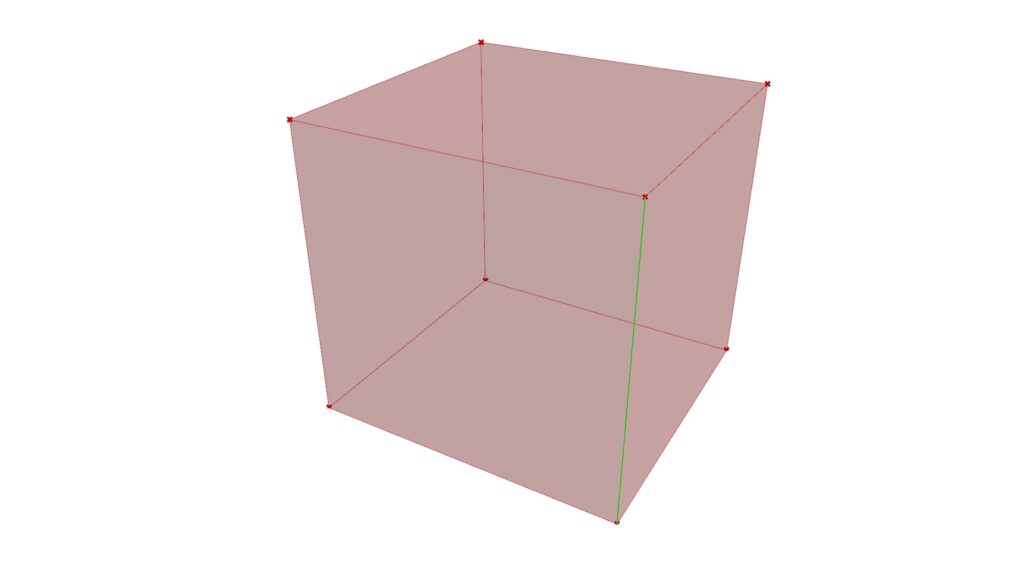
This shows the process of extracting curves.
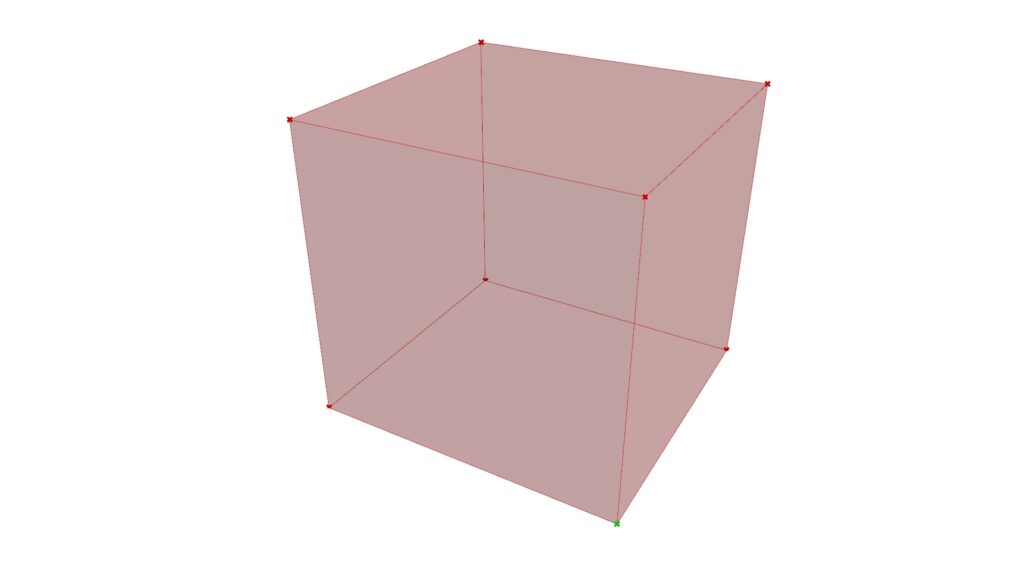
Points can also be extracted in this manner.
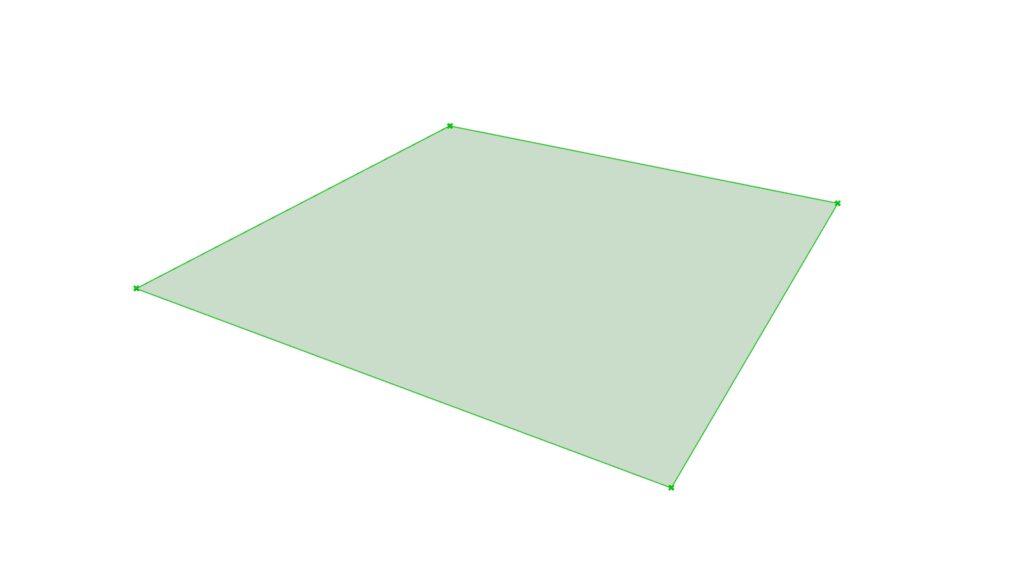
Similarly, data placed into Geometry can be decomposed and extracted even if it is a surface.
However, errors occur when dealing with curves. Therefore, other methods are required when you want to decompose curves.
List of Grasshopper articles using Deconstruct Brep component↓

In the case of a curve
The component for the curve case is End Points.
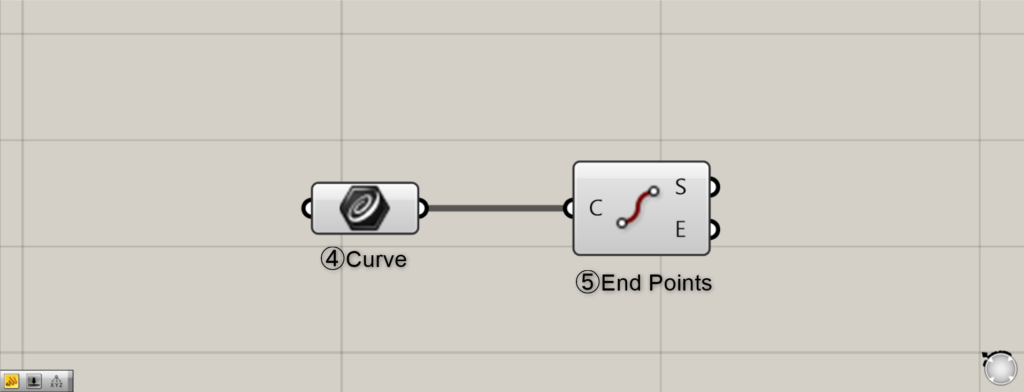
Components Used: ④ Curve ⑤ End Points
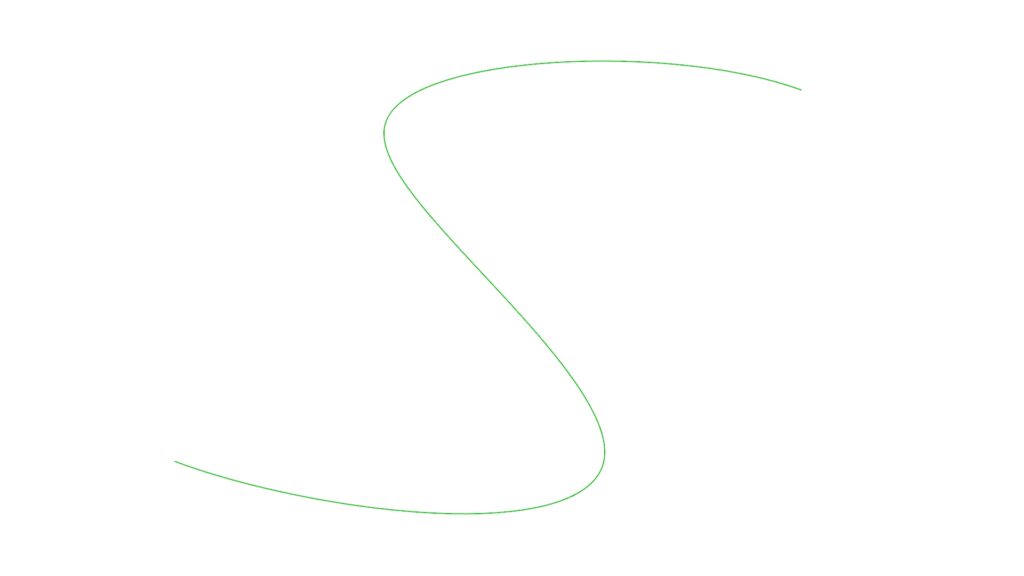
In this case, store the curve in Curve. The method is the same as when we worked with Geometry earlier.
Right-click the component and select “Set One Geometry.”
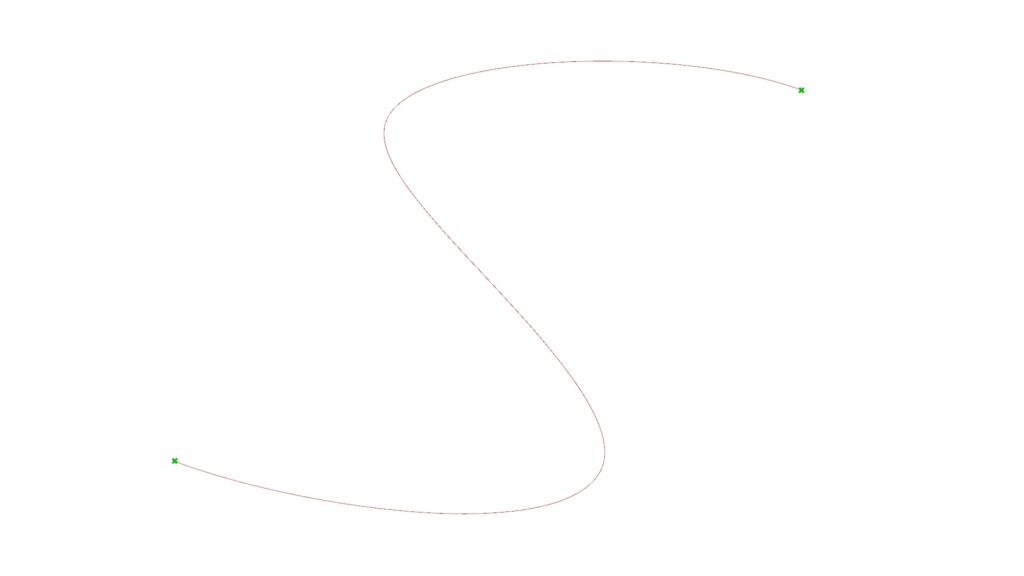
And then use End Points.
This component can extract the first and last points of a curve.
The End Points(S) indicates the starting point, and the ending point can be extracted from the End Points(E).
This allows you to extract points from curves.
List of Grasshopper articles using End Points component↓




Comment